


Have you noticed a thin purple line running across your iPhone screen? It can appear suddenly, even without visible damage. A purple vertical line is usually a sign of hardware failure in the OLED display panel or a disconnected internal flex cable.
However, a temporary software glitch can also cause display issues. So, does your iPhone need a screen replacement, or can a simple fix solve the problem? In this blog, find out why there is a purple line on your iPhone screen, how to fix it and what display repair costs in India.
Also read: Phone Screen Green Line Issue Explained: Hardware or Software?
Why Is There a Purple Line on My iPhone Screen?
You unlock your phone and see a thin purple streak. It runs down or across the display. It does not move. It does not go away. Most modern iPhones use OLED or Super Retina displays. These displays contain tiny pixels that produce different colours.
When some pixels stop working correctly or the display circuitry gets damaged, you may notice a coloured line. It can appear vertically or horizontally. A line that stays put on every screen points to the display itself. A line that appears only in one app points to a software glitch.
Here are the most common reasons behind this issue.
Common Causes of a Purple Line on an iPhone Screen
Several factors can cause a purple line to appear on your iPhone screen. Here are the most common ones.

1. Loose Or Damaged Display Connector
Your iPhone's display connects to the motherboard through small internal connectors and flex cables. These components carry display signals from the phone to the screen.
A strong impact, previous repair or internal damage can affect these connections. This may result in coloured lines, flickering or an unresponsive display.
A technician can inspect the connector and determine whether it needs adjustment or replacement.
Also read: OnePlus Phone Green Line Issue? Here’s How To Sell It Without A Big Loss
2. Software Glitches Or iOS Bugs
Not every display issue comes from hardware damage. Sometimes, an iOS bug or temporary software glitch can cause unusual screen behaviour.
A software-related issue may appear after an update or during an app session. However, a permanent purple line is less likely to be caused by software.
Restarting your iPhone and installing the latest stable iOS update can help rule out temporary software problems.
3. Physical Damage To The Display
Dropping your iPhone is one of the most common reasons for coloured lines on the screen. Even if the glass does not crack, the impact can damage the display panel underneath.
A hard fall can affect the OLED layers and internal display connections. This may cause a purple, green or pink line to appear.
Sometimes, the line appears immediately after a fall. In other cases, it develops after a few hours or days.
4. OLED Display Panel Damage
Many iPhone models use OLED technology. Unlike LCD panels, OLED displays use individual pixels that produce their own light.
Damage to the OLED panel can affect how these pixels work. As a result, you may notice:
- A thin purple or pink line.
- Flickering around the affected area.
- Dead pixels near the line.
- Uneven colours or dark patches.
- A line that becomes wider over time.
If the purple line remains visible after restarting your iPhone, the display panel may need professional inspection.
5. Overheating And Internal Component Issues
Excessive heat can affect electronic components inside your iPhone. Long gaming sessions, heavy video editing, direct sunlight and charging in hot conditions can increase the device's temperature.
Overheating alone does not automatically cause a purple line. However, existing display or component damage can make screen problems worse.
If your iPhone frequently overheats along with display issues, get it checked at an authorised service centre.
6. Liquid Damage
Water and moisture can affect the internal components of your iPhone. Even if your device has water resistance, it does not mean it is completely waterproof.
Liquid can damage the display connectors, circuits or other internal components. This may cause purple lines, flickering or display discolouration.
If your iPhone recently came in contact with water, avoid charging it and get it inspected by a professional.
7. A Past Screen Replacement
A cheap or non-genuine screen can cause colour problems and touch issues. Check this if you bought a used phone.
Open Settings > General > About > Parts and Service History. On supported models, it shows if the display was replaced.
Which iPhones Get the Purple Line Most?
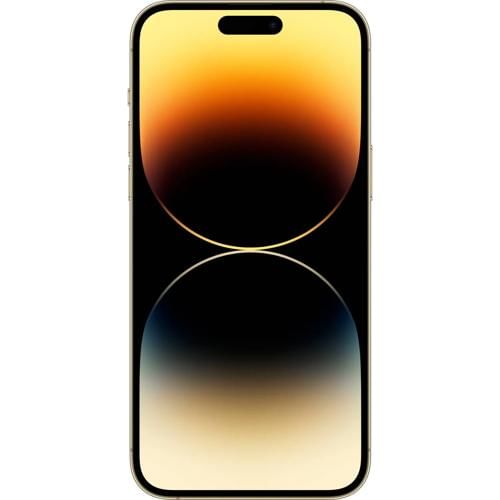
Reports cluster around iPhones with OLED screens. That list runs from the iPhone X to the iPhone 14 Pro Max.
- iPhone X, XS and XS Max
- iPhone 11 Pro and 11 Pro Max
- iPhone 12 series
- iPhone 13 series
- iPhone 14 series, including the 14 Pro Max
Users report the issue on the iPhone 14 Pro Max a lot. Newer models see it less often. Rare cases exist on the iPhone 15 and later. No model is fully safe.
Also read: Apple iPhone 13 Mini Screen Line Issue After Battery Replacement: What Went Wrong?
How To Fix The Purple Line On Your iPhone Screen?
Before spending money on a screen replacement, try a few troubleshooting steps. These fixes can help if the issue comes from a temporary software glitch or an external factor.
However, remember that software fixes cannot repair a physically damaged OLED panel.
1. Restart Your iPhone
 Restarting your iPhone is the easiest step to try. It can clear temporary software glitches and refresh the display system.
Follow these steps:
- Press and hold the Side button and either Volume button.
- Wait for the power-off slider to appear.
- Drag the slider to turn off your iPhone.
- Wait for a few seconds.
- Press and hold the Side button until the Apple logo appears.
Check whether the purple line disappears after restarting.
2. Force Restart Your iPhone
If a normal restart does not help, try a force restart. This can resolve temporary software freezes without deleting your data.
For iPhone 8 and newer models, including the iPhone X, 11, 12, 13, 14, 15, 16, 17 and 18 series, follow these steps:
- Quickly press and release the Volume Up button.
- Quickly press and release the Volume Down button.
- Press and hold the Side button.
- Release it when the Apple logo appears.
For iPhone 7 and 7 Plus, press and hold the Volume Down and Side buttons together until the Apple logo appears.
For iPhone 6s and older models, press and hold the Home and Side or Top buttons together until the Apple logo appears.
Once your iPhone restarts, check the display again.
3. Update Your iPhone To The Latest iOS Version
An outdated iOS version can sometimes cause display-related glitches. Apple regularly releases software updates to fix bugs and improve device performance.
Here's how to check for an update:
- Open Settings on your iPhone.
- Go to General.
- Tap Software Update.
- Check whether a new update is available.
- Tap Update Now or Download and Install.
Make sure your iPhone has enough battery and storage before installing the update. Also, back up your important data.
If the purple line appeared after a recent update, check for another available update. Avoid installing unofficial software or downgrading iOS through untrusted tools.
4. Check Your Display Settings
Incorrect display settings are unlikely to cause a permanent purple line. However, checking them can help rule out display-related visual glitches.
 Try these steps:
- Open Settings.
- Select Display & Brightness.
- Switch between Light and Dark Mode.
- Turn True Tone off and check the display.
- Adjust the brightness and see whether the line changes.
 If the line stays in the same place, the problem is more likely related to the display hardware.
5. Remove The Screen Protector And Accessories
Sometimes, a damaged screen protector, dirt or moisture on the display can affect how the screen looks.
Remove the screen protector and case temporarily. Disconnect charging cables and other accessories.
Clean the display gently with a soft, lint-free cloth. Avoid using excessive moisture or applying pressure to the screen.
If the purple line remains visible, the screen itself may have an issue.
6. Check Whether The Purple Line Appears In A Screenshot
This is a useful way to understand whether the problem comes from the display or the software.
Follow these steps:
- Take a screenshot while the purple line is visible.
- Send the screenshot to another phone or computer.
- Open the screenshot on that device.
- Check whether the purple line appears in the captured image.
If the line appears in the screenshot, it may be related to software or the image being displayed.
If the screenshot looks normal on another device but the purple line remains on your iPhone, a physical display issue becomes more likely.
This test is not a final diagnosis, but it can help narrow down the problem.
7. Reset All Settings
If you suspect an iOS-related issue, resetting all settings is another option.
This resets system preferences without deleting your photos, videos, apps or other personal files.
Here's how to do it:
- Open Settings.
- Go to General.
- Select Transfer or Reset iPhone.
- Tap Reset.
- Choose Reset All Settings.
- Enter your passcode and confirm.
Your Wi-Fi passwords, privacy settings and other preferences will need to be configured again.
Important: Avoid choosing Erase All Content and Settings unless you have backed up your data and understand that it will erase your iPhone. A factory reset is not a reliable solution for physical display damage.
Signs the Problem Is Hardware
Stop troubleshooting if you see any of these:
- The line stays after a restart and an update.
- The line shows on the lock screen and in every app.
- The line is missing in screenshots.
- The line grows, spreads or changes colour.
- Touch stops working near the line.
- The screen flickers.
- You dropped the phone or exposed it to liquid.
In these cases, no setting will help. You need a repair.
Where to Get the Purple Line Fixed?
You have three main choices.
Apple or an Apple Authorised Service Provider: You get genuine parts and a warranty on the repair. You also pay the highest price.
A trusted local repair shop: It costs less. Part quality varies. Ask which screen they use and what warranty they give.
A repair partner you trust: Pick one with clear prices and written warranty terms. Avoid shops that will not name the part.
A wrong diagnosis wastes money. Sometimes the display is fine and the cable or the logic board is the real problem. Ask the technician to test before they replace.
How Much Does It Cost To Fix A Purple Line On An iPhone In India?
The repair cost depends on the iPhone model, the type of display damage and whether you need a complete screen replacement.
If the issue comes from a damaged display connector, a technician may be able to repair the connection. However, if the OLED panel is damaged, you will usually need a screen replacement.
Here is an indicative estimate for screen replacement in India.
iPhone model | Approximate third-party screen repair cost |
|---|---|
iPhone 11 series | ₹8,000–₹15,000 |
iPhone 12 series | ₹10,000–₹20,000 |
iPhone 13 series | ₹12,000–₹25,000 |
iPhone 14 series | ₹15,000–₹30,000 |
iPhone 15 series | ₹18,000–₹35,000 |
iPhone 16 series | ₹20,000–₹40,000 |
iPhone 17 series | ₹25,000–₹45,000 |
iPhone 18 series | ₹30,000–₹60,000+ |
Note: These are broad, indicative third-party repair estimates, not verified Apple service prices or fixed quotations. Actual costs vary by model, screen type, part quality and service provider. Confirm the price and warranty before approving a repair.
Should You Repair or Replace Your iPhone?
Use this quick rule.
Repair it if:
- The phone is under three years old.
- The battery is healthy.
- The repair costs less than about 40% of a similar used phone.
- You have AppleCare+.
Replace it if:
- The phone is four years old or more.
- The repair costs more than half the phone's value.
- The battery or storage already gives you trouble.
- The phone has liquid damage on top of the display fault.
Check what your current phone is worth before you decide. A working-but-damaged phone still has resale value. Cashify lets you check an instant quote, which can help you fund an upgrade or a good refurbished iPhone.
Always back up before any repair or sale. Sign out of iCloud and erase the phone before you hand it over.
How to Prevent Display Damage
You cannot stop every fault. These habits cut the risk.
- Use a sturdy case and a tempered glass protector.
- Keep the phone away from water, steam and sweat.
- Do not sit on your phone or press the screen hard.
- Avoid heat, such as a dashboard in summer.
- Fix small display issues early.
- Use genuine or well-reviewed parts for any repair.
Consider AppleCare+ on a new phone. It turns a ₹30,000 screen bill into a few thousand rupees.
Verdict: Can You Fix It Yourself?
Sometimes. Not often.
Try these easy fixes first. They cost nothing. They only help when the cause is a software glitch, and that is rare.
If the line stays, treat it as a display fault. Choose a repair option based on your phone's age and value. For a new phone, go to Apple. For an older phone, a trusted shop makes sense. For a phone that is very old, compare the repair price with selling it and upgrading.
Do not ignore the line. It can spread. It can also point to deeper damage.
FAQs
Why is there a purple line on my iPhone screen?
A purple line usually comes from display hardware damage. A drop, liquid exposure, a loose display cable or a failed OLED panel can cause it. A software bug is possible but rare.
2. Can a purple line on an iPhone screen go away on its own?
If the line appears due to a temporary software glitch, it may disappear after restarting or updating your iPhone. However, a permanent purple line caused by hardware damage usually requires professional repair.
3. Is the purple line dangerous for my iPhone?
The line itself is not dangerous. It does signal a fault, though. The fault can get worse over time. Back up your data soon.
4. Does a purple line always mean a cracked screen?
No. The outer glass can look perfect. The damage can sit in the layers under it.
5. Can an iOS update cause a purple line on an iPhone?
A software bug can sometimes cause unusual display behaviour. However, persistent coloured lines are more commonly associated with hardware issues. If the problem started after an update, check for another stable iOS update and contact Apple Support if it continues.
Conclusion
A purple line on your iPhone screen can be frustrating, but it does not necessarily mean your entire phone is damaged. Start with basic troubleshooting steps to rule out software issues. If the line remains, get the display inspected by a professional. Compare repair costs before deciding whether to replace the screen or upgrade your iPhone. A timely repair can help prevent further display problems and keep your iPhone working properly.
If you’ve just bought a new phone and don’t know what to do with your old phone, then here’s your answer. Sell old mobile to Cashify and get the best price for it. If you are planning to buy a new phone, check out Cashify’s refurbished mobile phones. You can get your favourite phone at almost half price with six-month warranty, 15 days refund and free delivery.