If your chat list is crowded or you’re managing a WhatsApp group that has served its purpose, you may be wondering how to delete a WhatsApp group properly. The process is simple once you understand how WhatsApp handles group ownership and permissions.
This detailed guide will walk you through everything you need to know- whether you’re an admin or a member. So, let’s begin.
Also Read: How To Recall/ Undo An Email In Gmail: Step-By-Step Guide
Why You Might Want to Delete a WhatsApp Group?
Before we dive into the steps, let’s look at common reasons people choose to delete groups:
1. The Group Has Served Its Purpose
Examples:
- Event planning group after the event ends
- Temporary work project team
- School assignment collaboration
2. Too Many Notifications
Constant messages can become distracting and stressful.
3. Inactive Groups
Groups that haven’t been used in months clutter your chat list.
4. Privacy Concerns
Old groups may contain sensitive discussions or personal numbers you no longer want shared.
5. Digital Decluttering
Keeping your chat list clean improves productivity and focus.
Important: Who Can Delete a WhatsApp Group?
This is the most important rule:
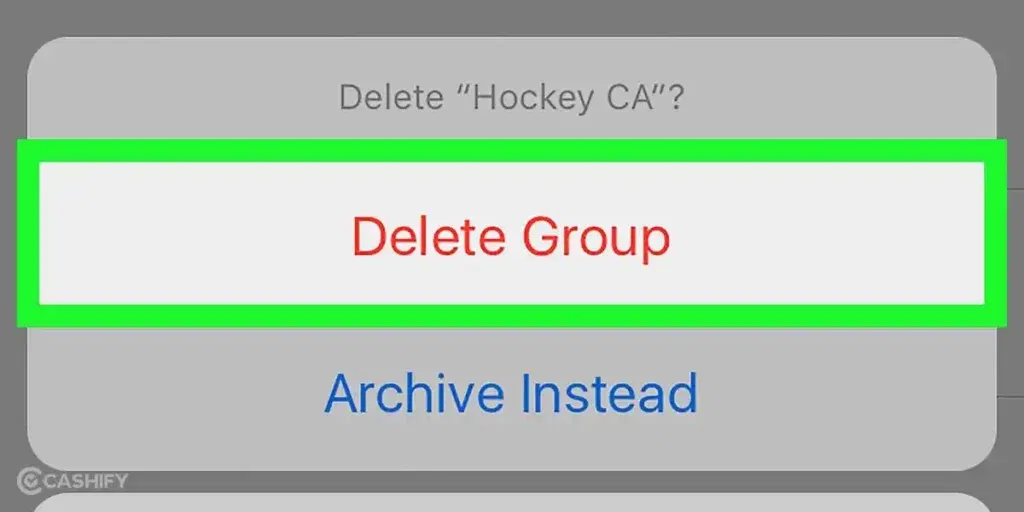
Only a group admin can permanently delete a WhatsApp group.
If you are not an admin:
- You can leave the group
- You can delete the chat from your phone
- But the group will still exist for other members
If you are an admin:
- You can remove members
- Exit the group
- Delete it permanently
Also Read: Vivo X200T Vs Motorola Signature: Which One Is Worth Your Upgrade?
What Happens When a WhatsApp Group Is Deleted?
When an admin deletes a group:
- The group disappears from everyone’s chat list
- All members are removed
- No new messages can be sent
- The group cannot be restored
However:
Old messages remain on members’ phones unless they delete them manually.
How Admins Can Delete a WhatsApp Group?
- Open WhatsApp and tap the group you want to delete.
- Tap the group name at the top to open Group Info.
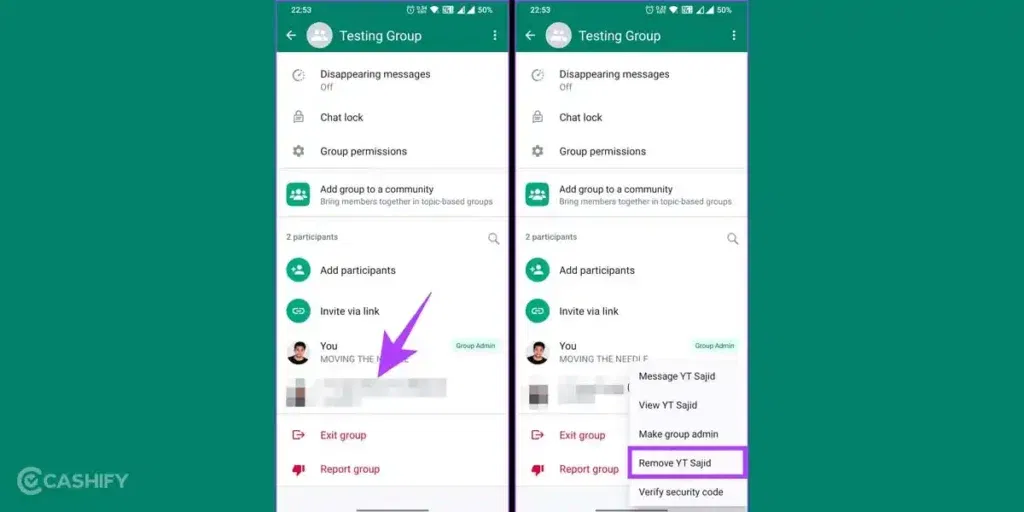
- Scroll to the participants list and remove each member:
- Tap a member’s name> Remove from group> Confirm.
- Repeat until all members are removed (you should be the only one left).
- Scroll down and tap Exit group> Confirm.
- Tap Delete group> Confirm deletion.
How Members Can Remove a Group?
If you are not an admin, you cannot delete the group for everyone- but you can remove it from your phone.
Step 1: Exit The Group
- Open the group chat.
- Tap the group name.
- Scroll down.
- Tap Exit group.
- Confirm.
Step 2: Delete The Chat
After exiting:
- Return to the chat list.
- Tap and hold the group name.
- Tap the delete icon.
- Confirm.
Now the group is removed from your WhatsApp.
Also Read: Oppo K14x Vs Vivo T4x: Which Is The Better 5G Phone Under 20000?
Alternative Options (If You Don’t Want To Delete The Group)
Sometimes deleting a group isn’t necessary. Here are better options depending on your situation.
1. Mute Notifications
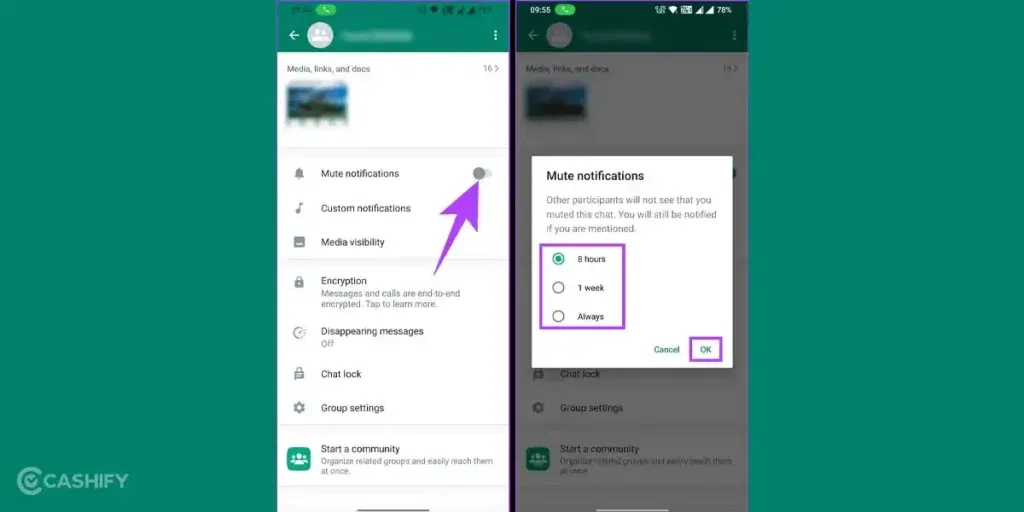
If the group is useful but too noisy:
- Open the group
- Tap the name
- Select Mute notifications
- Choose duration (8 hours, 1 week, or Always)
2. Archive The Group
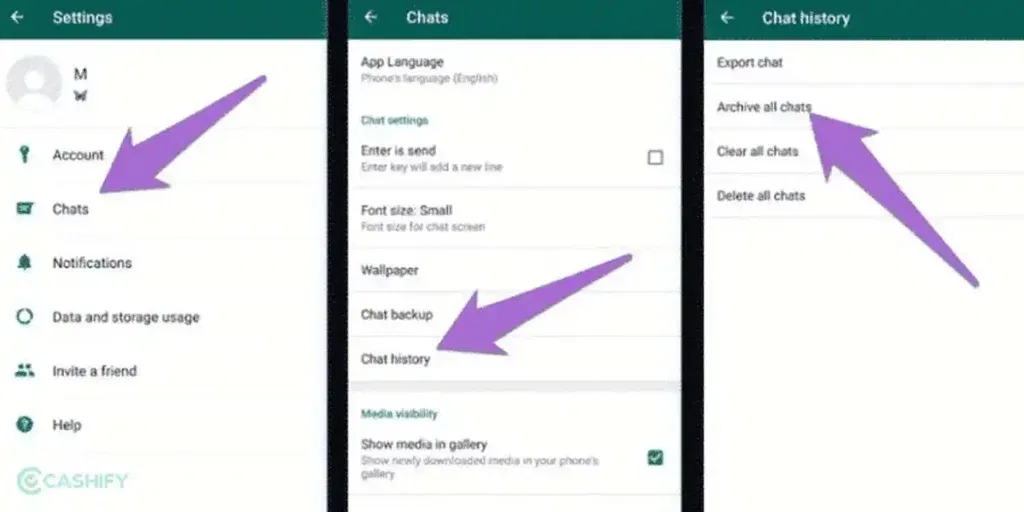
Archiving hides the group without leaving it.
- Go to chat list.
- Tap and hold the group.
- Tap Archive.
You can access archived chats anytime.
3. Restrict Messages To Admins Only
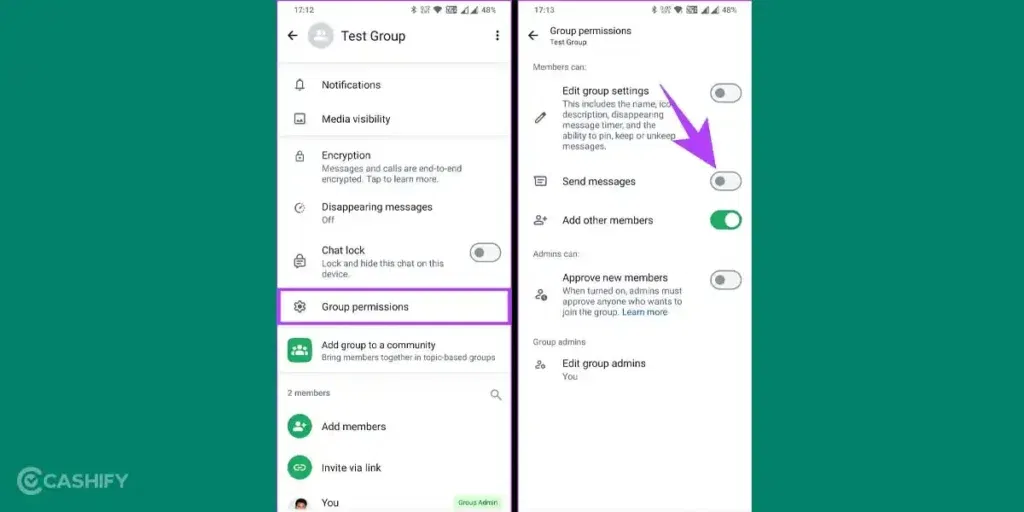
Useful for announcement groups.
- Open Group Info.
- Tap Group settings.
- Select Send messages> Admins only.
Common Mistakes to Avoid When Deleting a WhatsApp Group
Many users believe they have deleted a WhatsApp group, only to discover later that it still exists or that data remains accessible. Understanding these common mistakes can help you avoid confusion, protect privacy, and manage groups more effectively.
Mistake 1: Exiting Instead Of Deleting
What people think:
Leaving (exiting) the group deletes it for everyone.
What actually happens:
Exiting a group only removes you from it. The group continues to exist for all other members, and they can keep chatting as usual.
Why this causes confusion:
After exiting, the group disappears from your chat list, which makes it seem like it was deleted.
How to avoid it:
If you are an admin and want to delete the group permanently:
- Remove all members
- Exit the group
- Tap Delete group
Mistake 2: Forgetting To Remove Members First (Admins Only)
What people think:
Admins can delete a group instantly.
What actually happens:
WhatsApp requires admins to remove all participants before the delete option appears.
Why this rule exists:
It prevents accidental deletion of active groups and ensures admins intentionally close the group.
Common scenario:
Admins exit the group without removing members- another admin remains, and the group continues.
How to avoid it:
- Remove every participant
- Confirm you are the last member
- Then exit and delete
Also Read: Oppo Reno 15c Vs Vivo V60: Best Mid-Range Phone To Buy
Mistake 3: Assuming Messages Disappear For Everyone
What people think:
Deleting a group erases all chats and media.
What actually happens:
Messages, photos, videos, and documents remain saved on members’ devices unless they delete them manually.
Privacy implication:
Sensitive conversations may still exist on other phones.
How to avoid issues:
- Avoid sharing confidential data in groups
- Inform members before deleting if privacy is a concern
- Ask members to delete media if necessary
Mistake 4: Thinking The Group Can Be Recovered
What people think:
A deleted group can be restored from backup or recreated with chat history.
What actually happens:
Once a WhatsApp group is deleted:
- The group structure is gone
- Member list is lost
- Chat history cannot be restored collectively
You can create a new group, but it will start fresh.
Why this matters:
Deleting a group without saving important information may result in permanent data loss.
How to avoid regret:
- Save important files or messages before deleting
- Take screenshots if needed
- Inform members before deletion
Final Thoughts
WhatsApp groups make communication easier, but too many groups can lead to clutter, distraction, and privacy concerns. Knowing how to delete a WhatsApp group ensures you stay in control of your digital environment.
Whether you’re an admin closing an old project group or a member cleaning up your chat list, understanding the correct steps prevents confusion and protects your data.
Also Read: Redmi Note 15 Pro Vs Redmi Note 13 Pro: Which One Should You Buy?
Frequently Asked Questions
How can I delete a WhatsApp group I created?
If you created the group, you are the admin and can delete it permanently. Open the group, tap the name, remove all members, exit the group, then tap “Delete group.” Once deleted, the group disappears for everyone, though past messages remain on members’ devices unless they delete them manually.
How do I delete an unwanted WhatsApp group on my iPhone?
On iPhone, open the group chat, tap the group name, scroll down, and select “Exit Group.” After leaving, return to the chat list, swipe left on the group, and tap “Delete.” This removes it from your phone only; the group still exists for other members unless an admin deletes it.
How to remove WhatsApp group from only admin can send messages?
If a group allows only admins to send messages, you cannot change that unless you are an admin. To remove the restriction, an admin must open Group Info → Group Settings → Send Messages → Select “All Participants.” If you’re a member, you can only request an admin to change the setting.
How do I delete and block a WhatsApp group?
You cannot block a group directly, but you can stop receiving messages. Exit the group to leave it permanently, then delete the chat from your list. If you’re added again, you can block the admin or adjust privacy settings to control who can add you to groups in the future.
If you’ve just bought a new phone and don’t know what to do with your old phone, then here’s your answer. Sell old mobile to Cashify and get the best price for it. If you are planning to buy a new phone, check out Cashify’s refurbished mobile phones. You can get your favourite phone at almost half price with six-month warranty, 15 days refund and free delivery.