The call waiting feature is one of the most significant features in today's world, and if you’re one of those ‘I need to attend too many calls today’ kind of busy people, then this feature will work best for you. And more importantly, this feature makes you more sweet by making other calls wait rather than disconnecting other calls straight away! So, we’ll tell you how to activate call waiting on an Android phone and also tell you about this feature’s key pros and cons, all inside this blog. So, let’s begin.
Call Waiting Alert: Know The Essence Of This Feature
Before we dive into the blog, let us first know what this feature means. Call waiting feature is basically a minor alert feature, which makes a good and a major difference. Whenever you call someone, you hear, "The person you’re calling is busy; please call later," and then the call gets cut. Now, when the call waiting alert comes up, you’ll hear, “The person you’re calling is busy; please wait a little longer.”
Instead of sending the new caller straight to voicemail or giving them a busy signal, your phone notifies you with a soft beep or on-screen prompt. When an incoming call arrives during your active conversation, you can:
- Answer and place on hold: Pick up the new call and put your current caller on hold.
- Swap between calls: Switch back and forth between both callers as needed.
- Decline/Send to voicemail: Ignore the incoming call and continue your current conversation without interruption.
- End and answer: Hang up on the current caller to immediately switch to the new one.
Now, it is time to reflect the key steps in this guide on how to activate call waiting on an android phone. So, let us show the key method.
Also Read: How to use two WhatsApp in one iPhone
How To Activate Call Waiting On An Android Phone
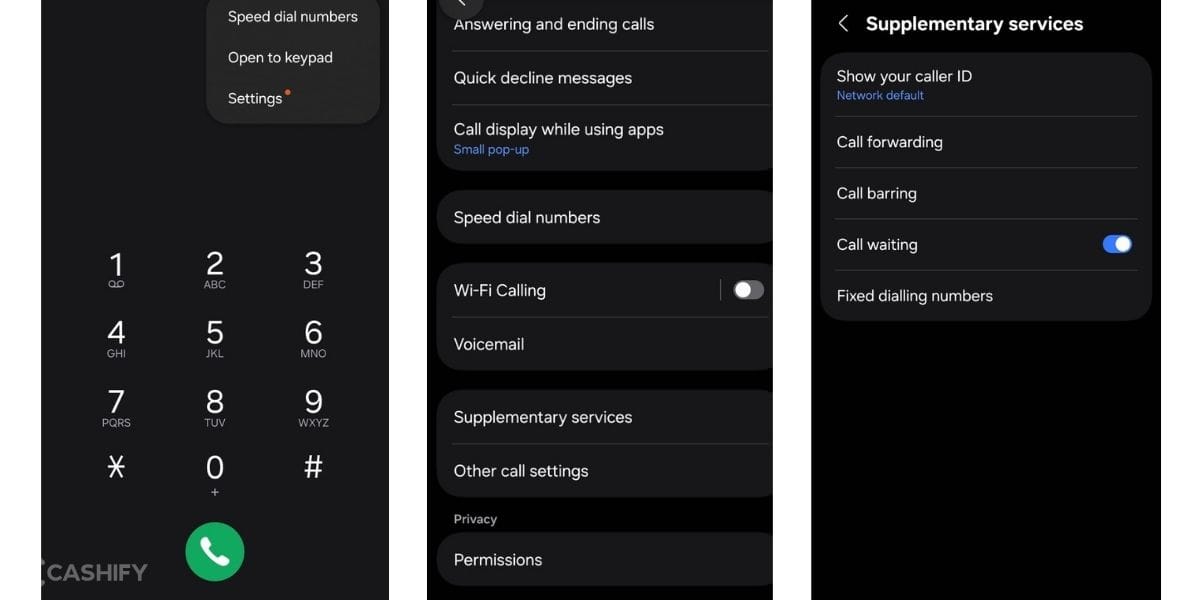
Here are all the methods to activate call waiting feature on an Android phone:
- Open the Phone app on your Android device.
- Tap the three dots (menu) in the top-right corner.
- Select Settings from the drop-down list.
- Tap Calling accounts or Supplementary services (depending on your phone brand).
- Select your SIM card if you use a dual-SIM setup.
- Tap Call Waiting or Additional Settings.
- Toggle the switch to On (it will turn blue or green).
- Alternative Quick Method: Open your dialer, type *43#, and press the Call button. A message will confirm that Call Waiting is enabled.
Now that you’ve known how to activate call waiting on an Android phone, let us also tell you the pros and cons of this feature and how to use it safely.
How To Use The Call Waiting Feature Safely: The Pros, Cons, And Precautions
Call waiting is a convenient feature that helps you manage multiple calls without immediately disconnecting incoming callers. It lets you place your current call on hold, answer another call, switch between conversations, or decline the second call. This can be especially useful for busy professionals, parents, and people expecting important calls.
However, call waiting also has a few drawbacks. Switching between calls can cause confusion, accidental disconnections, or privacy issues if sensitive information is discussed. Holding a call for too long may also frustrate the other person.
For safer use, avoid sharing confidential information when another caller is waiting, confirm which call you are handling before speaking, and use the decline option when necessary. Also, check your carrier’s call-waiting charges and settings regularly.
Also Read: How To Transfer Photos From Android To iPhone? See The Easiest Steps Here
FAQs
1. How to activate call waiting on an Android Phone?
Open the Phone app, go to Settings > Calling Accounts or Supplementary Services, select your SIM, tap Call Waiting, and turn it on. You can also dial *43#.
2. How can I check if call waiting is enabled on Android?
Go to your Phone app’s Calling Accounts or Supplementary Services settings and check the Call Waiting option. If it is switched on, you can receive another call during an ongoing conversation.
3. Does call waiting work on dual-SIM Android phones?
Yes, call waiting can work on dual-SIM Android phones, but you may need to configure it separately for each SIM. Availability can also depend on your mobile carrier.
4. What happens when I receive another call with call waiting enabled?
You’ll hear a notification or see an incoming-call alert while talking. You can answer the second call, place the first caller on hold, switch between calls, or decline it.
5. How do I activate call waiting using a USSD code?
Open your Android phone’s dialer, enter *43#, and press the Call button. Your network should display a confirmation message if call waiting has been successfully activated.
6. Why is call waiting not working on my Android phone?
Call waiting may not work because it is disabled, your carrier doesn’t support it, or your SIM settings need adjustment. Check Supplementary Services and contact your carrier if needed.
7. Can I turn off call waiting on an Android phone?
Yes. Open the Phone app, access Calling Accounts or Supplementary Services, select your SIM, and switch Call Waiting off. You can also try dialling #43# to deactivate it.
End Note
That’s it from this guide on How To Activate Call Waiting On An Android Phone. We have mentioned the key steps. This guide did not have much to offer; there are simple, quick steps to turn on the call waiting feature, and once you turn it off, your multiple call mode will be handled better. Keep coming for more such guides.
Also Read: How To Download Video From Any Website: Quick And Easy Steps!
Are you still browsing through your broken screen? Don’t worry! Book at-home mobile phone screen repair with Cashify—an affordable and one-stop destination for all your mobile phone needs. In case you break your screen within 1 month of repair, we will replace your screen again—for FREE.