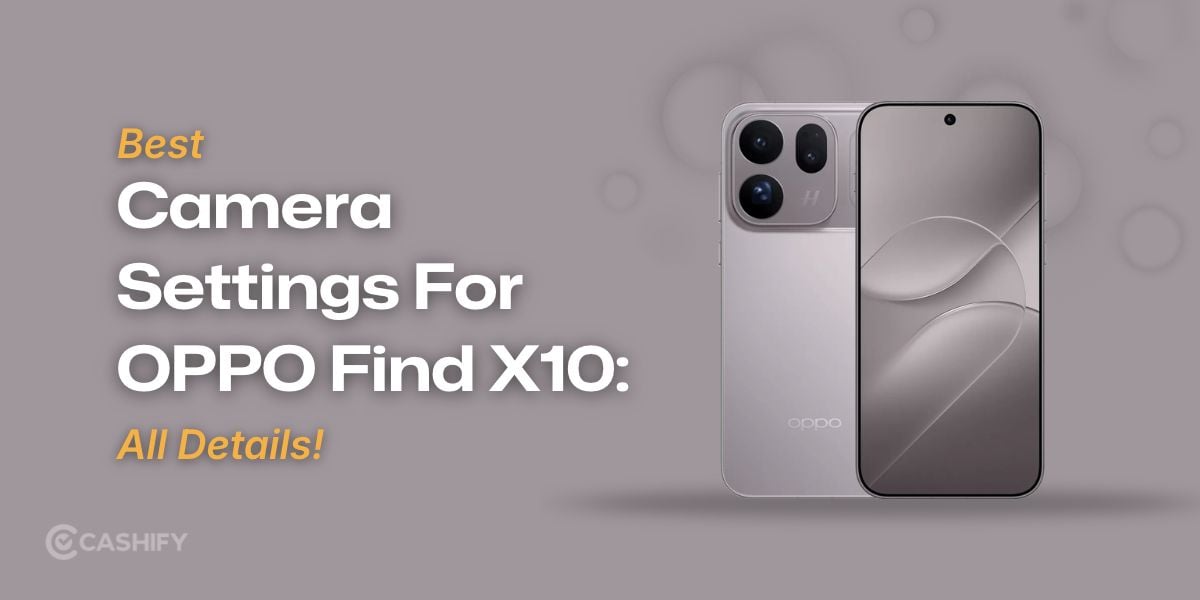
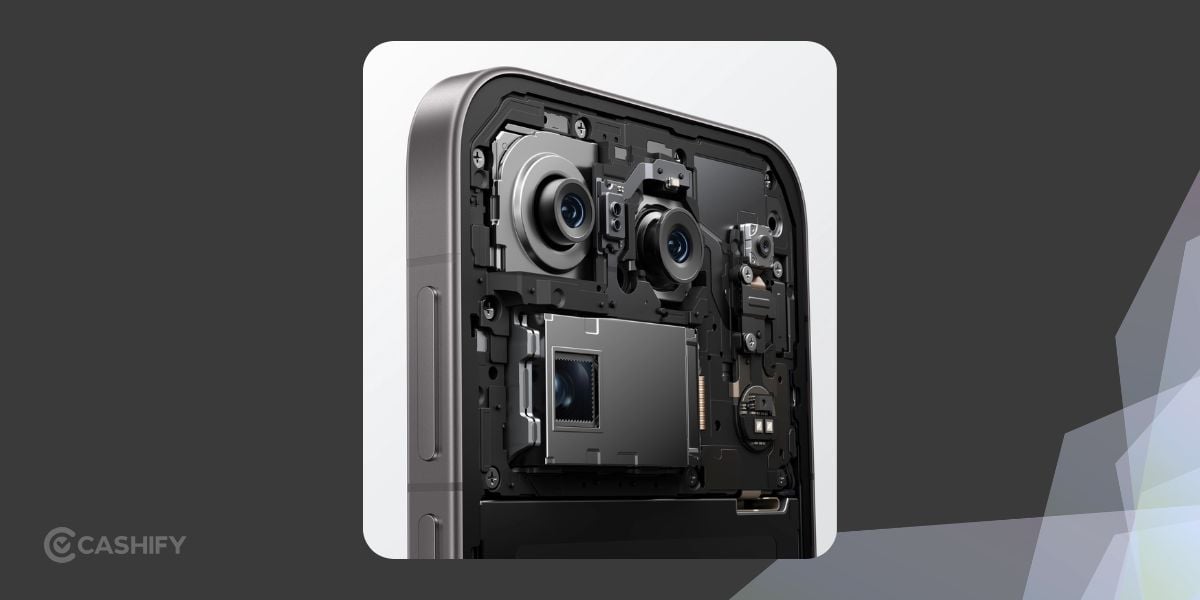
This is the only guide you need when it comes to best camera settings for OPPO Find X10! The OPPO Find X10 has a 200MP main camera, a 200MP telephoto camera and a 50MP ultra-wide camera. The Hasselblad imaging system can take natural colours and fine details across different scenes.
But which settings should you use for sharper photos, better night shots and smoother videos? Here is a simple guide to getting better results from the OPPO Find X10 camera.
Best Camera Settings for OPPO Find X10 At A Glance
Let's check out the best camera settings for OPPO Find X10:
Photography scenario | Recommended setting |
|---|---|
Everyday photos | Photo mode, Auto exposure |
Landscapes | Ultra-wide or main camera |
High-detail photos | Hi-Res mode, if available |
Night shots | Night mode for static scenes |
Portraits | Portrait mode, moderate background blur |
Moving subjects | Photo mode, faster shutter if needed |
Close-ups | Telephoto camera, test focus distance |
Everyday videos | 4K at 30fps |
Action videos | 4K at 60fps, if available |
Also Read: OPPO ColorOS 17 AI Capabilities: Your Phone Can Now Do More Than Answer Questions
Best Settings For Everyday Photography
For daily photos, start in standard Photo mode. It is suitable for family pictures, street scenes, pets and travel snaps.
- Camera mode: Photo
- Lens: Main camera at 1x
- Exposure: Auto
- Resolution: Default capture
- HDR: Auto, if available
The main camera is a good starting point for balanced exposure and fine detail. Switch to the ultra-wide camera for larger scenes or the telephoto camera for distant subjects.
Standard Photo mode is generally quicker and creates smaller files, so sharing and storing images is easier.
Best Settings For Daylight And Landscapes
 Bright daylight is perfect for landscapes, architecture and travel photography.
- Use the main camera for natural perspective.
- Select the ultra-wide camera for mountains, buildings and broad landscapes.
- Keep exposure on Auto unless bright areas look washed out.
- Enable gridlines, if available, to align the horizon.
- Try Hi-Res mode when you need extra detail for cropping.
Avoid using the ultra-wide camera for every shot.
Best Settings For Night Photography
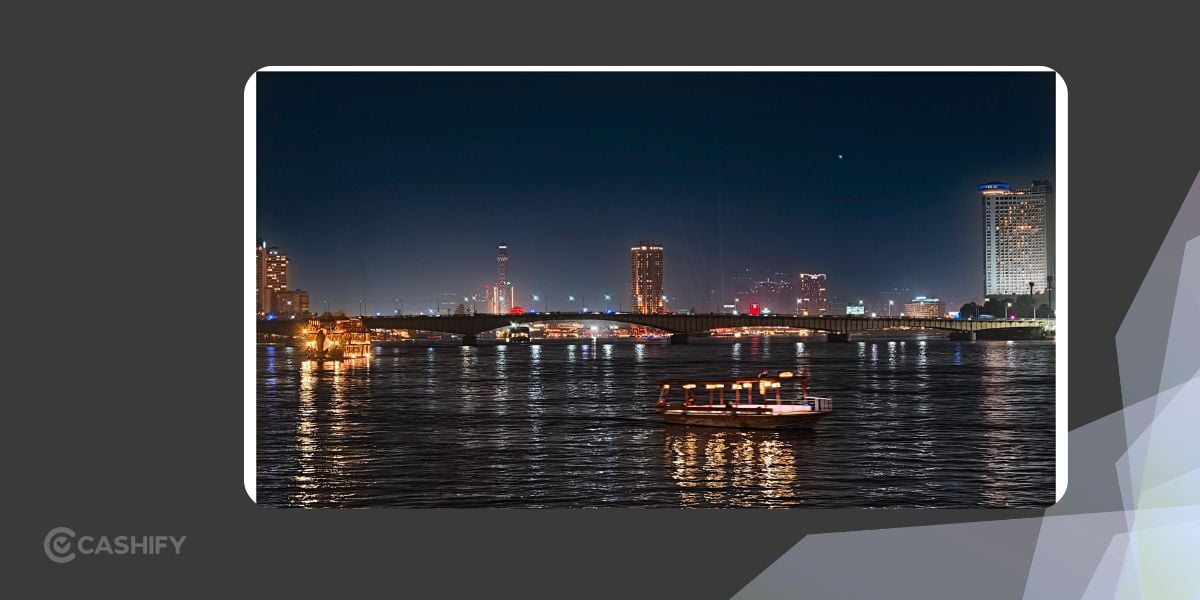 Night scenes can look noisy or blurry if the camera gets too little light or the subject moves during capture.
Try these settings:
- Mode: Night
- Lens: Main camera for static scenes
- Flash: Off for cityscapes and landscapes
- Stability: Hold the phone firmly
- Exposure: Auto as your starting point
Night mode can have several exposures to improve detail in dark areas. It works best for buildings, city lights and other relatively still subjects.
For pets, people or moving traffic, standard Photo mode may produce a sharper result.
Best Settings For Portraits And Selfies
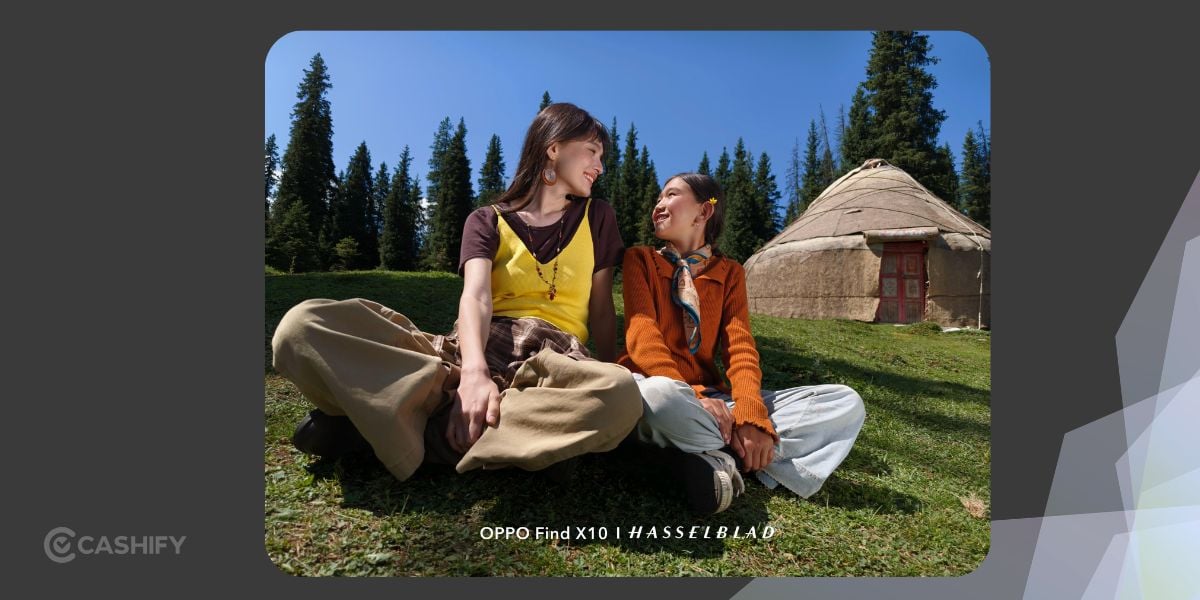 Portrait mode is useful for people, pets and profile pictures.
- Use Portrait mode for background blur.
- Try the main camera for environmental portraits.
- Select the telephoto camera for tighter framing.
- Keep beauty adjustments subtle for realistic skin texture.
- Face the subject towards soft natural light.
For selfies, try the 50MP front camera in Photo or Portrait mode. Check the selfie-mirroring option if you want the saved image to match the preview.
Best Settings For Moving Subjects
Taking pictures of children, pets or athletes need a different approach from shooting a landscape.
- Start in standard Photo mode.
- Keep the subject well lit.
- Tap the subject to focus, if needed.
- Try burst or continuous capture if available.
- Use Master mode for direct shutter-speed control, if supported.
A faster shutter speed can freeze movement, but it also lets in less light.
Best Settings For Food And Product Photography
For food, gadgets and small products, accurate colours and sharp textures matter.
- Use the main camera for everyday product shots.
- Place the subject near a window for soft natural light.
- Tap the subject to focus.
- Reduce exposure slightly if bright surfaces lose detail.
- Try Hi-Res mode for stationary objects when fine detail matters.
For close-ups, test the telephoto camera. The best distance depends on the lens and subject. I would advise that you move the camera gradually.
When Should You Use 50MP Or 200MP Mode?
The OPPO Find X10 has 200MP main and telephoto cameras. There is also a 50MP ultra-wide camera. Hi-Res capture can help you with fine detail when the scene and lighting are suitable.
Mode | Best use |
|---|---|
Standard Photo | Daily photos and quick sharing |
Hi-Res mode | Detailed travel shots and cropping |
Ultra-wide camera | Landscapes and group photos |
High-resolution photos can use more storage and are not always better in low light or when the subject is moving. The ultra-wide camera also has a lower native resolution than the main and telephoto cameras.
Best Video Settings For OPPO Find X10
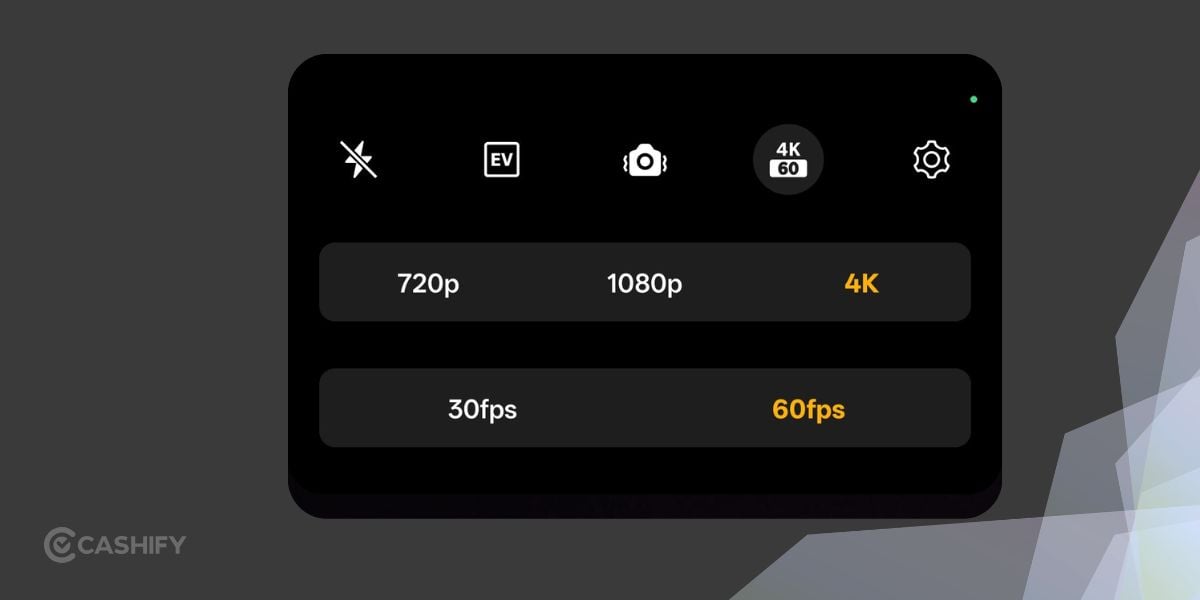 Let's check out the best video settings:
Video type | Recommended starting point |
|---|---|
Everyday clips | 4K at 30fps, if available |
Travel and action | 4K at 60fps, if available |
Slow-motion footage | SLO-MO mode, if available |
Social media | 4K at 30fps, then crop during editing |
Higher frame rates and resolutions use additional storage and may increase heat during long recording sessions. For casual videos, 4K at 30fps is a sensible starting point when supported.
Useful Camera Configuration Tips
A few small adjustments can improve your results:
- Gridlines: Use them to keep horizons straight and improve composition.
- Level indicator: Enable it, if available, for accurate framing.
- Timer: Use it for group photos or low-light shots when phone movement is a concern.
- Master mode: Try it for direct control over ISO, shutter speed, focus and white balance, if supported.
- Colour profiles: Experiment with available Hasselblad colour styles for a different visual look.
- Lens selection: Choose the camera suited to the scene instead of relying on heavy digital zoom.
Master mode is useful once you understand manual exposure. Start in Auto if you are unsure about ISO or shutter speed, then adjust one setting at a time.
How To Fix Common Camera Problems
- Photos look blurry: Clean the lens, tap to focus and hold the phone steady. Use a faster shutter for moving subjects.
- Night photos look noisy: Use the main camera, find additional light and avoid excessive digital zoom.
- Bright areas look washed out: Tap a bright part of the scene and lower exposure slightly if the camera app allows it.
- Photos take up too much space: Return to standard Photo mode instead of using Hi-Res for every shot.
- Video looks shaky: Check stabilisation support for the selected resolution and frame rate. Use both hands or a tripod for static scenes.
- Colours look unnatural: Try another colour profile, reduce filter intensity or use standard Photo mode.
FAQs: Best Camera Settings For OPPO Find X10
What is the best camera mode for the OPPO Find X10?
Standard Photo mode is the best starting point for everyday photography. Use Night, Portrait or Hi-Res mode when the scene calls for it.
Is 200MP mode better than standard Photo mode?
Not for every shot. Hi-Res capture can give you extra detail in well-lit, static scenes. Standard Photo mode is generally more convenient for daily use.
Which camera is best for night photography?
Start using the main camera and Night mode for static scenes. Try standard Photo mode for moving subjects if Night mode creates motion blur.
What is the best video resolution for everyday recording?
4K at 30fps is a practical starting point for clear everyday videos, if supported by the selected recording mode.
Final Verdict: Best Camera Settings For OPPO Find X10
The best camera settings for the OPPO Find X10 depend on the scene and the understand of features. Start in Photo mode, use the main camera for daily shots, switch to Night mode for static low-light scenes and save Hi-Res capture for subjects that need extra detail.
For video, start at 4K at 30fps if your selected recording mode supports it. Once you are comfortable, experiment with manual exposure and colour profiles to get the results you want.
If you’ve just bought a new phone and don’t know what to do with your old phone, then here’s your answer. Sell old mobile to Cashify and get the best price for it. If you are planning to buy a new phone, check out Cashify’s refurbished mobile phones. You can get your favourite phone at almost half price with six-month warranty, 15 days refund and free delivery.