Seeing your Samsung Galaxy M51 turn on but show nothing on the screen? The screen turning black can panic you a little. Imagine you may hear notifications, feel vibrations, or even receive calls, yet the display stays completely black. But a Samsung Galaxy M51 screen black issue does not always mean the phone is dead. You an actually bring back life to it. It’s just a matter of what is causing it. If it’s a temporary software glitch, you can solve it at home. For display failure or physical damage, professional repair assistance may be required.
Before spending money on a repair, try a few simple checks first.
Also read: Apple iPhone 16e Charging Jack Repair: Everything You Need To Know!
Several things can cause the Galaxy M51 screen to stop showing anything while the phone itself keeps running.
Why Is My Samsung Galaxy M51 Screen Black?
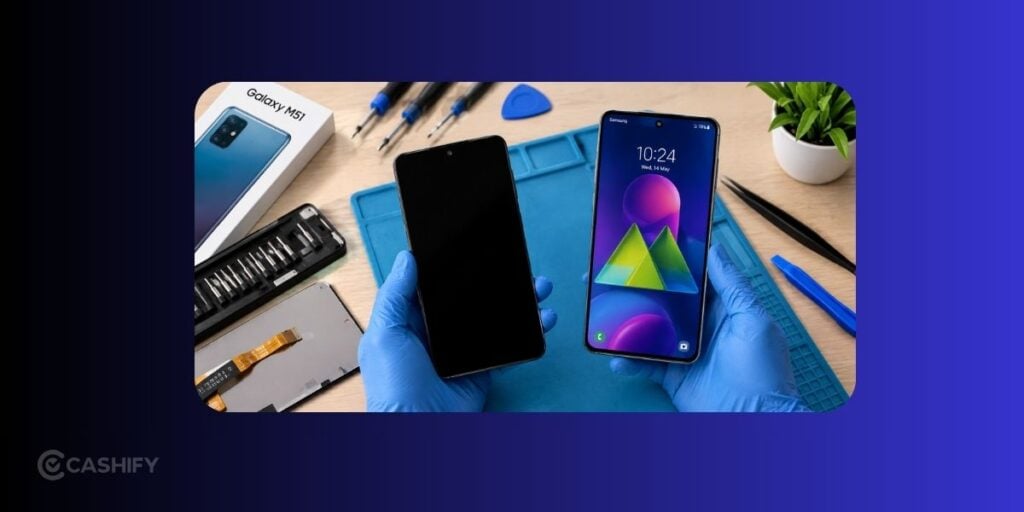
Temporary Software Glitch
Android can occasionally freeze or fail to load the display properly. This can happen after an app crash, system error, or failed background process.
If the phone is still vibrating, ringing, or responding to button presses, a software glitch could be the reason.
Battery Completely Drained
Sometimes the phone may appear dead because the battery has dropped to a very low level. A faulty charger or cable can also prevent the battery from charging properly.
Try charging the phone for at least 20 to 30 minutes before testing it again.
Screen Damage
A drop or impact can damage the AMOLED display even if the glass does not look badly cracked. In such cases, the phone may continue working normally while the screen remains black.
Look for cracks, black spots, coloured lines, flickering, or any recent impact around the phone.
Loose Display Connection
The display connects to the phone’s motherboard through an internal connector. A strong drop can sometimes affect this connection.
This is not something you should try to fix at home. Opening the phone can cause further damage if you do not have the right tools or experience.
Water or Liquid Damage
Moisture can affect the display or internal components. If the black screen appeared after the phone came into contact with water, avoid repeatedly trying to switch it on or charge it.
Let the phone dry naturally and get the hardware checked if it does not recover.
Also read: CMF By Nothing Phone 1 Screen Damage? Repair Price And Fix Options Inside!
How To Fix Samsung Galaxy M51 Screen Black Issue
Try these fixes in order. Start with the simple ones before considering a repair.
1. Force Restart Your Galaxy M51
A force restart is one of the first things to try if the screen suddenly goes black.
Press and hold the Power button and Volume Down button together for around 7 to 10 seconds. Keep holding them until the phone restarts.
If the issue was caused by a temporary software freeze, the display may return after the restart.
2. Charge The Phone Properly
Connect the Galaxy M51 to a working charger and leave it connected for at least 20 to 30 minutes.
Try a different charging cable or adapter if you have one available. Also check the charging port for visible dust or debris.
After charging, try the force restart again.
3. Check If The Phone Is Actually On
There are a few easy ways to check if the phone is running.
- Call your Galaxy M51 from another phone.
- Check if it vibrates when you press the power button.
- Connect it to a computer and see if the computer detects it.
- Listen for notification sounds.
- Check if the phone becomes warm during charging.
If the phone responds but the screen remains black, the display itself could be the problem.
4. Check For Physical Screen Damage
Think about what happened just before the issue started.
Did the phone fall? Was it pressed under something heavy? Did the screen develop lines or flicker before going completely black?
Even when the outer glass looks fine, an internal display failure can stop the screen from showing anything.
If the phone has suffered a recent impact, avoid pressing hard on the screen or trying to bend the device to get it working again.
Also read: Vivo Y83 Pro Aux Jack Not Working? Repair It Fast With Cashify
5. Try Samsung’s Safe Mode
If the display comes back after a restart but keeps going black later, a recently installed app could be causing problems.
To test this, restart the phone and try entering Safe Mode. If the screen works normally in Safe Mode, recently installed or updated apps may be worth checking.
Uninstall suspicious apps one at a time and restart the phone normally after each removal.
6. Check For System Updates
If the screen works intermittently, check for available software updates under:
Settings > Software update > Download and install
An outdated or buggy system can sometimes cause display-related problems. Keep the phone updated once you regain access to the screen.
What If The Galaxy M51 Screen Is Still Black?
If the phone clearly turns on but none of the above fixes brings the display back, the problem may be hardware-related.
A damaged AMOLED panel, display connector, or another internal component could be responsible. At this stage, repeatedly restarting or charging the phone is unlikely to solve the issue.
A proper diagnosis can help identify whether the screen needs replacement or another internal repair.
Also read: Phone Screen Replacement: Things To Check Before And After Service!
Samsung Galaxy M51 Screen Repair At Cashify
If the display itself has failed, Cashify can be a convenient mobile repair option for getting the phone checked and repaired.
You can check the estimated Samsung phone repair cost online. Then you book a repair based on availability. Cashify also provides doorstep pickup and drop-off for eligible repairs, so you may not need to carry the phone around.
Replacement screens are selected based on compatibility and availability. The phone repair comes with a six-month warranty for any internal display issues. One month complimentary warranty for screen breakage. Before confirming the repair, check the latest price and warranty details for your specific Galaxy M51.
Other than that, there’s 7-day refund if you are not happy with the performance after screen replacement.
Use code: TECH25 to avail of a discount of up to Rs. 300 by using the (on the minimum order value of Rs. 2499).
Use code: RPR50 to avail up to 50 percent off on a minimum spend value of Rs. 1000. (Limited Offer)
Final Thoughts
Don’t assume that a Samsung Galaxy M51 Screen Black problem indicates the phone is dead. Start by charging it properly and performing a force restart. If the phone responds to calls or vibrations but the display stays black, the screen or its internal connection could be at fault.
If basic troubleshooting does not help, get the phone diagnosed before buying a replacement screen. This can prevent unnecessary spending and help confirm the actual cause of the problem. Finally, resort to Cashify’s professional service for prompt assistance and certified mobile phone repair service.
Buying refurbished mobile phones was never this easy. Sell your old phone and get exclusive offers & discounts on refurbished mobiles. Every refurbished phone is put through 32-point quality checks to ensure like-new standards and comes with a six-month warranty and 15-day refund. Buy refurbished phone easily on no-cost EMI today!