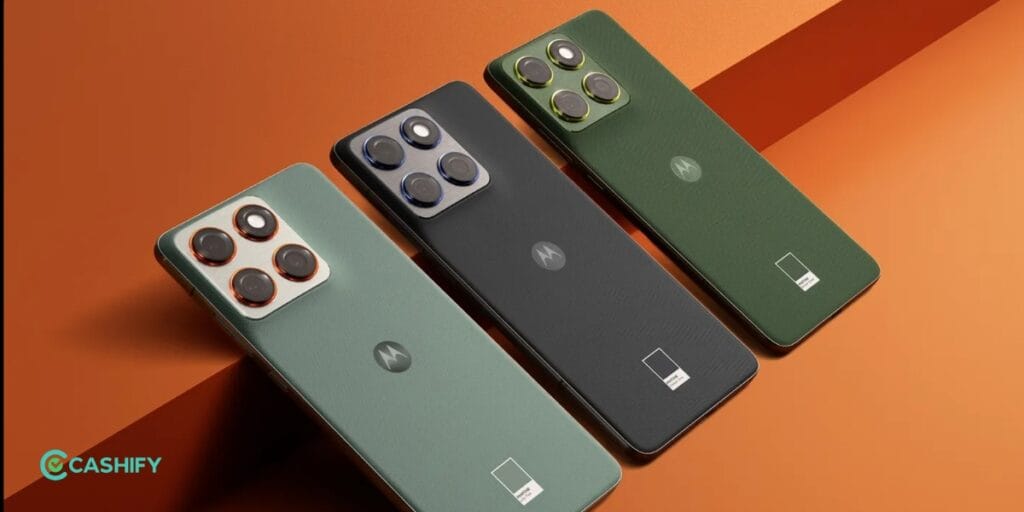
If you have recently purchased the Motorola Edge 70 Pro or are planning to buy one, this guide will be extremely useful. While the phone’s camera UI is quite simple, without the right settings, you won’t be able to unlock its full potential. In this article, I will share the Motorola Edge 70 Pro‘s best camera settings, hidden features, and pro tips to help you capture DSLR-quality photos and smooth videos. Let’s first understand the camera details.
Also Read: OnePlus Nord 6 Review: Flagship Feel Without Flagship Price
Motorola Edge 70 Pro Camera Setup Overview
Rear camera sensor
- 50MP wide with 1X Primary Camera
- 50MP ultra wide 0.5X Ultra-Wide Camera
- Digital Zoom (up to 20X)
So, there is no telephoto lens in the Edge 70 Pro in Indian variants; therefore, the zoom is entirely digital.
Best Photo Settings Of Motorola Edge 70 Pro
If you know basic camera settings, then it’s fine. If you are not so camera-friendly, that’s completely fine too, because I’m sharing a few simple settings you can use in daily use.
- Aspect Ratio
Always keep it at 4:3; this utilises the sensor’s full resolution. It makes cropping easier during post-processing/editing. If you want to use your photo for social media stories like Insta or WhatsApp, use 16:9 or full-screen modes only, as they perfectly fill the screen with your photos.
- Colour Profile: Natural vs. Signature
Colour profile is most important for how the image will look, so if you want natural, realistic colour, use Natural Mode (I strongly recommend). The Moto Edge 70 Pro also comes with Signature Mode, which offers more vibrant, high-contrast output.
3. Exposure Control (Manual Tap)
Usually, phones are on auto exposure, but I would suggest controlling exposure manually. Just tap on your subject to focus. Adjust the brightness using the sun icon.
Pro Tip: If you are using portrait mode, keep exposure slightly darker; if you are using landscape mode, keep exposure balanced.
4 Filters: Avoid them (unless absolutely necessary)
The filter is very subjective when using a phone camera because there is no intensity control available. So, if you liked any built-in filter, its use and full effect are applied without adjustment. I would suggest capturing the original photo first, then editing it later. You cannot properly edit or colour grade photos taken with a filter.
- Macro Mode (Flower Icon)
Macro mode is primarily designed for close-up shots. It utilises an ultra-wide lens, allowing you to get very close to your subject and capture sharp photos. If you are photographing flowers, small objects, or taking product shots, this mode will come in handy. Simply toggle on the flower icon, bring your phone close to the subject, and tap to focus.
Pro Tip: Ensure the lighting is good and keep your phone steady; otherwise, the photo may turn out blurry.
Also Read: Vivo V70 FE First Impression: Is This Really An Upgrade?
Best Video Settings
Here, I shared with you all Motorola Edge 70 Pro’s best camera settings for photography, but videography is just as important for many users. So, here I’m sharing the best possible camera settings for the Motorola Edge 70 Pro for videos.
- Resolution & FPS
First, let’s understand the resolution and FPS. Video resolution defines a video’s clarity and sharpness. FPS mean in video measures the frequency at which individual still images, or “frames,” are captured or displayed consecutively in one second to create the illusion of motion. Moto Edge 70 offers multiple resolutions and FPS options like
- 1080p: For casual videos
- 4K 30fps: Balanced quality
- 4K 60fps: Smooth motion (best for Reels/video clips)
So, it totally depend which type of quality you want to shoot. I usually shoot 4K at 30fps, resulting in a balanced video.
- HDR10
This mode is very important to understand; most of the users avoid or do not use the feature. HDR10 comes into play when a scene’s lighting is uneven, such as when both sunlight and shadows are present. It balances highlights and shadows, making the video appear more cinematic and detailed.
So, turn it on when you want to shoot cinematic videos, but you have to edit the final videos for better results.
- Horizon Lock
Moto Edge 70 Pro also comes with Horizon Lock, like the Samsung Galaxy S26 Ultra, for running/action shots, which keeps the frame stable, but this mode is limited to 1080p. Moreover, if you are using this mode, you have to use it in proper lighting; if the lighting is a little dim, the results will not be fine.
- Filters in Video
I will say the same thing again: if you apply filters, the resolution will be reduced to 1080p. So, I would suggest avoiding filters if you are shooting professional videos and doing your colour grading in post-production. If you are shooting just casual videos, then go with filters.
Also Read: Redmi Note 15 Pro Plus 5G Review: Did Redmi Finally Nail It?
Verdict
If you want to get the most out of your phone’s camera, these Motorola Edge 70 Pro Best Camera Settings will genuinely elevate your photography and videography experience. The device already packs a capable 50MP dual-camera system, but the real difference comes from how you use it. By sticking to the 4:3 aspect ratio, natural colour profile, controlled exposure, and avoiding unnecessary filters, you can consistently capture clean, detailed shots. If you need anything from the side, just comment below.
Are you still browsing through your broken screen? Don’t worry! Book an at-home mobile phone screen repair with Cashify—an affordable and one-stop destination for all your mobile phone needs. In case you break your screen within 1 month of repair, we will replace your screen again—for FREE.