Are you currently worried about a Laptop fan making loud noise? A noisy laptop fan can be hard to ignore. One day your laptop is running quietly, and the next it sounds like it’s about to take off. While a loud fan isn’t always a major problem, it shouldn’t be ignored either.
Your laptop fan plays an important role in keeping internal components cool. When it starts spinning faster than usual or creates unusual sounds, it’s often trying to tell you that something isn’t right.
Don’t overthink it though. Any causes for the loud noise are easy to fix at home. Others need professional attention before they lead to costly damage. Let’s understand what your laptop fan is trying to tell you.
Also read: Most Common Laptop Problems For Possible Repair Instead Of Replacing The Device!
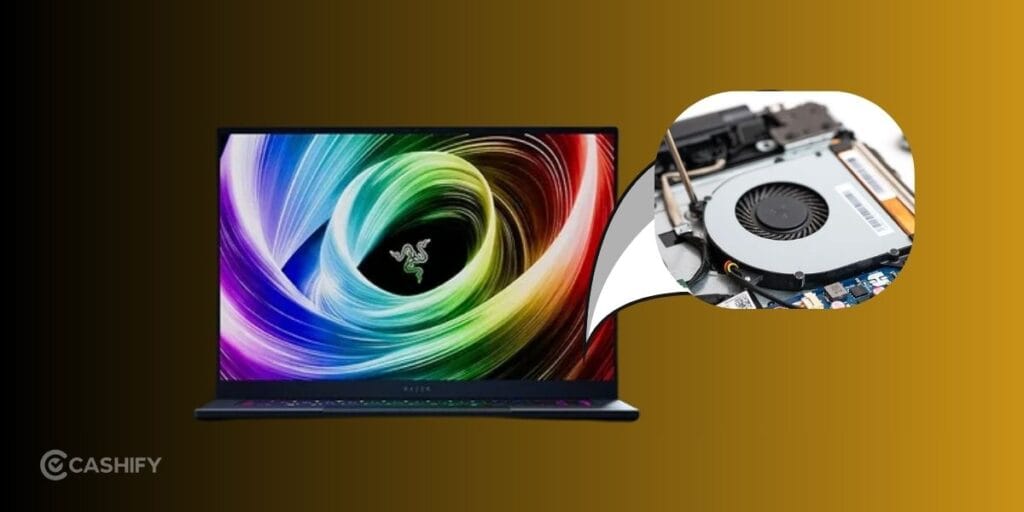
Why Is Your Laptop Fan So Loud?
A laptop fan speeds up when the processor or graphics chip gets hot. That’s perfectly normal during gaming, video editing, or other demanding tasks.
The problem starts when the fan stays loud even during simple activities like browsing, watching videos, or working on documents.
Here are the most common reasons.
1. Dust Blocking the Cooling System
Dust is one of the biggest reasons for excessive fan noise.
Over time, dust collects inside the cooling vents and around the fan blades. This restricts airflow, forcing the fan to work much harder.
What You Can Do
- Clean the air vents using compressed air.
- Avoid using the laptop on beds or cushions.
- Place the laptop on a flat, hard surface while working.
If dust has built up inside the laptop, internal cleaning is safer when done by trained technicians.
2. Too Many Programs Running
Several applications running together increase CPU usage, creating more heat.
Open Task Manager on Windows and check which apps are consuming the most CPU or memory.
Close applications you don’t need. This simple habit often reduces fan speed immediately.
Also read: HP Laptop Preparing Automatic Repair? Here’s What It Means And How To Fix It!
3. High CPU Usage
Some software continues running in the background even after you close it.
Common examples include:
- Cloud syncing
- Antivirus scans
- Windows updates
- Video rendering software
If CPU usage remains close to 100% for long periods, the cooling fan will keep spinning at high speed.
4. Blocked Air Vents
Laptop vents need space to release hot air. Using your laptop on blankets, pillows, or your lap blocks airflow. A laptop stand can improve ventilation and reduce fan activity.
5. Old Thermal Paste
Thermal paste helps transfer heat from the processor to the cooling system.
After several years, it dries out and becomes less effective.
Signs include:
- Constant fan noise
- High temperatures
- Frequent overheating
Replacing thermal paste should only be done by someone experienced because the laptop must be opened carefully.
6. Failing Cooling Fan
Fans don’t last forever.
A worn-out fan may produce:
- Grinding noises
- Clicking sounds
- Rattling
- Vibrations
These sounds usually indicate physical damage instead of normal cooling. Ignoring them can eventually cause overheating.
Also Read: Do You Lose Data When Replacing LCD Screen?
Easy Ways to Reduce Laptop Fan Noise!
Try these solutions before assuming your laptop needs repair.
Keep Your Laptop Clean
Dust the keyboard and air vents regularly. Even basic external cleaning improves airflow.
Restart Your Laptop
A restart closes background processes that may be increasing CPU usage. If the noise disappears after restarting but returns later, check which apps are running.
Update Windows and Drivers
Older drivers sometimes cause excessive processor activity.
Install available updates for:
- Windows
- Graphics drivers
- Chipset drivers
Reduce Startup Programs
Too many startup apps slow down your laptop and increase heat. Disable apps you don’t use every day through Task Manager.
Use Balanced Power Mode
High-performance mode keeps your processor running faster. Balanced mode reduces unnecessary heat during everyday work.
Keep Your Laptop Cool
Avoid direct sunlight. Work in a cool, ventilated room whenever possible.
Also read: 5 Signs Your Laptop Needs Professional Repair Immediately!
Why Choose Cashify for Laptop Repair?
If your laptop fan continues to make loud noises even after basic troubleshooting, it’s time for a professional inspection. This si exactly about time when you look for laptop repair shop near me.
Cashify repairs laptops from leading brands, including Apple, Dell, HP, Lenovo, ASUS, Acer, and many others. Experienced technicians diagnose cooling issues, clean internal components, replace faulty fans, repair overheating problems, and inspect damaged hardware using quality-tested replacement parts.
Why Many People Choose Cashify
Cashify makes laptop repair simple and reliable. You get quality-tested replacement parts, skilled technicians, and transparent pricing before any work begins, so there are no surprises. You can choose doorstep repair, free pickup and drop, or visit a nearby Cashify store. Whatever suits you best.
Repairs are carried out with care to keep your device and data safe, and you also get up to a 6-month warranty on screen replacements and a 3-month warranty on replaced spare parts. From cooling fan issues and battery replacement to keyboard, charging, motherboard, and screen repairs, Cashify can handle a wide range of laptop problems under one roof.
Also read: Laptop Repair Near Me: 5 Things To Check Before Choosing A Repair Service!
Final Thought
A laptop fan making loud noise is often your laptop’s way of asking for attention. Dust buildup, blocked vents, high CPU usage, or worn-out cooling components are some of the most common reasons.
Start with simple fixes like cleaning the vents, closing unnecessary apps, and improving airflow. If the noise doesn’t stop or your laptop overheats frequently, don’t wait until the problem becomes more expensive to fix. A professional inspection from Cashify can identify the real cause and help restore your laptop’s performance before further damage occurs.
If you’ve just bought a new phone and don’t know what to do with your old phone, then here’s your answer. Sell your old mobile to Cashify and get the best price for it. If you are planning to buy a new phone, check out Cashify’s refurbished mobile phones. You can get your favourite phone at almost half price with a six-month warranty, 15-day refund and free delivery.