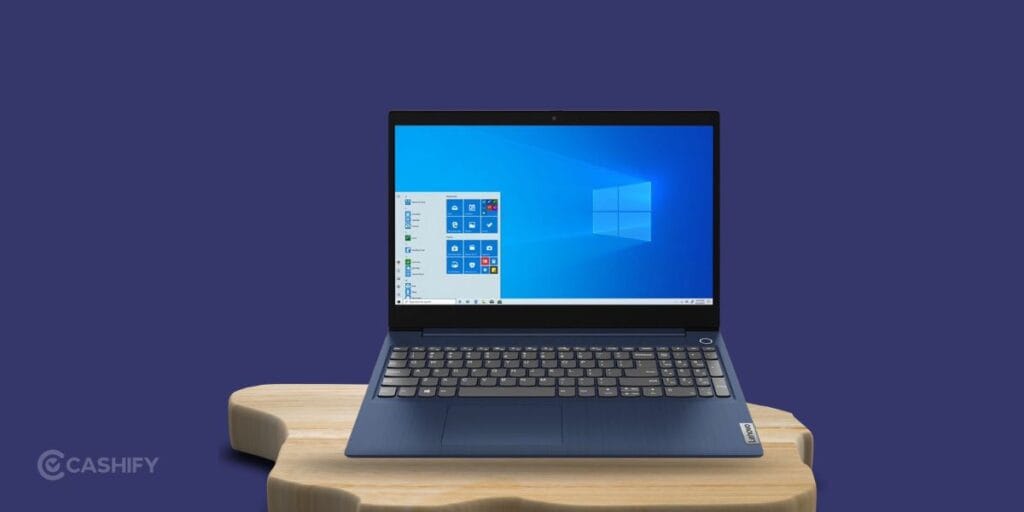
Your Lenovo IdeaPad screen issues are getting weirder with time? Maybe the display keeps flickering, looks unusually dim, or has strange lines running across it.
An IdeaPad screen issue can be worrisome. But it does not always mean that your laptop screen needs to be replaced. Some display problems are linked to Windows settings, graphics drivers, power settings or temporary software glitches. Or it can be a loose display connection or physical damage.
The good news is that you can check several things yourself before deciding on a repair. Let’s go through the most common IdeaPad screen problems and the practical ways to troubleshoot them.
Common IdeaPad Screen Issues
Before trying a fix, let’s identify what your laptop is actually doing. It can help us understand the issue better:
1. IdeaPad Screen Is Completely Black
A black screen is one of the most annoying display problems. The thing is, the laptop may still be running normally in the background.
You might notice that:
- The power light is on
- The keyboard responds
- You can hear the fan
- The laptop makes startup sounds
- The display remains completely black
You should always start with a simple restart. Press and hold the power button for about 10 seconds to shut down the laptop. Wait a few seconds and turn it back on.
If the screen remains black, connect the laptop to an external monitor or TV if you have the required cable. If the external display works, the problem may be related to the laptop’s screen or display connection.
Also Read: Vivobook Keyboard Not Working? Workarounds Before Meeting Professionals!
2. Screen Keeps Flickering
Screen flickering can make an IdeaPad difficult to use. This is particularly true while browsing or working on documents.
One common cause is an outdated or problematic graphics driver. Try updating your display driver through Windows:
- Right-click the Start button.
- Open Device Manager.
- Expand Display Adapters.
- Right-click your graphics driver.
- Select Update Driver.
- Follow the instructions on screen.
Restart your laptop after the update.
If the flickering started immediately after a driver update, rolling back the driver may help.
3. Display Looks Too Dim
First, check the brightness controls on your keyboard. Then, increase the brightness and see if the display returns to normal.
You should also check Windows display settings. Go to Settings > System > Display and adjust the brightness level.
If the screen remains very dim even when brightness is set to maximum, the issue may not be a software setting. There can be a problem with the display backlight, screen panel or related hardware.
4. Lines Or Strange Patterns On The Screen
Horizontal or vertical lines can appear because of several reasons. Try restarting the laptop first. If the lines disappear, the issue may have been temporary.
You can also connect the IdeaPad to an external display. If the external screen looks normal, check the laptop’s display hardware or connection. If the lines appeared after the laptop was dropped, squeezed inside a bag, or exposed to pressure, physical damage becomes more likely.
Also read: Liquid Damage In Laptops: What To Do Immediately!
5. Screen Freezes Or Goes Blank Randomly
If the screen goes blank while you’re using the laptop, check whether the entire laptop has frozen. Try pressing Caps Lock or another key on the keyboard. If the indicator responds, the system may be running even though the display has stopped responding.
You can also try the Windows graphics reset shortcut:
Windows + Ctrl + Shift + B
The screen may briefly go blank or flash while Windows resets the graphics driver. If the issue keeps returning, check for Windows and graphics driver updates.
How To Troubleshoot IdeaPad Screen Issues?
Once you know the symptoms, follow these basic troubleshooting steps:
Restart The Laptop
Honestly, restarting can fix temporary display glitches caused by Windows or graphics processes.
Instead of simply closing the lid, perform a proper restart when possible.
If the screen is frozen, hold the power button to shut the laptop down and then restart it.
Check Brightness And Display Settings
Incorrect display settings can sometimes appear to be a screen fault.
Go to:
Settings > System > Display
Check brightness, display resolution and refresh rate.
If you changed the resolution and the problem started afterwards, return to the previous settings.
Update Windows
An outdated Windows installation can sometimes cause compatibility issues with graphics drivers.
Go to:
Settings > Windows Update
Check for available updates and install them. Restart the laptop afterwards.
Also read: Laptop Repairing Shop Near Me: Doorstep vs Walk-in Repair?
Update Or Reinstall Graphics Drivers
Graphics drivers control how your laptop communicates with its display.
If the screen is flickering, freezing or showing unusual graphical glitches, the driver is worth checking.
Open Device Manager and look under Display Adapters. You can update the driver or uninstall it and restart the laptop so Windows can reinstall it. Only uninstall a driver if you are comfortable doing so. If the laptop is difficult to use because of the display problem, avoid experimenting with driver versions.
Try An External Display
This is one of the most useful tests for an IdeaPad Screen Issue.
Connect your laptop to a compatible external monitor or TV.
If the external display works perfectly, your laptop’s graphics system may be functioning correctly. The problem could be limited to the built-in screen, display cable or related hardware.
If both displays show the same problem, the problem is more likely to be software or graphics hardware.
When Is An IdeaPad Screen Replacement Necessary?
Not every display problem requires a new screen. Replacement may become necessary if the panel has suffered physical damage.
Look for signs such as:
- Cracks across the display
- Black spots or ink-like patches
- Permanent vertical or horizontal lines
- A portion of the display not working
- Severe colour distortion
- Display damage after a drop
- Screen that works only when the lid is positioned at a particular angle
A screen that changes when you move the laptop lid can also point towards a display cable or connection problem.
Also read: Laptop Fan Making Loud Noise? What It Means And How To Prevent!
What If The IdeaPad Screen Works At Certain Angles?
This is an important clue.
If your IdeaPad screen works normally at one angle but goes blank when you move the lid, the display connection may be affected by movement. The cable connecting the display to the laptop’s motherboard runs through the hinge area.
This is not something you should try to fix by opening the laptop unless you have the right tools and experience.
A professional inspection is safer in this situation.
When Should You Get Professional Help?
You can handle basic troubleshooting at home, but some IdeaPad screen problems need a proper inspection.
Consider getting the laptop checked if:
- The screen remains black after basic troubleshooting
- The display has visible physical damage
- Lines or spots remain permanently
- The screen works only at certain angles
- The display flickers even after driver updates
- An external monitor works but the laptop screen does not
- The laptop suffered a fall or impact
- You suspect a damaged display cable
Cashify can be a convenient option if you need help with laptop repair. You can check the available repair service for your IdeaPad. But understand the repair option and get the device checked instead of immediately replacing the entire laptop.
Also read: Most Common Laptop Problems For Possible Repair Instead Of Replacing The Device!
Why Choose Cashify For Laptop Screen Repair?
- Easy booking: Book your repair online and get doorstep pickup and drop-off in supported locations.
- Expert repair: Trained technicians diagnose and repair common laptop screen issues.
- Quality parts: Repairs use quality-tested replacement parts, subject to availability.
- Clear pricing: Check the estimated repair cost before confirming the service.
- Multiple repairs: Get help with screen, battery, keyboard, charging port and other hardware issues.
- Saves time: Doorstep service means less travelling and waiting.
- Repair warranty: Eligible repairs come with a service warranty for added peace of mind.
Final Verdict
An IdeaPad Screen Issue does not automatically mean that your laptop needs a screen replacement. Start with restarting the laptop, adjusting settings, updating Windows and checking the graphics driver.
Also Read: Do You Lose Data When Replacing LCD Screen?
If the screen has physical damage, shows permanent lines, stays black or behaves differently when you move the lid, the problem may be hardware-related. Cashify is a good option when it comes to laptop repair and can help you fix your device.
If you’ve just bought a new phone and don’t know what to do with your old phone, then here’s your answer. Sell your old mobile to Cashify and get the best price for it. If you are planning to buy a new phone, check out Cashify’s refurbished mobile phones. You can get your favourite phone at almost half price with a six-month warranty, 15-day refund and free delivery.