Liquid Glass for WhatsApp is here. It looks glossy, slightly transparent, and modern. This is basically part of the visual change that was introduced in iOS 26. In this guide, we will know all the details about how to get Liquid Glass on WhatsApp in iPhone in the simplest way. Let’s get started:
Also Read: How To Use Google AI Studio For Free (Step-By-Step Beginner Guide)
What Is Liquid Glass On WhatsApp In iPhone?
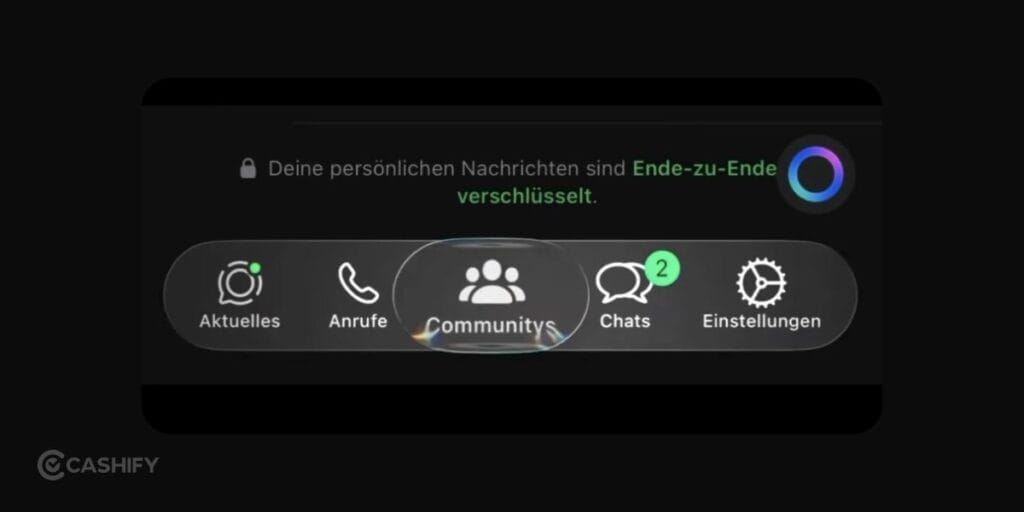
The reason why Liquid Glass design on WhatsApp is getting popular is that it changes how the app looks.
Instead of flat colours, the interface now feels layered and soft. You’ll notice:
- Slight transparency in menus
- Frosted glass effect on backgrounds
- Smooth movement when switching tabs
- Light reflections that feel natural
It’s kind of like through a blurred glass surface where you can faintly see what’s behind it. WhatsApp did not create the design on its own. The changes is from the iOS itself. If you update your phone to the iOS 26, WhatsApp will start adapting to the new system style.
If you want it, you will have to update the phone and not just the app.
How To Get Liquid Glass On WhatsApp In iPhone?
Let’s check out the steps quickly.
Step 1: Update Your iPhone
This is the most important step. You will have to update the phone to the latest iOS 26 update. Here’s how you do it:
- Open Settings
- Tap General
- Tap Software Update
- Install iOS 26
If your iPhone is not compatible, the new design will not appear.
Is Your iPhone Even Compatible With iOS 26?
Before you click “Install,” check one thing first. Not every iPhone supports iOS 26.
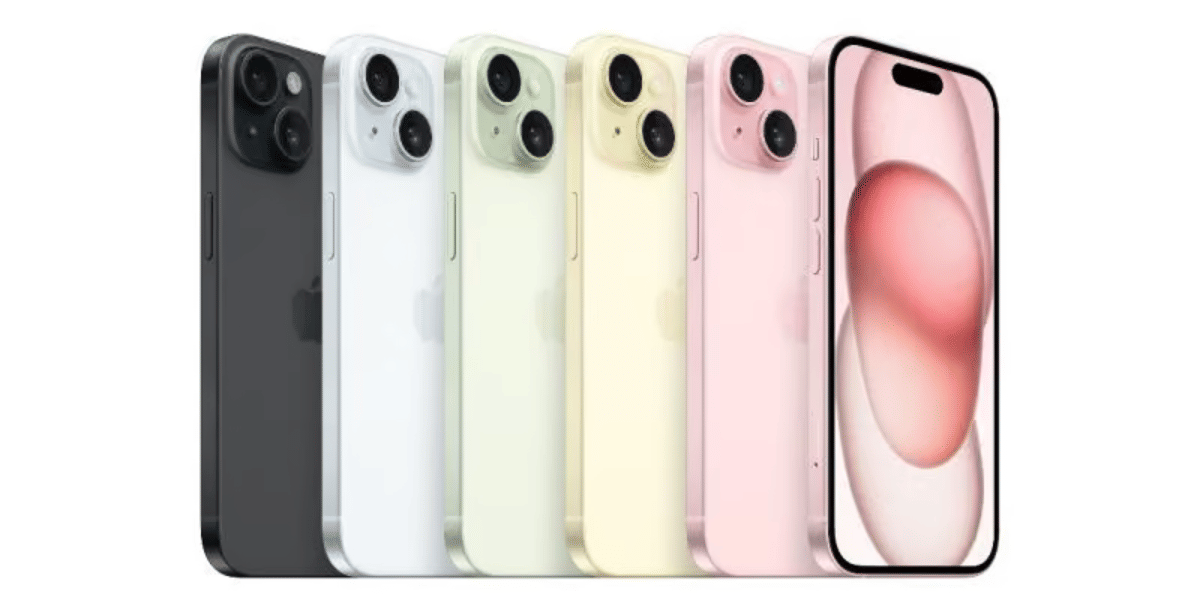
Your iPhone needs the A13 chip or a newer one. It covers the iPhone 11 and every model after it. So if you own an iPhone 11, 12, 13, 14, 15, 16, or 17, you’re good to go. This also includes the iPhone SE (2020) and SE (2022).
If you own an iPhone XR, XS, or XS Max, you cannot install iOS 26. These older models don’t support it. No trick or workaround will change that. You’ll need a newer iPhone to get Liquid Glass on WhatsApp.
Here’s a quick way to check your model:
- Open Settings
- Tap General
- Tap About
- Look at the “Model Name” field
Once you confirm your iPhone qualifies, do two more things before you hit update.
Check your storage. iOS updates are large. You need at least 20 GB of free space for a smooth install. Go to Settings, click General, then click iPhone Storage to see how much space you have left. If you’re short on space, delete old apps, photos, or videos you don’t need.
Back up your phone. This step is easy to skip, but don’t. A backup protects your photos, chats, and settings in case something goes wrong during the update. You can back up in two ways:
- Through iCloud: Settings > [your name] > iCloud > iCloud Backup > Back Up Now
- Through your computer: Connect your iPhone, open Finder (or iTunes), and click Back Up Now
This whole process takes just a few minutes, but it saves you a lot of stress later. Once your phone is compatible, has enough space, and is backed up, you’re ready for the actual update.
Step 2: Update WhatsApp
Now that you have updated your iPhone to the latest iOS 26, it’s time to update the WhatsApp app as well.
- Open Apple App Store
- Search for WhatsApp
- Tap Update
You should have version 25.28.75 or higher. Newer versions like 26.14.76 bring wider access to the glass design.
Also Read: How To Delete Contact From WhatsApp: Quick & Easy Steps!
Step 3: Fix Transparency Settings
Sometimes the effect is hidden due to settings. You will have to turn on Reduce transparency settings.
- Go to Settings
- Tap Accessibility
- Tap Display & Text Size
- Find Reduce Transparency
- Turn it OFF
If this stays ON, the interface will look solid instead of glassy.
What You Will Notice After It Works
Once liquid glass on WhatsApp in iPhone is active, the app will feel different right away.
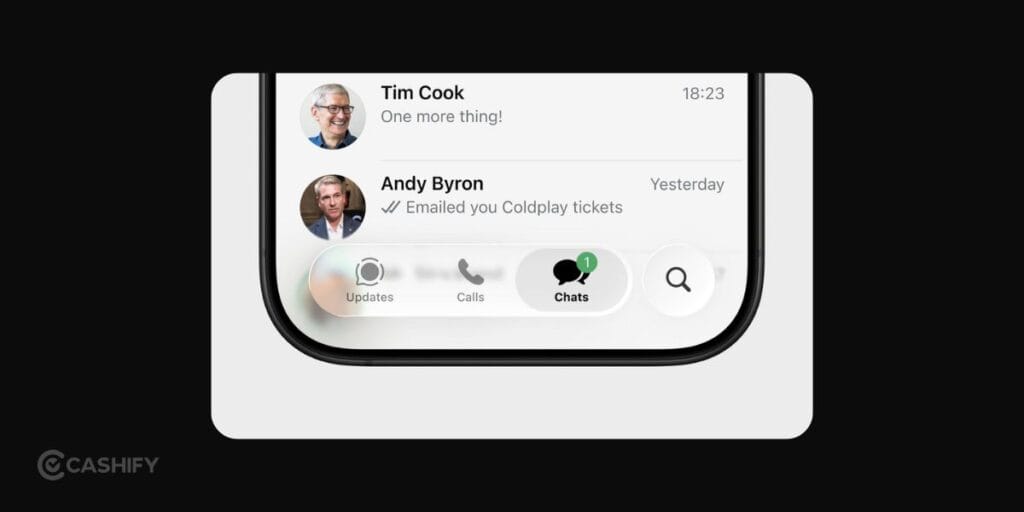
- The navigation bar at the bottom looks like it’s floating instead of sitting flat.
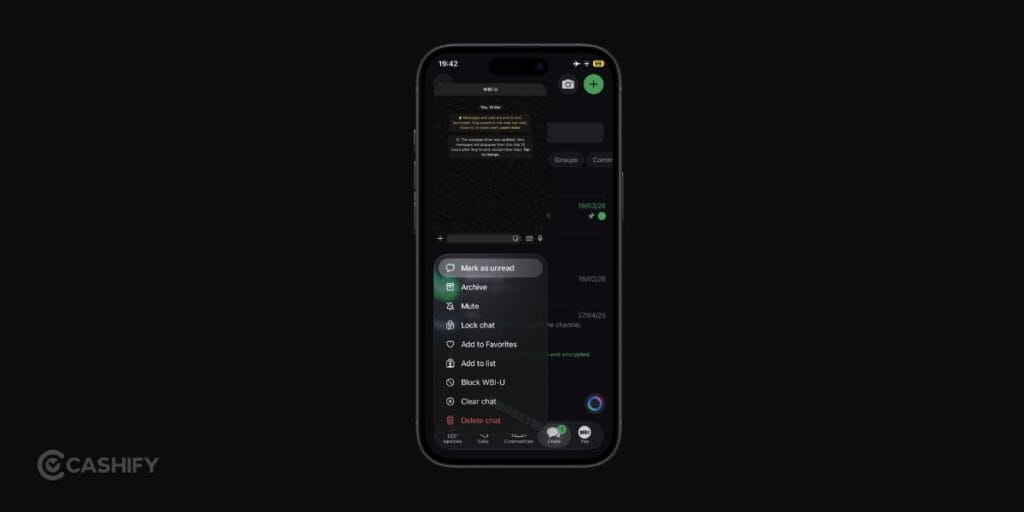
- Chat screens and menus show a soft blur. You can slightly see what’s behind them.
- Press and hold a message. The popup menu appears like frosted glass.
- The keyboard blends into the screen instead of looking separate.
Also Read: How To Record Screen In Windows 11: Quick Ways!
Don’t Like Liquid Glass? Check These Ways to Adjust It
Everyone does not like the new look. Some people find the extra transparency hard on the eyes. Text can feel harder to read against a busy chat wallpaper. The good news is you don’t have to live with the full effect.
Apple added a setting that lets you control how “clear” your icons and interface look. Follow these steps to adjust it:
- Long-press any empty space on your Home Screen
- Click the Edit button in the top corner
- Click Customize
- Choose between Light, Dark, and Clear icon looks
The Clear option gives you the full see-through Liquid Glass style. Light and Dark tone it down and add more solid color behind the icons. It makes text and icons easier to spot at a glance.
Inside WhatsApp itself, you already learned about the Reduce Transparency setting. Turning it ON does the opposite of what most people want. It flattens the glass effect and makes menus solid again. So if the glassy look feels like too much, turn Reduce Transparency ON instead of OFF. It keeps your chats readable without a total redesign.
What about battery life?
A few readers have noticed their phone’s battery drains a bit faster right after updating to iOS 26. This is normal, and it’s not permanent. Your phone runs background tasks like re-indexing photos and apps after any big update. It uses extra battery for a day or two. Once your phone settles down, battery life should return to normal.
If you’re on an older iPhone like the 11 or 12, the Liquid Glass effect can also feel slightly less smooth. Animations may lag a little when you switch between chats. It happens because these older chips work harder to render the transparency and blur. It’s not a bug. It’s just older hardware handling a newer visual style.
If lag really bothers you, turning Reduce Transparency ON in Accessibility settings also helps your phone run a bit smoother, since it skips some of the blur processing.
Still Did Not Get Liquid Glass On WhatsApp? Here’s Why!
If Liquid Glass isn’t showing up after updating, the issue is usually the rollout process or your settings. Try the checks below before waiting for the update.
Why Liquid Glass May Not Appear
- Staged rollout: WhatsApp releases new updates in phases, so not every account gets the redesign at the same time.
- Server activation: Your app may support Liquid Glass, but WhatsApp still needs to enable it for your account.
- Incomplete rollout: Some interface sections may update before others.
- System settings: Accessibility settings can block transparent visual effects.
- Temporary rollback: WhatsApp may disable the redesign during testing or maintenance.
Verify the Requirements
Before troubleshooting, confirm these requirements:
- iOS 26 or later
- WhatsApp version 26.14.76 or later
Here’s What To Do
Turn Off Reduce Transparency
Go to Settings > Accessibility > Display & Text Size, then turn Reduce Transparency off.
Force Close WhatsApp
Open the App Switcher, swipe up on the WhatsApp card, then reopen the app.
Update WhatsApp
Open the App Store, find WhatsApp, and install the latest update if available.
Restart Your iPhone
Power off your iPhone, turn it back on, then check WhatsApp again.
Reinstall WhatsApp
Back up your chats through WhatsApp > Settings > Chats > Chat Backup > Back Up Now. Delete the app, reinstall it from the App Store, then restore your backup.
Also Read: How To Raise A UPI Complaint: Step By Step Guide
iOS 27 Brings New Changes For Loquid Glass: See How Your WhatsApp And Other Apps Will Now Look
Apple has announced the Apple WWDC event for 2026, and as the event wraps up, it brings you the all-new iOS 27. Yes, iOS 27 will soon come to your phones. And this new upgrade will bring a more enhanced Liquid glass effect for your iPhones.
So, what new features will you see in your apps?
Well, here are the new UI experiences you will witness on your iPhones as the iOS 27 comes:
- Custom Transparency Control: Users can now adjust the intensity of the Liquid Glass effect with a dedicated slider, ranging from fully clear to more opaque, improving readability in chats and menus.
- Enhanced Readability: Background content behind translucent panels is now intelligently diffused, making text, notifications, and chat bubbles easier to read.
- Sharper App Icons and Controls: Icons, buttons, and toolbars have been redesigned to appear more defined and visually distinct, even in transparent mode.
- Improved Sidebars and Layered Effects: Navigation panels now extend seamlessly across the interface, while colour accents and glass layers create a more immersive, consistent look across third-party apps.
FAQs
What is Liquid Glass on WhatsApp in iPhone?
Liquid Glass on WhatsApp on iPhone is a new visual style introduced through iOS 26. It brings a glossy and slightly transparent look to the app. Menus, chat backgrounds, and navigation appear blurred instead of flat.
How to get Liquid Glass on WhatsApp in iPhone easily?
To get liquid glass on WhatsApp in iPhone, you need to update your iPhone to iOS 26. After that, update WhatsApp from the Apple App Store. Go to Accessibility settings and turn OFF Reduce Transparency.
Why is Liquid Glass not showing on my WhatsApp?
If liquid glass on WhatsApp in iPhone is not visible, it is usually due to a gradual rollout. WhatsApp enables the design in phases. It can also happen if the app is not updated or if transparency settings are turned on.
Do I need to enable any settings inside WhatsApp?
There is no option inside WhatsApp to enable this design. The Liquid Glass look comes directly from iOS 26. It activates automatically after updating the system and the app.
Which WhatsApp version supports Liquid Glass?
Liquid glass on WhatsApp in iPhone works on version 25.28.75 or higher. Newer versions like 26.14.76 are gradually rolling out the updated design to more users.
Will all iPhones get Liquid Glass design?
Only iPhones that support iOS 26 will get this design. Devices that cannot update to iOS 26 will continue using the older interface.
How long does it take to get Liquid Glass on WhatsApp?
There is no fixed timeline for this update. WhatsApp rolls out changes in stages, some see it immediately while others may need to wait for a while.
Can I speed up the Liquid Glass update?
You can try restarting your iPhone, reinstalling WhatsApp, and keeping your apps updated. These steps sometimes help. The final activation still depends on WhatsApp’s rollout.
Does Liquid Glass change how WhatsApp works?
Liquid Glass does not change how WhatsApp works. It only updates the appearance of the app. Messaging, calls, and all other functions remain the same.
Final Thoughts
Getting liquid glass on WhatsApp in iPhone is not complicated. But, it does depend on updates and rollout timing. As long as your device runs iOS 26, your app is updated, and transparency settings are correct, the new design should appear. If not, just follow the quick steps mentioned in the guide and you’ll be good to go.
Let me know if you have any questions in the comment section below. I would love to hear you out!
If you’ve just bought a new phone and don’t know what to do with your old phone, then here’s your answer. Sell old mobile to Cashify and get the best price for it. If you are planning to buy a new phone, check out Cashify’s refurbished mobile phones. You can get your favourite phone at almost half price with six-month warranty, 15 days refund and free delivery.