

Facing a WhatsApp verification code problem? If you are not receiving the six-digit OTP, you may be unable to register your number or sign in to your existing account on a new phone. Common causes include an incorrect phone number, SMS delivery problems, poor network reception, or too many verification attempts.
To fix the WhatsApp verification code not received issue, check your country code and mobile number, make sure your SIM can receive SMS and calls, and wait for the verification timer before requesting another code. You can also try WhatsApp’s official “Call me” option when it becomes available.
In this guide, we explain why WhatsApp verification codes may not arrive and how to troubleshoot the issue on Android and iPhone. We also cover email verification for eligible existing accounts, passkeys, and steps to take if you still cannot verify your number.
Also Read: The Best Smartphones To Buy During This Big Billion Day Sale!
What Is WhatsApp Verification Code Problem?
When you set up WhatsApp on a new device, the app needs to confirm your identity by verifying your phone number. To do this, WhatsApp sends a 6-digit OTP to your number via SMS or a voice call. You simply enter this code in the app to access your account, chats, and contacts.
But here’s where users get stuck:
Sometimes the OTP never arrives. You may even see an error like “Couldn’t send an SMS to your number” or be asked to wait an hour before trying again. This is the common WhatsApp verification code issue.
The problem becomes even more frustrating when:
- The code doesn’t come despite multiple attempts
- You urgently need WhatsApp for work or communication
- You’re stuck on the verification screen for hours
The code normally arrives within a few minutes. If it doesn’t, you may be stuck behind a waiting timer or a cooldown after too many attempts, which can last from minutes to several hours. People call this the “WhatsApp code not received” or “WhatsApp code not coming” issue. Luckily, there are a few things you can try.
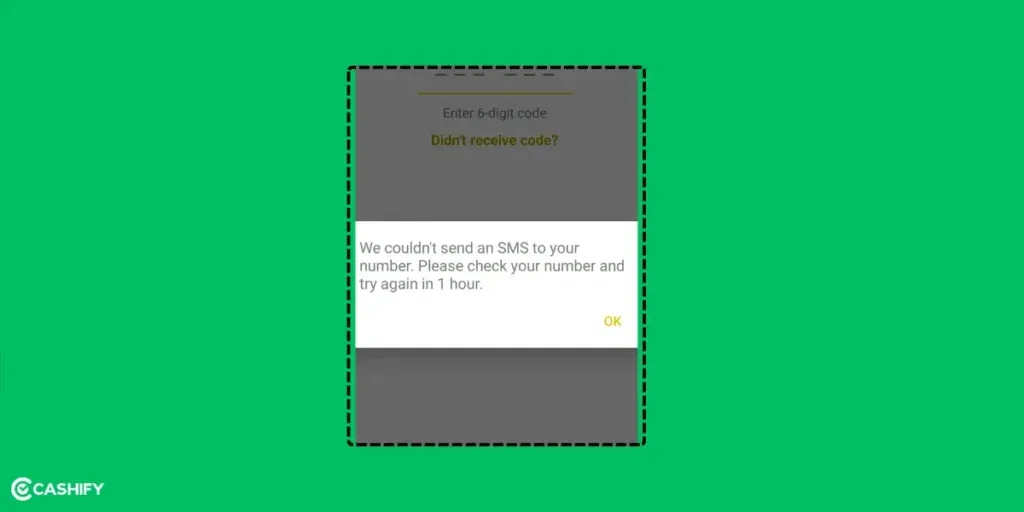
After the countdown timer on the verification screen ends (about five minutes), tap “Didn’t receive code?”. You’ll see two choices:
- Resend SMS: WhatsApp will try sending the code again.
- Call me: You’ll get a phone call where a voice tells you the code.
There are times when even after trying Resend SMS or Call Me, you still don’t get the code.
Fortunately, there are several ways to fix this issue.
Also read: Can’t Send Messages On Instagram? Here Are Few Quick Fixes
Reasons For WhatsApp Verification Code Not Received
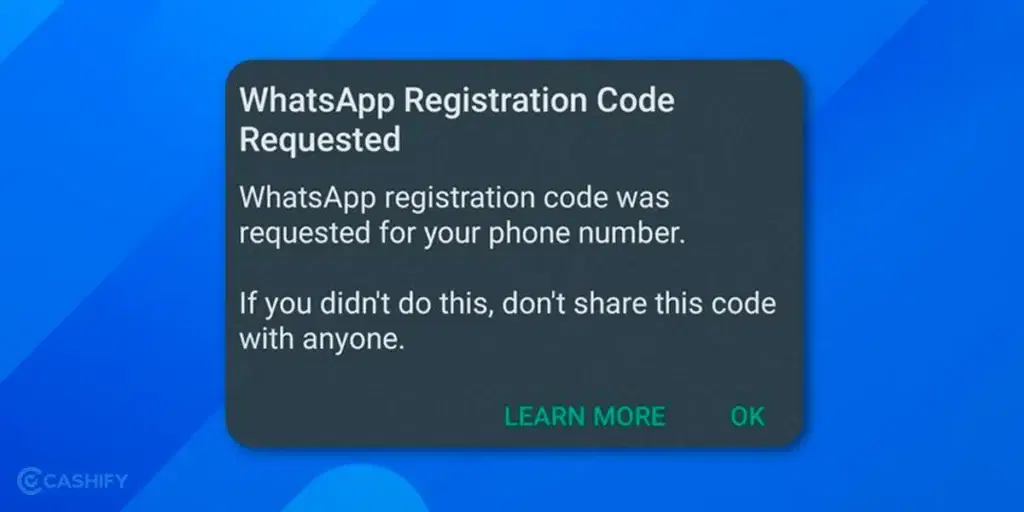
There are several reasons why you might not receive the WhatsApp verification code. Let’s look at some of the common causes.
| Reason | What It Means |
|---|---|
| Reinstalled WhatsApp | You deleted WhatsApp and installed it again after some time. |
| Wrong Phone Number | You typed the wrong phone number. |
| Changed Network | You switched your mobile network by yourself. |
| Slow Internet | Your internet is not working well. |
| Changed SIM Often | You removed and added your SIM card many times. |
| Too Much App Cache | WhatsApp has saved too much old data and is working slowly. |
| WhatsApp is Down | WhatsApp is not working in your country right now. |
| Old Version of App | You are using an old version of WhatsApp. |
| Downloaded from Third-Party | You didn’t download WhatsApp from the official app store. |
| New Phone Problems | You changed to a new phone, and it caused issues. |
| Using Beta App | You are using a test version of WhatsApp that may have problems. |
| 5G Network Issues | Some 5G networks may prioritise data over SMS, causing delays in receiving verification codes. |
| e-SIM Provisioning Delays | e-SIM activation can take time, especially with new carriers, delaying SMS delivery. |
| VPN or Privacy Apps | Active VPNs or privacy apps (e.g., ad blockers) may interfere with WhatsApp’s verification servers. |
Check which of these applies to you.
Also Read: How To Send WhatsApp Messages Without Saving Phone Number?
Here’s How To Fix WhatsApp Verification Code Problem
Until you verify your number, you can’t use WhatsApp or see your chats on the new phone. Here are the steps to try, starting with the simplest.
Also Read: Facing Spotify Something Went Wrong Error? Here’s A Quick Fix!
Wait For The SMS Or Call:
Wait for the countdown timer on the verification screen to finish (about five minutes) and don’t edit your number during this time. If the SMS still hasn’t arrived when the timer ends, tap “Call me”. Requesting codes repeatedly can trigger a longer waiting period, so avoid tapping resend many times.
Re-Install WhatsApp:
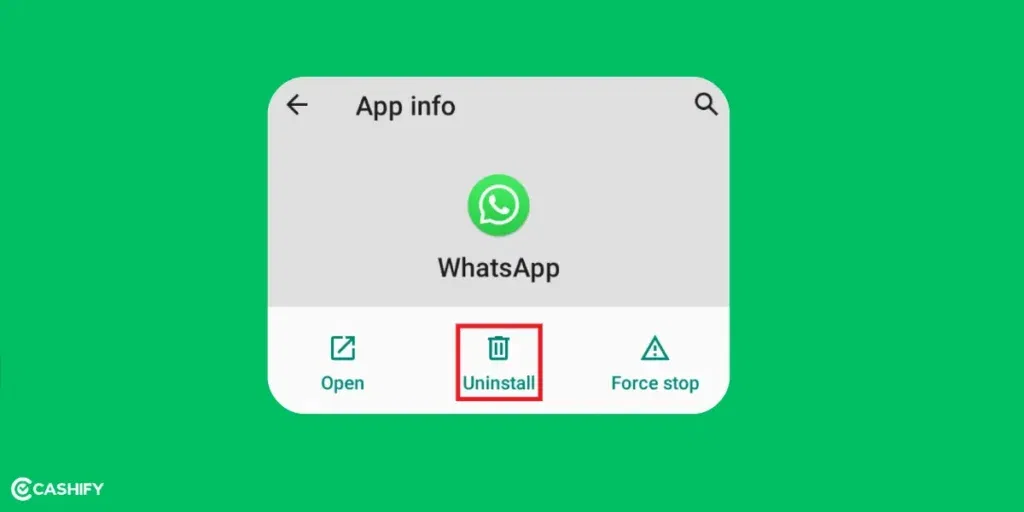
If the app is glitching, you can uninstall and reinstall WhatsApp. Before you do, back up your chats if you can still access them, because uninstalling can delete chats that aren’t backed up.
- Repeat the verification process.
- If you still haven’t received the code, this time click on “Didn’t receive code” and then choose “Call me.”
- You will receive an automated call that reads out the 6-digit code.
After verifying, WhatsApp will offer to restore your backup, if you have one.
Check Your Phone Number:
Ensure that the phone number associated with your WhatsApp account is correct. Minor typos can also lead to the problem of not receiving a WhatsApp verification code.
Double-check the country code and number before you tap Next. For India, select +91 and enter the 10-digit number without a leading 0.
Clear WhatsApp Cache:
On Android, you can try clearing the WhatsApp cache.
Go to “Settings” > “Apps” > “WhatsApp” > “Storage” > “Clear Cache.”
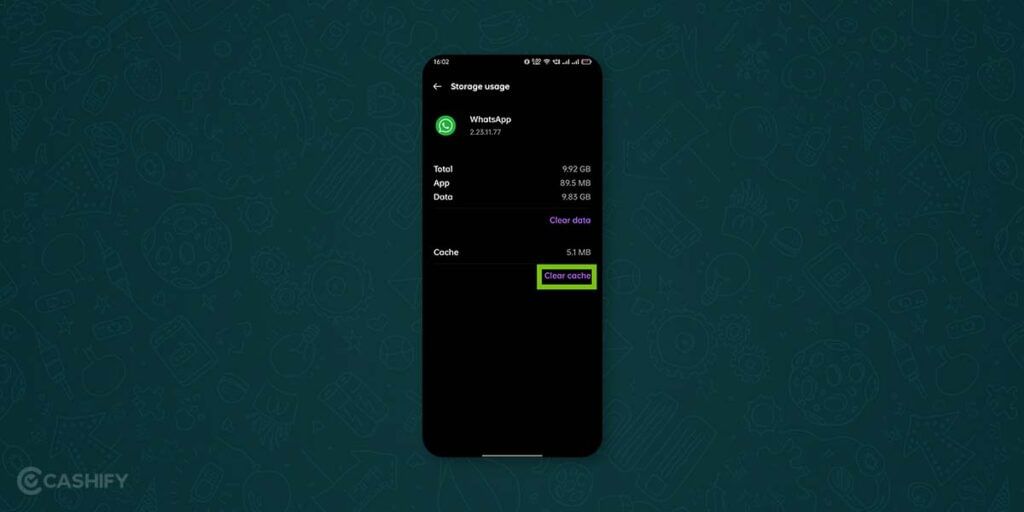
This may help if the app is facing a temporary WhatsApp verification code problem.
Also Read: How To Find My WhatsApp Number And Change It?
Use Wi-Fi Or Mobile Data:
WhatsApp needs a working internet connection to request the code, while the SMS itself arrives over your mobile network. If your internet is slow, switch between Wi-Fi and mobile data. You can also turn aeroplane mode on and off to refresh your network.
Once you are sure that you are now getting a good internet connection, try again.
Restart Your Phone:
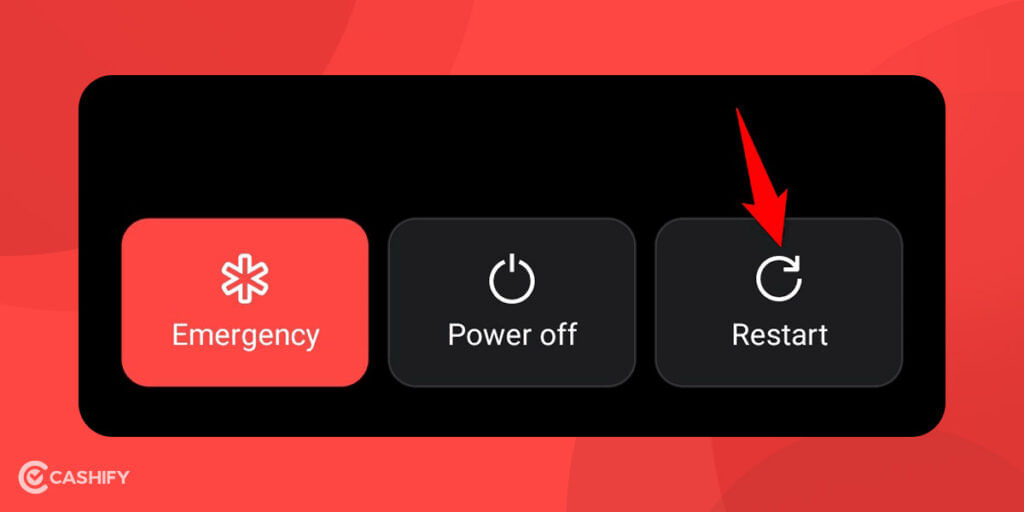
A simple restart can fix many issues. Power off and then power on your phone to refresh your network settings.
Update Your Phone And WhatsApp:
- Update your phone’s software.
- Use the newest version of WhatsApp.
- Only download WhatsApp from the Google Play Store, the App Store, or WhatsApp’s official website.
- Don’t use modified apps like GBWhatsApp. They are unofficial and can get your account banned.
Use A Passkey:
If you set up a passkey on your account earlier, you can use it instead of the SMS code when you reinstall WhatsApp or set it up on a new phone. Verify with your fingerprint, face, or screen lock when WhatsApp asks. To create one while you still have access, go to WhatsApp Settings > Account > Passkeys > Create passkey. A passkey only helps if it was set up before you lost access to SMS, and requirements vary by phone and OS version.
Try Switching Your Network Mode:
If your signal is weak or keeps dropping on 5G, try switching your phone to 4G/LTE for a few minutes, then request the code again. The setting is usually under Settings > Network & internet > SIMs, but the path varies by phone.
Also read: OriginOS 6 Announced: Eligible Devices, Features And Release Timeline!
Disable VPN Or Privacy Apps:
A VPN or privacy app can sometimes interfere with how WhatsApp connects to its servers. Turn it off from your phone’s VPN settings (usually Settings > Network & internet > VPN on Android, or Settings > VPN on iPhone), and try requesting the code again.
Contact WhatsApp Support:
If nothing works and you still can’t get the WhatsApp verification code, you can ask official WhatsApp support for help.
Reach out to them:
- On the screen where you enter the code.
- Tap the ‘Help’ option in the top right corner.
- You can also report your problem by filling out a form. Make sure to write all the details they ask for correctly.
- After you send the form, WhatsApp will email you to confirm it received your message.
- Follow the instructions in its reply before requesting more codes, and check your spam or junk folder in case the email lands there.
Also Read: On-Screen Keyboard Shortcut: How To Enable Or Disable It?
Use Email Verification
WhatsApp lets you add an email address to your account, which can be used to receive the 6-digit code by email when SMS doesn’t work, for example in an area with poor mobile coverage. This only works if you added and verified your email before you lost access.
To add one, go to WhatsApp Settings > Account > Email Address and verify it with the code sent to your inbox.
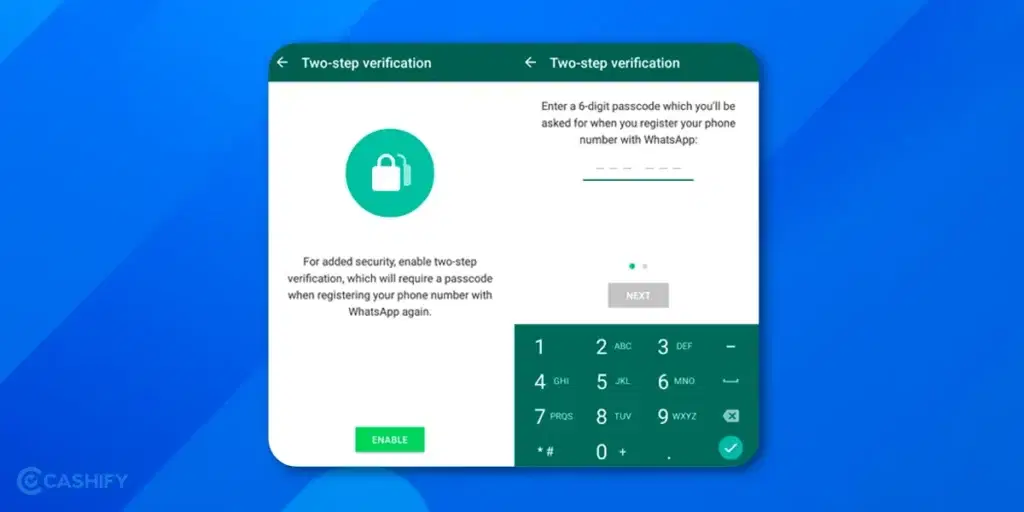
If you set this up earlier, look for the email option on the verification screen. You still need a valid phone number to use WhatsApp, because the email is only used for verification. This is different from two-step verification, which is a separate password you can set for extra security.
Check WhatsApp App Activity:
When we switch to a new phone, the verification code might be sent to the old phone. But if the Pause App Activity setting is ON in the old device, WhatsApp may stop working in the background.
This can happen if you haven’t used WhatsApp on the old phone for a long time. Because of this, the code doesn’t get delivered.
To fix this, you should check if the app is paused. If it is, here’s how to turn it OFF:
Make Sure The SIM Is In The Phone You’re Using:
The code is sent to the SIM that holds your number, not to a particular phone. If your SIM is still in your old phone, or you use a dual-SIM phone, make sure the right SIM is active in the phone you are setting up. If you just activated an e-SIM, wait until it shows signal before requesting the code.
Also Read: How To Use 2 WhatsApp Accounts In iPhone: Simple Steps!
Check Spam Messages
Some phones and messaging apps automatically filter messages from unknown senders into a spam or junk folder, so the WhatsApp code may arrive but not show up in your main inbox.
To solve this, you might want to check the spam folder of your SMS app.
| Step | Android | iPhone |
|---|---|---|
| Check spam messages | Messages App > Menu Icon > Spam & Blocked | Messages App > Filter option > Select Junk from the menu |
Also Read: What is Override Force Dark?: Use All Android Apps In Dark Mode Using This Feature
Enable And Disable Airplane Mode
One of the easiest ways to fix the WhatsApp verification code issue is Airplane Mode. This helps refresh your mobile network.
When you turn on Airplane Mode, it stops all wireless connections. This also includes your mobile network. When you turn it off, your phone connects again to the nearest network tower. This can improve the signal and help you receive the verification code.
Follow these steps:
- Go to your Phone Settings.
- Tap on Airplane Mode and turn it ON.
- Wait for 30 seconds.
- Then, turn Airplane Mode OFF.
- Now open WhatsApp and request the verification code again.
- Check if the code arrives.
This trick can help fix any network problems that are stopping the code from coming.
WhatsApp Verification Code Problem While Travelling
WhatsApp Verification can mess up when you are on the move. Factors like network connectivity come into play.
If mobile roaming is turned on, WhatsApp verification usually works. However, roaming may cost extra money depending on your mobile plan.
Here is what you can do!
| Method | What You Need To Do | Important Note |
|---|---|---|
| Turn on roaming | Enable roaming in your phone’s settings to receive SMS or calls while abroad | Roaming may result in extra charges |
| Use the “Call Me” option | Select ‘Call Me’ on WhatsApp if the SMS code doesn’t arrive | You may get a call or voicemail with the code |
| Check voicemail | Check your voicemail if you miss the verification call | The code is sometimes left as a voicemail |
| Use a local phone number | Insert a local SIM or use a local number that can receive SMS or calls | Best option if roaming doesn’t work |
If you only need WhatsApp on a second device, such as a tablet or laptop, you can link it to your main phone using WhatsApp’s linked devices feature instead of verifying a new number. This needs your main phone to approve the link, so it won’t help if your main phone is the one that can’t verify.
Also Read: Facing Spotify Something Went Wrong Error? Here’s A Quick Fix!
Also read: 5 Reasons To Buy The Latest Apple iPhone 16e!
Received Verification Code Without Request
Another type of WhatsApp verification code problem is receiving a code you never requested.
| What It Might Be | What to Do |
|---|---|
| Mistyped number by someone else | Ignore the code |
| Someone trying to hack your account | Don’t share the code with anyone |
| Asked for code by a stranger or “friend” | It’s a scam. Just ignore and block |
In all cases, the safest action would be not to share the code with anybody that you have received in an SMS. Remember, without the code, it is a worthless attempt, and things are in your control.
Also read: How To Switch Back From Professional To Personal Account On Instagram?
Troubleshooting WhatsApp Verification Problem:
Let’s check out some popular troubleshooting issues and their solutions:
| Problem | What You Should Do |
|---|---|
| Using an old WhatsApp version? | Update WhatsApp from the Play Store or App Store, then try getting the verification code again. |
| Phone stuck or not responding? | Restart your phone. Turn it off, wait 30 seconds, then turn it back on. |
| Not receiving the SMS code? | Send an SMS to your number from another phone to check the network. Make sure you entered the correct country code. |
| Entered the wrong code too many times? | Stop trying for a while. Wait about 10 minutes and then try again. |
| Phone number entered incorrectly? | Enter your number like this: +CountryCode PhoneNumber (no 0s, no brackets, no symbols). For India, the country code is +91. |
| Spam filter blocking the SMS? | Turn off spam filters or mark WhatsApp as safe/allowed. |
WhatsApp Verification Code Problem In iPhone!
Most of the methods above also work on iPhone. These iPhone-specific fixes can help too:
1. Disable “Filter Unknown Senders” in Messages
WhatsApp codes often come from unknown senders, which iOS can filter into a separate “Unknown Senders” tab.
- Go to Settings > Messages (or Settings > Apps > Messages on iOS 18+).
- Scroll to Message Filtering (or Unknown & Spam).
- Toggle off Filter Unknown Senders.
- Open the Messages app, tap Filters (top-left), and check the Unknown Senders tab for the code.
- Re-enable after verifying to maintain spam protection.
- Restart your iPhone and request the code again.
2. Reset Network Settings
This clears cellular, Wi-Fi, and VPN configs that might block SMS delivery, forcing a fresh connection to your carrier.
- Go to Settings > General > Transfer or Reset iPhone > Reset > Reset Network Settings.
- Enter your passcode and confirm (it forgets Wi-Fi passwords and VPNs).
- Reconnect to Wi-Fi/cellular, then retry WhatsApp verification.
- Note: Back up Wi-Fi details first.
3. Temporarily Disable iMessage
This may help if iMessage is interfering with how SMS messages reach your iPhone.
- Settings > Messages > Toggle off iMessage.
- Wait 30 seconds, toggle back on.
- Retry code request.
4. Check Screen Time Restrictions
Parental controls might limit Messages or communications.
- Settings > Screen Time > Content & Privacy Restrictions > Allowed Apps > Ensure Messages is on.
- Under Communication Limits, allow contacts or everyone for SMS/calls.
5. Use A Passkey
If you created a passkey before, you can use Face ID, Touch ID, or your iPhone passcode instead of the SMS code. To create one while you still have access, go to WhatsApp > Settings > Account > Passkeys > Create passkey.
If these fail, contact WhatsApp support from the verification screen, or call your mobile carrier.
Also read: What Is The Difference Between RAM And ROM? Explained Simply!
What’s New In WhatsApp Verification And Account Security (2026)
In August 2026, WhatsApp announced new account security features, and some earlier options also affect how you verify your number. These are good for safety, but can make verification feel stricter.
- Stricter OTP Limits (Longer Wait Times): WhatsApp now limits how many times you can request a verification code. If you try too many times, you may see a cooldown timer that can go up to a few hours or even 24 hours. This is done to prevent spam and misuse, but it can delay access if you are not careful.
- Temporary And Virtual Numbers Are Often Rejected: Many users try apps that provide temporary or virtual phone numbers to create WhatsApp accounts. WhatsApp often rejects these, so use a real mobile number that can receive SMS or calls.
- Extra Verification For Suspicious Logins: If WhatsApp detects unusual activity, such as logging in from a new device or location, or after multiple failed attempts, it may delay sending the verification code or ask for additional checks. This is part of their improved anti-fraud system to protect user accounts.
- Passkeys Introduced (No OTP Needed): One of the biggest updates is the introduction of passkeys. Instead of relying solely on SMS- or call-based OTPs, users can now verify using biometrics such as fingerprint or face unlock. This is faster and more secure, and it avoids common OTP issues entirely, but it is currently available only on supported devices.
FAQs: WhatsApp Verification Code Problem
1. What should I do if I get a WhatsApp verification code I didn’t request?
Ignore it and don’t share it with anyone. It may be a mistyped number or someone trying to access your account. If a stranger or “friend” asks for the code, it’s a scam, so block them.
2. How long does WhatsApp verification take?
The code usually arrives within a few minutes. Delays can happen because of network or carrier issues.
3. Why is the WhatsApp code going to my old phone?
The code is sent to the SIM that holds your number, not to a specific phone. If your SIM is still in your old phone, the SMS will arrive there. Move the SIM to the phone you’re setting up, or use “Call me” once the timer ends.
4. Can I get the WhatsApp verification code by call?
Yes. Tap “Didn’t receive code?” and select “Call me” when the option appears.
5. Can reinstalling WhatsApp fix the verification problem?
Sometimes. Reinstall WhatsApp from the official app store and try verifying your number again.
6. Can clearing WhatsApp cache help?
Yes. On Android, go to Settings > Apps > WhatsApp > Storage > Clear Cache and try again.
7. Can Airplane Mode fix WhatsApp verification?
It can help refresh your mobile network. Turn Airplane Mode on for about 30 seconds, then turn it off and request the code again.
8. Why am I not receiving the WhatsApp code on my iPhone?
Check the Unknown Senders or Junk folder in Messages. You can also restart your iPhone or reset network settings.
9. Can 5G cause WhatsApp verification issues?
In some cases, switching temporarily to 4G or Wi-Fi may help if SMS delivery is delayed on your 5G network.
10. Can a VPN affect WhatsApp verification?
Yes. Temporarily disable your VPN or privacy apps and try requesting the code again.
11. Why is WhatsApp not sending me a verification code even after multiple attempts?
WhatsApp may temporarily limit verification requests after multiple attempts. Check your phone number, network connection, SMS spam folder, and wait for the verification timer before requesting another code.
12. How can I verify my WhatsApp number without receiving an SMS?
If SMS verification is unavailable, tap “Didn’t receive code?” and select “Call me” if the option appears. On supported devices, you can also use WhatsApp passkeys to verify your account without relying on SMS.
Summing Up
The WhatsApp verification code problem is usually caused by network issues, incorrect phone number details, SMS delays, or too many verification attempts. Start by checking your number and network connection, restarting your phone, and waiting for the verification timer before requesting another code.
If the SMS still doesn’t arrive, try the “Call me” option, check your spam or junk messages, or use a passkey if supported. If none of these methods work, contacting WhatsApp support is the next step to regain access to your account safely.
Did you know that refurbished mobile phones cost almost 50 per cent less than new phones on Cashify? You also get other discounts, No-cost EMI and more, making it the most affordable way to buy a premium phone. So, what are you waiting for? Buy refurbished mobile phones at your nearest cashify store and avail exclusive offers.