OnePlus offers developer options on most of its smartphones, giving users access to advanced settings and additional controls. These options can be useful for customising certain system behaviours, enabling USB debugging, adjusting animation settings, and testing different features. In this guide, I will explain how to enable developer options on OnePlus phones running OxygenOS or ColorOS.
Also Read: Samsung Galaxy Z Flip8 Quick Review: The Flip Phone Gets Better
What Is Developer Options On OnePlus?
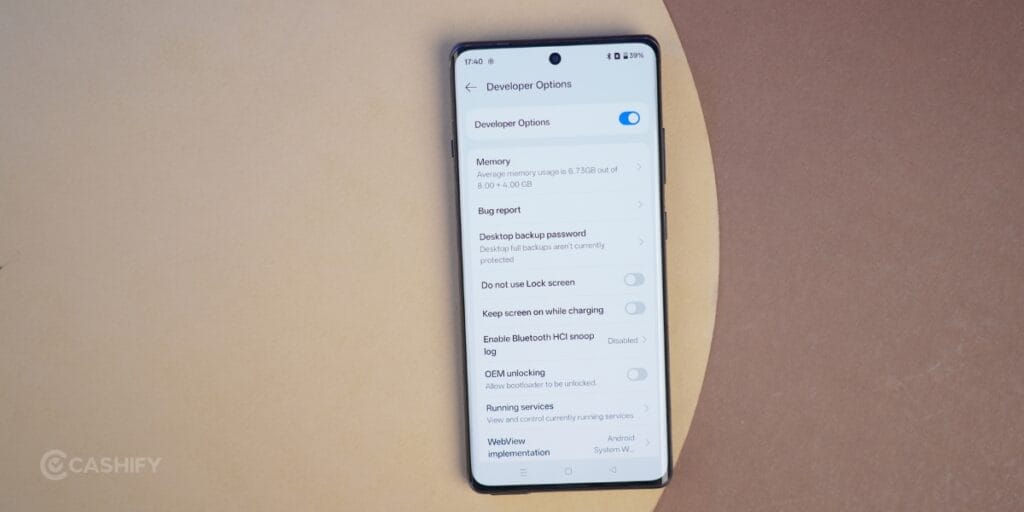
Developer options in OnePlus are advanced settings hidden in OxygenOS/ColorOS. It allows you to test apps, change animation speeds, enable USB debugging, or unlock the bootloader. This menu is hidden by default so regular users do not change system behaviour by mistake.
Steps To Enable Developer Options On OnePlus
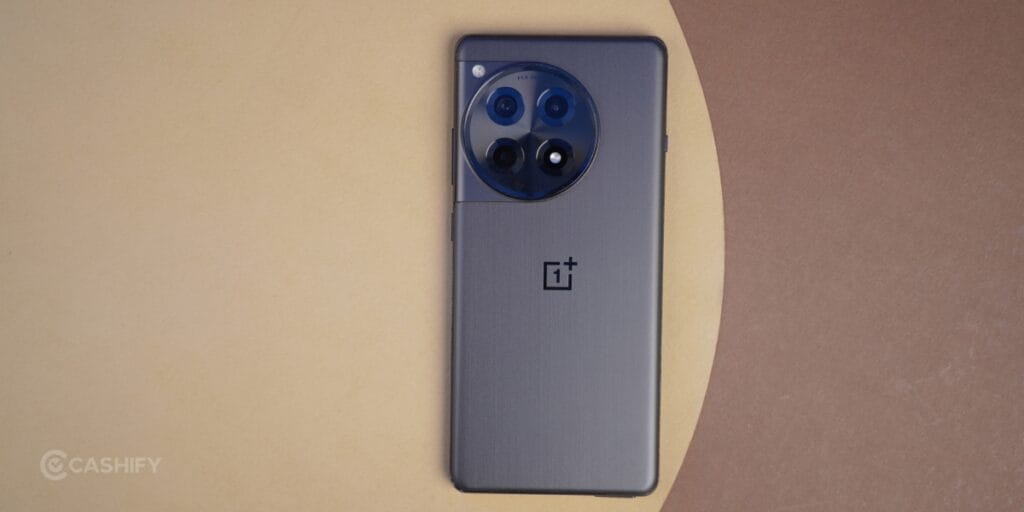
To enable developer options on a OnePlus device, you only need to follow a few simple steps. At the time of writing this article, I was using the OnePlus 12R, but the process is similar on most OnePlus smartphones.
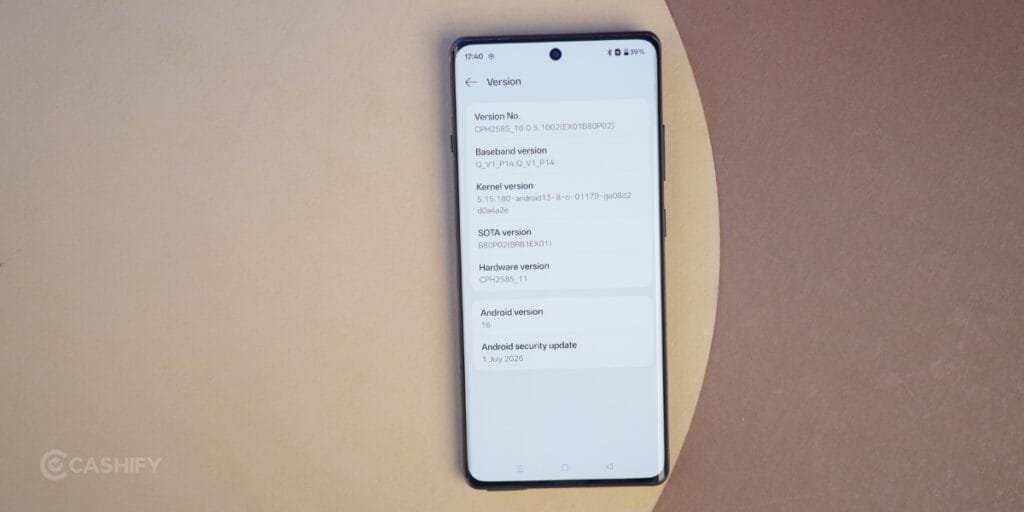
- Open Settings on your OnePlus device and scroll down to About device.
- Tap Version, and then tap Version No. seven times.
- You may be asked to enter your device’s lock screen password or PIN to confirm.
- Once enabled, go back to the main Settings menu and open System & update.
- Scroll down and tap Developer options.
- You can now access and use the developer features according to your requirements.
Also Read: Samsung Galaxy Z Fold8 Ultra First Impressions: Slimmer, Smarter, But Is It Truly Ultra?
How to turn off developer options on OnePlus
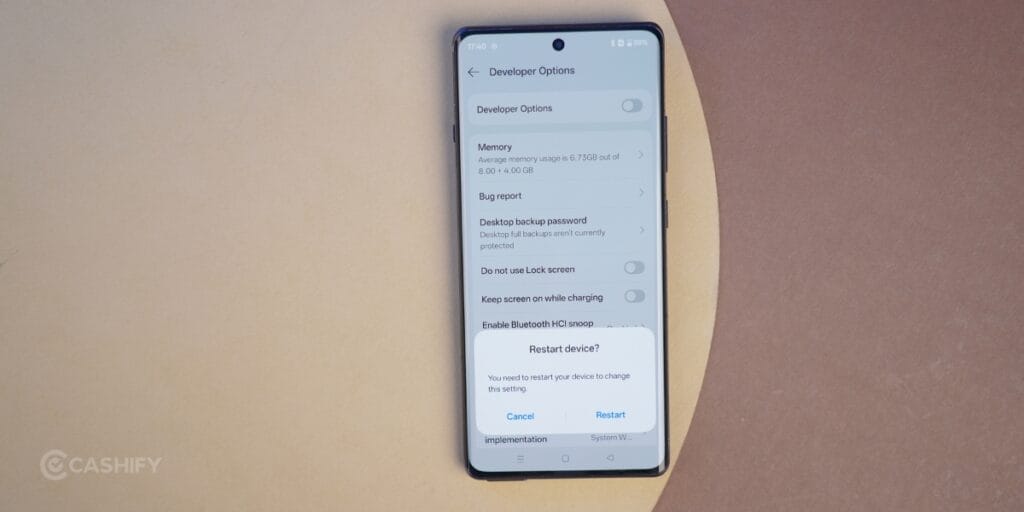
If you want to disable developer options on your OnePlus device, open Developer options from the System & update section and turn off the toggle at the top. Your device may prompt you to restart to apply the changes and return the system to its normal settings.
Things To Know Before Enabling Developer Options On OnePlus
Developer Options gives you access to advanced system settings, so you should use them carefully. Simply enabling Developer Options does not make your OnePlus phone open source or automatically compromise your passwords. However, changing certain settings, such as USB debugging, OEM unlocking, or bootloader-related options, can affect your device’s security and app compatibility.
Some banking, payment, government, or work-related apps may also restrict certain features if they detect specific developer settings or an unlocked bootloader. If an app stops working properly after making changes in Developer Options, check the app’s requirements and consider reverting the settings you changed.
It is recommended to enable only the options you understand and keep features such as USB debugging and OEM unlocking disabled when they are not required.
Also Read: Samsung Galaxy Z Fold8 First Impressions: Samsung’s Boldest Foldable Yet
Here are these apps:
- UPI & Payment Apps: Apps like Google Pay, PhonePe, Paytm, and BHIM may fail during setup or refuse to process transactions.
- Net Banking Apps: Official apps from major banks (HDFC, SBI, ICICI, etc.) often detect active debugging states and block login access.
- Govt & Identity Apps: Document verification platforms (like IRCTC Rail Connect or DigiLocker) frequently prompt users to close developer settings for compliance.
- Secure Corporate/Work Apps: MDM (Mobile Device Management) profiles or corporate email configurations block access when developer toggles are enabled.
Conclusion
Enabling Developer Options on a OnePlus smartphone is a simple process and gives you access to several advanced settings and useful tools. While these options can be helpful for developers and advanced users, you should avoid changing settings without understanding their purpose. If you no longer need them, you can easily turn off Developer Options from the same menu.
Are you still browsing through your broken screen? Don’t worry! Book an at-home mobile phone screen repair with Cashify—an affordable and one-stop destination for all your mobile phone needs. In case you break your screen within 1 month of repair, we will replace your screen again—for FREE.