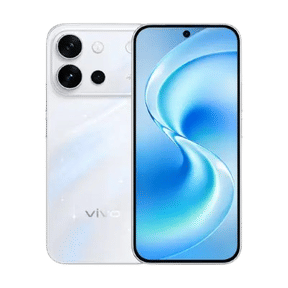
Want to know which processor powers your smartphone? Whether you’re comparing phones, checking performance, or verifying your device specifications, finding your phone’s processor is easier than you might think. The exact steps depend on whether you use an Android phone or an iPhone. In this blog, let us talk about how to check processor in mobile in easy ways. So, let’s begin.
Also Read: FunTouch OS 17 Update: Release Date, Rollout Timeline And Supported Devices
How To Check Processor On Android
Android manufacturers place device information in slightly different locations, but the process is usually straightforward.
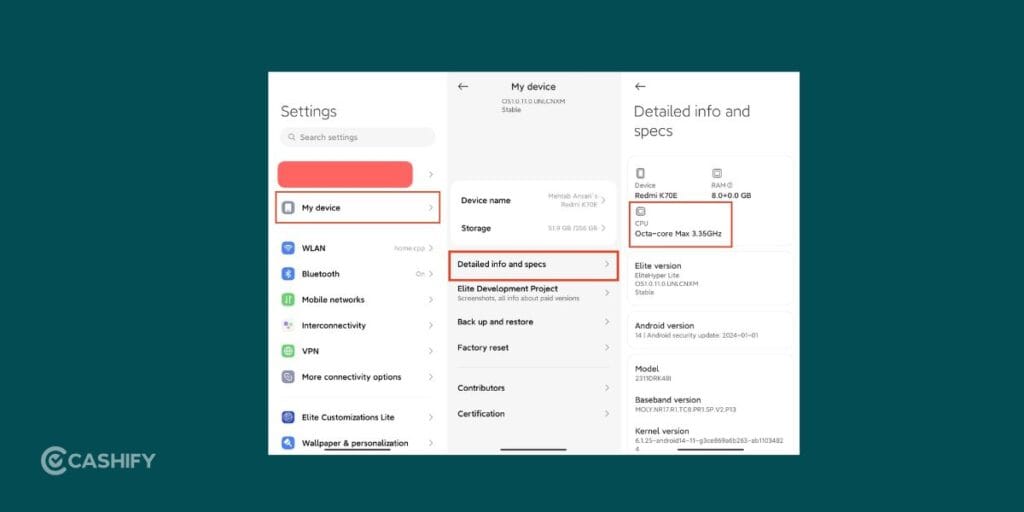
Check the Processor Through Settings
- Open the Settings app.
- Scroll down and tap About Phone.
- Look for options such as Device Information, Hardware Information, or Phone Specifications.
- Check whether the processor or chipset name is listed.
Depending on your device, you may see processor names such as:
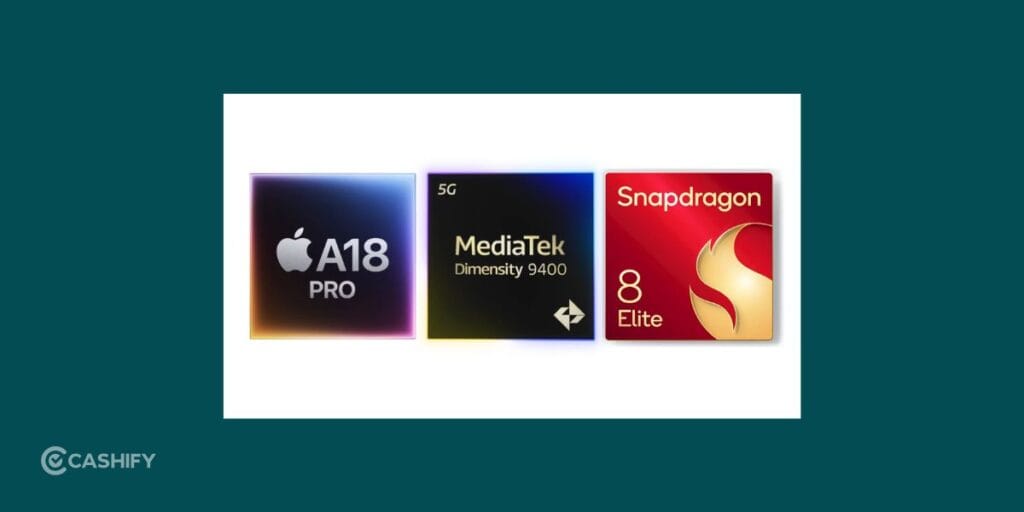
- Snapdragon 8 Gen series
- MediaTek Dimensity series
- Samsung Exynos
- Google Tensor
Not all Android phones display chipset information in Settings. If you can’t find it, use the next method.
Use A Device Information App
A hardware information app can show detailed specifications, including the processor model.
Here are the popular apps to check processor in Android Mobile:
- CPU-Z
- AIDA64
- Device Info HW
To check your processor:
- Install one of these apps from the Google Play Store.
- Open the app.
- Navigate to the CPU or Chipset section.
- View your processor details.
This is often the fastest and most accurate way to check the processor on an Android device.
How To Check Processor On iPhone
Apple does not display the chip name directly in the Settings app. Instead, you’ll need to identify your iPhone model first.
Find Your iPhone Model
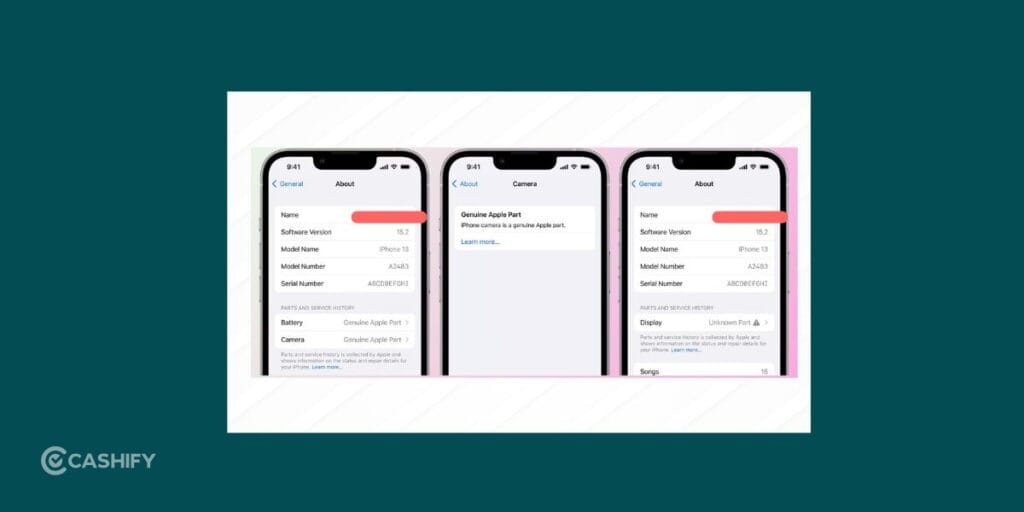
- Open Settings.
- Tap General.
- Select About.
- Note the Model Name.
Once you know your iPhone model, you can identify the processor it uses. For example:
- iPhone 15: A16 Bionic
- iPhone 15 Pro: A17 Pro
- iPhone 17: A19
- iPhone 17 Pro: A19 Pro
Also Read: iOS 26 Vs One UI 8.5: Apple Gets Smarter, Samsung Stays Flexible
Use A Device Information App
If you’d like to view hardware information directly on your iPhone, you can use an App Store apps such as:
- Device Monitor
- CPU DasherX
After installing the app:
- Open the app.
- Go to the hardware or CPU section.
- Check the processor information displayed on the screen.
Why Can’t You Find Processor Information In Settings?
Not every smartphone displays the processor name in the Settings app. Many manufacturers focus on showing storage, RAM, and software details while hiding advanced hardware specifications.
If you can’t see the chipset information under About Phone, don’t assume there’s a problem with your device. In most cases, the information is simply not displayed by the manufacturer. Using a hardware information app is the easiest way to view the exact processor model.
What Information Can You Learn About Your Processor?
Once you check your processor in mobile, you’ll often see additional technical details.
These may include:
- Processor model
- Number of CPU cores
- Maximum clock speed
- Graphics processor (GPU)
- Chip architecture
- Manufacturing process
This information can help you better understand your device’s capabilities and compare it with newer smartphones.
How To Find The Right Processor For Your Phone
Now that you know how to check processor in mobile, let us talk about the another crucial aspect.
Checking your phone’s processor is useful, but understanding whether it’s the right processor for your needs is even more important. The best processor depends on how you use your smartphone.
For Everyday Use
If you mainly use your phone for calling, messaging, web browsing, social media, and video streaming, a mid-range processor is usually more than enough. These processors offer smooth performance without consuming too much battery.
Popular options include:
- Snapdragon 7 series
- MediaTek Dimensity 7000 and 8000 series
- Google Tensor chips
For Gaming
Mobile games require more processing power, especially titles with high-quality graphics and multiplayer modes. If gaming is a priority, look for a flagship processor.
Popular gaming-focused processors include:
- Snapdragon 8 series
- MediaTek Dimensity 9000 series and above
- Apple A17 Pro and newer chips
These processors deliver better frame rates, faster loading times, and improved thermal management during long gaming sessions.
Also Read: Vivo X300 FE Vs Vivo X300: Which One Is the Better Choice For You?
For Photography And Video Editing
Many modern smartphones rely on their processor for image processing, AI enhancements, and video recording features. A powerful chipset can improve camera performance, especially when capturing high-resolution photos or recording 4K videos.
Flagship processors generally offer the best camera processing capabilities.
For Battery Efficiency
A newer processor isn’t just faster, it can also be more power-efficient. Modern chipsets are designed to handle tasks using less energy, which can help extend battery life throughout the day.
If battery backup is important to you, consider a newer-generation processor rather than focusing only on raw performance.
Compare Before Upgrading
If you’re planning to buy a new smartphone, compare your current processor with the one in the device you’re considering. This helps you determine whether the upgrade will provide a noticeable improvement in speed, gaming performance, camera processing, and overall user experience.
Choosing the right processor ultimately comes down to how you use your phone. A flagship chipset isn’t necessary for everyone, but selecting a processor that matches your daily needs can help you get the best value from your smartphone.
Final Thoughts
Checking the processor in your mobile phone only takes a few minutes. On Android, you can usually find the information in Settings or through a device information app. On iPhone, the easiest way is to check your model name and identify the chip associated with it.
Once you know your processor, you’ll have a better understanding of your phone’s performance and hardware specifications.
Also Read: 5 Best Messaging Apps For Android And iPhone For Secure Chats (2026)
Frequently Asked Questions
1. How can you check your phone processor without installing an app?
You can check your processor through the Settings app on most Android phones. Go to Settings > About Phone and look for hardware or device specifications. On iPhones, check the model name under Settings > General > About and identify the corresponding chip.
2. Which app is best for checking a mobile processor?
Apps like CPU-Z, AIDA64, and Device Info HW are popular choices for Android users. They provide detailed information about the processor, CPU cores, clock speed, RAM, and other hardware specifications in a simple and easy-to-read format.
3. Can you check the processor on an iPhone directly from Settings?
No, Apple does not display the processor name directly in the Settings app. You can view your iPhone model under Settings > General > About and then identify the chip used in that particular iPhone model.
4. Why can’t you find processor details in Android Settings?
Some smartphone manufacturers do not show chipset information in the Settings menu. If the processor isn’t listed under About Phone, you can use a hardware information app to view complete device specifications, including the processor model.
5. How do you know if your phone has a Snapdragon or MediaTek processor?
Open Settings > About Phone and check the device specifications. If the processor information isn’t available, use apps like CPU-Z or AIDA64. These apps clearly display whether your phone uses a Snapdragon, MediaTek, Exynos, or Tensor chipset.
If you’ve just bought a new phone and don’t know what to do with your old phone, then here’s your answer. Sell old mobile to Cashify and get the best price for it. If you are planning to buy a new phone, check out Cashify’s refurbished mobile phones. You can get your favourite phone at almost half price with six-month warranty, 15 days refund and free delivery.