iOS 26 has brought in several new changes to your iPhone. You might be aware of the major features like Liquid Glass UI or a completely changed camera app. But there are several hidden iOS 26 features that you might have missed. In this blog, let us talk about those hidden features. So, let’s begin.
Also Read: HyperOS 3.1 Release Date, Eligible Devices, More Details!
What Are The Hidden iOS 26 Features That You Need To Try?
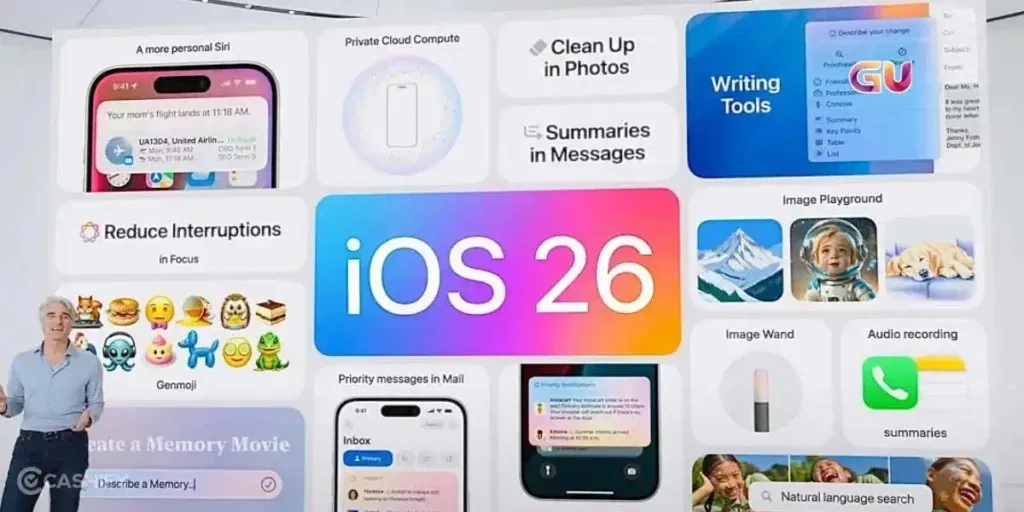
Apple showcased many of its features, but some remained out of the user’s sight. Here, take a look at these hidden iOS 26 features:
Partially Select Text In iMessage
iOS 26 now lets you copy just a part of the message instead of having to copy the whole thing. This hidden iOS 26 feature is especially useful when you have to select a web link or address from the entire message.
To access this feature, simply long-press the text message and choose “Select”. Now drag and choose exactly what you want to copy.
Choose A Custom Snooze Duration For Alarms
This hidden iOS 26 feature really caught my eye. For almost 20 years, Apple had kept the default Alarm snooze time as 9 minutes, and you could not alter it. But not anymore. The new iOS update lets you set the snooze duration to as little as 1 minute.
Just go to the Clock app > Alarm > Snooze duration and select the custom time you would like to set.
Set Callback Reminders For Missed Calls
If you miss a call now, you can set a reminder to return it at a convenient time using this hidden iOS 26 feature. To use this hidden iOS 26 feature, go to your Phone app> Recent calls> Swipe left across the missed call.
Next, you need to tap on the Blue clock icon and choose from the following:
- Remind Me in 1 Hour
- Remind Me Tonight
- Remind Me Tomorrow
- Remind Me Later (You can select a custom date and time here)
All the call reminders you set will appear in the Reminders app.
Also Read: Oppo Reno 15C Announced: Expected India Launch, Price & Specs
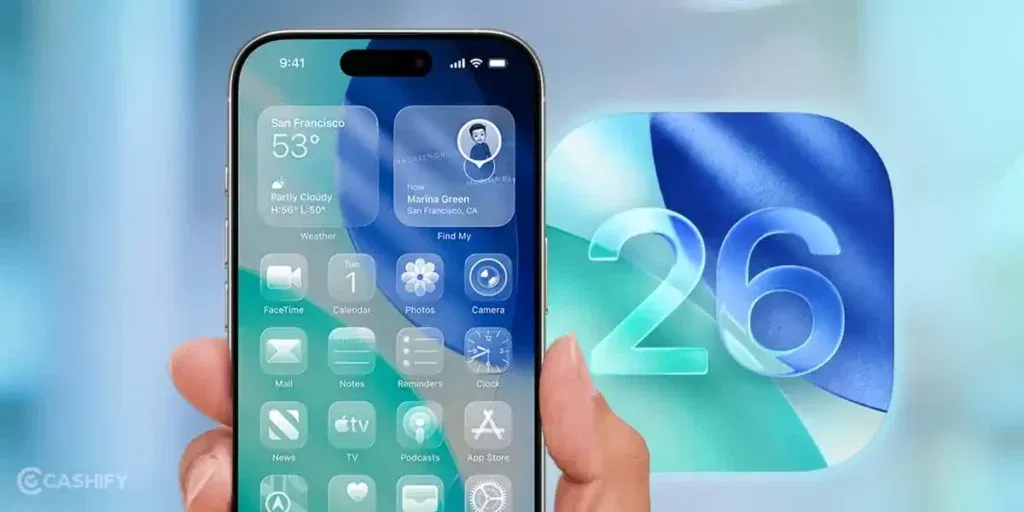
Match Home Screen Icons to Your iPhone Case
You can choose a tint color for your Home Screen icons to match your iPhone case color automatically. This hidden iOS 26 feature, however, works with Apple MagSafe cases.
To change the icon tint, press and hold on the Home Screen, tap Edit, then select Customize. Choose Tinted, and tap the phone case icon to apply your case color.
If you prefer, you can also match your icons to your iPhone’s body color by tapping the phone icon below the color sliders.
Find Specific Videos Using Improved Search
The Photos app now highlights the exact moment in videos that matches your search. For example, searching “birthday cake” will show the frame where the cake appears.
Tap the thumbnail to jump straight to that part of the video. This hidden iOS 26 feature makes it much easier to find the exact scene you want.
View Messages You Didn’t Send
This hidden iOS 26 feature lets you view messages you typed but didn’t send. You can find this option as “Drafts” in the Filters section of the Messages app. All the unsent messages that you typed will appear here.
To access this, tap on the three lines in the upper-right corner of the Messages app.
Note: You will only see the Drafts section if you have unsent messages.
Save Recipes And Instructions To The Reminders App
The new Siri Suggestions feature in the Reminders app makes it easy to save recipe ingredients and instructions. To use it, highlight the recipe text you want and open the Share Sheet.
Choose Reminders, and Siri Suggestions will automatically extract the ingredients or steps, adding them to your shopping list or creating a step-by-step preparation list.
While this hidden iOS 26 feature doesn’t work with every recipe, it works well with content from websites, Apple News, and other apps.
Also Read: 5 Best Motorola Edge 70 Alternatives With Better Camera And Battery
iOS 26 Features At A Glance
Now that you are aware of the hidden iOS 26 features, let us have a look at all the features in brief:
| Feature | Description | How To Use |
| Choose a Default App for Files | Set which app opens automatically for different file types like PDFs, documents, images, and more. | Open the Files app, long press a file, tap Get Info, then choose Always Open With. For one-time use, long press and select Open With. |
| Easily Set a Custom Ringtone | Use any MP3 or M4A under 30 seconds as a ringtone directly from Files. | Long press the file in Files, tap Quick Look> Share Sheet> More> Use as Ringtone. Delete ringtones via Settings> Sounds & Haptics> Ringtones> Swipe & Delete. |
| Take Better Panoramas | Improved panorama capture for smoother, less blurry results. | Built-in improvements in the Camera app; no extra steps required. |
| Get an Alert When Your iPhone Camera is Dirty | iPhone alerts you if the rear camera is smudged or dirty. | Works on iPhone 15 and later. |
| See Event Details in the Photos App | View concert or sports event details, including top songs and upcoming events. | Tap Info on a relevant photo. Note: indexing required; not available for all images. |
| Keep Audio in Headphones | Prevents audio from automatically switching to other connected devices. | Go to Settings> General> AirPlay & Continuity> Keep Audio in Headphones. |
| Swipe Back Gesture | Swipe from anywhere on the screen to go back, not just from the edge. | Available system-wide in most apps. |
Final Thoughts
That’s all about the hidden iOS 26 features. iOS 26 is packed with hidden features that make everyday tasks easier, from customizing alarms to smarter search in Photos and better reminders. Exploring these features can help you get the most out of your iPhone.
Also Read: OnePlus Pad Go 2 Vs Xiaomi Pad 7: Display, Performance & Value Compared
Frequently Asked Questions
Can I customize snooze duration for all alarms in iOS 26?
Yes! iOS 26 allows you to set a custom snooze duration for each alarm. Go to the Clock app> Alarm> Snooze Duration, and choose your preferred time from 1 minute or more.
How do I match Home Screen icons to my iPhone case?
With a MagSafe case, long-press the Home Screen> Edit> Customize> Tinted. Tap the phone-case icon to match your case color, or tap the phone icon below the sliders to match your iPhone’s body color.
Can I view unsent messages in iOS 26?
Yes! Unsent messages appear in the Drafts section of the Messages app. Tap the three lines in the top-right corner to access Drafts. This section only appears if you have unsent messages saved.
If you’ve just bought a new phone and don’t know what to do with your old phone, then here’s your answer. Sell old mobile to Cashify and get the best price for it. If you are planning to buy a new phone, check out Cashify’s refurbished mobile phones. You can get your favourite phone at almost half price with Six-month warranty, 15 days refund and free delivery.