Getting the most out of your Pixel 11 does not mean changing every camera option. With a few simple adjustments, you can improve your photos, shoot better videos, and make the most of the phone’s camera features. In this blog, you’ll find the best Google Pixel 11 camera settings for everything from everyday photography and portraits to night shots, zoom, selfies, and videos.
Also Read: How To Check Oppo Phone Model Number: 3 Easy Methods
Best Google Pixel 11 Camera Settings At A Glance
If you want a quick setup, these are the best Google Pixel 11 camera settings to start with:
| Camera Setting | Recommended Option |
| Camera Look | Natural |
| Aspect Ratio | 4:3 |
| Gridlines | On |
| HDR | Auto |
| Everyday Zoom | 1x |
| Distant Subjects | 5x |
| Night Photography | Night Sight |
| Moving Subjects | Magic Capture |
| Video | 4K at 30fps |
| Stabilisation | On |
| RAW | Off unless you edit photos |
You can keep these settings as your starting point and change them depending on what you are shooting.
1. Choose Natural Camera Look For Everyday Photos
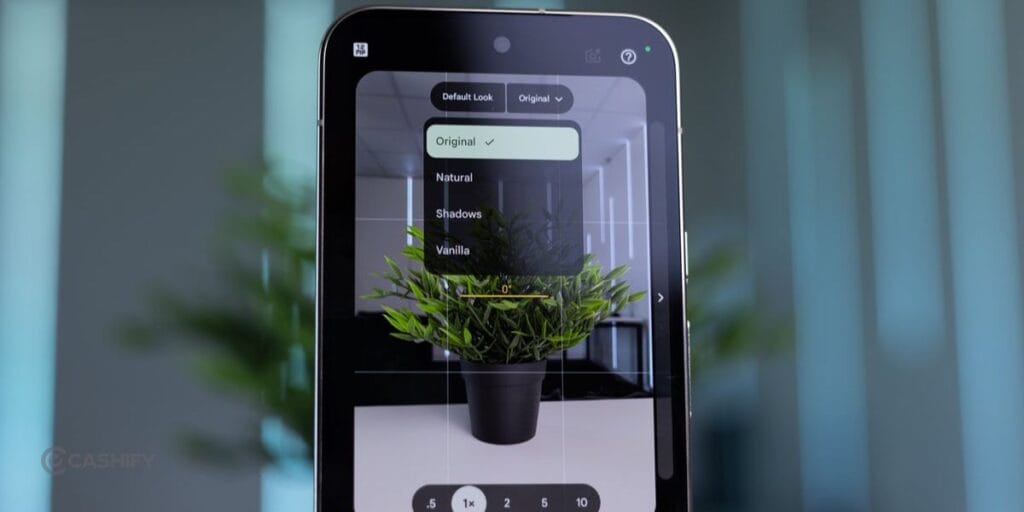
The Pixel 11 gives you more control over the appearance of your photos with Camera Looks. Instead of adding a filter after taking a picture, you can choose how you want the image to look while you’re shooting.
For the best Google Pixel 11 camera settings for everyday photography, start with Natural. It keeps the image balanced without making the colours or contrast look too strong.
You can also try other options when you want a different style. Shadows gives you stronger contrast, while Vanilla creates a warmer look.
If you want to customise your photos further, you can adjust elements such as:
- Contrast
- Highlights
- Shadows
- Vibrance
- Warmth
- Tint
- Sharpness
- Grain
Natural is a good default if you want your photos to look realistic and easy to edit later.
2. Keep The Aspect Ratio At 4:3
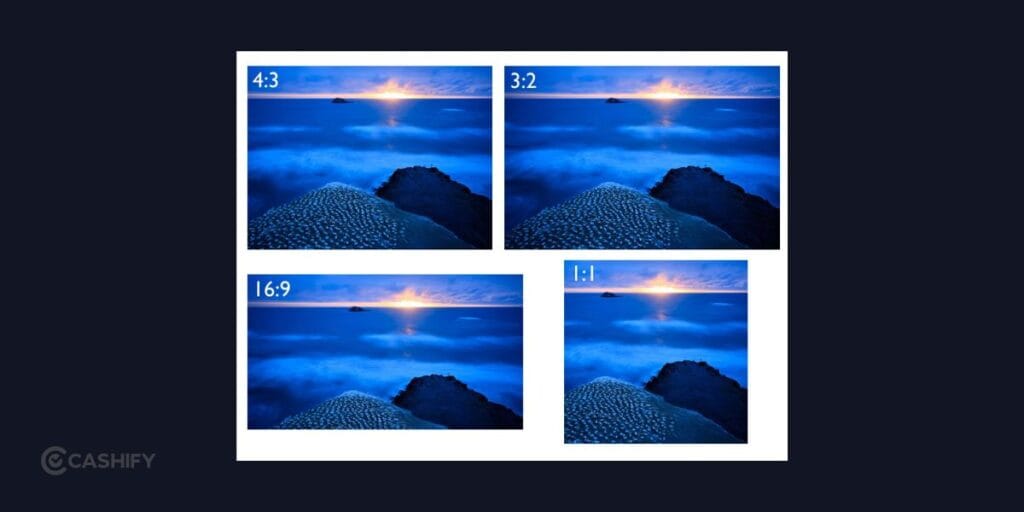
For most situations, 4:3 is among the best Google Pixel 11 camera settings because it gives you a larger image area than the cropped 16:9 option.
Use 4:3 for everyday photography, travel pictures, food, portraits and landscapes. You can always crop the photo later if you need a different shape.
If you’re taking a photo specifically for a widescreen display, 16:9 can make more sense. Otherwise, stick with 4:3.
Also Read: OneUI 9 Brings Motion Photo Wallpaper: How Is It Different From Normal Wallpaper
3. Turn On Gridlines
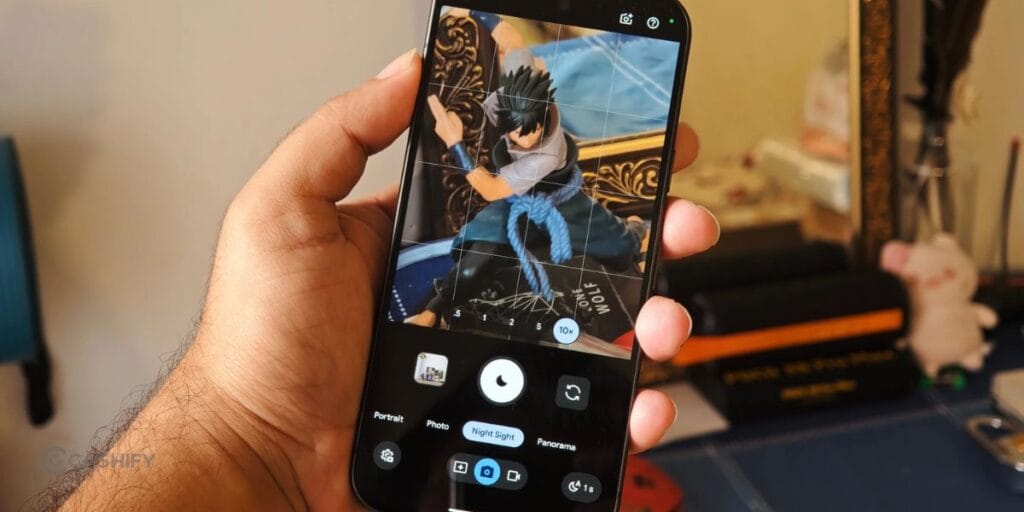
If you want better composition, adding gridlines is one of the easiest and best Google Pixel 11 camera settings changes you can make.
The lines help you keep horizons straight and position your subject more carefully. They are particularly helpful when photographing buildings, landscapes and travel scenes.
You don’t have to follow the grid perfectly. Use it as a guide when framing your shot.
4. Use 1x For Most Everyday Photos
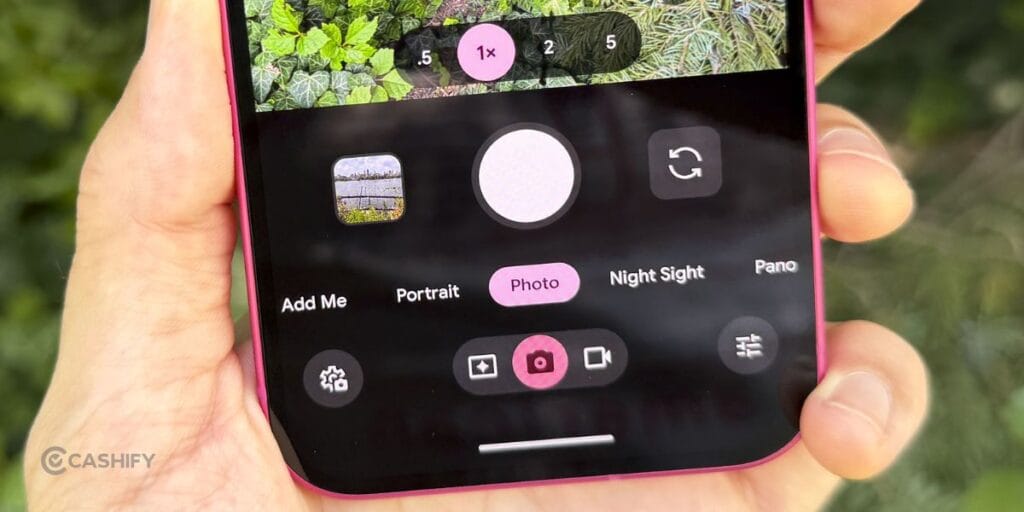
For everyday photography, 1x should be one of your go-to options. It is useful for people, pets, food, street photography and general snapshots.
When you’re looking for the best Google Pixel 11 camera settings, don’t assume that more zoom automatically means a better photo. Starting at 1x usually gives you a natural perspective and lets the camera capture plenty of detail.
If you need to get closer to your subject, move closer when possible instead of immediately pushing the zoom slider.
5. Switch To 5x For Distant Subjects
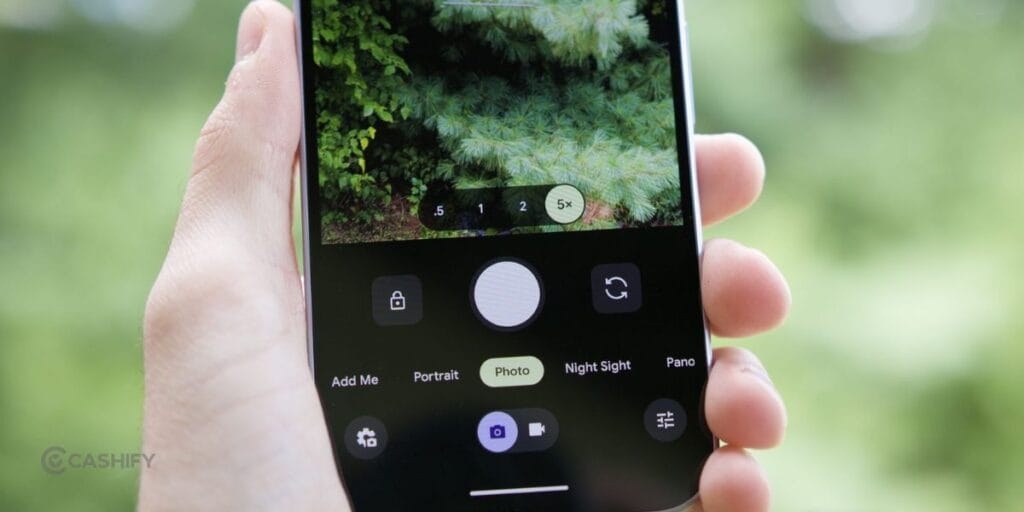
The Pixel 11’s telephoto camera makes 5x useful when your subject is too far away to photograph comfortably.
As part of the best Google Pixel 11 camera settings for distant subjects, try 5x for:
- Concerts
- Sports
- Wildlife
- Stage performances
- Architecture
- Details on buildings
You don’t need to use the maximum zoom every time. Higher digital zoom can make photos look softer, particularly when there isn’t enough light.
A simple approach is 1x for everyday shots and 5x when you genuinely need to get closer.
6. Use Night Sight In Low Light
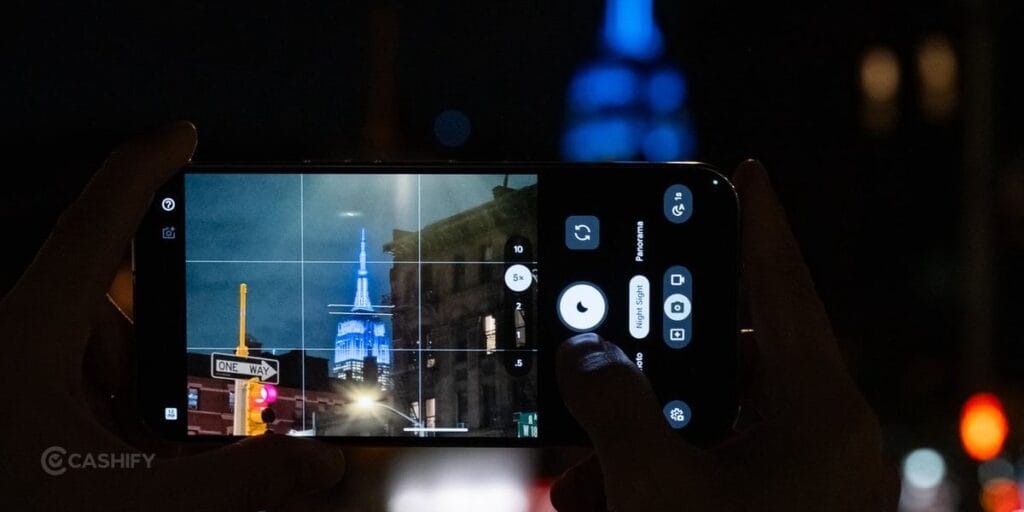
When you’re shooting in dark surroundings, Night Sight should be part of your best Google Pixel 11 camera settings.
It can be useful for night streets, restaurants, city lights, indoor scenes and evening landscapes. Once Night Sight activates, hold the phone steady while it captures the image.
For the cleanest result:
- Hold the phone with both hands.
- Keep stationary subjects still.
- Avoid unnecessary zoom.
- Look for available light.
- Give the camera a moment to capture the scene.
Night Sight works particularly well with stationary subjects. If your subject is moving quickly, available light and a faster capture can matter more.
Also Read: Smartphone Price Hike In India: These Popular Phones Just Got Costlier
7. Use Portrait Mode For People
Portrait Mode is one of the best Google Pixel 11 camera settings to use when you’re photographing people and want the background to appear softer.
For a natural result, don’t place your subject directly against a wall. Leave some distance between the person and the background. This gives the camera more room to create separation.
Start with Portrait Mode at 1x for everyday portraits. When you have enough space, you can also experiment with a longer focal length for a different perspective.
Good lighting still matters more than any setting. Soft daylight can make a bigger difference than changing several camera options.
8. Experiment With Camera Looks For Portraits
Camera Looks can also change the mood of your portraits, making them worth including among the best Google Pixel 11 camera settings for people photography.
Use Natural when you want a straightforward portrait. If you want deeper contrast, try Shadows. Vanilla can work when you prefer warmer tones.
You can also make smaller adjustments to highlights, shadows and warmth. Keep these changes subtle so the portrait still looks natural.
9. Use Magic Capture For Moving Subjects
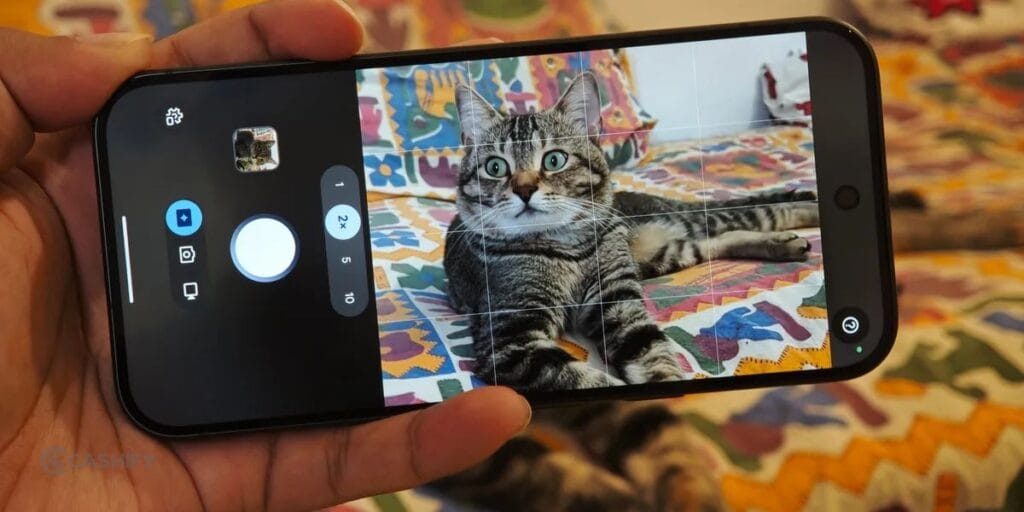
Getting a sharp photo of a running child, jumping pet or fast-moving player isn’t always easy. This is where Magic Capture can be useful.
It is one of the more interesting options among the best Google Pixel 11 camera settings because it is designed around moments that are difficult to capture perfectly.
Magic Capture can analyse captured video and identify useful moments that can be turned into still images.
Try it when photographing:
- Children
- Pets
- Sports
- Dancing
- Parties
- Group celebrations
- Other unpredictable movement
It can be particularly handy when you want both video and still images from the same event.
10. Use The Ultrawide Camera For Landscapes
For landscape photography, the best Google Pixel 11 camera settings depend on how much of the scene you want to capture.
Use the main camera when you want a natural perspective. Switch to the ultrawide camera when you’re photographing a large landscape, building or city scene and need more of the surroundings in the frame.
Gridlines can also help here, especially when you have a clear horizon.
Be careful with objects close to the edges of an ultrawide frame. They can look stretched, so the main camera may be better when you want a more natural perspective.
Also Read: Jio Prime Membership Price And How To Activate It In 2026
11. Use Quick Access When You Want More Control
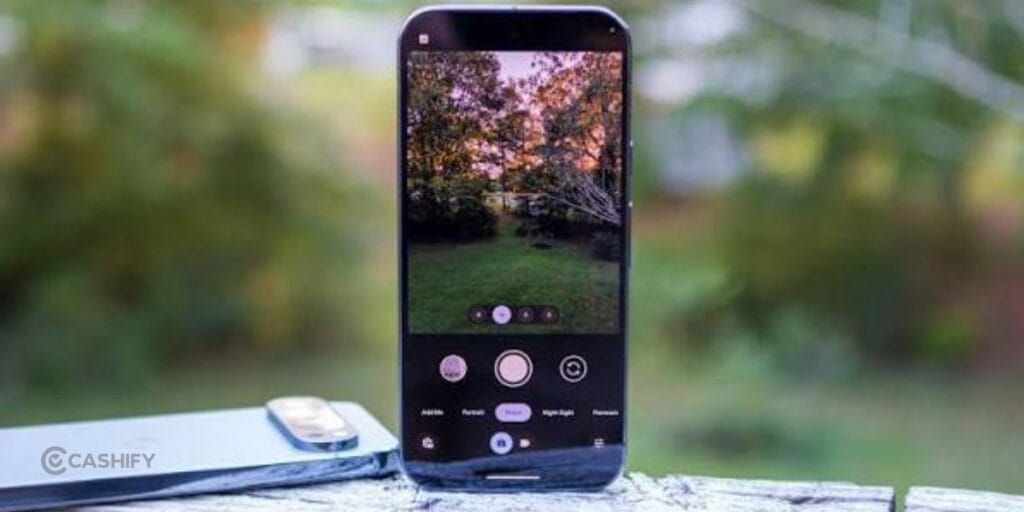
The Pixel 11 makes frequently used controls easier to reach through Quick Access.
If you regularly adjust exposure, focus or other camera controls, this can be more convenient than opening the full settings menu every time.
You don’t need to use manual adjustments for every photo. One advantage of Pixel photography is that the automatic processing does much of the work for you.
Use Quick Access when you have a specific reason to change something. For example, slightly lowering exposure can help when a sunset or bright sky looks too washed out.
12. Best Pixel 11 Video Settings
For everyday recording, 4K at 30fps is a practical choice and one of the best Google Pixel 11 camera settings for regular video.
It gives you detailed footage while keeping file sizes more manageable than some higher-resolution or higher-frame-rate options.
Use a higher frame rate when you’re recording fast movement or want smoother footage. For regular travel clips, family videos and everyday recording, 30fps is generally sufficient.
Keep stabilisation enabled when you’re recording handheld.
Recommended video setup:
- Resolution: 4K
- Frame rate: 30fps
- Stabilisation: On
- Orientation: Vertical for Reels and Shorts
- Orientation: Horizontal for regular YouTube videos
13. Should You Use RAW + JPEG?
RAW is not necessary for most users, so the best Google Pixel 11 camera settings for everyday photography generally mean leaving it off.
Use RAW if you plan to edit your photos extensively in Lightroom or another editing application. RAW files give you more flexibility when adjusting exposure, highlights, shadows and colours.
However, they also take up more storage.
If you’re mainly taking photos for Instagram, WhatsApp or Google Photos, the standard image format should be enough.
Quick Pixel 11 Camera Settings For Every Situation
Here’s a simple reference for the best Google Pixel 11 camera settings based on what you’re shooting:
| Situation | Settings |
| Everyday photos | 4:3 + Natural + 1x |
| Portraits | Portrait Mode + 1x |
| Night photos | Night Sight |
| Landscapes | 4:3 + Gridlines |
| Food | 4:3 + 1x + Natural |
| Selfies | Standard/Portrait + good lighting |
| Distant subjects | 5x telephoto |
| Moving subjects | Magic Capture |
| Everyday video | 4K + 30fps |
| Professional editing | RAW + JPEG |
| High-contrast look | Shadows |
| Warm look | Vanilla |
5 Simple Tips For Better Pixel 11 Photos
You don’t have to change your best Google Pixel 11 camera settings every time you open the Camera app. Keep these five tips in mind:
- Stick with 1x for most everyday photos.
- Use Night Sight when you’re shooting in low light.
- Keep Natural as your everyday Camera Look.
- Try Magic Capture for unpredictable movement.
- Use 4K at 30fps for regular videos.
Final Thoughts
The Pixel 11 doesn’t require you to become a camera expert before you can take good photos. Start with 4:3, Natural Camera Look and 1x zoom, and then switch settings according to the situation.
Use Night Sight after dark, Portrait Mode for people, 5x for distant subjects and Magic Capture when you’re trying to catch unpredictable movement. For video, 4K at 30fps is a good everyday option.
Once you understand what each setting does, you can quickly adjust the camera without overthinking every shot.
Also Read: Samsung Galaxy S25 Ultra Battery Draining Fast? Top 5 Fixes You Can Try Today
FAQs
What are the best Google Pixel 11 camera settings for everyday photos?
Use 4:3, Natural Camera Look and 1x zoom as your starting setup. You can switch to other modes when the scene requires them.
Which Camera Look should you use on Pixel 11?
Natural is a good everyday option. Shadows works for stronger contrast, while Vanilla gives photos a warmer appearance.
What is the best zoom setting on Pixel 11?
Use 1x for regular photography and switch to 5x when your subject is farther away. Avoid relying on extreme digital zoom unless you need the shot.
What are the best settings for Pixel 11 night photography?
Use Night Sight and keep the phone steady while capturing the image. Try to avoid unnecessary zoom in very dark conditions.
What is the best video setting on Pixel 11?
For regular videos, use 4K at 30fps with stabilisation enabled. You can switch to a higher frame rate when recording fast movement.
If you’ve just bought a new phone and don’t know what to do with your old phone, then here’s your answer. Sell old mobile to Cashify and get the best price for it. If you are planning to buy a new phone, check out Cashify’s refurbished mobile phones. You can get your favourite phone at almost half price with six-month warranty, 15 days refund and free delivery.