

If you are throwing a party or planning a group trip, texting each person individually can be a time-consuming task. Luckily, Apple allows you to create a contact group on iPhone. So, you can send the same message to a bunch of people at the same time, thus saving your time and effort. While there are third-party apps that can help you in creating contact groups, in this article, we will discuss the simpler methods which are to create a contact group on iPhone using iCloud and Messages.
Also Read: Here’s How To Logout Gmail Account In Phone In Two Simple Ways
How to make a contact group on iPhone for Email?
You can create a contact group on iPhone for Email using iCloud. Before you begin with creating a contact group, you must enable contacts in iCloud so that they can be accessed on Mac or iCloud.com both. When you have enabled this setting, your contact group will appear on the iPhone automatically.
If you are using a PC, you need to log in to iCloud.com. If you are on Mac, just open the Contacts app. Here’s how to do it:
- Open Contacts and click on the All Contacts option at the top-left corner of the screen.
- Now, click on the + icon at the bottom and choose New Group from the menu that appears.
- Then, name the group and hit the Return key on your keypad.
- Next, click on All Contacts again, so that you can start adding contacts to your group.
- You can then drag and drop the contacts that you would like to add to your contact group.
Note: You must add the contacts having email addresses, else you won’t be able to include that contact in the group mail.
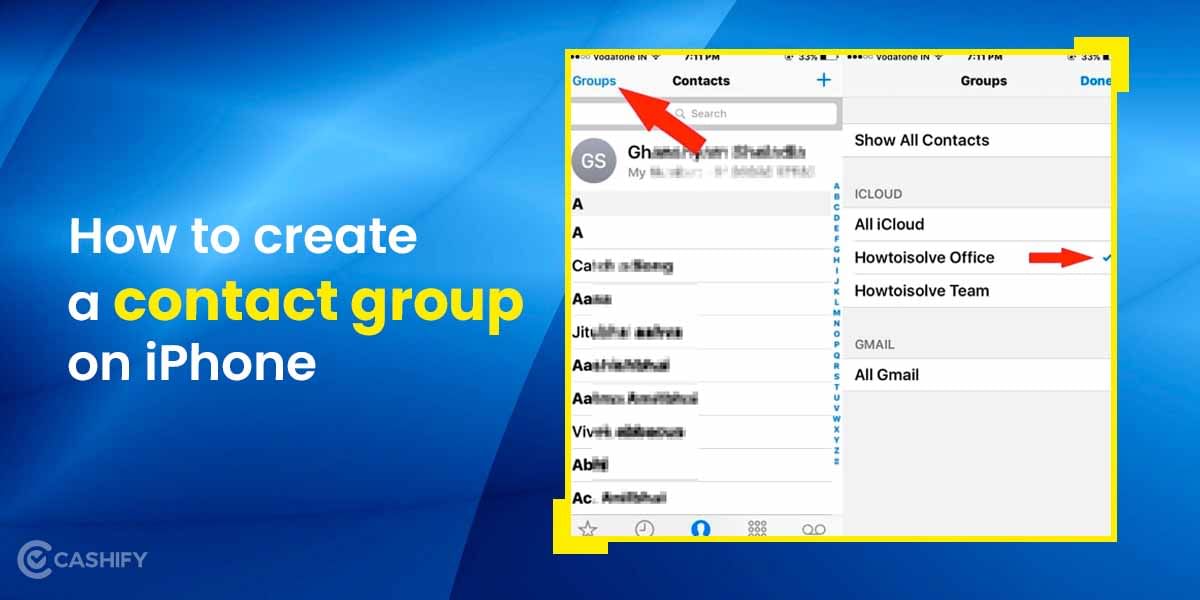
Once done, the contact group will appear on all your Apple connected devices like iPhones, iPad, etc. You can view the Contact group on your iPhone by:
- Open the Phone app.
- Tap on Contacts.
- Then, select Groups in the upper left corner to view your Contact group.
How to create a contact group on iPhone for texting?
Use the Messages app to create contact group on iPhone. Here’s how to do it:
- Open the Messages app and start a new text.
- In the To section, add all the contacts that you would like to have in the group.
- Write your text and send it.
- Now, name the group chat. However, this requires everyone in the group to be using iMessage.
- The next time, you can simply type the group name in the To section to send texts to this group.
- You can also pin this group chat at the top of the conversation screen to access it more easily.
Pro Tip- How to Email your Contact group on iPhone?
- Open the Mail app on your iPhone.
- Then, start composing a mail by tapping on the new mail icon at the bottom right corner.
- In the “To” field, type the name of the contact group you want to email. When the name appears, tap on it to select it.
Finally, compose your email and send it.
Also Read: How To Check Google Storage Usage: Know How Much Storage Is Left
Do you want to get the best price for your old smartphones? You can Sell phone online with Cashify. We also help you Recycle old phone from your doorsteps.

Surbhi Verma is a technology and consumer electronics writer with over six years of experience in the tech and recommerce industries. She has written over 1,000 articles for Cashify, covering smartphones, gadgets, refurbished devices, and mobile buyback. Her work includes blogs, product descriptions, comparison articles, listicles, and buying guides. Previously, she has worked across diverse niches, including SaaS, FinTech, EdTech, and Blockchain. She holds a B.Tech degree in Computer Science, giving her a strong foundation in understanding technical concepts.
Her work involves researching product specifications, tracking industry developments, comparing devices, and breaking down technical information to help readers make informed decisions. She also follows discussions on Reddit and other user communities to understand real-world experiences, common device issues, and consumer concerns. Surbhi believes reliable tech content should be backed by research, practical insights, and a clear understanding of consumer needs, with an emphasis on accuracy, clarity, and useful information.