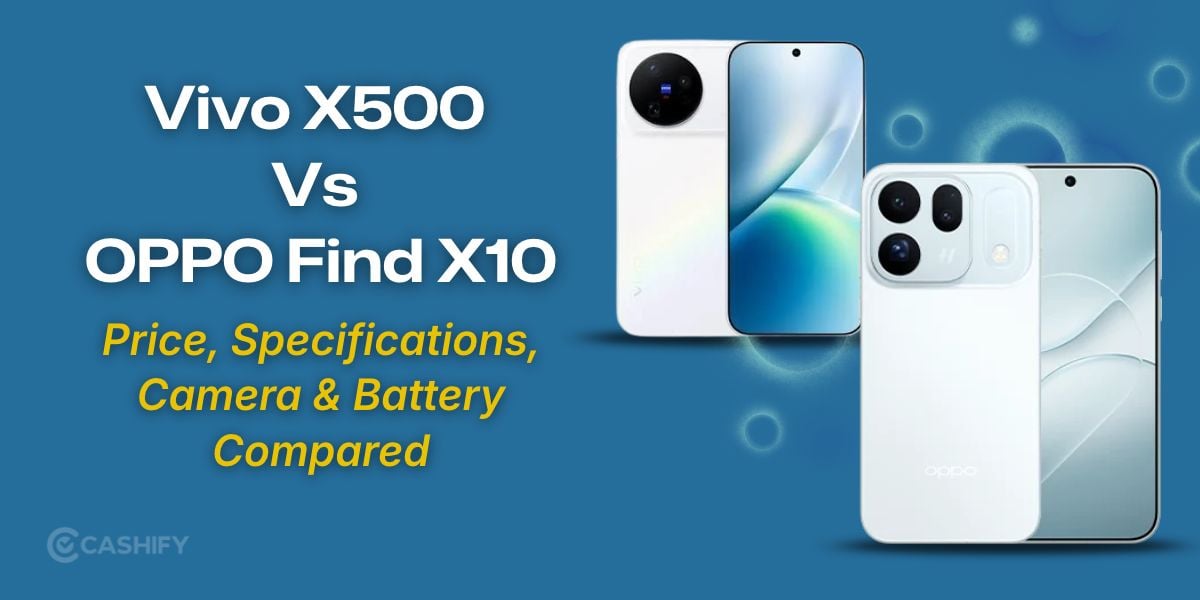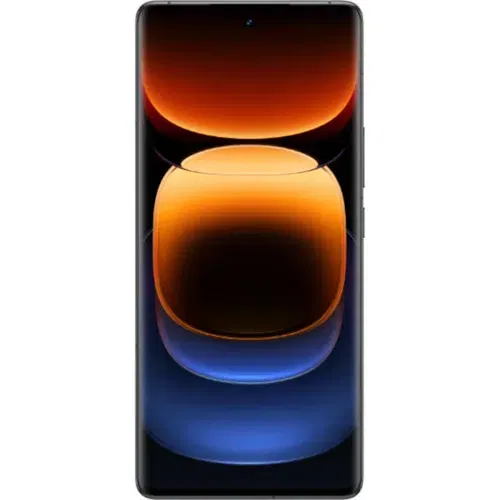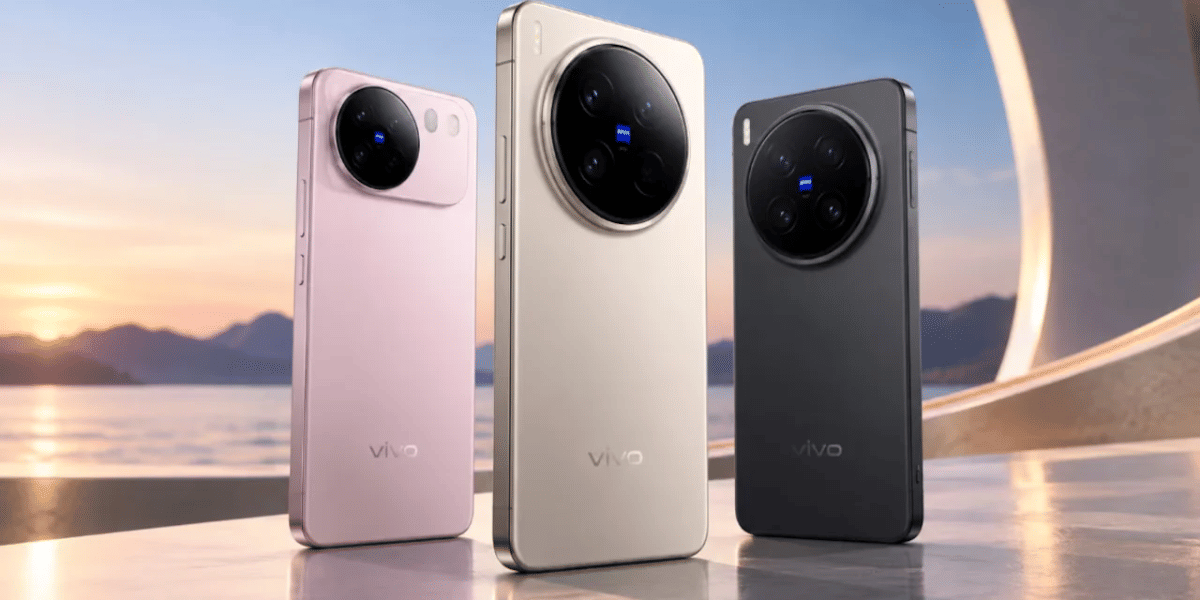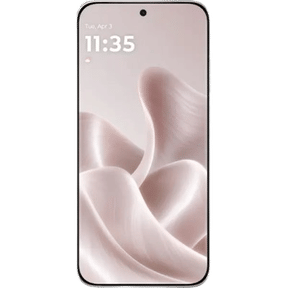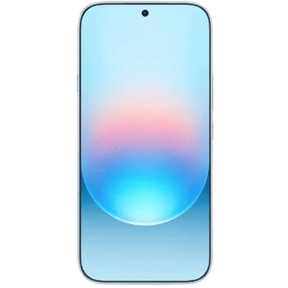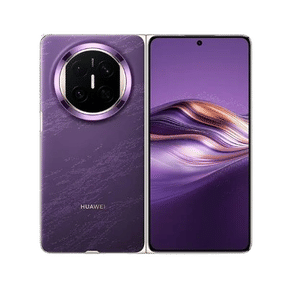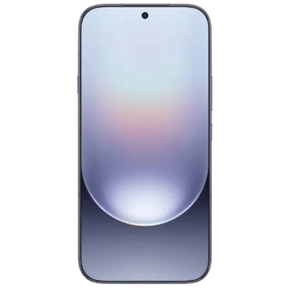


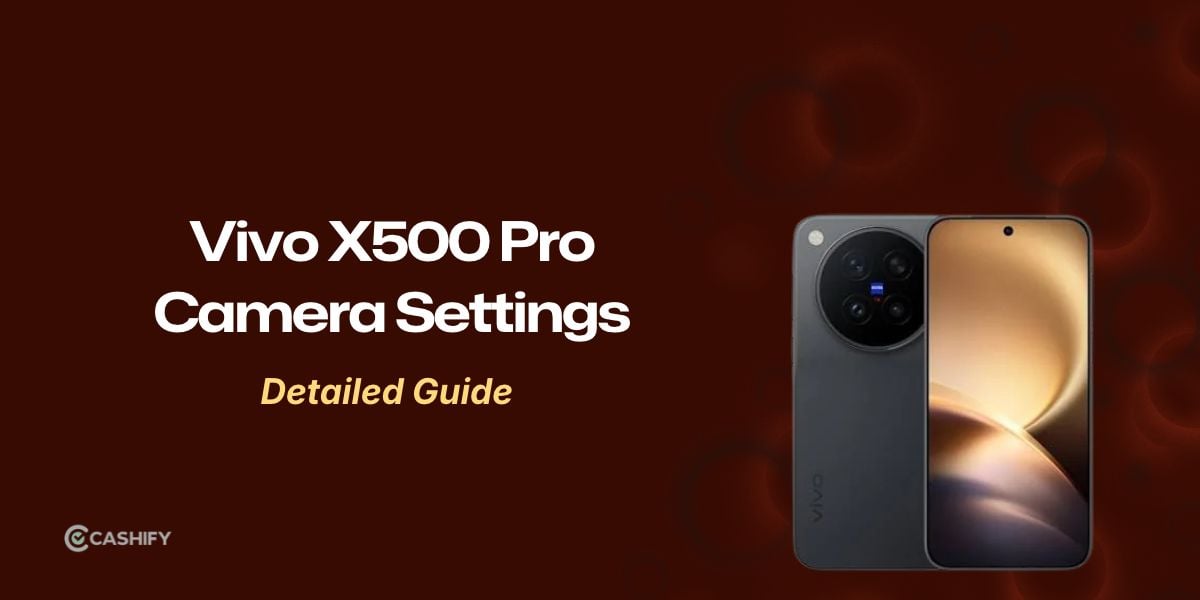
The Vivo X500 Pro has a versatile camera setup for everyday photos, portraits, landscapes and distant subjects. However, getting a good picture is not just about the camera hardware. Knowing which Vivo X500 Pro camera settings to use can help you capture sharper details, balanced colours and better-looking photos in different lighting conditions. You don't have to adjust every option. A few changes based on what you're photographing can make a difference.
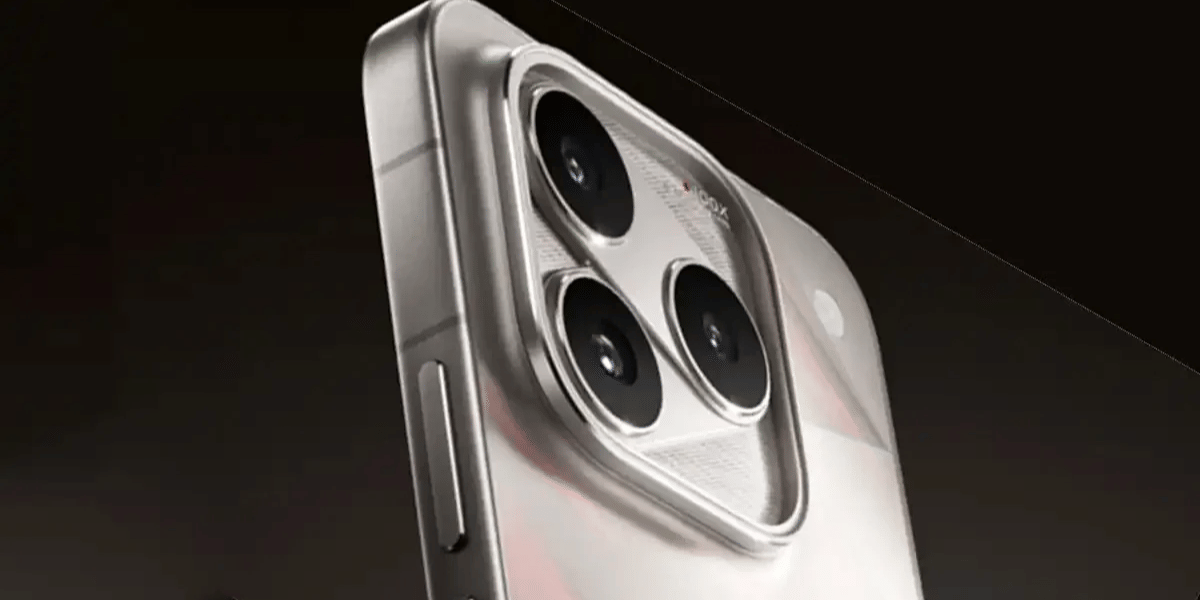
The phone features a 50MP ZEISS TrueDynamic main camera, a 64MP ZEISS APO telephoto camera and a 50MP ultra-wide camera. It also offers dedicated modes for portraits, night photography, macro shots and videos. Here's how to use them effectively.
Also Read: Apple Maps Just Got A Major Upgrade In India: Finally Better Than Google Maps?
Best General Camera Settings For Vivo X500 Pro
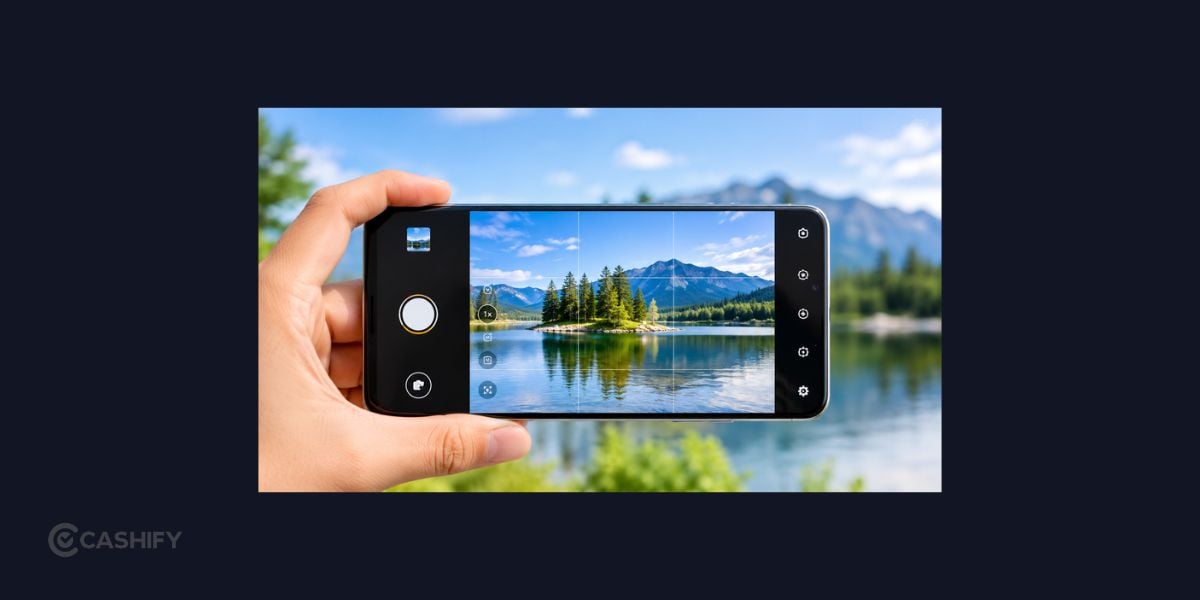
For everyday photography, the default Photo mode is a good starting point. It automatically manages focus, exposure and colour, so you can capture moments without changing several options.
These Vivo X500 Pro camera settings are worth trying:
- Resolution: Use the default setting for everyday photos. Switch to high resolution when you want more detail or plan to crop the image later.
- HDR: Keep Auto HDR enabled where available. It helps balance bright skies and darker areas.
- Aspect ratio: Choose 4:3 to use the full sensor area. Use 16:9 for a wider frame.
- Grid lines: Turn them on to keep horizons straight and position your subject better.
- Exposure: Adjust the exposure slider if the picture looks too bright or dark.
One useful habit is to tap your subject on the screen before taking a picture. This helps the camera focus on the right area, especially when several objects are in the frame.
Best Portrait Camera Settings For Vivo X500 Pro
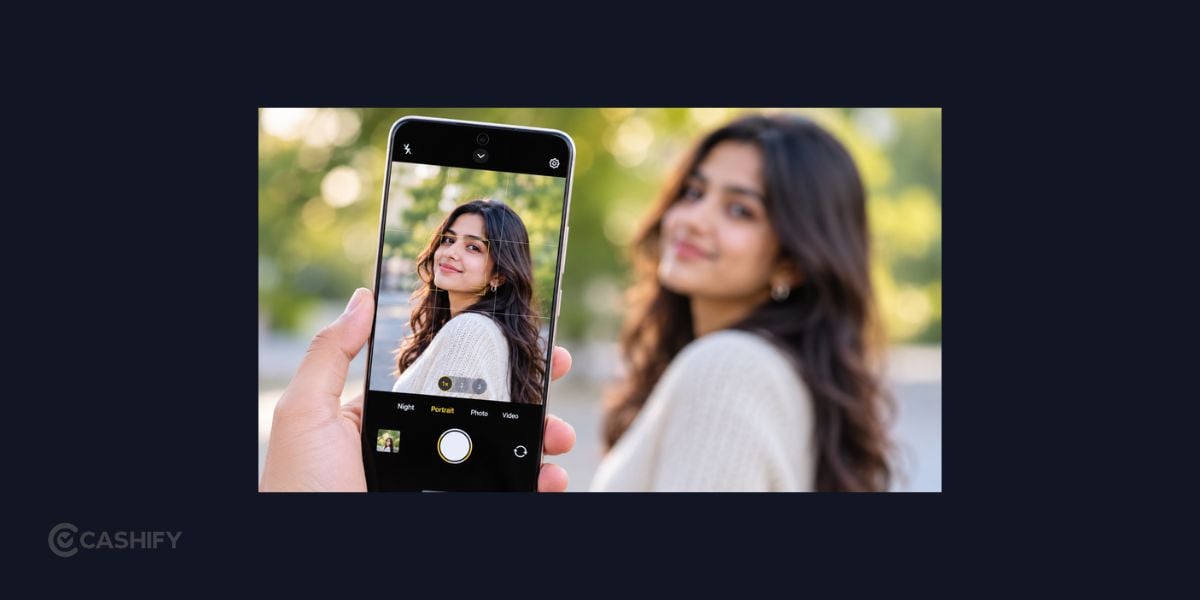
Portrait mode helps make a person or pet stand out against a softly blurred background. The Vivo X500 Pro camera settings for portraits should keep faces sharp while making the background blur look natural.
Try these adjustments:
- Blur level: Start with moderate background blur. Too much can make hair and clothing edges look artificial.
- Focal length: Try the telephoto camera when you have enough room to step back. Its 85mm-equivalent focal length works well for portraits.
- Lighting: Ask your subject to face a window or soft light source. This gives more balanced results than placing a bright light behind them.
- Focus: Tap the person's face to make sure the camera focuses on it.
You can also experiment with ZEISS portrait styles available in the camera app. For group portraits, keep the blur low so people standing at different distances remain clear.
Best Zoom Camera Settings For Vivo X500 Pro
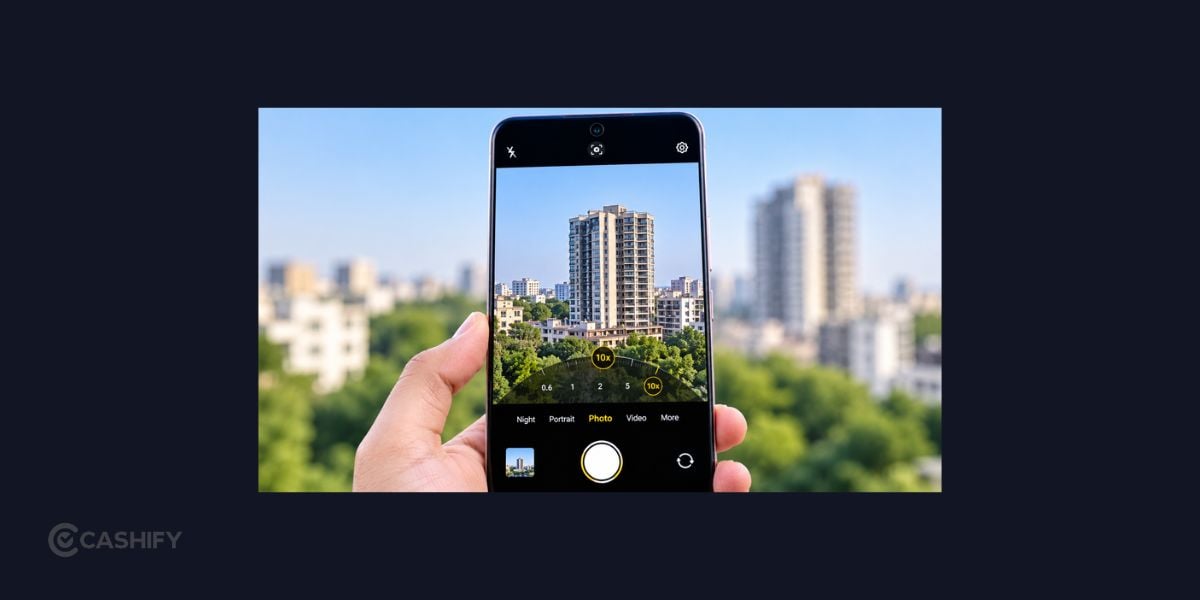
The 64MP telephoto camera is useful for photographing distant subjects. These Vivo X500 Pro camera settings can help you get clearer zoom shots.
- Use the telephoto camera: Switch to the dedicated telephoto option instead of relying on heavy digital zoom.
- Avoid excessive zoom: Digital zoom can make pictures look soft, particularly in poor lighting.
- Keep the phone steady: Hold it with both hands when photographing distant subjects.
- Tap to focus: Select your subject on the screen before taking the shot.
- Choose good lighting: Zoom photos generally look better in daylight or well-lit surroundings.
The telephoto camera is useful for photographing buildings, wildlife and stage performances. If you're capturing a moving subject, try the available tracking features to help keep it in focus.
You don't always need to zoom in as far as possible. A slightly wider shot can retain more detail and give you room to crop the picture later.
Best Night Camera Settings For Vivo X500 Pro
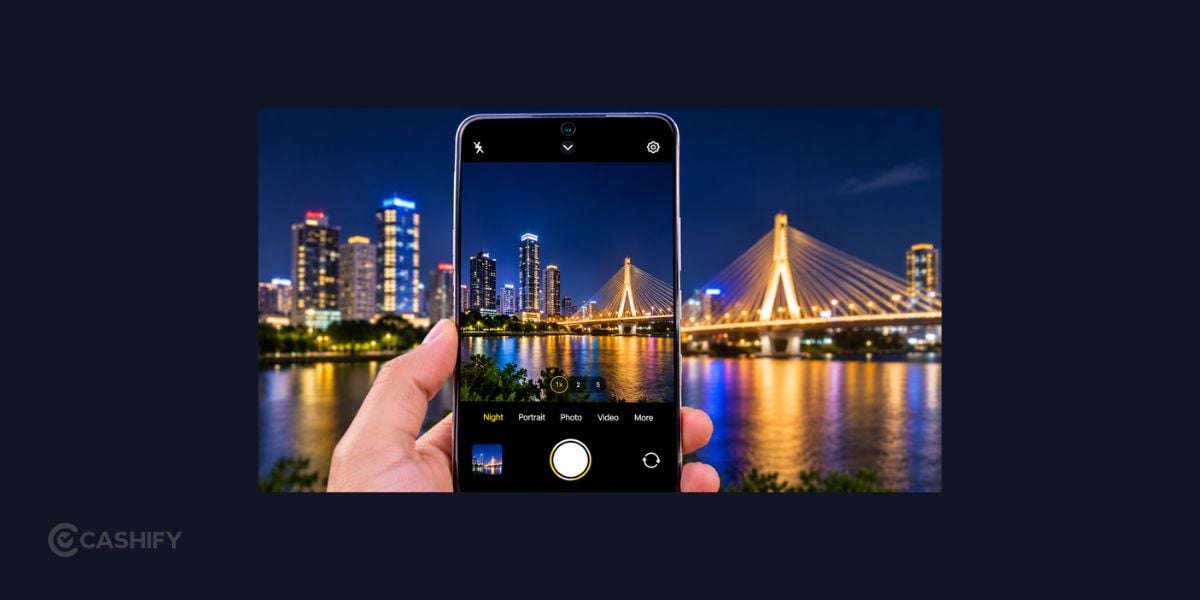
Night photography can be difficult because the camera needs to capture enough light without making the picture look washed out. The Vivo X500 Pro camera settings for low-light photography should help retain detail while keeping the scene natural.
Here are a few things to try:
- Night mode: Use it for still scenes such as buildings, streets and landscapes after sunset.
- Keep the phone steady: Avoid moving the phone while the camera captures and processes the picture.
- Avoid unnecessary flash: Flash can make nearby faces look harsh while leaving the background dark.
- Use the main camera: Start with the main camera in low light rather than zooming in on a distant subject.
- Adjust exposure: Lower it slightly if streetlights or other bright areas look washed out.
Night mode isn't always the best choice. If you're photographing a moving person or vehicle, a longer exposure can introduce blur. Try regular Photo mode in such situations.
Also Read: How To Add Two Accounts In PhonePe? Step-By-Step Guide
Best Macro Camera Settings For Vivo X500 Pro
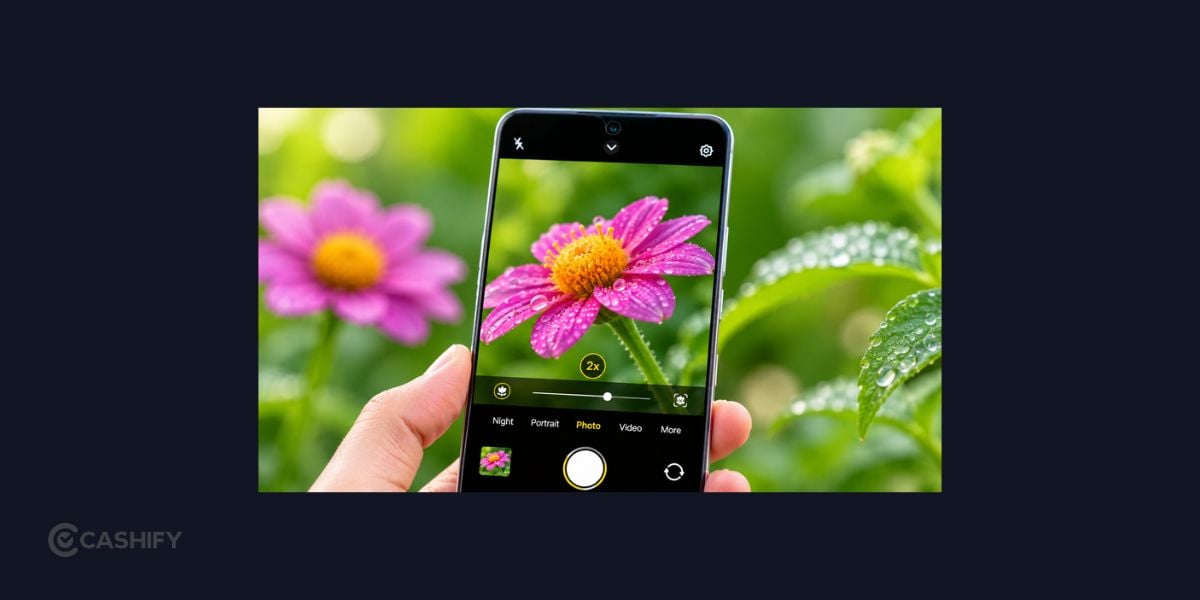
Macro photography is useful for capturing small details, such as flower petals, leaf patterns and jewellery. The Vivo X500 Pro camera settings for close-up shots should help you keep the subject sharp.
Keep these tips in mind:
- Use the macro option: Switch to the close-up setting when photographing small objects.
- Check the focus distance: Move the phone slowly until the subject looks sharp. Getting too close can make focusing difficult.
- Use natural light: Shoot near a window or outdoors in soft daylight.
- Keep the phone steady: Small movements can affect sharpness in close-up photos.
- Choose a simple background: This helps the subject stand out.
The telephoto camera supports close focusing, too. Try it for detailed shots and compare the results to see which camera works better for your subject.
Best Video Recording Settings For Vivo X500 Pro
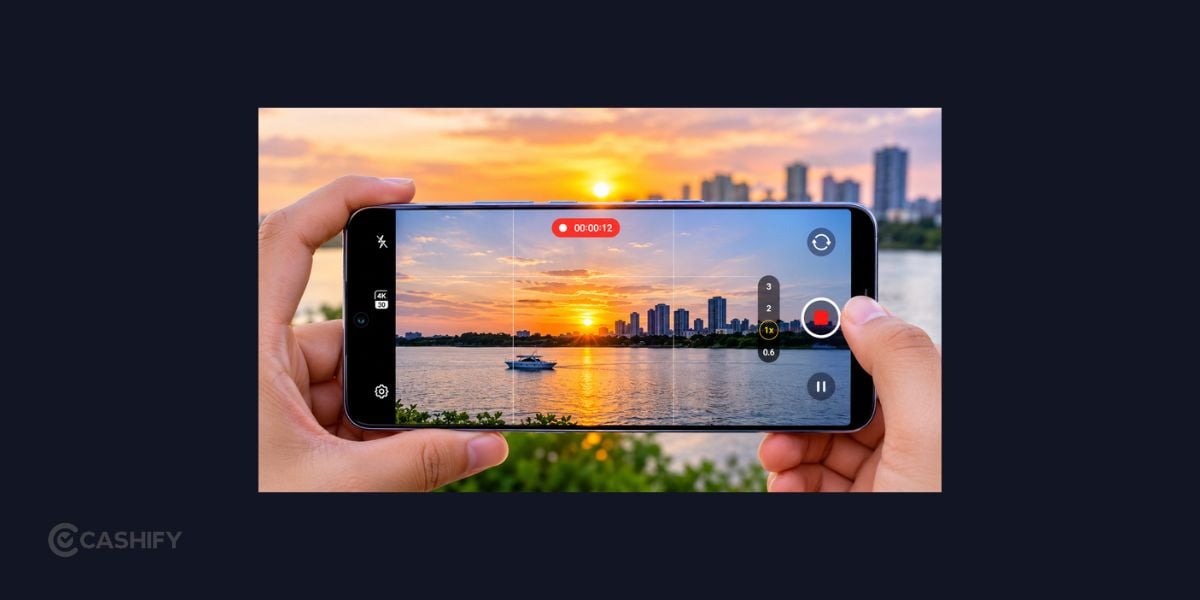
The Vivo X500 Pro offers high-resolution video recording and advanced video features. The best Vivo X500 Pro camera settings for videos depend on what you're recording.
For regular videos, use these as starting points:
- Resolution: Choose 4K when you want more detail and have enough storage. Full HD is suitable for everyday clips.
- Frame rate: Use 30fps for regular videos. Choose 60fps for fast-moving subjects when available.
- Stabilisation: Keep stabilisation enabled when recording handheld videos, if supported in the selected mode.
- Focus: Tap your subject to set focus. Use tracking features when recording moving subjects.
- Audio: Avoid covering the microphones while holding the phone.
For travel videos, 4K at 30fps is a sensible starting point. A higher frame rate can make fast movement look smoother, but it also takes up more storage.
Best Slow-Motion Camera Settings For Vivo X500 Pro
Slow-motion video works best when you record clear movement, such as water splashing, a person jumping or a pet running. The Vivo X500 Pro camera settings for slow motion should depend on how much you want to slow the action.
- Pick a moving subject: Slow motion is more interesting when the action is easy to notice.
- Use good lighting: Bright surroundings usually produce better results.
- Keep the phone steady: Use both hands or a tripod to avoid unwanted movement.
- Frame the action: Leave some space around the subject so it doesn't move out of the frame.
- Check recording options: Select the resolution and frame rate available in Slow Motion mode.
The phone supports high-frame-rate video features, but the available options can vary by mode. Check the camera app before recording.
Final Thoughts
The Vivo X500 Pro has camera options for different kinds of photography, but you don't need to use all of them at once. Stick to Photo mode for everyday pictures, switch to Portrait for people, use Night mode for still scenes and try the telephoto camera for distant subjects.
The best results often come from understanding the scene and making a few sensible adjustments. Try different modes, review your pictures and keep the settings that work best for the way you shoot.
Also Read: iPhone 20 Pro Leaks And Rumors: Design, Display And Other Big Changes
Frequently Asked Questions
Which camera mode is best for everyday photos on the Vivo X500 Pro?
The regular Photo mode is suitable for most everyday pictures. It automatically manages focus, exposure and colour. Switch to Portrait, Night or Macro mode when the scene needs a specific approach.
How can I take better night photos with the Vivo X500 Pro?
Use Night mode for still scenes, keep the phone steady and avoid unnecessary flash. For moving subjects, try regular Photo mode because longer exposures can introduce blur.
Does the Vivo X500 Pro support 4K video recording?
Yes. The Vivo X500 Pro supports 4K video recording. Available frame rates and additional options depend on the selected video mode, so check the Camera app before recording.
How do I take better zoom photos on the Vivo X500 Pro?
Use the dedicated telephoto camera, tap your subject to focus and keep the phone steady. Avoid excessive digital zoom, particularly in low light, as it can reduce detail.
Is Pro mode useful on the Vivo X500 Pro?
Yes. Pro mode gives you more control over ISO, shutter speed, white balance and exposure. It takes some practice, but it can help when automatic mode doesn't produce the result you want.
If you’ve just bought a new phone and don’t know what to do with your old phone, then here’s your answer. Sell old mobile to Cashify and get the best price for it. If you are planning to buy a new phone, check out Cashify’s refurbished mobile phones. You can get your favourite phone at almost half price with six-month warranty, 15 days refund and free delivery.