Samsung phones are one of the most reliable ones in the market even in 2026! However on some occasions who might face connectivity issues or software glitches. One common complaint often expressed online is that the Samsung phone won’t connect to Wi-Fi. If you are scrolling through, wondering why it’s happening or a quick way to get back the connection, we have got the details for you.
Cashify, India’s go-to platform for mobile phone repair has fixed thousands of these issues. But before any professional repairs, you might want to check out the easier, solutions. Let’s go through the realistic steps to troubleshoot and fix it.
Also read: Touch Not Working Or Display Damaged? OPPO Reno13 Pro 5G Screen Fix
First Things First: Why Won’t My Samsung Phone Connect to Wi-Fi?
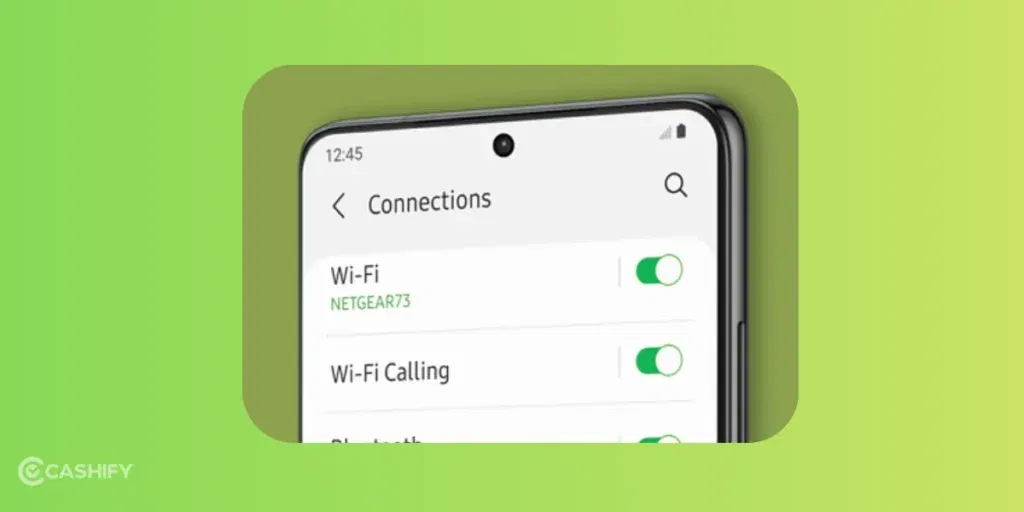
Wi-Fi connectivity issues on Samsung phones (like the Galaxy S series, A series, or even older models) can stem from two main culprits: software problems or hardware failures. Software issues are often temporary and fixable at home, while hardware ones might require a trip to a repair shop. The key is diagnosing which one you’re dealing with.
Common symptoms include:
- Phone sees the network but can’t connect.
- Wi-Fi turns on but disconnects frequently.
- No networks show up at all.
- Error messages like “Authentication error” or “IP configuration failure.”
If the issue started after a software update, app installation, or just randomly, it’s likely software-related. If it happened after a drop, water exposure, or the phone’s been acting up for months, it’s possibly the hardware.
Also read: Samsung Galaxy F62 Keeps Restarting Randomly? Causes And Fixes!
Software Issues: The Usual Suspects and Fixes
Most Wi-Fi issues (about 70-80%) are software-based. These are glitches in your phone’s OS, apps, or settings that interfere with the connection. Thankfully, you can often resolve them without tools or expertise.
- Outdated or Buggy Software: Samsung’s One UI updates can sometimes introduce Wi-Fi bugs, especially on older models like the S10 or A50.
- Network Settings Glitches: Corrupted saved networks or IP conflicts.
- App Interference: Rogue apps (like VPNs or battery optimisers) messing with connections.
- Router Problems: Sometimes it’s not your phone. It’s the Wi-Fi router acting up. But the problem rules out if your other devices are connecting easily to the same Wi-Fi.
Also read: No Sound In Headphones? Fix Audio Jack On Samsung Galaxy A05 In 3 Easy Steps
Troubleshooting Steps You Can Try Out!
1. Restart Everything:
Sometimes it’s an all-rounder solution to many types of software issues. Power cycle your phone (hold power button > Restart) and your router (unplug for 30 seconds). This clears temporary glitches.
2. Forget and Reconnect to Wi-Fi:
- Go to Settings > Connections > Wi-Fi.
- Tap your network, select “Forget.”
- Re-enter the password and connect. This resets any authentication errors.
3. Reset Network Settings:
- Settings > General Management > Reset > Reset Network Settings.
This wipes saved Wi-Fi, Bluetooth, and mobile data settings but keeps your apps and files intact.
Warning: You will need to re-enter Wi-Fi passwords afterward. It’s a go-to for post-update issues.
4. Check for Software Updates:
- Settings > Software Update > Download and Install.
Samsung often releases patches for Wi-Fi bugs. If you are on an older version, updating might fix it. But back up first, as updates can sometimes worsen things on aging hardware.
5. Boot into Safe Mode to Isolate Apps:
- Hold power button until “Power off” appears, then long-press “Power off” to enter Safe Mode.
- If Wi-Fi works here, a third-party app is the culprit. Uninstall recent apps (e.g., via Play Store) and test.
6. Advanced: Clear Cache Partition (No data loss):
- Power off your phone: Hold Volume Up + Power (or Bixby + Volume Up on some models) to enter Recovery Mode.
- Use volume buttons to select “Wipe cache partition,” confirm with power button, then reboot.
- This clears system junk that can cause connectivity hiccups.
If these don’t work after a couple of tries, it’s probably not software. Test your phone on another Wi-Fi network (like a friend’s or public hotspot) to rule out router issues.
Also read: Samsung Galaxy M34 Battery Replacement: Signs, Cost & Best Fix Options!
How To Tell Samsung Phone Won’t Connect To Wi-Fi Due To Hardware Issues
- Wi-Fi doesn’t work on any network.
- The Wi-Fi toggle in settings is grayed out or won’t turn on.
- Phone gets unusually hot near the top (where antennas are).
- Issue persists after a factory reset (last resort: Settings > General Management > Reset > Factory Data Reset. (Back up everything first!).
Hardware fixes aren’t DIY-friendly for most users. Avoid opening your phone unless you are experienced. It could void warranties or cause more damage. Inspect for physical damage.
Repairing A Samsung Phone With Cashify!
You may look for Samsung authorised service centers to get it repaired safely. However, often times they turn out to expensive or time consuing. It might just make sense to get the device repaired from official channels only when it’s under warranty. But if that’s not thecase, the next safest option remains Cashify.
This certified mobile repair platform is known for it’s quality of service, affordability while keeping every step hassle-free. You meet trained technicians who are proficient in Samusng phone repair and have handled many in their experience.
In case or parts replacements like screen and battery, warranty is provided for piece of mind. Other perks include free doorstep visit, price transparency and discounts. Book at your convinience from app, website or visit the nearest Cashify stores.
Also read: Common Samsung Galaxy S22 Ultra Display Problems & Best Repair Tips!
Final Thoughts
So, why live with a frustration of disconnection or waste your mobile data when you can resolve the issue quickly? Try out all the troubleshoots if not sure whetehr it’s software or hardware issue. Lastly, you an alsways schedule a phone repair from Cashify and let the experts handle the rest.
When booking online via Cashify, include any of these coupons:
RPR50: Get up to 50 per cent off on a minimum order value of Rs. 1000
TECH25: Discount of up to Rs. 300 by using the code on the minimum order value of Rs. 2499.
Also read: Oops! Samsung Galaxy A14 Camera Lens Cracked: Fix Now!
Are you still browsing through your broken screen? Don’t worry! Book at-home mobile phone screen repair with Cashify, an affordable and one-stop destination for all your mobile phone needs. In case you break your screen within 1 month of repair, we will replace your screen again for FREE.