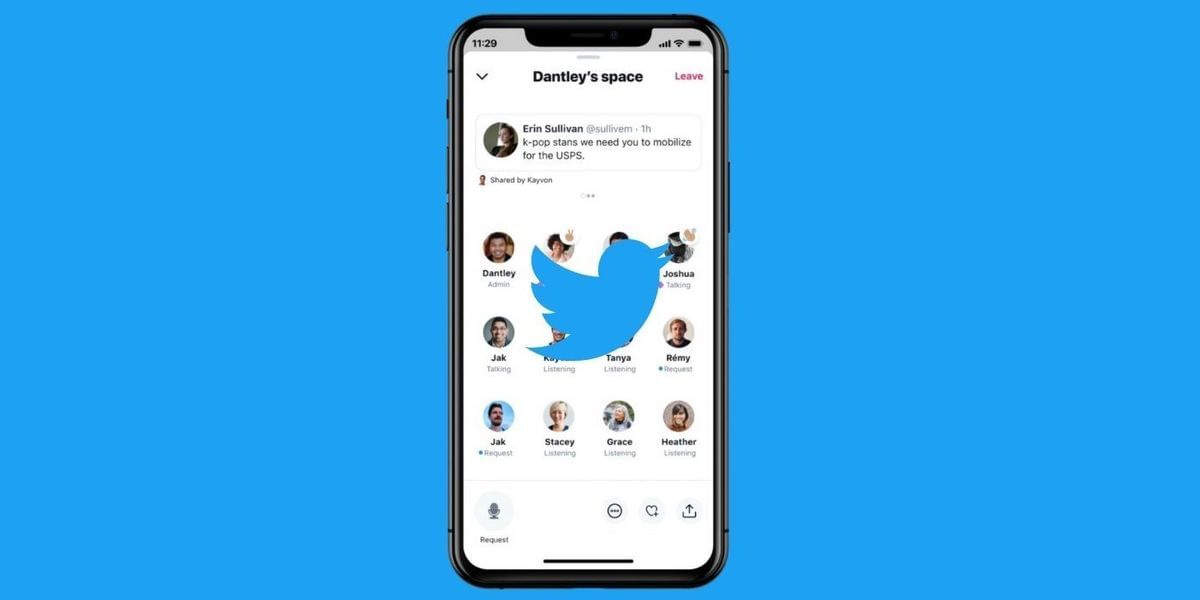
As we know, that audio streaming services are doing good lately. Along the same lines, Twitter has introduced a new audio streaming platform named Spaces. You will be pleased to know that Twitter new in-app audio feature named Spaces will not take up any extra space.
You can host a conversation that all of your followers can join. Not like other audio streaming apps, Spaces allows users to multi-task. So the listener can scroll their feed at the same time. It is available on the Play Store and App Store.
Also, see Android 12 To Auto-Hibernate Apps That You Do Not Use Often
How to use Twitter Spaces?
All you need to do is long-press on the compose button in the bottom right-hand corner. When you long-press, several options will appear, including Spaces.
The other option is to tap on your profile image in Fleets. Then, you can scroll through the selections like text, camera roll, capture, etc. To your right, you will find Spaces. You can add up to 10 people to join you as speakers. You can choose who can join to speak with you or the people who only people you invite to speak.
This can be changed, while you are live. When you’re ready to start the conversation, then tap Start Your Space. People will then be able to see your Space and join. Remember that Spaces are public so, anyone can join.
Also, read Telegram Gets Major New Updates: All You Need To Know
When you are creating your Space, you will have the option to add a description (max 70 characters) that mentions the topic that you’ll be speaking about or any guest speakers you will be inviting. The title of your Space will be (Your Twitter Name) Space, which can’t be changed.
Turn on captions
You can turn on captions for the people who cannot hear or for the ones who have trouble in hearing.
Also, see How To Voice Tweet On Your iPhone!
How to end a Twitter Space
Hosts can end a Space by tapping Leave in the top right (this will end the Space for everyone). Or Space will end if it violates any Twitter Rules. After Space has ended, it is no longer available to users. Twitter will keep a copy of the audio and captions for 30 days.
Always on the quest to learn and share the knowledge. Big fan of books (but not the self help ones) specially fiction. A grammar Nazi who loves to eat, cook, travel and watching thunderstorms.