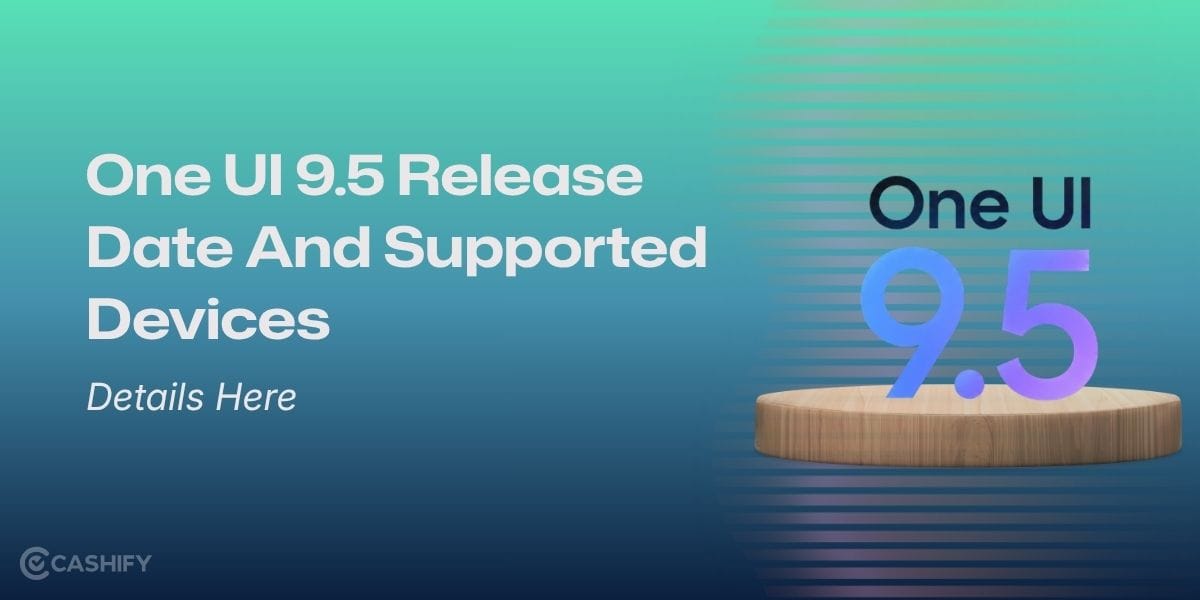
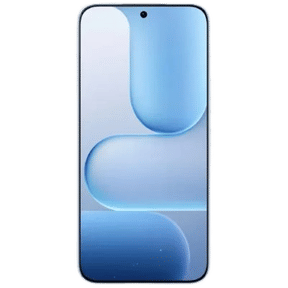
Samsung has started rolling out One UI 9.0 based on Android 17 to compatible Galaxy devices. If you want to know how to update your Samsung Galaxy phone to One UI 9.0, this is the only guide you need. The rollout is happening in stages. Even it One UI 9 is announced, it does not mean it is already available on your particular Galaxy phone.
Samsung first introduced ONE UI 9 to Samsung Galaxy Z Fold8 Ultra, Samsung Galaxy Z Fold8 and Samsung Galaxy Z Flip8, S26 Series. The company has expanded the rollout to older Galaxy phones and tablets as well. If you are waiting for the update on a Galaxy S25, S24, S23, Z-series or another model, you can check the Software update section on your phone.
Here is exactly how to update your Samsung Galaxy phone to One UI 9.0.
What Is One UI 9.0?
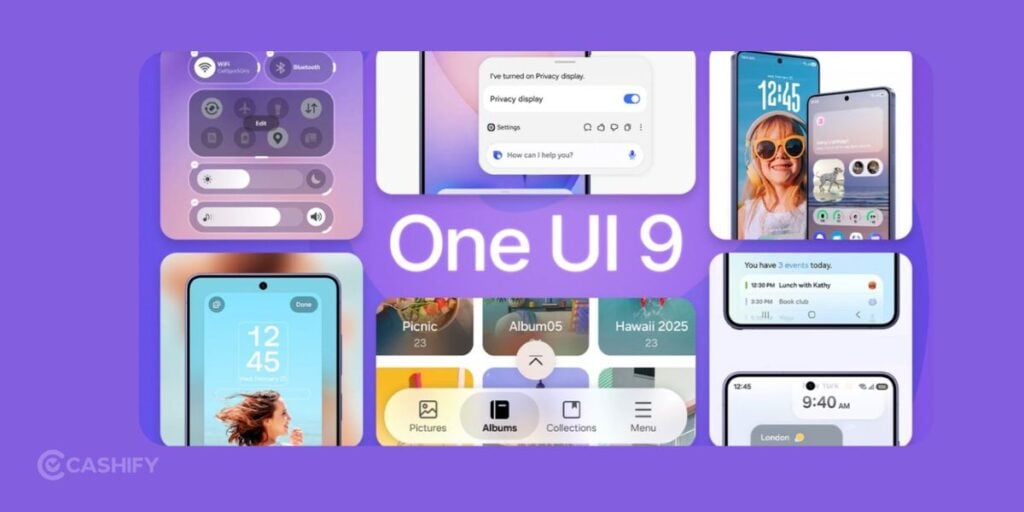
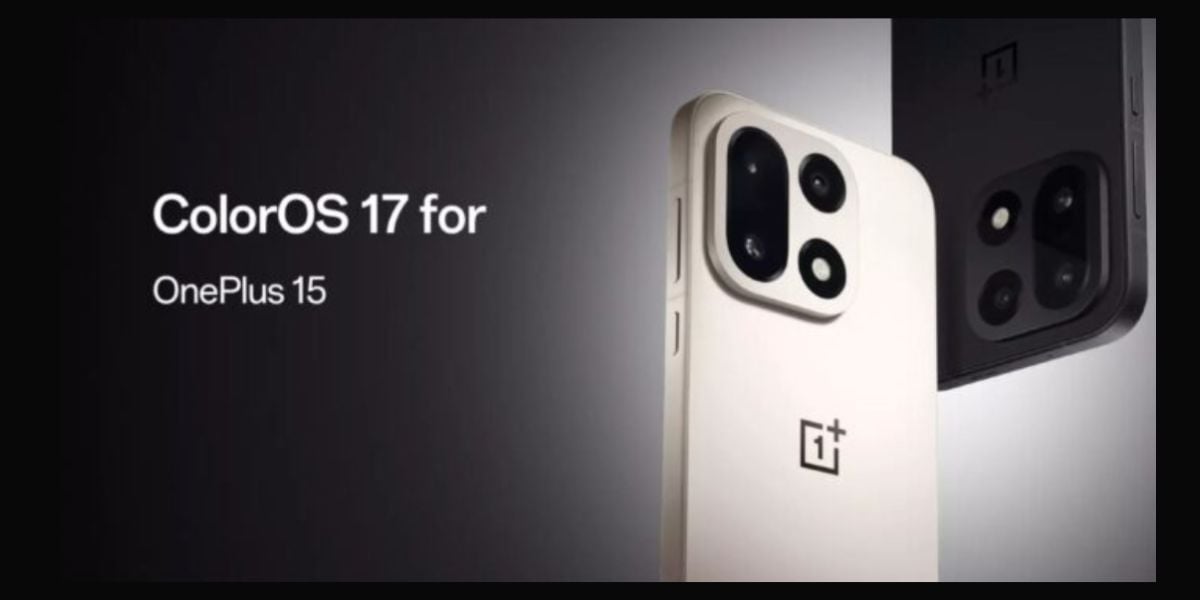
One UI 9.0 is Samsung’s latest version of its Android-based software. It is built on Android 17. Samsung’s beta programme started with the Galaxy S26 series in May 2026.
The update focuses on Galaxy AI, personalisation, accessibility, privacy and device management. Samsung also introduced My FanCam, customisable Now Brief cards. There is a new Warranty and Care section inside Settings. One UI 9 availability depends on your phone model, region and carrier. Samsung can also change the rollout schedule or temporarily pause an update if an issue is found.
Also Read: How To Turn On Call Recording In Samsung Phones?
Is One UI 9 Available For Your Samsung Galaxy Phone?
The One UI 9 rollout is already underway. Samsung is not pushing it to every compatible Galaxy phone at the same time.
The Galaxy S26 series started receiving the stable update in September. But the Galaxy S25 series and other Galaxy models have not yet received it. But they are about in a few months.
Samsung has confirmed a wider One UI 9 beta programme. This will cover Galaxy Z Fold7, Galaxy Z Flip7, Galaxy S25 series and Galaxy S25 FE in India.
How To Update Your Samsung Galaxy Phone To One UI 9?
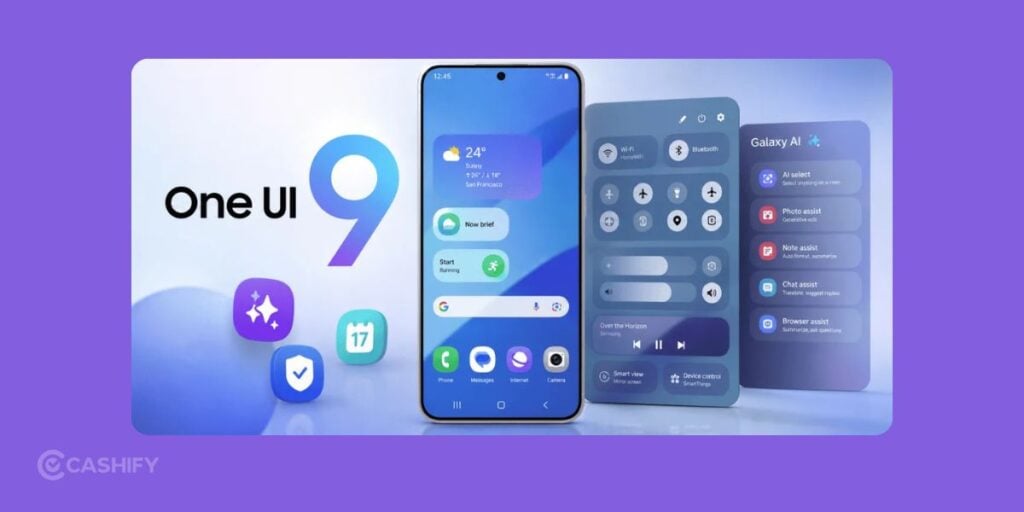
If One UI 9 has reached your phone, you do not need to download the firmware from a third-party website. Samsung gives the update directly through the phone’s software update system.
Step 1: Open Settings
Unlock your Samsung Galaxy phone and open the Settings app. You can find it in your app drawer or pull down the Quick Panel and tap the gear icon.
Step 2: Go To Software Update
Scroll down and tap Software update. You can find it via:
Settings > Software update > Download and install
Some older models may instead show:
Settings > About device > Software update > Update now
Step 3: Tap Download And Install
Tap Download and install. Your Galaxy phone will check Samsung’s servers for available software.
If One UI 9 is available for your device and region, you can see the version and download size. If you only see a message saying that your software is up to date, One UI 9 may not have reached your device yet.
Step 4: Download The One UI 9 Update
If the update appears, tap the download button and let the phone download the package.
I would recommend using a reliable Wi-Fi connection here. Major Android updates can be several GB in size. Make sure you phone has plenty of charge.
Step 5: Install One UI 9
Once the download finishes, follow the instructions displayed on the screen.
Your Galaxy phone will restart during the installation process. Samsung specifically notes that the device will restart as part of a software update. Do not force-restart the phone or disconnect it from a charger during the installation.
The phone may also take a little longer than usual to boot after a major Android version upgrade. That is normal.
Also Read: How To Download Video From Any Website: Quick And Easy Steps!
Can You Install One UI 9 Using Samsung Smart Switch?
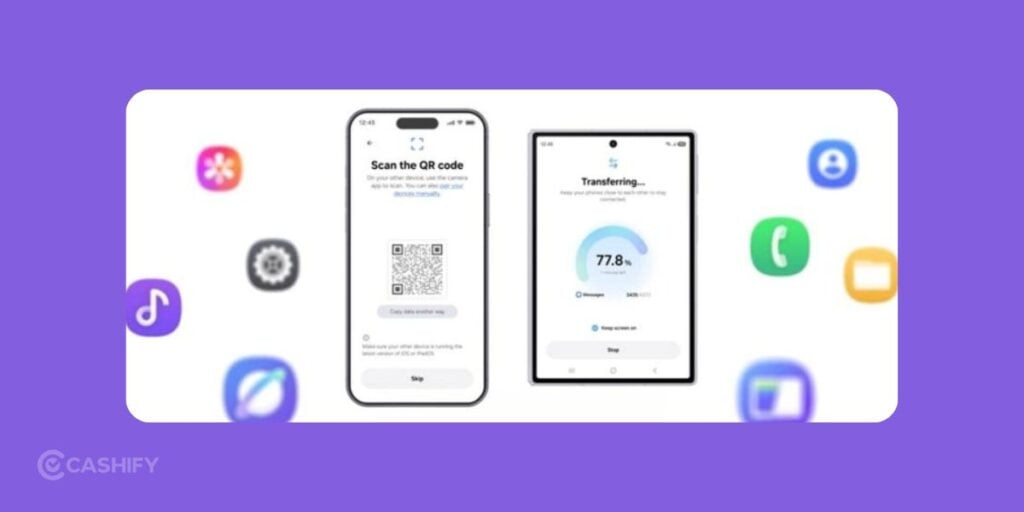
Yes. Samsung also supports software updates through Smart Switch on a Windows PC or Mac.
First, install Samsung Smart Switch on your computer. Then connect your Galaxy phone to the computer using a USB cable and launch Smart Switch. If a newer software version is available for your phone, Smart Switch can show an update option. Smart Switch can prompt users when a software update is available.
This method is useful if the update is available through Smart Switch and you are having trouble installing it through the phone’s Software update menu. I would still use the normal OTA update first. It is simpler and does not require a computer.
Should You Join The One UI 9 Beta?
There is another route for compatible phones: Samsung’s One UI Beta Programme.
How To Join The One UI 9 Beta
If your Galaxy model and region are eligible:
- Open the Samsung Members app.
- Sign in using your Samsung Account.
- Look for the One UI Beta Programme banner or Beta Programme section.
- Read the terms and information provided by Samsung.
- Register for the beta programme.
- Once your registration is accepted, go to Settings > Software update > Download and install.
- Download and install the beta build if it appears.
Should You Install The Beta On Your Main Phone?
Personally, I would be cautious here.
A beta build is intended for testing. It can contain bugs, compatibility problems or unfinished changes that you would not normally expect from a stable release. If your Galaxy phone is your primary work or communication device, waiting for the stable One UI 9 release is the safer approach.
The beta makes more sense if you have a secondary compatible Galaxy phone and want to test the new software early.
What Is New In One UI 9?
The Android 17 adds changes across personalisation, Galaxy AI, creativity, accessibility, privacy and device management.
Some of the changes include:
My FanCam
My FanCam can automatically track a selected person in a recorded video. It keeps that person centred as the scene changes. This feature can reframe video automatically.
Customisable Now Brief Cards
Samsung has added Generative and Editable Cards to Now Brief. These let users customise the information displayed in their daily summaries. This includes areas such as weather and health.
Warranty And Care
One UI 9 also adds a Warranty and Care section inside Settings.
Samsung says users can check warranty information, run device diagnostics, view repair estimates and access Samsung Care+ or related options.
More Galaxy AI Improvements
Samsung is also expanding AI-related tools across the Galaxy experience. We cans see improvements to translation, scanning, recording and contextual suggestions.
Also Read: How To Use Google AI Studio For Free (Step-By-Step Beginner Guide)
Final Verdict
Updating to One UI 9 is a fairly simple process. The safest route is still the built-in Software update menu. You can also use Smart Switch. It provides a PC-based update route and can also help you back up your data before a major software upgrade.
If your Galaxy phone is showing the One UI 9 update today, go ahead and follow the OTA installation steps above. If it is not showing up, there is no need to force the update. Check again later and wait for Samsung to release the software for your specific model.
If you’ve just bought a new phone and don’t know what to do with your old phone, then here’s your answer. Sell old mobile to Cashify and get the best price for it. If you are planning to buy a new phone, check out Cashify’s refurbished mobile phones. You can get your favourite phone at almost half price with six-month warranty, 15 days refund and free delivery.