Want to add your latest mountain story on Snapchat and tell your friends the beautiful location that you are vibing in? Then this blog is for you. In this blog, we bring you all the steps on how to add location in Snapchat, and tell you how you can see who can see it, which exact location it will show, and how you’ll appear in the local stories, and much more. So, let us begin this guide on Snapchat’s location feature and tell you all the new updates right away.
How To Add Location In Snapchat: A Precap

Here’s what the pre-cap of all measures for adding location on Snapchat looks like:
| Filter Method: You can add a location through the Filters |
| Sticker Method: You can add your location through the location sticker. |
| Maps: You can disable ghost mode and add your map location, and allow your friends to see. |
| Live sharing: You can turn on your live location sharing. |
Also Read: How to Delete Your Snapchat Account in Minutes
So now, it’s time to begin the storytime and give you a complete guide on Snapchat’s location feature. So without further ado, let’s begin.
Location Features In Snapchat: Know All New Additions
Snapchat’s location feature is one of the most exciting and aesthetically pleasing parts of this app. We all downloaded Snapchat to showcase our daily vibes, the food we eat, and of course, the “places we go”. This made us use the Snapchat location feature quite often, showcasing a glimpse of our mountain trips, beachside staycations, and monument visits or club visits within the city.
But with changing times, Snapchat’s location feature has received many updates. And what have been these updates? Well, let us draft the latest location updates for you, so that before you know how to add location in Snapchat, you’ll get a better understanding of the latest location features.
Latest Updates On Snapchat Location
- ‘Home’ Location Feature: You can now set a location as your ‘home location’ or residential location inside Snapchat.
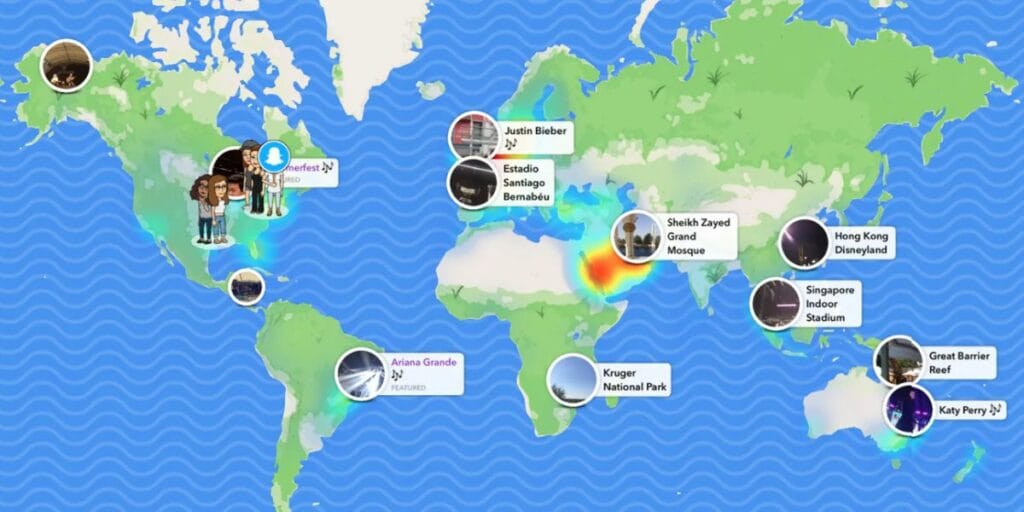
- Local Stories Sharing: You can tag location-based stories, like tag a local cafe or a club, and share them.
- Reached Home Notifications: Whenever you reach your home location after going out, you can notify your friends about it through the new ‘reached home’ notification.
- Live Location Tracking: You can track the live location of your friends and family members for better safety.
- Snap Map: There is a new section of Snap Map, where you see your friends’ last active location, and local cafes and local stories around your location.
- Ghost Mode: You can now choose the ‘ghost mode,’ and nobody can see your location even if you have enabled location on your phone.
- Location Privacy: You can change your privacy settings and choose whether your friends will be able to see your location or not.
- Location Permission: If your default location settings are off on your phone, you will be asked for location permission every time you open Snapchat, so that you can turn it on and off anytime you want.
- Increased Location Safety: Location-based security has been enhanced with the latest additions.
- Footsteps: You can now track and see the footsteps while you are actively traveling or walking from one location to another.
- Location History Disable: You can disable your location history anytime on Snapchat.
Also Read: Snapchat AI Lens Is Now Free: Here’s How to Use It
Now, let us drive you straight towards the main discussion of this blog, where we discuss the steps on how to add location in Snapchat.
How To Add Location In Snapchat?

Here are the two most appropriate and the two most solid ways to add location in Snapchat:
Adding Location in Snapchat Through a Sticker

- Open your Snapchat.
- Click your snap or record your video.
- Go to the stickers section.
- You will find a ‘location’ option; click that.
- You will get all your nearby locations, or you can search for your desired location.
- Tap on add.
Adding Location in Snapchat Through Filter Slides
- Open Snapchat.
- Click your snap or record your video.
- Swipe left or right for filters.
- You will find a location filter while swiping.
- This filter tracks your current location.
- Select this filter.
Also Read: How To Take Screenshots On Snapchat Without Knowing? Let’s Find Out
In the latest location features, two more ways have been added through which you can add your location and make it visible on Snapchat. Here are those steps:
Adding Location In Snapchat Through Maps

- Go to the maps section of Snapchat.
- Click on your bitmoji.
- Snapchat will ask for location permission. Click on ‘allow’.
- Disable ‘Ghost Mode’.
- Select ‘My friends’.
Adding Location Through Live Sharing
- Go to any chat or family center settings.
- Select the ‘share live location’ option.
That’s it, these are all the confirmed, official, and secure methods that are the answer to the ‘how to add location in Snapchat’ question.
Know These Security Measures Before You Select How to Add Location in Snapchat
Before you select the steps above and go on to add your location, here are some security measures you should take. These measures will help you get better security and privacy from the location feature.

Here are 5 location security measures that you should take on Snapchat:
- Enable Ghost Mode: Keep your location private by turning on Ghost mode. This hides your real-time location from everyone.
- Limit Location Sharing: Only share your location with trusted friends. Don’t make it accessible to everyone.
- Check Your Map Settings Regularly: Review and update your Snap Map settings regularly.
- Turn Off Default Location Sharing When Not Needed: If you are not using location-based services, then turn off your default location settings on your phone.
- Avoid Sharing Sensitive Locations: Don’t share your location whenever you’re at a private or sacred location.
Also Read: How To Make Public Profile On Snapchat?
Conclusion
That’s it from our guide on how to add a location in Snapchat. We have covered all the measures, and we hope that anyone who wants to add location to their snaps will get these methods right there as their problem solver. But always remember that your location holds your privacy, and you should only share it on uncompromising terms. So, have a happy snap-time ahead and go rock your streaks with your beach snaps, cafe-hopping stories, and more such exciting updates. Stay tuned till we bring back more such informative guides.
If you’ve just bought a new phone and don’t know what to do with your old phone, then here’s your answer. Sell old mobile to Cashify and get the best price for it. If you are planning to buy a new phone, check out Cashify’s refurbished mobile phones. You can get your favourite phone at almost half price with Six-month warranty, 15 days refund and free delivery.