For a long time, users have faced so many issues when it comes to sharing photos, videos, or any documents between iPhone and Android. It should be as simple as tapping and swiping on your phone, but it was not. Apple use AirDrop to send files across iPhones, iPads, and Macs without any cables or Apps. If you use Android, you might have wished for something like that, too! Now, Google has released a major update. This update lets your Pixel 10 devices work with Apple’s AirDrop. You can now share files with iPhones, iPads, and even Macs smoothly and naturally.
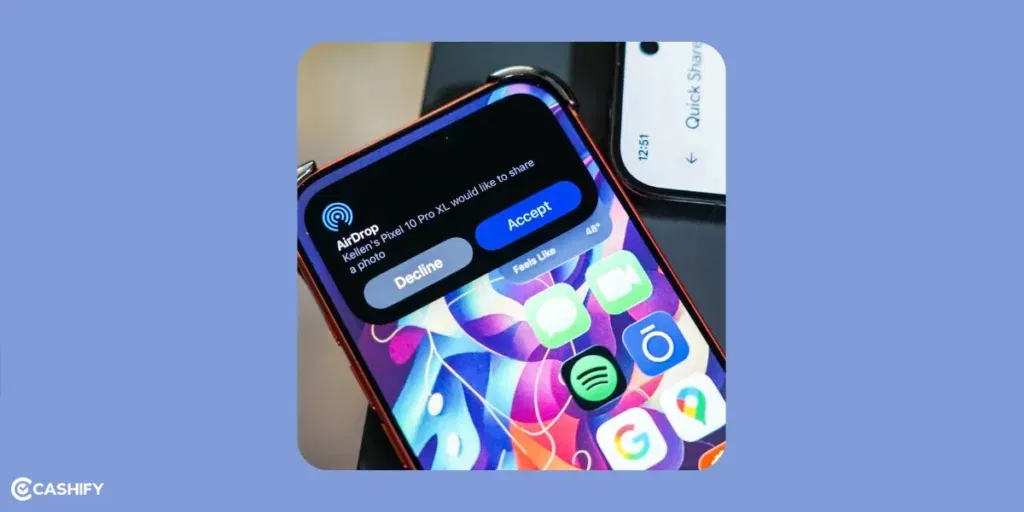
It feels like a huge relief to be honest. There is no need to upload files to the cloud. You do not have to struggle with slow Bluetooth transfers. Everything feels quick and simple.
In this guide, I will show you everything step by step. You will learn what this new feature can do. You will learn how to set it up and use it without any confusion. I will also share tips if something goes wrong and options you can use if you do not own a Pixel 10. Let’s get started:
Also Read: OnePlus 15 Vs iPhone 17: Which One Should You Choose?
What Is AirDrop On Android?
AirDrop is a feature made by Apple. It uses Bluetooth to find nearby devices and Wi Fi to send files quickly. It creates a direct connection between two devices. You can send something in seconds without an internet connection.
Android users have had their own version for years. It is called Quick Share or Nearby Share. It works well inside the Android world. You can share files between Android phones, tablets, Chromebooks, and even Windows computers. But sharing between Android and Apple was never smooth. Most people had to email files or upload them to Google Drive.
That changes now with the big Google Update in November 2025. This update allows Quick Share to connect directly to AirDrop.
Also Read: From Notion AI to Gemini: The Best AI Tools for Productivity
What AirDrop On Android Means For You!
Let’s check out how this update is important for you as a user:
- From Android to Apple. You can send photos or documents from your Pixel 10 to an iPhone. The iPhone will see it as a normal AirDrop request.
- From Apple to Android. Someone with an iPhone can send files to your Pixel 10. Your phone will show up as an AirDrop option for them.
- No extra apps. Everything is built into the latest Android update for the Pixel 10.
This feature works on the Pixel 10, Pixel 10 Pro, and Pixel 10 Pro XL. It uses the same Bluetooth and Wi Fi method that AirDrop uses. Google plans to bring this to more Android phones soon. For now, it is only for Pixel 10 users.
This update is a big step toward better communication between different devices. It follows other improvements from Google like RCS messaging and safety alerts for unknown trackers.
Thing You Need To Set Up AirDrop On Android
The first thing you need to do is check if your devices are ready. Let’s understand the basics:
- You must have a Google Pixel 10 series phone. It should be running Android 16 or a newer version. The update normally installs through Settings > System > System Update.
- To receive files on your Pixel, the other person needs an iPhone with iOS 17 or later. An iPad with iPadOS 17 or later also works. A Mac with macOS Ventura or later works too.
- You can send to the same Apple devices listed above. You can also send to another Pixel 10.
- The devices should be close. Around 30 feet is the usual Bluetooth range.
- Bluetooth, Wi Fi, and Location must be turned on for all devices. Location helps your phone find nearby devices.
Also Read: How AI Is Replacing Traditional To-Do Apps? Know The Truth!
Let’s set up…
- Swipe down from the top of your screen. This opens Quick Settings.
- Tap the Quick Share tile. It looks like a small share icon. If you do not see it, tap the pencil icon and add it to your Quick Settings.
- Choose who can send you files.
- Pick “Everyone” for easy sharing or “Contacts only” for privacy.
On the Apple side
iPhone or iPad.
- Swipe down to open Control Center.
- Press and hold the box with Wi Fi and Bluetooth icons.
- Tap AirDrop. Set it to “Everyone” or “Contacts Only.”
Mac.
- Open Finder.
- Click AirDrop in the sidebar.
- Set your visibility to “Everyone” or “Contacts Only.”
You are now ready to use AirDrop with your Pixel.
How to Use AirDrop on Your Pixel 10?

I will show you how to send files from your Pixel to an Apple device and how to receive files from one. Both ways feel familiar and very easy.
Sending Files from Your Pixel 10 to an iPhone, iPad, or Mac
- Open the app that has your photo, video, document, or link. This might be the Gallery app, the Files app, or any app that allows sharing.
- Look for the Share icon. It usually looks like an arrow or a box with an arrow.
- In the share menu, find Quick Share and tap it.
- Your Pixel will scan for devices nearby. You will see Apple devices appear with names like “Rahul iPhone.” Tap the device you want.
- A small preview appears. Tap Send. Your file will move quickly through Wi Fi. A large file like 1 GB can send in under a minute if your connection is good.
On the Apple side:
The person will get an AirDrop alert that says something like “From Ramesh’s Pixel 10.” They will have to tap Accept. Photos and videos go into the Photos app. Other files go into the Downloads folder.
If you want to send many items, select them all first. Then share them together in one batch.
Also Read: iQOO 15 Vs OnePlus 15: Price, Specs, All Details!
Receiving Files on Your Pixel 10 from an iPhone, iPad, or Mac
I hope at this point you have your Pixel ready with Quick Share.
If not, follow this: Open Quick Settings. Tap Quick Share. Tap Receiving. Your phone is now visible to nearby Apple devices.
On the Apple device.
The sender opens their file, taps Share, taps AirDrop, and picks your Pixel from the list. It will appear as something like “Pixel 10.”
A notification appears on your Pixel that says “Incoming file from [Device Name].” Tap Accept.
AirDrop On Android Alternatives If You’re Not On Google Pixel 10
Right now, AirDrop integration only works on the Pixel 10 series. Android has plenty of great ways to share files. If you have an older Pixel or another Android, here are your options:
| Feature / App | Best For | Pros | Cons |
|---|---|---|---|
| Quick Share (Built-in) | Android-to-Android | Fast, native, no extra apps | Does not work with Apple devices |
| AirDroid | Cross-platform basics | Free tier, remote access | Ads in free version, needs same Wi-Fi |
| SHAREit / Xender | Large files | Very fast (up to 50MB/s), works offline | Needs app on both devices |
| Google Drive / Dropbox | Anywhere, anytime | Cloud backup, works on any device | Needs internet, slower for big files |
Also Read: 5 High-Value Mid-Range Phones Worth Buying- Samsung, Realme & More
AirDrop On Android: Tips And Troubleshooting

Here’s how you can make it better by following these tips:
- Transfers do not use much battery. Keep your devices unlocked and screens on so they can discover each other. Avoid thick walls or obstacles.
- There is no strict size limit, but very large files move fastest on a strong Wi-Fi connection.
- In Quick Share settings, you can choose who can send files to you. Set it to “Contacts only” for privacy. Apple lets you do the same in AirDrop.
- You cannot share with multiple devices at the same time yet. You can only send to one device at a time.
Troubleshooting
Device not showing up on AirDrop
Make sure Bluetooth, Wi-Fi, and Location are all on. Restart both devices. You can also turn Airplane Mode on for 10 seconds to reset connections.
Transfers are slow
Check for interference. Crowded Wi-Fi or obstacles can slow things down. Stay in line-of-sight for best speed.
Update pending
If your Pixel is older, the feature may not be active yet. Check Settings > System > System Update every week.
Error messages
Errors like “Connection Failed” often happen. Refresh permissions in Settings > Apps > Quick Share > Permissions and try again.
Also Read: Pro Tips for Vivo X300 Pro: Perfect Camera Settings for Stunning Photos
FAQs
1. What is AirDrop on Android?
It is a new feature that lets Pixel 10 phones share photos, videos, and files with iPhones, iPads, and Macs easily.
2. Which phones can use this feature right now?
Only the Google Pixel 10 series can use it at the moment.
3. What Apple devices does it work with?
It works with iPhones using iOS 17, iPads using iPadOS 17, and Macs using macOS Ventura or newer.
4. Do I need to download any extra apps?
No, you don’t need any extra apps. The feature is built into the Pixel 10 update.
5. How do I turn it on?
Swipe down, open Quick Settings, tap Quick Share, and choose who can send you files.
6. How do I turn it on on an iPhone?
Open Control Center, tap AirDrop, and choose Everyone or Contacts Only.
7. How do I send a file from my Pixel to an iPhone?
Open the file, tap Share, choose Quick Share, pick the iPhone, and tap Send.
8. How do I receive a file from an iPhone?
Turn on Quick Share and set it to receive. When a file comes in, tap Accept.
9. Is it fast?
Yes, it is very fast. Even big files can be sent in under a minute.
10. How close should the devices be?
They should be within about 30 feet of each other.
11. What if the device is not showing up?
Turn on Bluetooth, Wi-Fi, and Location. Restart both devices and try again.
Final Thoughts
In the end, AirDrop On Android is a game changer for Pixel Devices and iPhones. It makes sharing files between both platforms feel effortless. Now, the pressure to buy iPhone only because of AirDrop is gone. If you have a Pixel 10, I would say you should update the phone as soon as possible to get these features.
If you have any doubts about this feature, feel free to post them in the comments. I would love to hear you out!
If you’ve just bought a new phone and don’t know what to do with your old phone, then here’s your answer. Sell old mobile to Cashify and get the best price for it. If you are planning to buy a new phone, check out Cashify’s refurbished mobile phones. You can get your favourite phone at almost half price with six-month warranty, 15 days refund and free delivery.