If you ever feel like Snapchat isn’t serving you anymore- maybe you’re taking a break from social media, worried about privacy, or simply don’t use the app like you used to- removing your account is easier than you might think. In this blog, I will help you understand everything you need to know to delete your Snapchat account step by step. So, let’s get straight into it.
Also Read: iQOO 15 Vs Vivo X300 Pro: The Winner Will Surprise You
Why You Might Want To Delete Snapchat?

Before you get to know how to delete Snapchat account, it is helpful to understand why many users decide to step away from Snapchat entirely. These are some common reasons you might relate to:
- You’re cutting down on social media for mental clarity.
- You’re concerned about digital privacy or app tracking.
- You’ve switched to other messaging platforms.
- You want a fresh start with a new account.
- You simply don’t use Snapchat anymore.
How To Delete Snapchat Account: Easy Steps
Now let’s walk through the exact steps to delete Snapchat account. You’ll only need a couple of minutes to complete the process.
- Launch the app on your phone. Log in if needed, then tap your profile icon in the top left.
- On your profile page, tap the gear icon in the top right to open the Settings menu.
- Scroll down to the Account Actions section. Tap Delete Account.
- Snapchat will send you to the Accounts Portal in your browser. If it doesn’t open automatically, tap the link shown.
- Type in your username and password to confirm it’s really you.
- Tap Delete My Account (or Continue) to start the 30-day deactivation period.
You’re done! Your account is now scheduled for deletion.
How Snapchat Account Deletion Works?
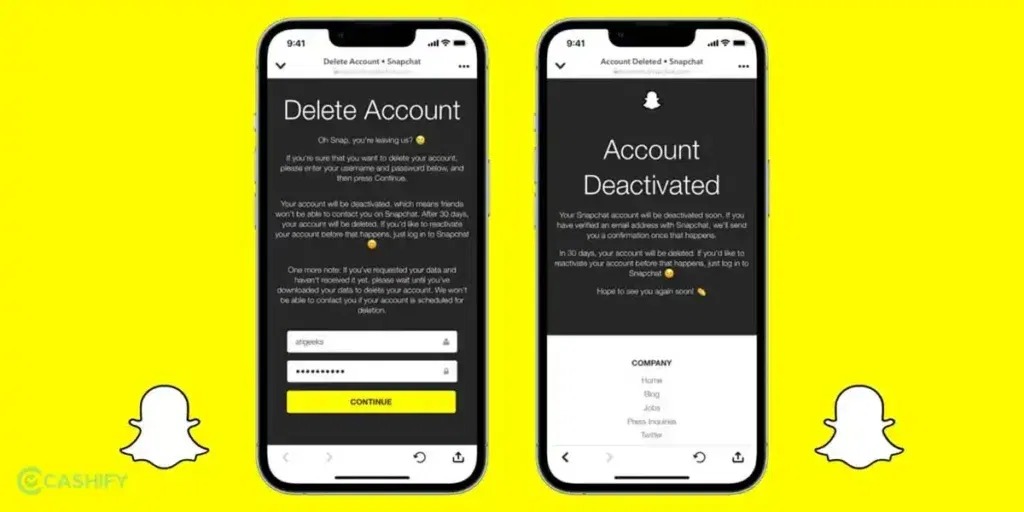
When you choose to delete your Snapchat account, the platform doesn’t erase everything right away. Instead, Snapchat follows a two-step process designed to give you time to rethink your decision.
1. Deactivation Phase (First 30 Days)
Right after you request deletion, your account enters a 30-day deactivation period. Think of this as a temporary freeze. During this time:
- Your profile disappears from the app.
- Friends can’t send you Snaps or messages.
- You won’t show up in searches or chat lists.
Even though your account looks gone, it isn’t fully deleted yet. If you log in anytime within these 30 days- using your usual username and password- Snapchat will automatically reactivate your account. All your settings, saved data, and connections return as if nothing happened.
This grace period is designed as a safety net in case you reconsider or deleted your account by mistake.
2. Permanent Removal (After 30 Days)
If you stay logged out for the entire 30-day period, Snapchat moves into the final step- permanent deletion. Once this happens:
- Your account is completely erased from Snapchat’s system.
- Data linked to your profile- such as memories, chats, and stored information- is removed.
- You cannot recover or reactivate the account anymore.
At this point, Snapchat treats the account as gone forever. If you decide to return to the platform later, you’ll need to create a brand-new account. So, it is crucial that you know this before you delete Snapchat account.
Also Read: OnePlus 15 Vs Google Pixel 10: What’s Better For Your Money In 2025?
Optional Step: Download Your Snapchat Data First
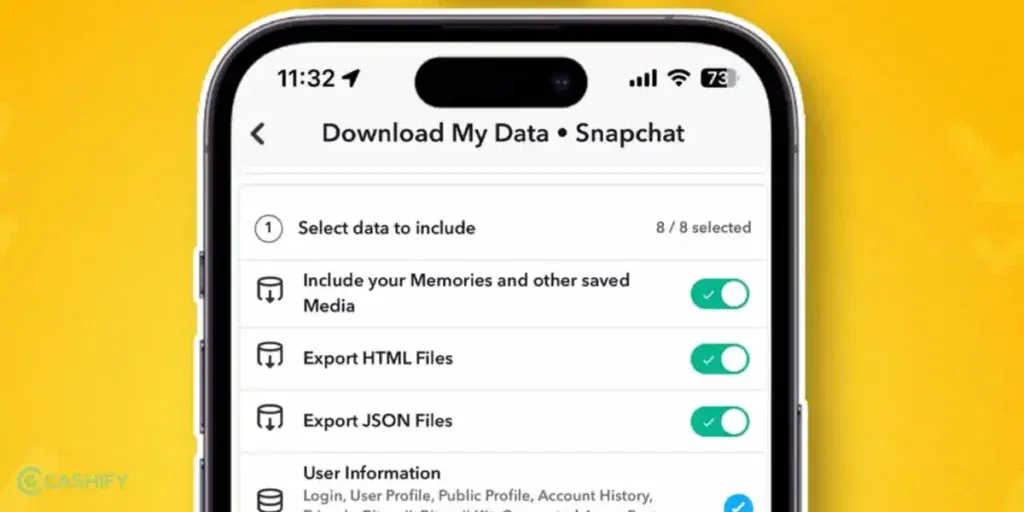
Before you delete your Snapchat account, it’s a good idea to download your data- especially if you’ve been using the app for a long time. Snapchat stores more information than you might realize, and once your account is permanently deleted, you lose access to all of it.
Downloading your data gives you a personal backup of memories, chats, and activity you may want later.
When you request your data, Snapchat gathers everything connected to your account. This can include:
- Saved Memories you didn’t export
- Chat history and message metadata
- Story history
- Login and device information
- Snapcodes
- Account settings
- Snap Map data
- List of friends and contacts
Getting this file is simple. You just need to go to the Accounts Portal, sign in, and choose the My Data option. Snapchat will collect the information and send you a download link by email once the file is ready. Depending on how much data you have, this may take a few minutes or a few hours.
If you want to keep old Snaps, save conversations, or hold onto any part of your digital footprint, downloading your data is a smart step before closing your account for good. It ensures you don’t accidentally lose anything important while moving on from Snapchat.
Should You Uninstall The App After Deleting The Account?

Once you’ve decided you want to delete Snapchat account and have submitted your account deletion request, you might wonder whether it’s safe to remove the Snapchat app from your phone. The short answer is yes- you can uninstall it anytime after confirming deletion, and it won’t interfere with the process.
Uninstalling the app simply removes Snapchat from your device. It doesn’t affect the 30-day deactivation countdown, and it won’t stop your account from being deleted. The deletion process continues on Snapchat’s servers, not on your phone.
In fact, uninstalling the app can be helpful. Without the app on your home screen, you avoid the temptation to log in during the 30-day window. Logging in- even accidentally- will instantly reactivate your account and cancel the deletion request.
Whether you plan to take a break or leave permanently, removing the app is a clean way to disconnect.
Just remember- If you decide you want your account back within the 30 days, you’ll need to reinstall Snapchat and log in again to restore everything.
Also Read: iQOO 15 Vs iQOO 13: Five Key Improvements You Must Know
Tips Before Permanently Leaving Snapchat
If you’re planning a clean exit, here are a few smart things you can do before deleting your account:
- Save important Memories so you don’t lose photos or videos stored in the cloud.
- Let close friends know you’re leaving to avoid confusion.
- Disconnect any third-party apps linked to your Snapchat account.
- Cancel Snapchat+ or other subscriptions through your app store.
- Review your recovery email or phone number if you plan to reuse them for a future account.
- Download your data to keep a backup of chats, settings, and activity.
Final Thoughts
Deleting your Snapchat account in 2025 is incredibly simple- and it only takes a few minutes to start the process. Whether you’re taking a digital detox, switching platforms, or stepping away permanently, Snapchat gives you a 30-day window to change your mind before making the deletion final.
All you need is to follow the steps above, and you can smoothly deactivate your account. Additionally, download your data if needed, and take control of your online presence.
Also Read: Snapdragon 8 Gen 5 Vs Dimensity 9400: Gaming & Speed Verdict
Frequently Asked Questions
1. Can I delete my Snapchat account from a computer?
Yes. You can delete your Snapchat account using any computer by visiting the Snapchat Accounts Portal in a browser. After signing in with your username and password, follow the on-screen steps to request deletion. The same 30-day deactivation and permanent removal process still applies.
2. What if I forgot my password?
If you can’t remember your password, click the Forgot Password option on the login page. Snapchat will send a verification code to your registered email or phone number. Use that code to reset your password, sign in again, and continue with your account deletion or recovery steps.
3. Can someone still see my old messages after I delete my account?
When your account is permanently deleted, your messages disappear from Snapchat’s servers. However, if someone previously saved or screenshotted parts of your conversation, those items may still remain on their device. Deleting your account doesn’t remove content that another user stored or saved on their end.
4. Does deleting Snapchat remove my Bitmoji?
Yes. When your Snapchat account is permanently deleted after the 30-day deactivation period, your Bitmoji and all connected data are removed as well. Bitmoji created through Snapchat is tied directly to your account, so its profile, avatar details, and settings are erased during the deletion process.
5. Can I use the same username after deleting?
No. Snapchat doesn’t allow reusing a deleted username. Once an account is permanently removed, its username is retired and cannot be claimed again, even by the original owner. If you create a new account later, you’ll need to choose a completely different username for your profile.
6. How do I permanently delete my Snapchat account?
To permanently delete your account, start by requesting deletion through the app or the Accounts Portal. Your account enters a 30-day deactivation period. If you avoid logging in during that time, Snapchat automatically removes your account and data permanently once the full 30 days have passed.
If you’ve just bought a new phone and don’t know what to do with your old phone, then here’s your answer. Sell old mobile to Cashify and get the best price for it. If you are planning to buy a new phone, check out Cashify’s refurbished mobile phones. You can get your favourite phone at almost half price with Six-month warranty, 15 days refund and free delivery.