Is your laptop display still difficult to see even after turning the brightness all the way up? If your laptop screen too dim at full screen, the problem may not always be with the screen itself. Windows settings, battery-saving features, graphics drivers, ambient light sensors, or even a faulty display component can be the culprit. Let’s find out!
Why Is My Laptop Screen So Dim Even at Full Brightness?
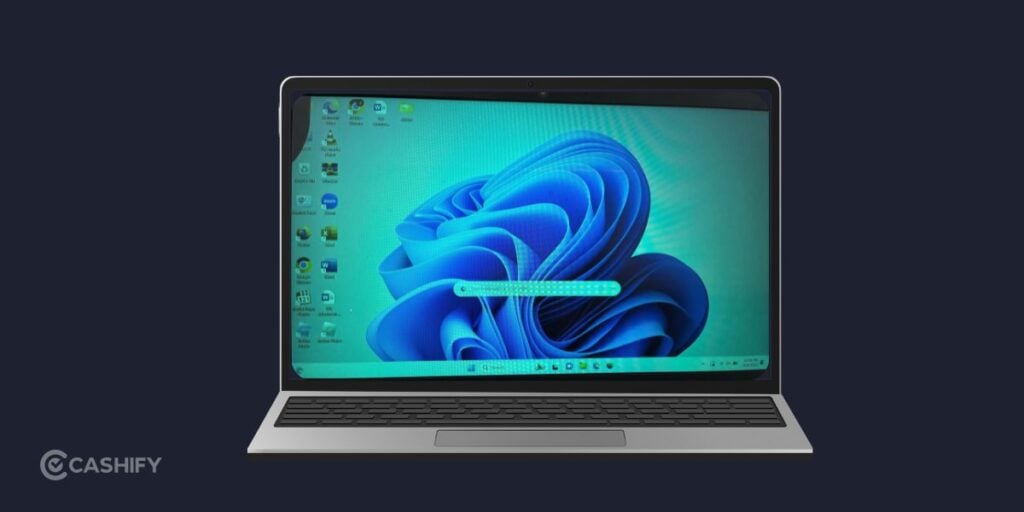
If your brightness slider is already at 100 percent but the display still looks dark, there could be several reasons behind it.
Common causes include:
- Battery saver or power-saving settings
- Adaptive brightness
- Incorrect Windows display settings
- Outdated or faulty graphics drivers
- HDR or colour settings
- Overheating
- A dim or failing backlight
- A damaged display panel or cable
- A problem with the laptop’s ambient light sensor
Start with the software fixes below. They are quick and don’t require opening your laptop.
Also read: Laptop Screen Keeps Turning Off? Here’s Why!
Simple Fixes When Laptop Screen Gets Too Dim
Fix 1: Turn Off Battery Saver
Battery-saving features can reduce display brightness to conserve power.
On Windows, go to:
Settings > System > Power & battery
Check whether Battery saver or other energy-saving features are active.
Plug your laptop into the charger and check the screen again. If the display becomes noticeably brighter while charging, power settings could be responsible.
Fix 2: Turn Off Adaptive Brightness
Some laptops automatically adjust screen brightness based on lighting conditions.
To check your display settings:
- Open Settings.
- Go to System > Display.
- Look for options related to automatic or adaptive brightness.
- Turn them off temporarily.
- Set the brightness manually and check the display.
The exact option can vary depending on your laptop and Windows version.
If the screen becomes brighter after disabling automatic adjustments, you can keep the feature off or adjust it according to your preference.
Fix 3: Check Your Laptop’s Brightness Keys
Sometimes the brightness slider and keyboard controls don’t behave as expected because of a driver or function-key issue.
Try using the dedicated brightness keys on your keyboard. You may need to hold the Fn key while pressing the brightness button.
Increase the brightness gradually and check whether the screen actually changes.
If the slider moves but the display doesn’t get brighter, the issue could be related to the display driver or hardware.
Also read: Most Common Laptop Problems For Possible Repair Instead Of Replacing The Device!
Fix 4: Update Your Graphics Driver
Your graphics driver controls how your laptop communicates with the display. If it’s outdated or malfunctioning, brightness controls may not work properly and laptop screen may appear too dim.
To check for an update:
- Right-click the Start button.
- Open Device Manager.
- Expand Display adapters.
- Right-click your graphics device.
- Select Update driver.
- Choose Search automatically for drivers.
Restart your laptop after the update and check the brightness again.
Fix 5: Check HDR Settings
HDR can sometimes make the display look different from what you’re used to, particularly when the content and display aren’t handling HDR correctly.
Go to:
Settings > System > Display > HDR
If HDR is enabled, turn it off temporarily and check the screen.
If the display looks normal again, you can keep HDR disabled or adjust its settings based on how you use your laptop.
Fix 6: Check If the Laptop Is Overheating
Excessive heat can affect the performance of different laptop components, including the display and graphics system.
If the screen becomes dim after using the laptop for a long time, check whether the device is also unusually hot.
Try:
- Using the laptop on a hard, flat surface.
- Keeping the air vents clear.
- Closing demanding applications.
- Giving the laptop some time to cool down.
- Avoiding beds, cushions, or other surfaces that block ventilation.
If the dimming consistently happens when the laptop gets hot, don’t ignore it.
Also read: What Is The Difference Between Screen Repair And Screen Replacement?
Choosing Cashify For Laptop Repair?
If the issue turns out to be hardware-related, Cashify offers a convenient way to fix a laptop screen that is too dim.
You can check the repair price and choose a suitable service option based on availability. Cashify supports several laptop repairs, including screen, battery, motherboard, and keypad-related issues.
You also get:
- Convenient service: Choose doorstep repair where available or visit a nearby Cashify store.
- Quality-tested parts: Replacement parts are quality-tested for repairs.
- Trained technicians: Skilled professionals handle laptop repair requirements.
- Warranty coverage: Screen repairs come with a 6-month warranty, while other replaced spare parts come with a 3-month warranty.
- Data-focused service: Device and data security are considered during the repair process.
So, your screen remains dim despite being set to maximum brightness? Cashify can help identify whether the problem actually requires a repair before you spend money on a replacement.
Also read: 5 Signs Your Laptop Needs Professional Repair Immediately!
Final Thoughts For Laptop Screen Too Dim
You don’t need to rush for repair with a dim laptop screen. It is because it doesn’t automatically mean the display is damaged. Start off with simple fixes mentioned here.
If none of these fixes works and the screen remains unusually dark, especially if you notice flickering, patches, or changes when moving the lid, the issue could be hardware-related. In that case, getting the laptop inspected by Cashify can help you find the actual cause and decide on the right repair.
Use code: TECH25 to avail of a discount of up to Rs. 300 by using the (on a minimum order value of Rs. 2499).
Use code: RPR50 to avail up to 50 percent off on a minimum spend value of Rs. 1000. (Limited Offer)
Buying refurbished mobile phones was never this easy. Sell your old phone and get exclusive offers & discounts on refurbished mobiles. Every refurbished phone is put through 32-point quality checks to ensure like-new standards and comes with a six-month warranty and 15-day refund. Buy refurbished phone easily on no-cost EMI today!