Your Lenovo IdeaPad S340-15IIL could have been a reliable laptop for years. But things can go downhill ones the hardware starts messing. It can be frustrating when you plug in the charger and notice that the battery percentage isn’t moving. Sometimes, the IdeaPad battery not charging may show a message like “Plugged in, not charging.”
If you’re dealing with an IdeaPad battery not charging issue, don’t assume the battery is dead just yet. The problem could be as simple as a loose charging connection, a faulty adapter, a Windows battery driver issue, or an aging battery.
Before spending money on a replacement, try these practical fixes. Most of them take only a few minutes, and you won’t need any special tools.
Also read: Vivobook Keyboard Not Working? Workarounds Before Meeting Professionals!

Why Is Your IdeaPad S340-15IIL Battery Not Charging?
Before trying any fix, it helps to understand what might be causing the problem. Here are some common reasons your Lenovo laptop battery may not be charging properly.
| Possible cause | What you might notice |
|---|---|
| Faulty charger or cable | Laptop doesn’t charge or charging keeps disconnecting |
| Loose or damaged charging port | Charger works only at a certain angle |
| Battery wear | Battery drains quickly or refuses to charge fully |
| Battery protection settings | Charging stops at a certain percentage |
| Outdated battery drivers | Windows shows incorrect charging information |
| Temporary power issue | Laptop stops charging unexpectedly |
| Internal hardware fault | Laptop doesn’t charge even with a working adapter |
Now, let’s go through the fixes you can try at home.
1. Check the Charger and Power Outlet
Start with the basics. A faulty charger or loose connection can stop your IdeaPad S340-15IIL from receiving enough power.
Here’s what you can do when IdeaPad battery not charging:
- Unplug the charger from the wall outlet and your laptop.
- Check the charging cable for cuts, bends, frayed sections, or other visible damage.
- Try a different working wall outlet.
- Connect the charger firmly to your laptop.
- Check if the charging indicator light turns on, if your model has one.
If you have access to a compatible Lenovo charger with the correct power rating and connector, try it. Avoid using an adapter with an unsuitable voltage or wattage.
Quick tip: If the laptop charges with another compatible adapter, your original charger or cable could be the problem. Replace the faulty charger instead of spending money on a battery replacement.
2. Perform a Power Reset
Sometimes, a temporary power management glitch can cause the laptop to stop charging. A power reset can help clear this issue.
Follow these steps for IdeaPad battery not charging:
- Save your work and shut down the laptop.
- Disconnect the charger and all connected USB devices.
- If your laptop has a removable battery, remove it. Do not force the battery out if it is built-in.
- Press and hold the power button for around 30 seconds.
- Reconnect the charger. If you removed a removable battery, reinstall it first.
- Turn on the laptop and check the charging status.
This process can help resolve temporary power-related issues without deleting your files.
Recommendation: Try this fix before changing Windows settings or updating drivers. It’s simple and doesn’t require installing anything.
Also read: Liquid Damage In Laptops: What To Do Immediately!
3. Check Battery Charging Settings in Lenovo Vantage
Your laptop may have a battery conservation or charge threshold setting enabled. This feature can limit charging to help reduce battery wear over time.
For example, if your battery stays at around 55% or 60% while connected to the charger, a charging threshold could be responsible.
Here’s how to check whether IdeaPad battery not charging due to this:
- Open Lenovo Vantage if it’s installed on your laptop.
- Look for the Power or Battery settings.
- Check for Conservation Mode or a battery charging threshold.
- If you want the battery to charge further, disable the limit or change the threshold, if the option is available.
- Leave the laptop connected to the charger and check if the battery percentage increases.
The available settings can vary by laptop model and software version.
If the battery is stuck at a low percentage and no charging limit is enabled, move on to the next fix.
4. Update or Reinstall the Battery Drivers
Windows uses battery-related drivers to communicate with your laptop’s power system. A driver issue can sometimes cause incorrect battery status information.
You can try reinstalling the battery devices through Device Manager.
Follow these steps:
- Right-click the Start button.
- Select Device Manager.
- Expand the Batteries section.
- Look for entries such as Microsoft AC Adapter and Microsoft ACPI-Compliant Control Method Battery.
- Right-click the battery-related entry and select Uninstall device, if available.
- Restart your laptop with the charger connected.
Windows should detect and reinstall the battery device automatically after restarting.
Keep in mind that this fix may not work if the issue comes from a worn-out battery, faulty charger, or damaged charging port.
Also read: Laptop Repairing Shop Near Me: Doorstep vs Walk-in Repair?
5. Check the Charging Port for Damage
A damaged or loose charging port can prevent your IdeaPad S340-15IIL from receiving power consistently.
Look for these signs:
- The charging light switches on and off.
- The laptop charges only when the cable is held at a particular angle.
- The charger feels unusually loose when connected.
- The laptop stops charging when the cable moves slightly.
First, shut down the laptop and disconnect the charger. Check the charging port for visible dust or debris. You can gently clean the outside with a dry, soft brush, but avoid inserting metal objects or liquids into the port.
If the port feels loose or the connection keeps dropping, don’t keep moving the charger around to force a connection. This can worsen the damage.
When to get help: If the charging port is damaged, a technician can inspect the connection and determine if the port or another internal component needs repair.
6. Check Battery Health in Windows
An aging battery is another possible reason your IdeaPad battery is not charging. Laptop batteries lose capacity with repeated charging cycles, and an old battery may struggle to hold a charge.
You can check the battery’s reported health using a built-in Windows tool.
Here’s how:
- Search for Command Prompt in Windows.
- Right-click it and select Run as administrator.
- Enter this command:
powercfg /batteryreport
- Press Enter.
- Open the battery report from the file location shown in the Command Prompt.
- Find the Design Capacity and Full Charge Capacity values.
Compare the two values. If the full charge capacity is much lower than the design capacity, your battery has lost a significant amount of its original capacity.
For example, if the design capacity is 45,000 mWh and the full charge capacity is 25,000 mWh, the battery can hold much less energy than it did when new.
A lower capacity doesn’t automatically mean the battery is defective. But if your laptop also shuts down unexpectedly, drains quickly, or refuses to charge, a battery replacement might be a solution.
Important: If the battery looks swollen, the touchpad or keyboard is lifting, or the laptop’s case is bulging, stop using and charging the laptop. Get it inspected by trusted sources like Cashify rather than attempting a DIY battery replacement.
Also read: Laptop Fan Making Loud Noise? What It Means And How To Prevent!
7. Try Charging the Laptop While It’s Shut Down
If your laptop is running multiple applications, it may consume power nearly as quickly as the charger supplies it. This can make the battery percentage appear stuck.
To check:
- Save your work.
- Shut down the laptop completely.
- Connect the charger.
- Leave it charging for around 30 minutes.
- Turn it on and check the battery level.
If the battery percentage increases while the laptop is off but remains stuck during use, heavy power consumption could be contributing to the issue.
If the battery still doesn’t charge, even when the laptop is shut down, the problem may involve the adapter, battery, charging port, or internal power circuitry.
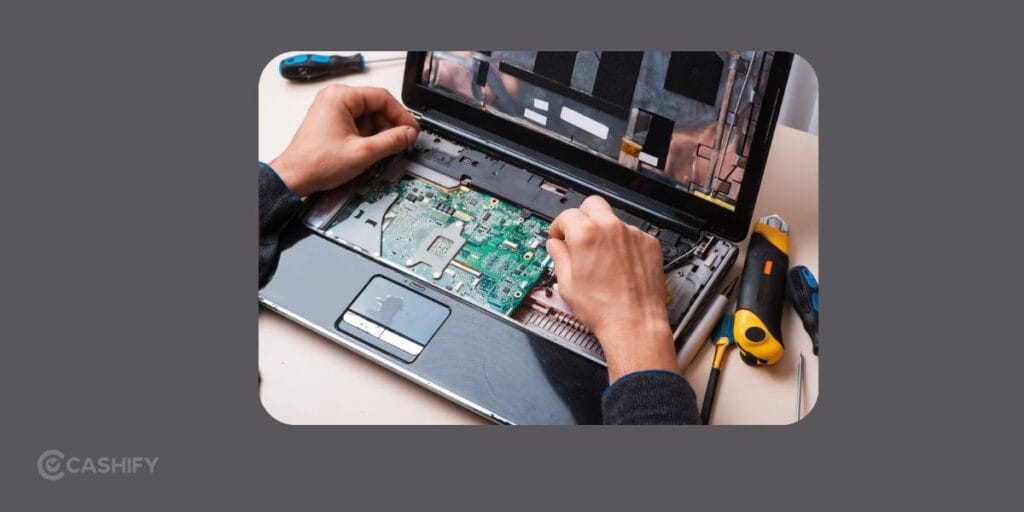
Get Your IdeaPad S340-15IIL Repaired at Cashify
If you’ve tried these fixes and your IdeaPad battery not charging problem continues, it may be time for a professional inspection.
Cashify is the best option when you search laptop repair shop near me. services for issues involving batteries and other hardware components, subject to model and part availability. You can check the available service options online and choose a convenient way to get your laptop checked.
Before booking a repair, keep these points in mind:
- Mention if the laptop charges intermittently or not at all.
- Share whether the battery drains quickly or the laptop shuts down unexpectedly.
- Tell the technician which troubleshooting steps you’ve already tried.
- Ask for the diagnosis and repair quote before approving the work.
This can help narrow down the problem and avoid replacing parts unnecessarily.
Also read: Most Common Laptop Problems For Possible Repair Instead Of Replacing The Device!
Why Cashify For Laptop Repair?
If your IdeaPad S340-15IIL battery still isn’t charging after trying these fixes, getting it checked by Cashify is a practical next step. Before booking a repair, here are a few benefits to keep in mind:
- Skilled Technicians: Cashify has trained professionals who can inspect your laptop and identify the cause of the charging issue.
- Quality Repair Parts: Replacements use quality-tested parts, subject to availability for your laptop model.
- Convenient Repair Options: Book a repair online or visit a nearby Cashify store. Doorstep service is also available for eligible locations and repairs.
- Warranty on Repairs: Cashify provides a 6-month warranty on replaced laptop screens and a 3-month warranty on replaced spare parts, as applicable to the service.
- Data Safety: Cashify highlights device and data security as part of its repair service.
- Transparent Pricing: Check the available repair price before proceeding, so you can decide if replacing the battery makes sense for your laptop.
Before approving a battery replacement, ask for a diagnosis and repair quote. If the problem is caused by the charger or charging port instead, you may not need a new battery at all.
Final Thoughts
An IdeaPad battery not charging can have different reasons. It doesn’t always mean your Lenovo laptop needs a new battery. A faulty charger, charging limit, temporary power glitch, or driver issue could be responsible.
Start with the simple checks, review the battery health report, and look for signs of physical damage. If the problem continues after these steps, get the laptop inspected before buying a replacement battery.
If a hardware repair is needed, check Cashify’s laptop repair options to find a suitable service for your IdeaPad S340-15IIL.
Also Read: Do You Lose Data When Replacing LCD Screen?
Buying refurbished mobile phones was never this easy. Sell your old phone and get exclusive offers & discounts on refurbished mobiles. Every refurbished phone is put through 32-point quality checks to ensure like-new standards and comes with a six-month warranty and 15-day refund. Buy refurbished phone easily on no-cost EMI today!