

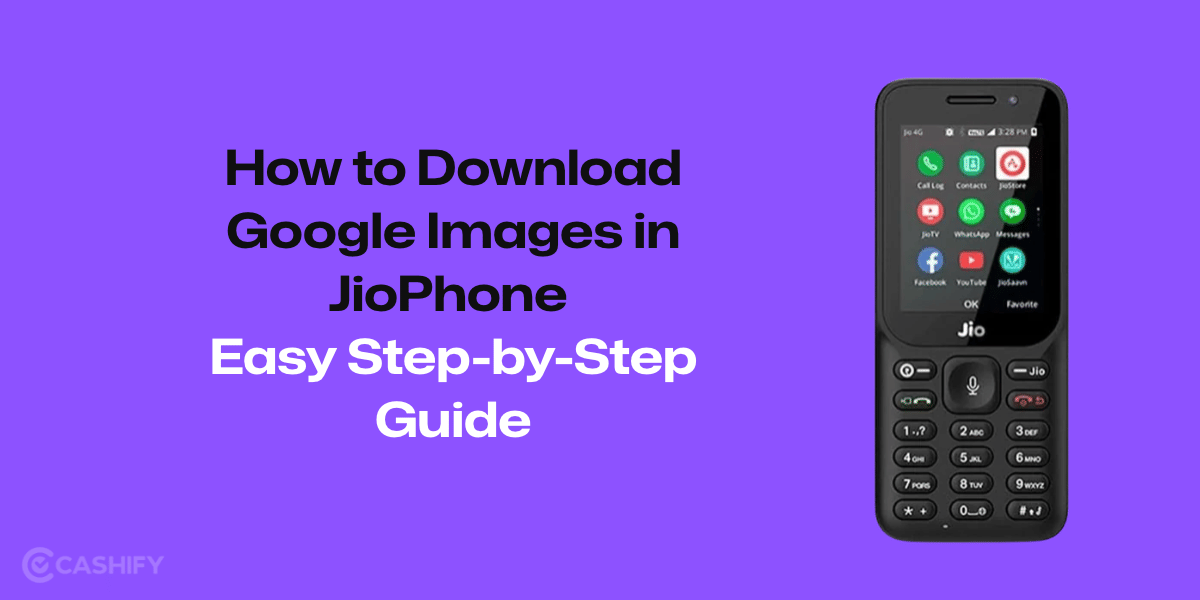
Have you found a picture on Google that you want to save on your JioPhone? It could be a festival wish, a wallpaper, or an image for a school project. However, downloading pictures on a keypad phone can feel a little different from using a smartphone. You do not need a computer or a special app for this. The built-in browser lets you save images in just a few steps.
In this blog, learn how to download Google images in JioPhone, access saved pictures, and fix common download issues.
Also read: How To Save Pictures From Google Photos To Gallery: Simple Steps!
Easy Steps: How To Download Google Images In Jio Phone?
You do not need to install an additional application to download pictures from Google on your JioPhone. The built-in browser can help you save images directly to your device.
Follow these simple steps:
1. Open the Browser on Your JioPhone
Switch on your JioPhone and open its built-in browser. Make sure your mobile data or Wi-Fi connection is active.
2. Search for an Image on Google
Type Google Images in the browser's search bar or visit Google and enter the name of the picture you want to download. For example, search for nature wallpapers, flowers, birthday images, or any other picture.
3. Select the Picture You Want
Browse through the search results and move the on-screen pointer over the image you want to save.
If the image opens in a preview, select it to view it properly before proceeding.
4. Open the Options Menu
Once the image is selected, press the Options key or menu button on your JioPhone. Look for the Download Image or Save Image option in the menu.
5. Download the Image
Select Download Image or Save Image. Wait for the browser to complete the download. The time taken will depend on your internet connection and the image size.
6. Find the Downloaded Image
After the download finishes, open the Downloads folder or Gallery app on your JioPhone. Look for the picture you just saved. You can now view it whenever you want without searching for it again.
Quick tip: The exact menu names and options may vary depending on your JioPhone model and browser version.
Also read: How To Download Video From Any Website: Quick And Easy Steps!
How To Download Photos From Google In Jio Phone Using Another Method?
Sometimes, the download image option may not appear directly in Google Images. This can happen because of the way a website displays its pictures or because of browser limitations. In that case, try opening the original image or its source webpage.
Method 1: Open the Original Image
- Open Google Images in your JioPhone browser.
- Search for the picture you want.
- Select the image to open its preview.
- If available, select the option to visit the original website.
- Open the picture on that website.
- Press the Options key and check for Download Image or Save Image.
- Select the option and wait for the download to finish.
This method can help when Google Images does not show a direct download option.
Method 2: Try the Long-Press Option
Some JioPhone browsers may support selecting an image through a long press.
- Open Google Images.
- Select the picture you want to save.
- Place the pointer over the image.
- Press and hold the centre or OK button, if supported.
- Check whether a menu appears.
- Select Save Image or Download Image if available.
This method does not work on every JioPhone or webpage. If it does not work, use the browser's Options menu instead.
Where Are Downloaded Images Saved On JioPhone?
After downloading an image, you may wonder where it went. JioPhones have a file management feature that helps you access downloaded files.
Here are two places to check:
1. Check the Downloads Folder
- Open the File Manager or Downloads section on your JioPhone.
- Browse the downloaded files.
- Look for the image you recently saved.
- Select it to open and view it.
2. Check the Gallery App
- Go to the Gallery app from your phone's menu.
- Open the available albums or folders.
- Check whether your downloaded picture appears there.
- Select the image to view it.
If the picture does not appear in Gallery, check the Downloads folder first. Some images may be stored there without appearing immediately in the Gallery.
Common Problems While Downloading Google Images On JioPhone
Downloading pictures is usually straightforward. However, you may sometimes face issues because of browser compatibility, internet connectivity, or limited storage.
Here are some common problems and their solutions.
1. Download Image Option Is Missing
Problem: You select an image, but the browser does not show a download option.
Solution: Open the image preview first. You can also visit the original website and try opening the image there. Then press the Options key again.
2. Image Is Not Downloading
Problem: You select Download Image, but nothing happens.
Solution: Check your internet connection. If the connection is unstable, switch to another available network or try mobile data again. Refresh the webpage and repeat the steps.
3. Downloaded Image Is Not Showing In Gallery
Problem: The image downloads successfully, but you cannot find it in Gallery.
Solution: Open File Manager and check the Downloads folder. You can also restart your JioPhone and check Gallery again.
4. JioPhone Shows A Storage Error
Problem: The phone does not download the image because there is not enough storage space.
Solution: Delete unnecessary files, old downloads, or unwanted pictures. If your phone supports an SD card, you can also check its storage settings.
5. Image Opens But Does Not Download
Problem: The image opens in the browser, but there is no option to save it.
Solution: Visit the original webpage and check whether it provides a separate download option. Some websites restrict image downloads or display pictures in formats that the browser may not support.
Tips To Download Google Images Easily On JioPhone
Keep these points in mind to make the process easier:
- Use a stable internet connection: A good connection helps images load and download without interruptions.
- Check available storage: Make sure your JioPhone has enough free space before downloading pictures.
- Open the original image: Google Images may show a preview. Visit the source website if the direct download option is unavailable.
- Choose the right image size: Smaller images generally download faster and take up less storage.
- Keep your browser updated: Install available software updates for better compatibility and performance.
- Check image permissions: Not every image available on Google is free to reuse. Check the source website's copyright and usage terms before sharing or publishing it.
Is It Possible To Download Google Images On Every JioPhone Model?
Yes, you can try downloading images through the built-in browser on supported JioPhone models. However, the exact steps may differ depending on the device and its software version.
Older JioPhone models use KaiOS, which has a different interface from Android. Therefore, Android instructions such as tapping and holding an image or opening Chrome's Downloads menu may not work on a keypad-based JioPhone.
The Options menu is a useful method to try. However, not every website or image supports direct downloading.
Also read: How To Use Google AI Studio For Free (Step-By-Step Beginner Guide)
Verdict: How To Download Google Images In Jio Phone?
Downloading Google images on a JioPhone does not require complicated steps or additional applications. You can open Google Images in the built-in browser, select your preferred picture, and use the Options menu to find the Download Image or Save Image option.
If the option is unavailable, try opening the original image or visiting its source webpage. Once downloaded, check the Downloads folder or Gallery to access your picture. The process may vary across JioPhone models, but these methods are a good starting point for saving pictures.
FAQs
How do I download Google images in JioPhone?
Open the browser and search on Google. Move the pointer over the image. Press Options and select Download image or Save image. Then check Downloads or Gallery.
Where can I find downloaded Google images on JioPhone?
You can check the Downloads folder through File Manager. You should also check the Gallery app to see whether the downloaded picture appears there.
Why is the download option not showing on my JioPhone?
The option may be unavailable because of the website's settings, image format, or browser limitations. Try opening the image preview or visiting its original webpage before checking the Options menu again.
Can I download wallpapers from Google on my JioPhone?
Yes, you can try downloading wallpapers through the built-in browser. Search for your preferred wallpaper on Google Images, open it, and select Download Image from the Options menu if available.
Can I download multiple Google images at once on JioPhone?
The built-in browser may not support bulk image downloads. You may need to open and download each picture separately.
Conclusion
You can easily try downloading Google images on your JioPhone using its built-in browser. Simply search for a picture, open it, and select Download Image from the Options menu. If the download option does not appear, visit the original webpage and try again. Always check your Downloads folder or Gallery to find the saved picture.
If you have just bought a new phone and don’t know what to do with your old one, then here is your answer. Also, Sell your old mobile to Cashify and get the best price for it. If you are planning to buy a new phone, check out Cashify’s refurbished mobile phones. You can get your favourite phone at almost half price with a six-month warranty, 15-day refund, and free delivery.