If your computer is running slowly, freezing frequently, or taking too long to open files, your storage drive could be one of the reasons. Learning how to check hard drive health helps you identify potential problems early and protect your important data.
You don’t need advanced technical knowledge to get started. Windows, macOS, and Linux have built-in tools to check your drive, while third-party applications can provide more detailed information. In this guide, you’ll learn how to check your hard drive’s condition, understand the results, and know what to do if your drive shows signs of failure.
Also Read: Everything To Know About Apple HomeView: Release Date, Price And Features
Why Should You Check Your Hard Drive Health?
Knowing how to check hard drive health helps you protect your documents, photos, videos, and other important files. A failing drive can cause data loss, and problems aren’t always obvious until the drive becomes inaccessible.
Regular checks can help you:
- Identify potential storage problems before they get worse.
- Spot errors that may explain slow performance or file access issues.
- Understand whether your drive may need replacement.
- Reduce the risk of unexpected data loss by backing up files early.
However, no health check can guarantee that a drive won’t fail. Keeping regular backups is just as important.
What Are The Signs Of A Failing Hard Drive?
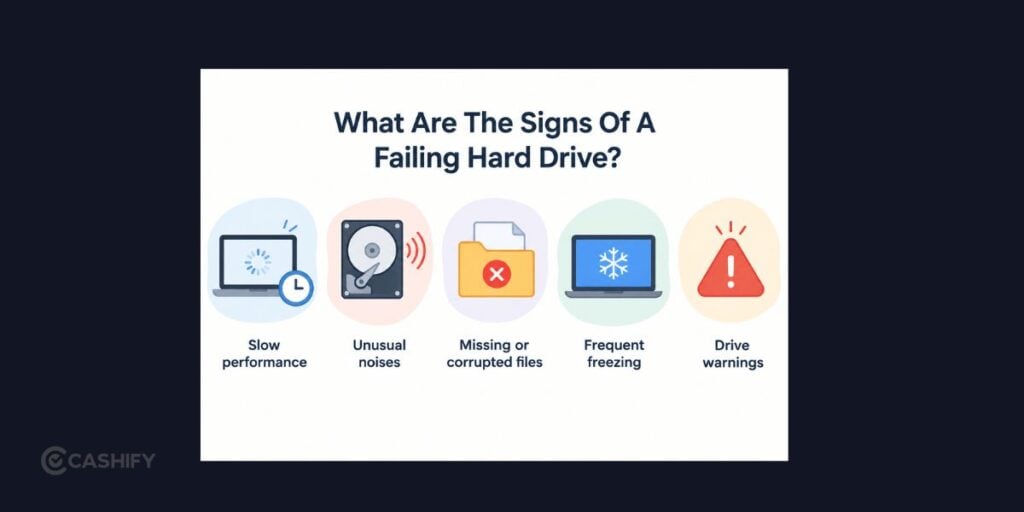
Before running a diagnostic test, look for these common warning signs. They can help you decide when to check your storage.
- Slow performance: Your computer takes longer to start, open applications, or transfer files.
- Unusual noises: Clicking or grinding sounds from a traditional hard disk drive (HDD) may indicate a mechanical problem. SSDs don’t have moving parts.
- Missing or corrupted files: Files may become unreadable or disappear because of storage or file system errors.
- Frequent freezing: Your computer may hang or show errors when accessing files.
- Drive warnings: Your operating system or monitoring software may report disk errors or declining health.
These symptoms can have other causes, too. If your HDD makes unusual noises or you suspect physical failure, prioritise backing up or recovering your data instead of running repeated tests.
Also Read: Which Phones Get The Biggest Discount In Big Billion Days 2026?
How To Check Hard Drive Health On Windows?
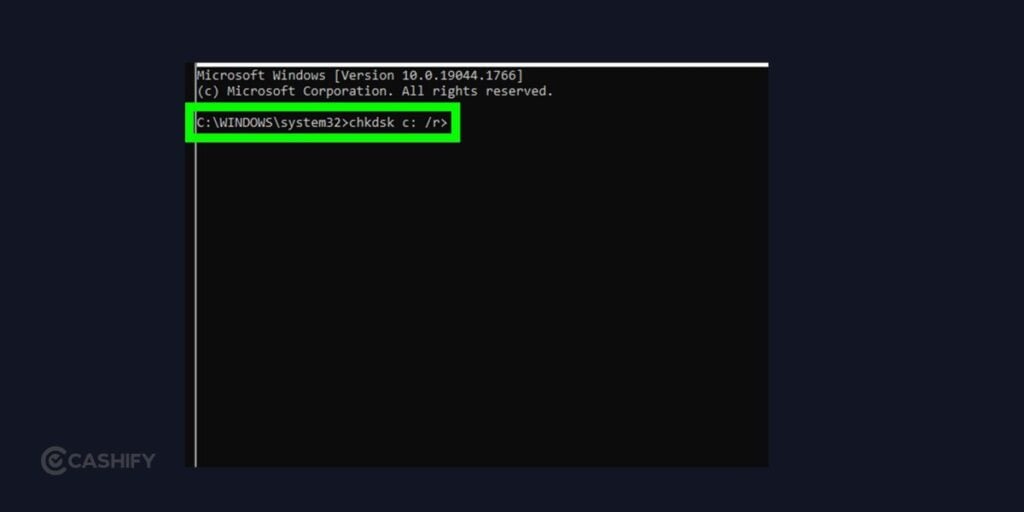
Windows provides several ways to inspect your storage without installing additional software.
1. Use Command Prompt
If you want to learn how to check hard drive health using a built-in tool, start with Command Prompt.
- Search for Command Prompt in the Start menu.
- Open it and enter:
chkdsk C: - Press Enter and review the results.
Replace C: with the drive letter you want to check. This command checks the file system for errors but doesn’t provide a complete assessment of the drive’s physical condition.
To repair certain file system errors, you can use chkdsk C: /f. Back up important files first, especially if you suspect that the drive is failing.
2. Use PowerShell
PowerShell can display the health status reported by supported storage devices.
- Search for PowerShell in the Start menu.
- Open it and enter:
Get-PhysicalDisk - Press Enter.
- Review the HealthStatus and OperationalStatus columns.
A Healthy status is reassuring, but it doesn’t rule out every hardware issue. Some drives may not report detailed health information through this command.
3. Check Windows Settings
On supported Windows 11 devices, you may also find storage health information in Settings.
- Open Settings.
- Select System > Storage.
- Open Advanced storage settings > Disks & volumes.
- Select your drive and view its properties.
Depending on your device, you may see information such as SSD health, estimated remaining life, or temperature. These details aren’t available for every drive.
How To Check Hard Drive Health Using Third-Party Software?
If Windows doesn’t provide enough information, a drive-monitoring application can help you inspect S.M.A.R.T. data. S.M.A.R.T. stands for Self-Monitoring, Analysis and Reporting Technology, which allows supported drives to report certain errors and health indicators.
CrystalDiskInfo: This Windows utility displays drive health, temperature, and available S.M.A.R.T. attributes. Download it from its official website, open the application, select your drive, and review the reported status. Warnings such as Caution or Bad deserve attention.
Manufacturer tools: Some manufacturers provide diagnostic applications for compatible drives. For example, Samsung Magician supports health monitoring and other SSD management features for supported Samsung drives.
Always check whether a tool supports your specific drive. If it reports a serious warning, back up your files and investigate the issue rather than relying on repeated scans.
Also Read: Flagship Phones Under 50000 In Upcoming Sale: Cashify Vs Amazon Vs Flipkart Prices Compared
How To Check Hard Drive Health On Mac?
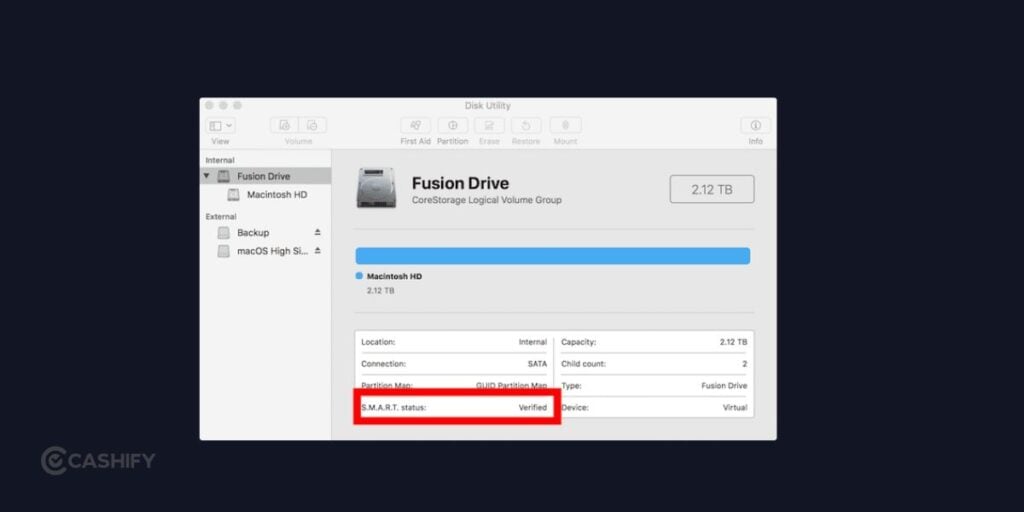
Mac users can use Disk Utility to check storage volumes for file system errors.
- Open Finder > Applications > Utilities.
- Launch Disk Utility.
- Select the drive or volume you want to check.
- Click First Aid and follow the instructions.
Disk Utility checks the file system and attempts to repair certain errors. It doesn’t provide a complete physical health assessment.
You may also see S.M.A.R.T. status information for supported drives. A Failing status is a serious warning, while a Verified status doesn’t guarantee that the drive won’t fail. Some external drives may not report this information to macOS.
How To Check Hard Drive Health On Linux?
Linux users can use smartctl, a utility included in the smartmontools package.
- Install smartmontools through your Linux distribution’s package manager if necessary.
- Identify your drive using:
lsblk - Check its health information using:
sudo smartctl -a /dev/sda
Replace /dev/sda with your actual drive identifier. The output may include health assessments, error logs, temperature, and other S.M.A.R.T. attributes.
Be careful when identifying the drive, as device names vary. Some USB enclosures and storage controllers may also limit the information available.
How To Understand Your Hard Drive Health Report?
Once you know how to check hard drive health, you also need to understand the results.
- Health status: A Good or Healthy result is reassuring, but it isn’t a guarantee against failure.
- Reallocated sectors: A growing number can indicate problems with an HDD’s storage surface.
- Pending sectors: These may indicate areas that the drive is struggling to read.
- Uncorrectable errors: These can point to data the drive cannot reliably access.
- SSD wear indicators: Some SSDs report percentage used or estimated remaining life.
- Temperature: Compare the reported temperature with the manufacturer’s recommended operating range.
S.M.A.R.T. attributes vary between drive models, so don’t judge a drive by one number alone. If you see a serious warning, back up your data and follow the manufacturer’s recommendations.
What Should You Do If Your Hard Drive Is Failing?
If your drive shows warning signs, take these steps to protect your data.
- Back up important files: Copy them to another drive or trusted cloud storage. If the drive is physically damaged, avoid unnecessary use.
- Avoid repeated scans: Intensive tests may put additional stress on a failing HDD.
- Check connections: If an external drive disconnects, a faulty cable or port could be responsible, provided the drive shows no signs of physical failure.
- Consider replacement: A drive with a confirmed hardware fault shouldn’t be trusted with important files.
- Maintain regular backups: Even a drive that appears healthy can fail unexpectedly.
If your data is irreplaceable and the drive is making clicking or grinding noises, consider professional data recovery before attempting repairs.
How Often Should You Check Hard Drive Health?
For a computer you use regularly, checking your drive every few weeks or months can be a sensible precaution, especially if it stores important work files. You should also run a check when you notice unusual noises, file errors, frequent crashes, or unexplained performance problems.
However, don’t depend entirely on health reports. A drive can fail suddenly, so keep your important files backed up regardless of its reported condition.
Final Thoughts
Learning how to check hard drive health helps you identify potential problems before they lead to data loss. You can start with built-in tools on Windows, macOS, or Linux and use compatible diagnostic software for more detailed information. Pay attention to recurring errors and serious health warnings, but remember that no test can guarantee your drive’s reliability. Keep regular backups so you can recover your files if your storage device fails.
Frequently Asked Questions
Can you check hard drive health without software?
Yes. Windows offers Command Prompt and PowerShell, while macOS provides Disk Utility. These tools help you check file system errors or basic drive status, although they may not reveal every hardware problem.
Can a hard drive show healthy and still fail?
Yes. Health monitoring tools cannot predict every failure. A drive may appear healthy shortly before a hardware problem occurs, so regular backups remain essential.
Is checking hard drive health safe?
Basic checks are generally safe for a functioning drive. However, repeated or intensive tests may be unsuitable for a drive that’s already failing. Prioritise data recovery if you suspect physical damage.
If you’ve just bought a new phone and don’t know what to do with your old phone, then here’s your answer. Sell old mobile to Cashify and get the best price for it. If you are planning to buy a new phone, check out Cashify’s refurbished mobile phones. You can get your favourite phone at almost half price with six-month warranty, 15 days refund and free delivery.