If your chats still show the same old cream-and-doodle background, you’re surely missing out some major updates. WhatsApp lets you change your WhatsApp chat theme to match your mood, your wallpaper, or just a colour you like better. The feature is live for everyone.
You can set one theme across every conversation, or give a single chat its own look. Either way, the theme is visible only to you, so the other person never sees the change. WhatsApp is also rolling out a bigger, redesigned theme experience to Android beta testers as of September 2026, though a stable release date has not been confirmed yet.
This guide covers how to change your WhatsApp chat theme on Android and iPhone, how to customise a single chat, and what the new theme categories add.
Also Read: How To Change WhatsApp Keyboard Theme On Android And iPhone
What a WhatsApp Chat Theme Actually Controls
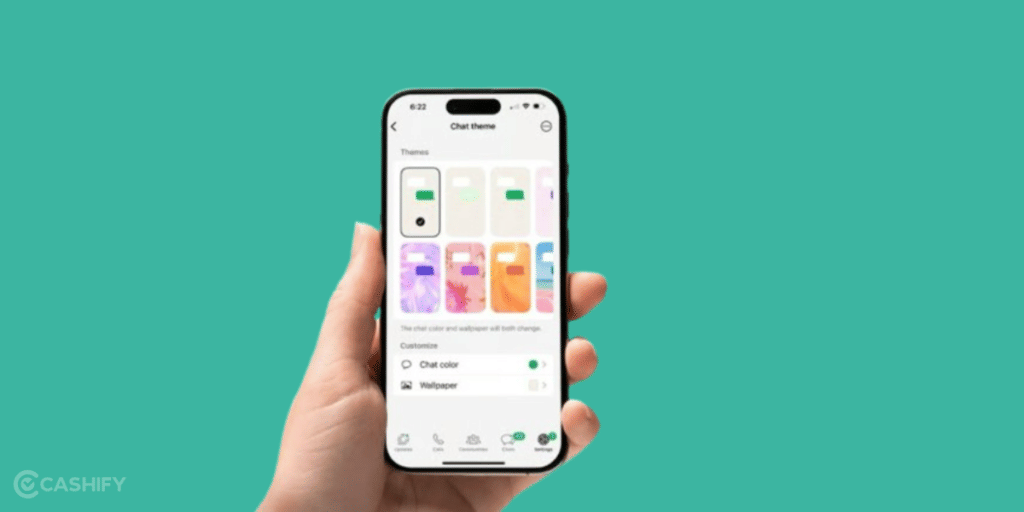
A WhatsApp chat theme is more than a background image. A theme sets both your chat wallpaper and your chat colour at the same time, so your message bubbles and your background change together. You can pick a ready-made preset, or mix a wallpaper with a chat colour of your own. Here is what a theme controls.
| Element | What it does | Options available |
| Chat colour | Colour of your outgoing message bubbles | Around 20 preset colours (pink, blue, purple, red, and more) |
| Wallpaper | Background behind your messages | 30+ presets or a photo from your gallery |
| Doodles | Optional pattern overlay on the wallpaper | Toggle on or off |
| Brightness | Dims busy or bright backgrounds for readability | Adjustable slider |
| Scope | Where the theme applies | All chats (default) or one individual chat |
Also Read: How To Use Google Gemini AI Right Now?
How to Change WhatsApp Chat Theme for All Chats (Android)
To change your WhatsApp chat theme across every conversation on Android, you set a default theme. Make sure your app is updated first, then follow these steps.
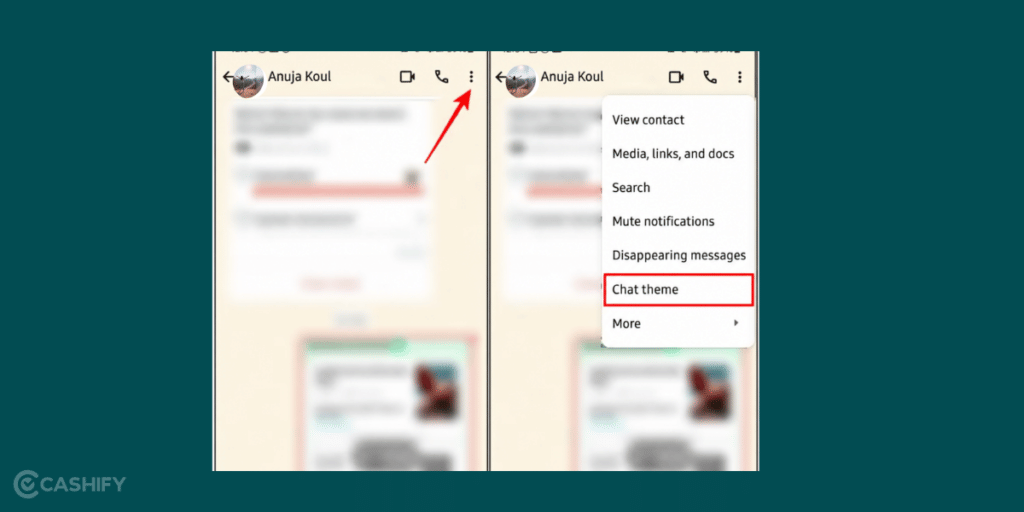
1. Open WhatsApp and tap the three-dot menu in the top-right corner.
2. Tap Settings, then tap Chats.
3. Under the Display section, tap Default chat theme.
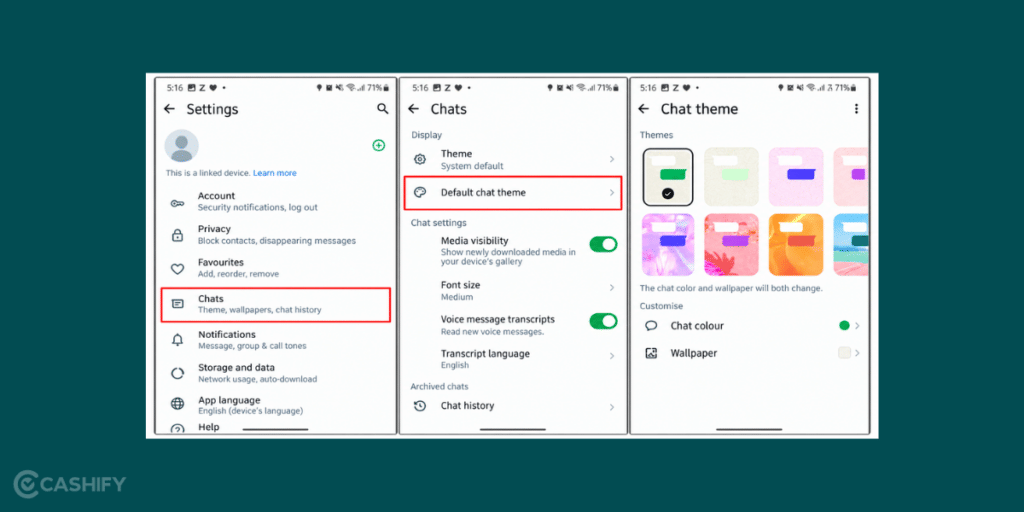
4. Browse the available chat bubble colours and pick one you like.
5. Tap Wallpaper to choose a background. Select a preset, or tap Choose from gallery to use your own image. Tick the box if you want to add WhatsApp doodles.
6. Adjust the brightness slider so your text stays easy to read.
7. Tap the green checkmark (top-right) to apply the theme everywhere.
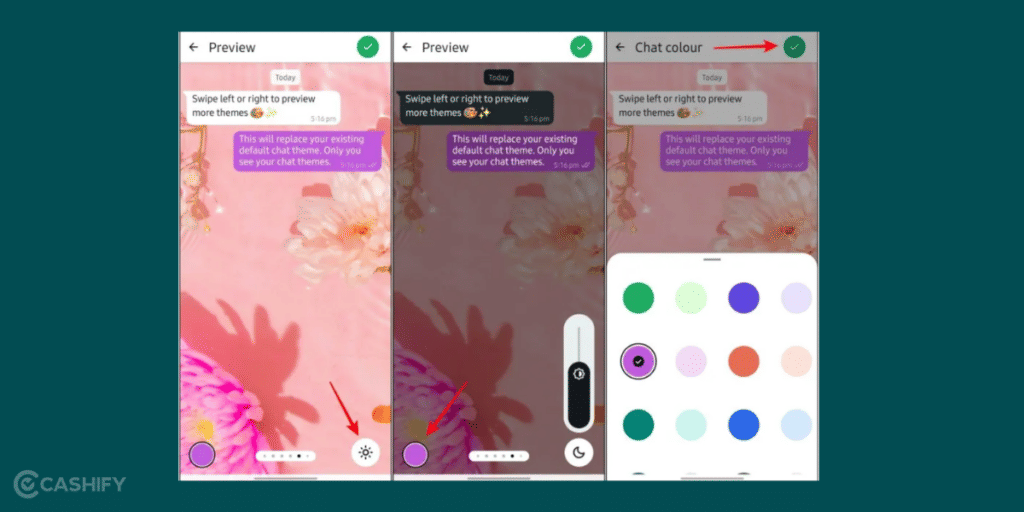
That is it. The look now carries across every chat and channel on your end.
How to Change WhatsApp Chat Theme on iPhone
On iPhone, chat themes and wallpapers sit under the Appearance menu. You can apply a full theme to every chat, or change only the wallpaper. Here is how to do both.
Apply a theme to all chats
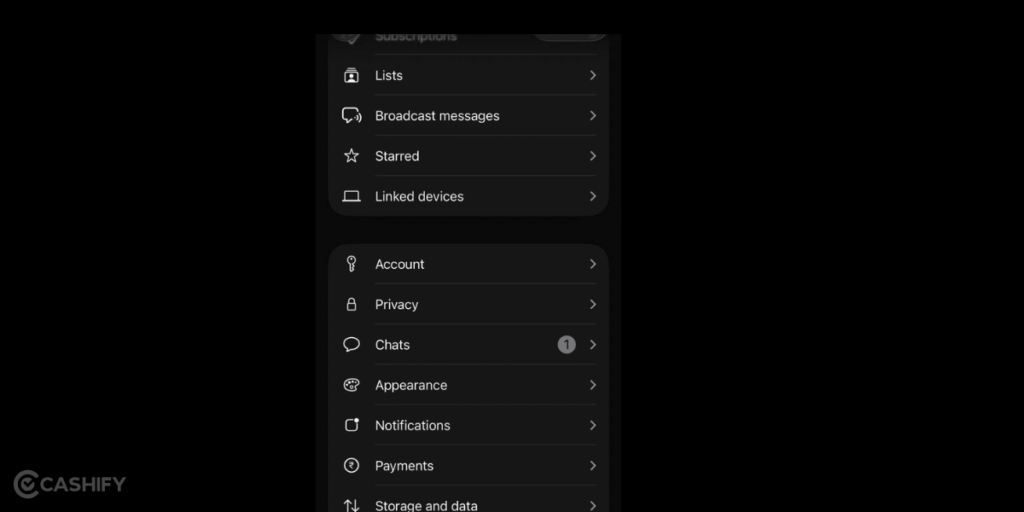
A theme sets both the chat wallpaper and the chat colour together.
1. Tap WhatsApp Settings, or tap your profile picture, then tap Appearance.
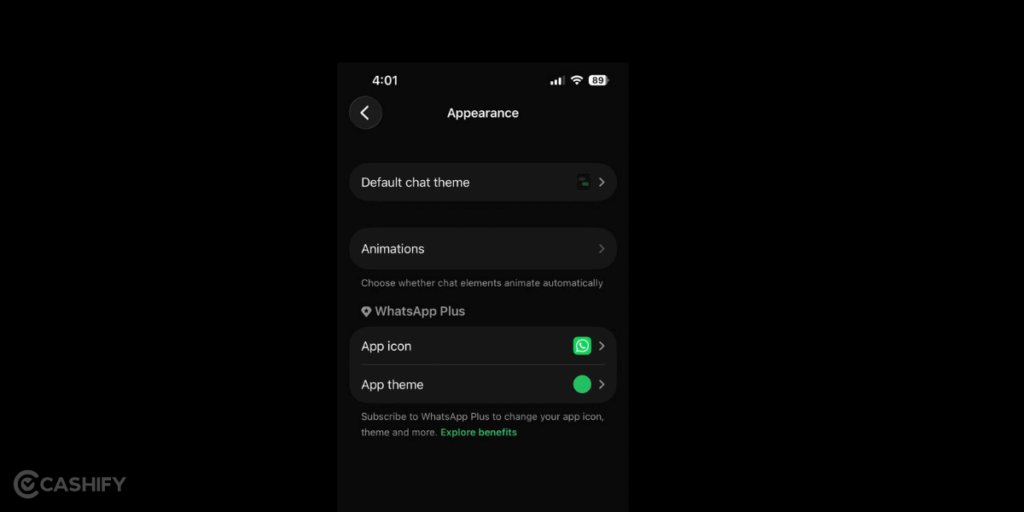
2. Tap Default chat theme.
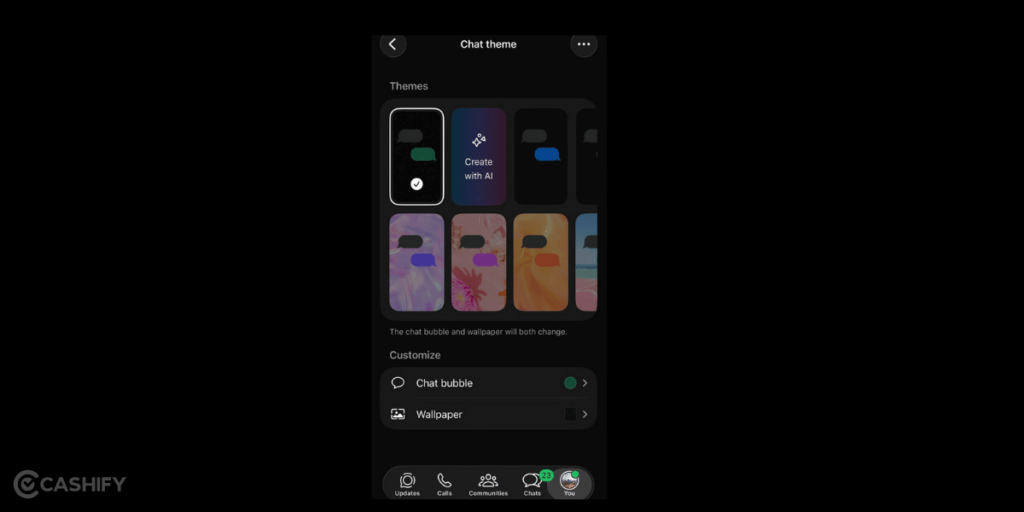
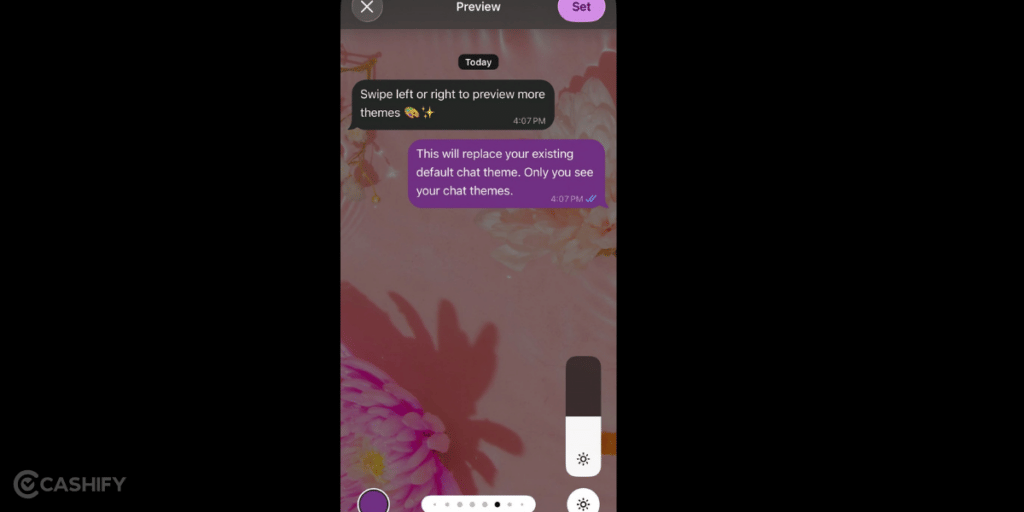
3. Select the theme you want.
4. Tap Set to apply it.
Change the wallpaper for all chats
If you only want to change the background and leave the colour as it is, use the wallpaper option instead.
1. Tap WhatsApp Settings, or tap your profile picture, then tap Appearance.
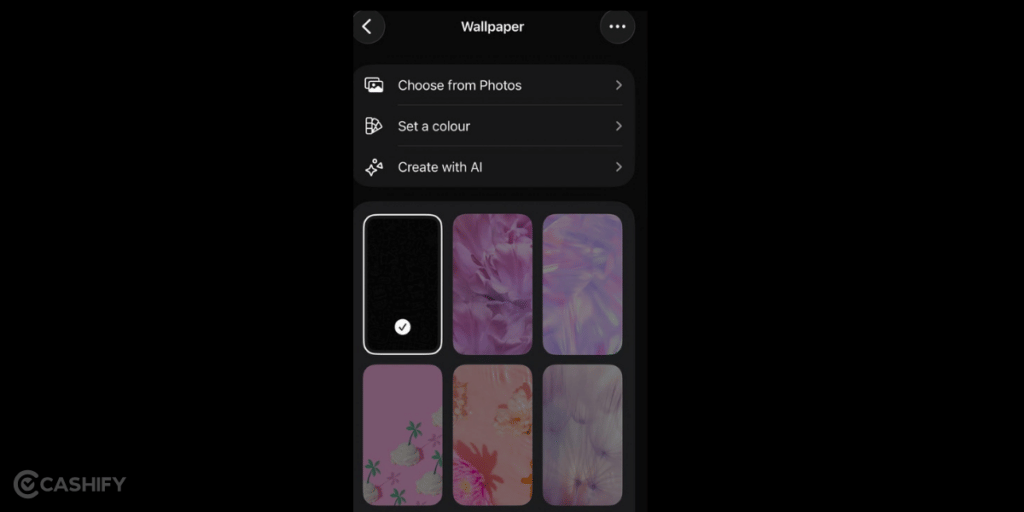
2. Tap Default chat theme, then tap Wallpaper.
3. Select a wallpaper from the list, or use one of these options:
- Choose from Photos to set one of your own pictures as the background.
- Set a colour to use a plain, solid colour instead of an image.
- Create with AI to generate a custom wallpaper inside the app.
One tip for iPhone: WhatsApp sets wallpapers separately for light and dark mode. After you set your light-mode look, switch your iPhone to dark mode and repeat the steps so dark mode gets its own background.
Also Read: Reasons You Should Choose Android Over iOS
How to Change the Theme for a Single Chat
Want one conversation to stand out? You can change the theme for just that chat without touching the rest:
1. Open the specific chat you want to customise.
2. Android: tap the three-dot menu at the top and select Chat theme. iPhone: tap the contact’s name at the top, then choose Chat theme.
3. Pick your theme, wallpaper, colour, and brightness.
4. Tap the checkmark to apply it to that chat only.
Here is a quick side-by-side of the two options:
| Aspect | Default (all chats) | Individual chat |
| Where you start | Settings > Chats > Default chat theme | Open the chat > menu / contact name > Chat theme |
| Applies to | Every conversation and channel | Just that one chat |
| Best for | A consistent overall look | Making a special chat easy to recognise |
| Visible to others | No | No |
What’s New: The Redesigned Chat Theme Experience (Android Beta)
Alongside the standard feature, WhatsApp is rolling out a redesigned theme picker to Android beta testers. It sorts themes into five categories: Featured, Nature, Live, Minimal, and Doodle. This makes it quicker to find a style instead of scrolling through one long list. The Live category is the most interesting one. These are animated wallpapers that move slowly in the background, and WhatsApp keeps the motion subtle so it does not distract from your messages.
There is also a small but handy change to colours. WhatsApp now picks a matching bubble colour based on the theme or wallpaper you choose, so your chat stays readable without any manual work. You can still change the colour yourself if you prefer.
More Wallpaper Choices: Vibrant and Gradient
The new experience also groups wallpapers into their own categories, separate from full themes, so you can change just the background without setting a whole theme. Two new collections lead the set. Vibrant offers bold, colourful backgrounds, while Gradient gives you smooth colour transitions for a cleaner look. If none of the presets suit you, you can still pick an image from your gallery. Live wallpapers carry a small badge on their thumbnail, so they are easy to spot.
WhatsApp is also testing a sync option for the future. It would let you apply your chosen theme to the other person’s side of the conversation too, so you both see the same wallpaper, theme, and bubble colour. Good to know this is on the way, but remember that beta features roll out gradually, so seeing a beta build does not guarantee you will have them right away.
Also Read: WhatsApp Introduces Advertising Features
Troubleshooting: Not Seeing the Theme Option?
If you cannot change your WhatsApp chat theme, check these points:
- Update the app. Chat themes need a recent version, so get the latest from the Play Store or App Store.
- Check your OS. Very old Android or iOS versions may not support theme changes, so update your phone’s software if needed.
- On WhatsApp Business? The Business app keeps the theme on WhatsApp’s default, but you can still change the wallpaper for individual chats.
- Themes are safe to use. They are stored on your device and are only visual, so they do not affect your chats, backups, or the other person’s view.
In the End
Changing your WhatsApp chat theme is an easy way to give your conversations a fresh look. You can apply a theme to all chats or customise individual conversations with different colours and wallpapers. With new options like Live, Vibrant, and Gradient themes, WhatsApp is making personalisation even more flexible. If you have not tried chat themes yet, update WhatsApp and explore the options available on your phone.
You can sell your old phone in minutes and get an instant, fair quote with free doorstep pickup, with no haggling and no hassle. And when you are ready to upgrade, Cashify’s refurbished mobile phones get you a newer, faster device at nearly half the price of a new one, with a 6-month warranty, a 15-day refund policy, and free delivery.
Frequently Asked Questions
1. Can I set a different theme for each chat?
Yes. Set a default theme in Settings > Chats for all conversations, or open any individual chat and use the Chat theme option to give just that chat a unique look.
2. Will the other person see my WhatsApp chat theme?
No. Any theme, colour, or wallpaper you set is visible only on your side of the conversation. The person you are chatting with keeps their own look.
3. Why don’t I have the new theme categories like Live or Gradient?
Those are part of the redesigned experience currently rolling out to Android beta testers, and availability is gradual. If you do not see them yet, you will need to wait for a future update.
4. How do I change my WhatsApp chat theme back to the original?
Go back into Default chat theme (or the chat’s own theme settings) and select the default wallpaper and colour, or tap “Default Wallpaper” in the wallpaper picker to restore WhatsApp’s classic doodle background.
5. Can I use my own photo as a WhatsApp chat wallpaper?
Yes. In the wallpaper picker, choose “Choose from gallery” (or Photos on iPhone) to set any image from your camera roll, then adjust the brightness for readability before applying.