If you send emails regularly, knowing how to add signature in Gmail can save you from typing your name, job title, phone number, or other details every time. Gmail lets you create a signature that can automatically appear at the end of your emails. You can keep it simple with just your name or create a professional signature with your designation, company details, links, and even a logo.
The setup takes only a few minutes, but the steps differ slightly depending on whether you use Gmail on a computer, Android phone, iPhone, or iPad. Here’s everything you need to know to create, edit, use, or remove a Gmail signature.
Also Read: Apple iPhone 18 Pro Max Vs Apple iPhone 16 Pro Max: Is It Worth Upgrading?
How To Add Signature In Gmail On A Computer
If you want to know how to add signature in Gmail with more formatting options, using Gmail on a computer is the easiest way. You can add text, links, images, and different formatting styles to your signature.
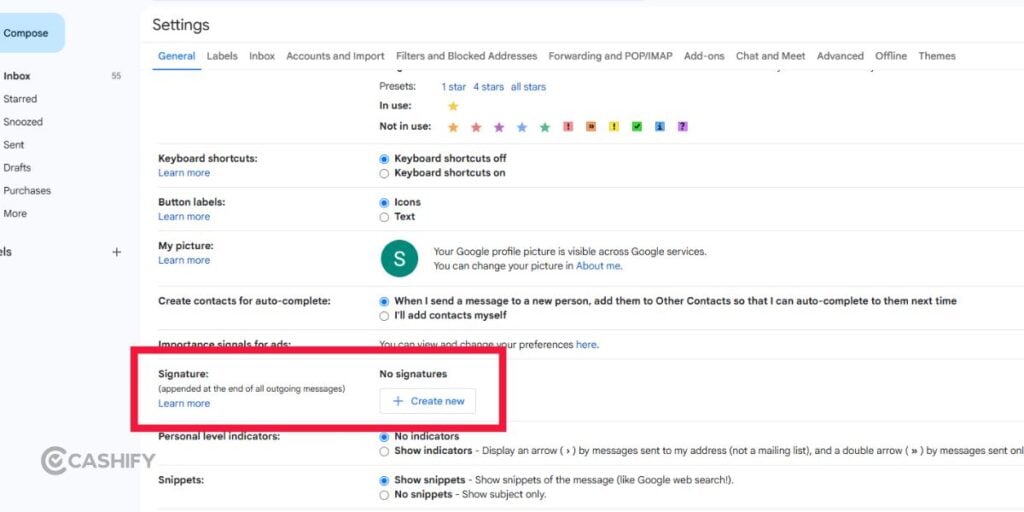
Follow these steps:
- Open Gmail in your web browser and sign in to the Google Account where you want to create the signature.
- Click the Settings gear icon in the top-right corner.
- From the Quick Settings panel, click See all settings.
- Make sure you’re on the General tab and scroll down until you find the Signature section.
- Click + Create new.
- Enter a name for your signature, such as Work, Personal, Business, or College, and click Create.
- Enter the information you want to include in the signature in the editing box. You can add your name, designation, company, phone number, website, or other relevant details.
- Use the formatting toolbar if you want to change the font, text size, alignment, or add links and images.
- Under Signature defaults, choose which signature you want Gmail to use for new emails and replies or forwards.
- Scroll to the bottom of the page and click Save Changes.
Your Gmail signature is now ready. Open a new email to check whether it appears automatically.
How To Add Signature In Gmail On Android
If you usually send emails from your phone, you can also learn how to add signature in Gmail directly through the Gmail app on Android.
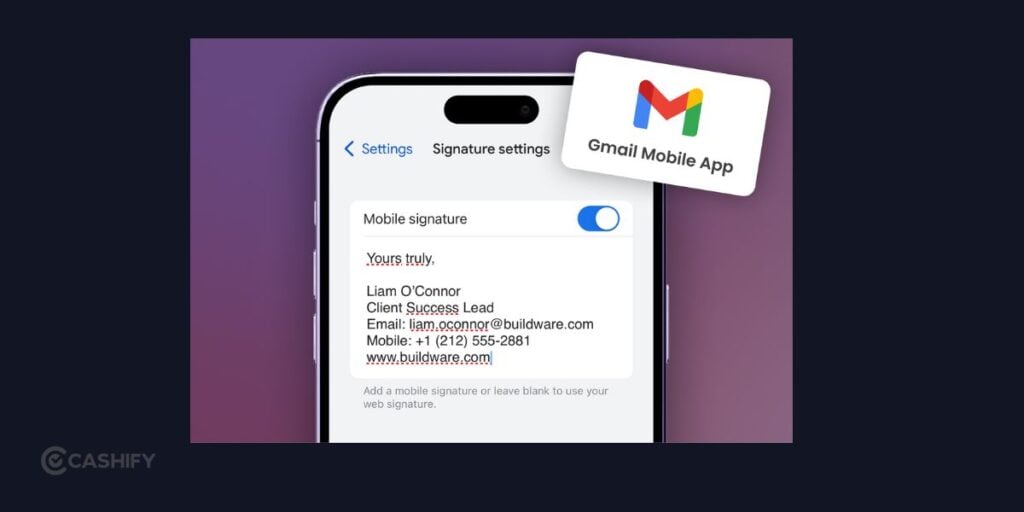
Follow these steps:
- Open the Gmail app on your Android phone.
- Tap the Menu icon with three horizontal lines in the top-left corner.
- Scroll down and tap Settings.
- Select the Google Account where you want to add the signature.
- Tap Mobile signature.
- Enter the text you want to use as your signature.
- Tap OK to save it.
The mobile signature will be used when you send emails through the Gmail app.
The Gmail app’s mobile signature option is designed for text, so you won’t get all the formatting and image options available when creating a signature on a computer.
How To Add Signature In Gmail On iPhone And iPad
The process is slightly different on Apple’s devices. If you’re looking for how to add signature in Gmail on an iPhone or iPad, you can set it up directly from the Gmail app.

Follow these steps:
- Open the Gmail app on your iPhone or iPad.
- Tap the Menu icon in the top-left corner.
- Tap Settings.
- Under Compose and Reply, tap Signature settings.
- Turn on Mobile Signature.
- Enter the signature you want to use.
- Tap Back to save your changes.
If you have more than one Google Account in the Gmail app, make sure you select the correct account before setting up the signature.
Also Read: 10 Things That Make iPhone Duo Different From Samsung Galaxy Z Fold 8
How To Add An Image To Your Gmail Signature
A logo can make your work emails look more consistent. If you’re checking how to add signature in Gmail with an image or logo, you’ll need to use Gmail on a computer.

Go to Settings > See all settings > General > Signature and select the signature you want to edit.
In the signature editor, use the image option to add your picture. You can use a company logo, professional image, or another relevant graphic.
Keep the image reasonably small. A large logo can make your email look cluttered and take up unnecessary space.
After adding it, send yourself a test email to see how the image and text appear together.
How To Create Multiple Signatures In Gmail
You don’t have to use the same signature for every email. Gmail lets you create multiple signatures, which can be useful if you use one account for different types of communication.
If you’re learning how to add signature in Gmail for different purposes, you could create separate signatures for work, personal emails, or freelance communication.
For example:
- Work: Name, designation, company and contact details
- Personal: Name and phone number
- Freelance: Name, services and website
- College: Name and course details
To create another signature, open Settings > See all settings > General > Signature and click Create new.
You can select your preferred signature under Signature defaults. Gmail also lets you manually insert a different saved signature while composing an email.
How To Edit Your Gmail Signature
Your signature doesn’t have to stay the same forever. If your phone number, job title, company, or website changes, you can update the existing signature instead of creating a new one.
When checking how to add signature in Gmail, it’s also useful to know where you can edit an existing signature.
On your computer:
- Open Gmail and click the Settings gear icon.
- Select See all settings.
- Stay on the General tab.
- Scroll to the Signature section.
- Select the signature you want to change.
- Edit the text, links, or image as needed.
- Scroll to the bottom and click Save Changes.
If you have several signatures, check the signature name before editing it so you don’t accidentally change the wrong one.
Also Read: iPhone 18 Pro And Pro Max Price Comparison Across Countries: Where Is It Cheapest?
How To Remove A Signature From Gmail
If you no longer want to use a signature, you can either stop Gmail from adding it automatically or delete it completely.
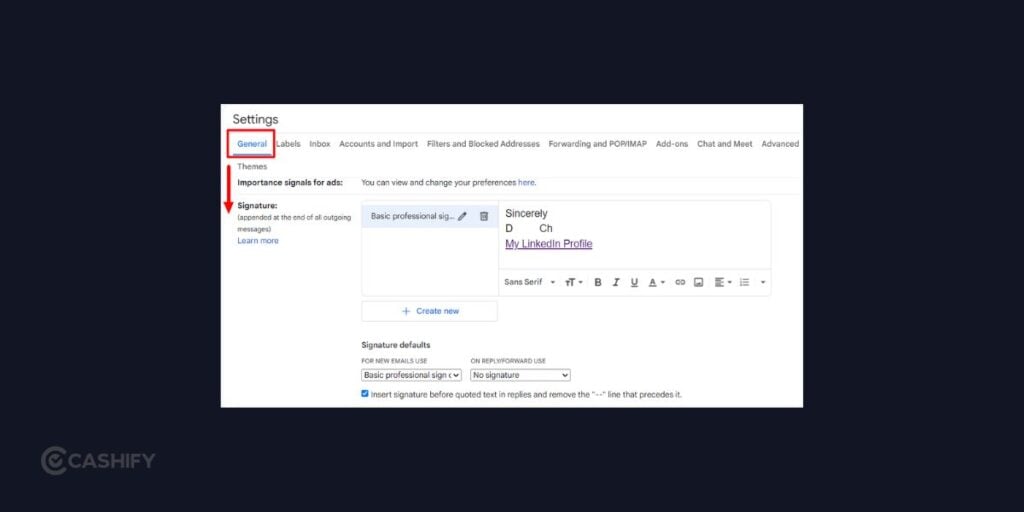
Knowing how to add signature in Gmail also means knowing how to manage the signature after you’ve created it.
To stop a signature from appearing automatically:
- Open Gmail Settings.
- Click See all settings.
- Open the General tab.
- Scroll down to Signature.
- Under Signature defaults, remove the signature selected for new emails or replies and forwards.
- Scroll down and click Save Changes.
If you want to delete the signature completely, select it in the Signature section and use the delete option.
Why Is My Gmail Signature Not Showing?
You may sometimes create a signature but not see it when composing an email. If you’re troubleshooting how to add signature in Gmail, start by checking your signature defaults.
On a computer, go to Settings > See all settings > General > Signature and check whether you’ve selected a signature for new emails or replies and forwards.
If you’re using the Gmail app, check the Mobile Signature setting for the relevant Google Account.
Your signature can also appear further down in a long email thread. Gmail may hide some content in a reply, so look for the option to show trimmed content.
If you’ve added an image and it isn’t displaying correctly, try removing and adding it again. Sending yourself a test email is also a quick way to check whether the problem is limited to the compose window.
What Should You Include In A Gmail Signature?
A good signature should make it easier for the recipient to identify you or contact you. You don’t need to include every possible detail.
If you’re learning how to add signature in Gmail for professional use, consider adding:
- Full name
- Job title
- Company name
- Phone number
- Website
- Relevant professional profile
For example:
Priya Mehta
Senior Content Writer | ABC Media
+91 XXXXX XXXXX
www.example.com
For personal emails, you can keep it much shorter:
Priya Mehta
+91 XXXXX XXXXX
If you use a company logo, make sure it doesn’t overwhelm the rest of your signature.
Tips To Make Your Gmail Signature Look Professional
Once you understand how to add signature in Gmail, a few simple choices can make your signature look cleaner.
- Keep it short: Include information the recipient may actually need.
- Use readable text: Avoid too many fonts, sizes, or decorative elements.
- Don’t overuse images: A small logo is usually enough for a professional email.
- Check your links: Make sure your website and social links work correctly.
- Create separate signatures: Different situations may require different information.
- Test it first: Send yourself an email before using the signature regularly.
- Keep it updated: Change outdated phone numbers, job titles, company information, or links.
Final Thoughts
Once you know how to add signature in Gmail, you can avoid repeatedly typing the same contact information at the end of your emails. You can create a simple signature for personal communication or a more detailed one for work.
Gmail also gives you the flexibility to create multiple signatures, add links or images on a computer, and use a separate mobile signature through the app.
Take a few minutes to set up a signature that fits the way you use Gmail. Just remember to check and update it whenever your contact or professional details change.
Also Read: Apple Watch Series 12 Vs Series 11: 7 Upgrades That Actually Matter
Frequently Asked Questions
Can I add a signature to Gmail from my phone?
Yes. You can create a mobile signature through the Gmail app on Android, iPhone, and iPad. The mobile signature is configured separately from the desktop signature.
Can I have more than one signature in Gmail?
Yes. Gmail lets you create multiple signatures and choose which one you want to use for new emails, replies, or forwards.
Can I add a logo to my Gmail signature?
Yes. You can add an image to a Gmail signature when using Gmail on a computer. A company logo is one common use.
Why isn’t my Gmail signature appearing?
Check your Signature defaults on the desktop version of Gmail. If you’re using the mobile app, check the Mobile Signature setting for the relevant account.
Can I remove my Gmail signature?
Yes. You can either remove it from the automatic signature settings or delete the saved signature completely.
If you’ve just bought a new phone and don’t know what to do with your old phone, then here’s your answer. Sell old mobile to Cashify and get the best price for it. If you are planning to buy a new phone, check out Cashify’s refurbished mobile phones. You can get your favourite phone at almost half price with six-month warranty, 15 days refund and free delivery.