If you are wondering how to delete contact from WhatsApp, you are at the right place. It’s a super common problem which people have nowadays. You see, we have to deal with so many people on a daily basis that we end up saving their numbers. After that, when we shift places or after a while, we see that some Courier Guy from your last to last society saw your WhatsApp story. It’s okay to be conscious about your privacy, after all that’s a sacred thing today!
Too many numbers can also make WhatsApp messy, and we don’t want that at all! Don’t worry, I am going to tell you some super and quick ways so that you can have better control over your privacy and safety. Let’s check out all the details about how to delete contact from WhatsApp:
Also Read: How To Record Screen In Windows 11: Quick Ways!
Things To Know Before You Delete WhatsApp Contacts
Here’s the key thing: WhatsApp doesn’t have its own separate contact list. It pulls contacts straight from your phone’s address book. When you delete a contact in WhatsApp, you’re actually deleting it from your phone’s contacts too. It won’t just vanish from WhatsApp. It disappears from your calls, messages, and everywhere else on your phone.
Here are a few things you should know:
- Deleting removes the name and link from your contacts. The person can still message or call you, but you’ll see their number instead of a name.
- Blocking stops them from messaging, calling, or seeing your last seen or other info. It’s really great if someone’s bothering you or spamming you.
- Muting just quiets notifications from them or a group. You still see their messages, but no notifications.
How To Delete Contact From WhatsApp (Android)?
Okay, let’s do this on Android. It’s pretty straightforward.
First, Open WhatsApp on your phone. Go to the Chats tab (that’s the main screen with all your conversations).
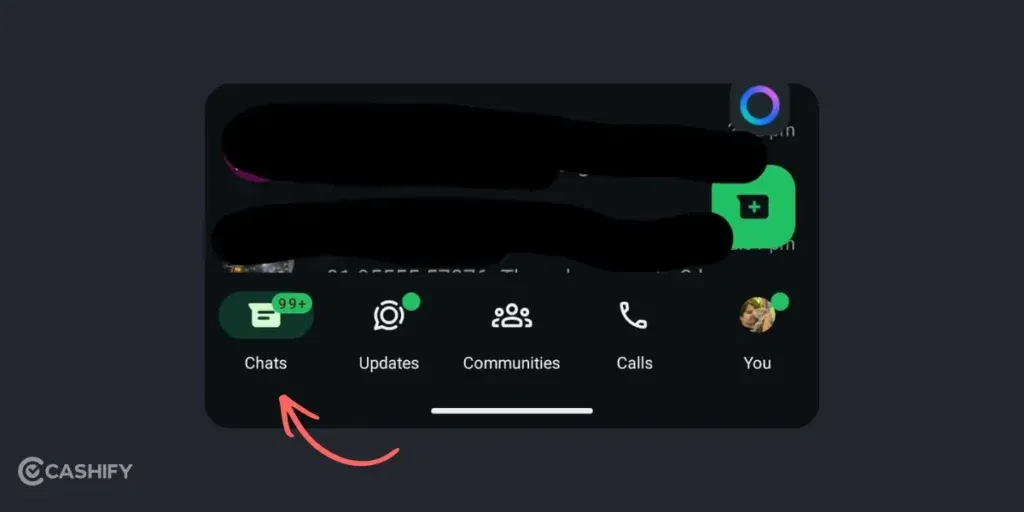
Tap the search bar at the top and type the person’s name (or scroll to find them in your chats).
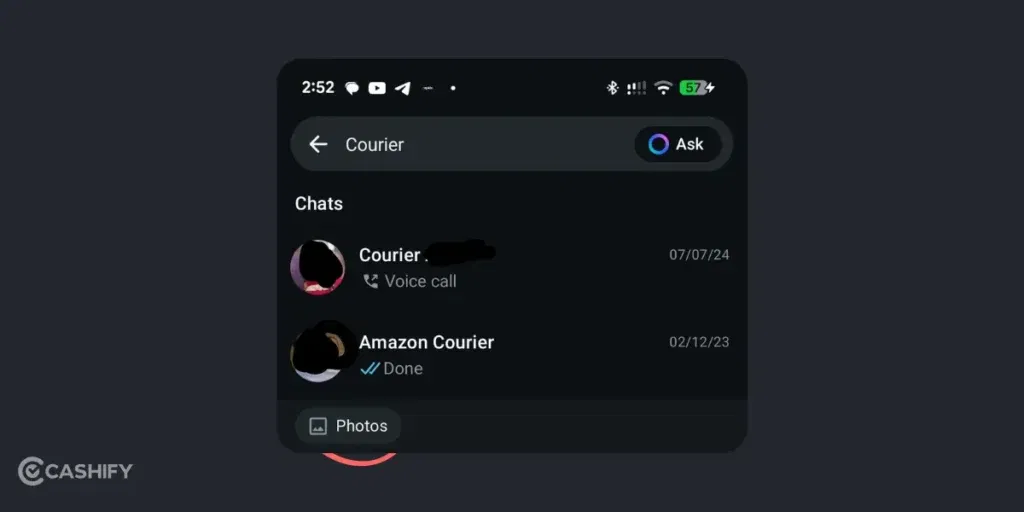
Tap their name to open the chat. Now tap their name or profile picture right at the top of the chat screen. This opens their contact info.
(WhatsApp does not allow taking a Screenshot of the Contact Page)
After this, Tap the More option.)button (those three dots in the top right). Choose View in address book. Sometimes it says Edit or goes straight to delete.
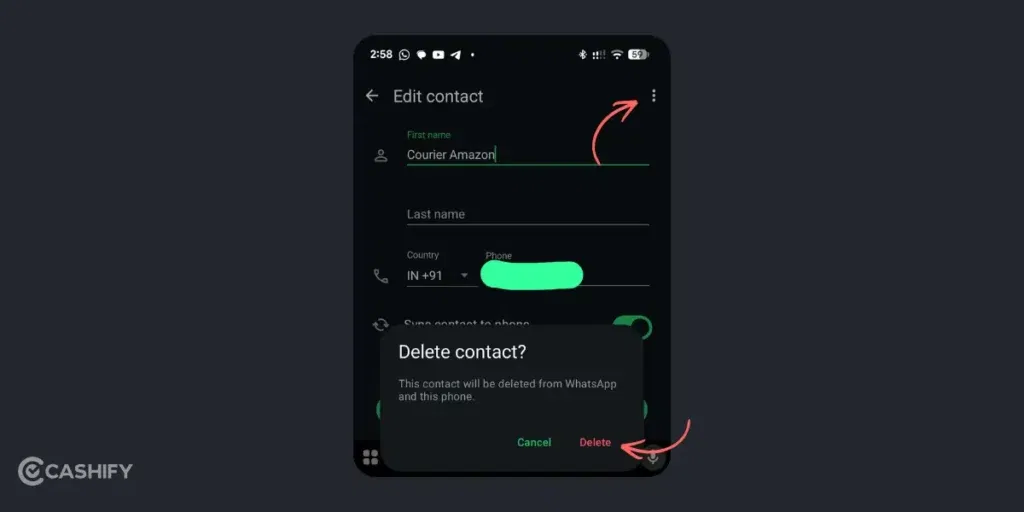
Tap Delete and you’re done!
After deleting, WhatsApp might still show the old chat with the name for a bit. Just refresh by going to Chats > tap the new chat icon > Menu > Refresh.
Also Read: How To Raise A UPI Complaint: Step By Step Guide
How To Delete Contact From WhatsApp (iPhone)?
Open WhatsApp and head to the Chats tab.
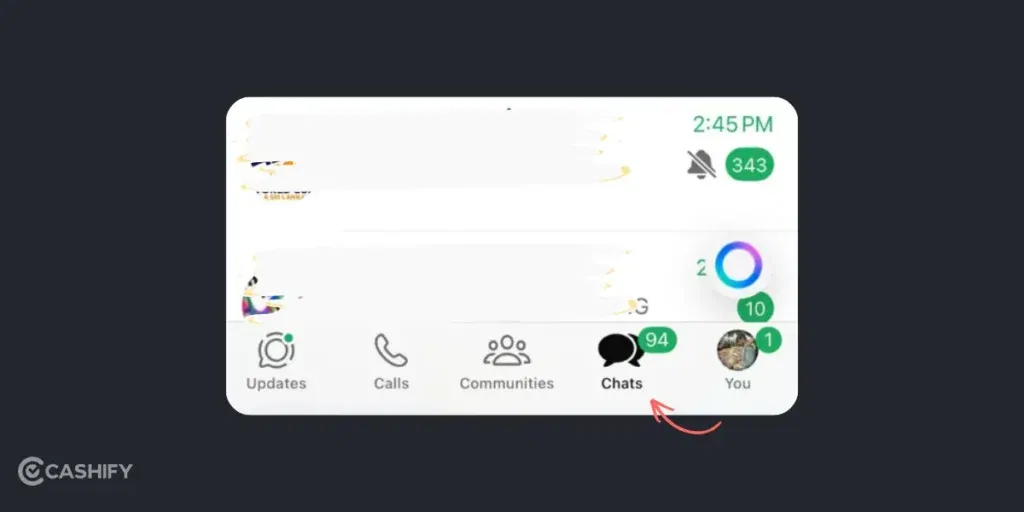
Use the search bar at the top to find the contact (type their name).
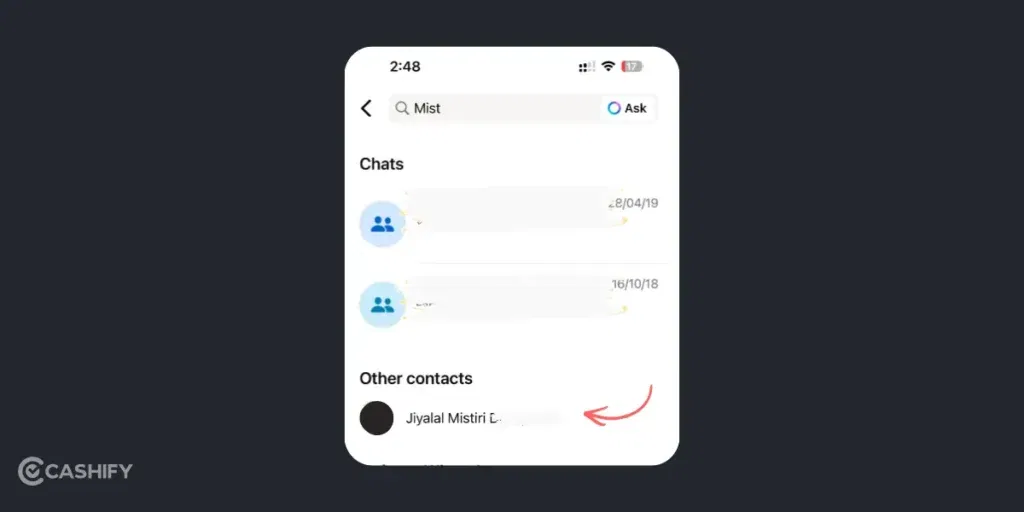
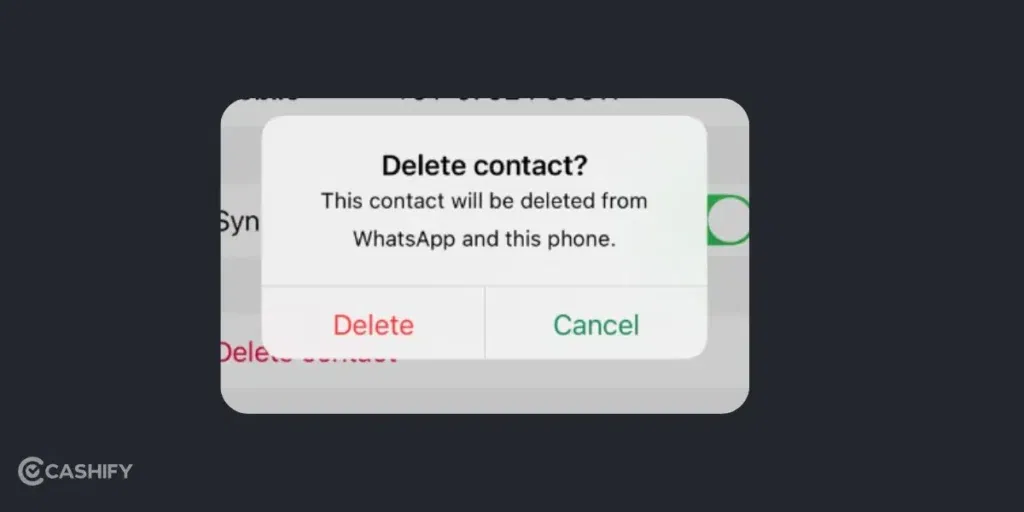
Tap the contact to open the chat. Click their name at the very top of the screen to open the contact details. Tap Edit in the top right corner. Tap Delete Contact.
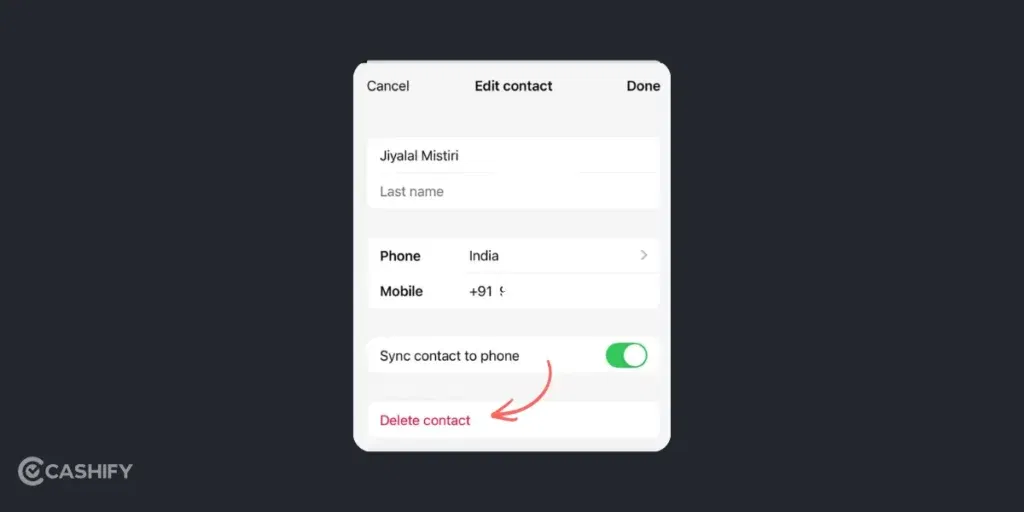
Confirm by tapping Delete Contact again.
Also Read: How To Report Fraudulent Mobile Connections With Sanchar Saathi?
What Happens After You Delete Contact From WhatsApp?
- The contact disappears from your WhatsApp list and your phone contacts.
- If they message you again, you’ll get the message. Their name won’t show; it’ll just be their phone number.
- Your old chat history stays exactly where it is. Deleting the contact doesn’t wipe the conversations. If you want those gone too, long-press the chat and delete it.
- They won’t know you deleted them. WhatsApp does not send any notification when you delete a contact from WhatsApp.
- They can still see your profile pic, status, or last seen (unless you’ve set privacy to “My Contacts” or “Nobody”).
- You can always add them back by saving the number manually if you need to.
Also Read: iOS 26 Vs Samsung One UI 8: Shocking Differences You Didn’t Expect!
The Bottom Line
Life does become simple when you know how to delete a contact from WhatsApp. That’s one less thing to worry about, and you get a contact list that’s less messy and more organised. Now, you can keep yourself away from spam guys, exes, old numbers, duplicate contacts, and more! Let me know if you are stuck at any step in the comments section below. I would love to help you out!
If you’ve just bought a new phone and don’t know what to do with your old phone, then here’s your answer. Sell old mobile to Cashify and get the best price for it. If you are planning to buy a new phone, check out Cashify’s refurbished mobile phones. You can get your favourite phone at almost half price with six-month warranty, 15 days refund and free delivery.