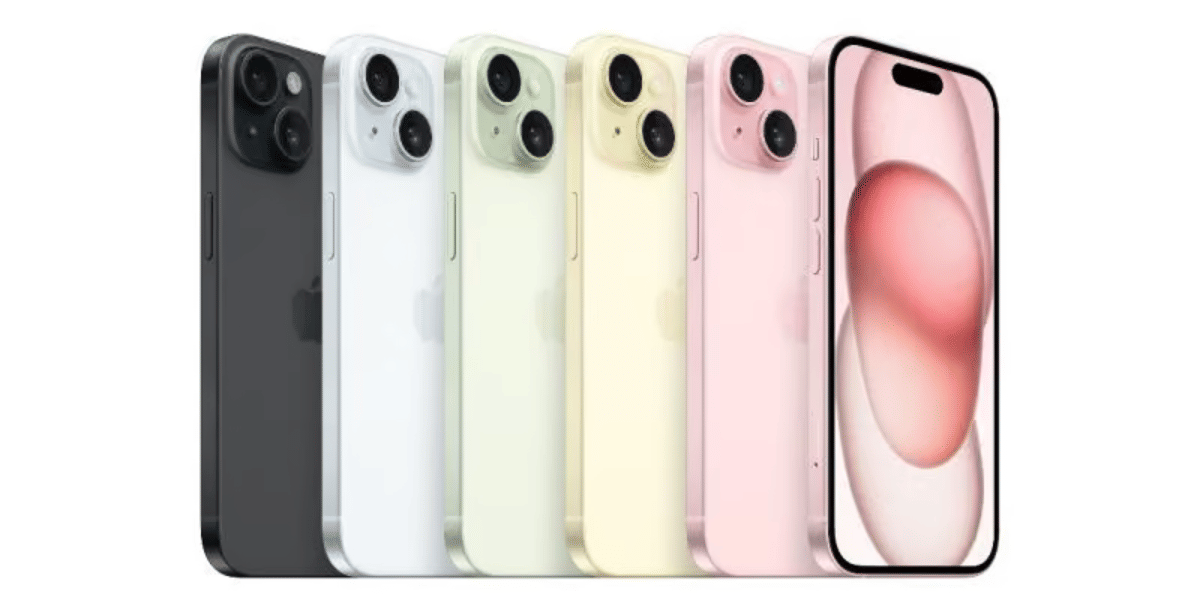
Camera settings are the most important factor in the final image. I’ve been an Apple iPhone 15 user for a long time, and I’ve explored every essential setting possible, and I’ve also achieved the best images possible. Today, I will explore the best camera settings for the iPhone 15, which you should consider for future use.
Also Read: Apple iPhone 15 Long-Term Review: Still Worth Every Rupee
Apple iPhone 15 Camera Details Table
| Feature | Details |
| Main Camera | 48MP (f/1.6, Sensor-shift OIS, Quad-pixel) |
| Ultra-Wide | 12MP (f/2.4, 120° FoV) |
| Telephoto | No dedicated lens; 2x optical-quality zoom (sensor crop) |
| Video FPS | 4K @ 24/25/30/60fps (Front & Rear), 1080p @ 120/240fps |
| Portrait Modes | 1x, 2x focal lengths; next-gen Portrait with Focus & Depth control |
| Slow-Mo | Yes (1080p @ 120/240fps) |
| Other Modes | Night, Photonic Engine, Smart HDR 5, Cinematic Mode, Action Mode |
| ISO / Pro | No native manual mode; limited control via third-party apps |
Use Aspect 16:9 for better Frame Option
Many people like to use the 4:3 aspect ratio for their cameras. However, I prefer to use the 16:9 aspect ratio because it allows me to capture a wider view of things at once.

After taking a picture, I can still crop it if I want to make it the usual size, and I can change the image to a 4:3 ratio in the settings. This gives me more freedom to capture a larger area in my photos.
Use 2x Zoom With Cool Or Vivid Filter
I mostly prefer to use 2X zoom with the Cool or Vivid Filter, which provides sharp focus on the subject. While using the Cool filter, add a bit of warmth to create a cinematic effect.
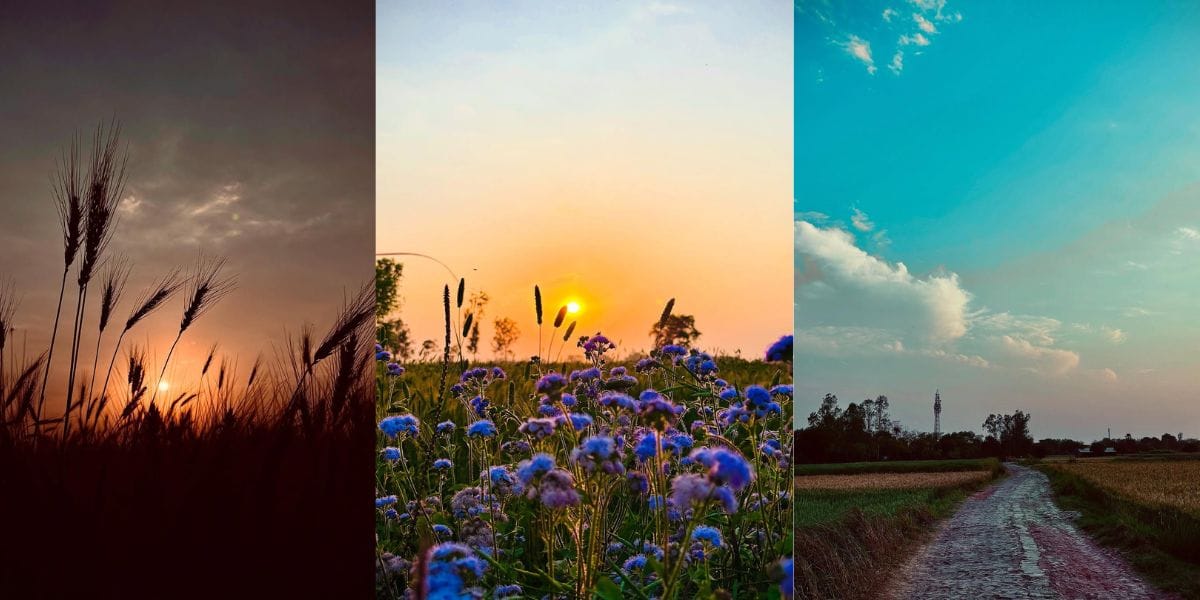
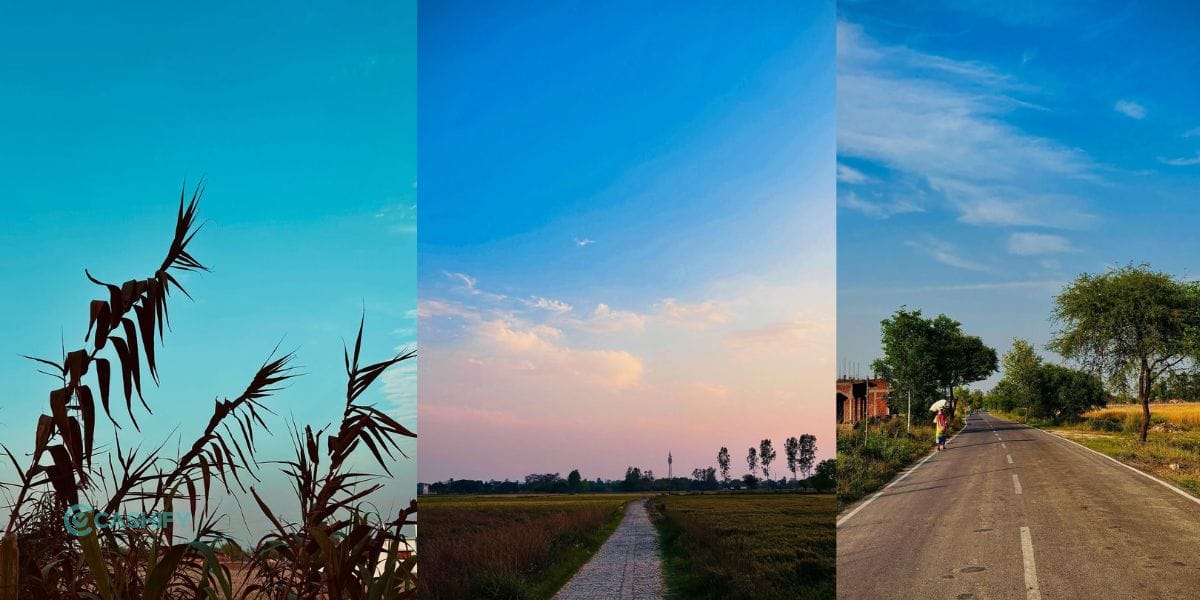
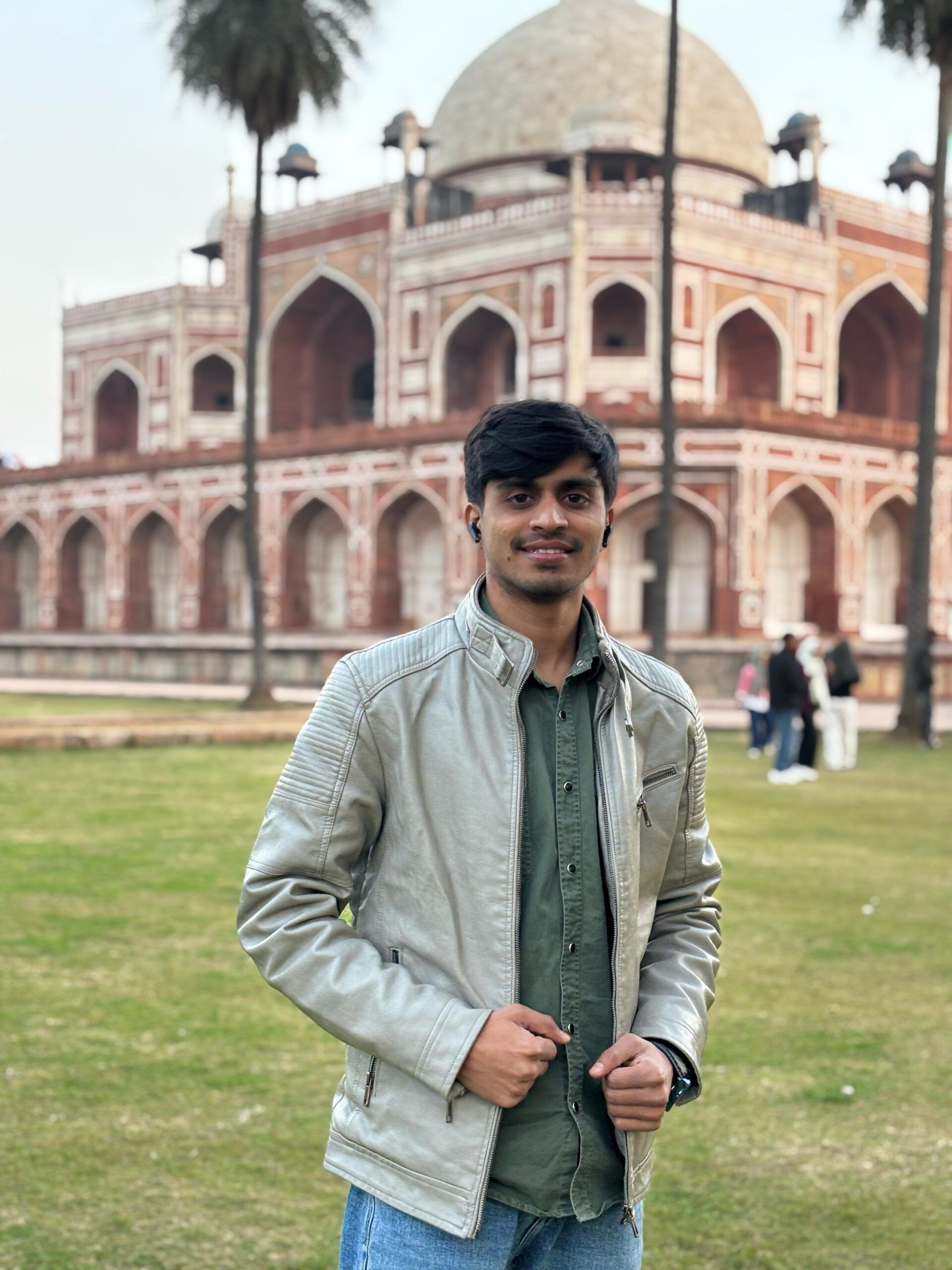
At the same time, Vivid tone offers little bit brighter subject while keep dynamic range dull. Its combination produces more focus on the subject. I am sharing a few images that I clicked in these settings.
Portrait Mode Settings
If you want to take better portrait pictures and keep the edges nice without the picture being too bright, here are some tips before you take the shot. First, choose portrait mode on your camera. Then, tap on the person’s face a few times to make sure the camera focuses on them.
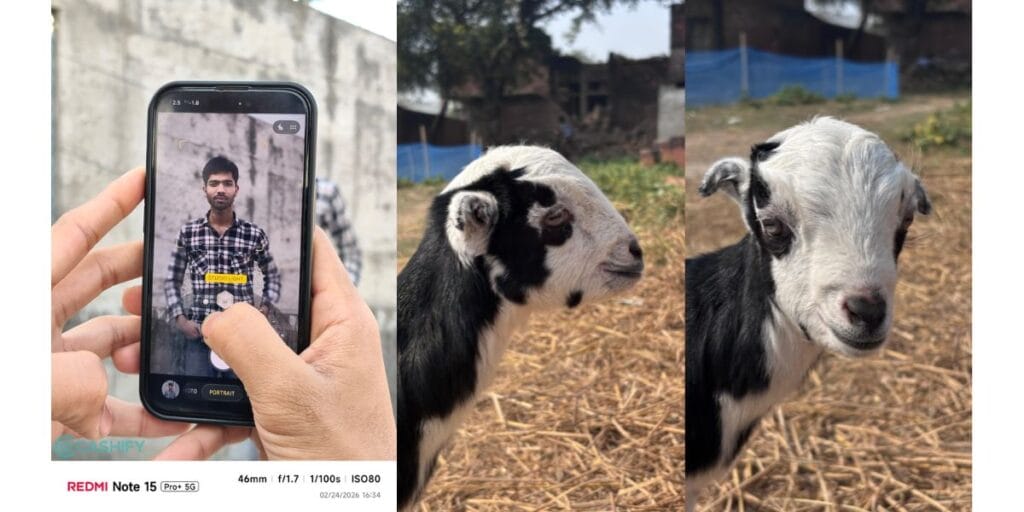
Try to keep the person in the middle of the screen. If you are a beginner, you can turn on the grid in the camera settings to help place the person in the center of the box for better framing. Lastly, it’s a good idea to use “bright light” or “control light” to take the best pictures.
Also Read: Best Mobile Phones Under 30000- Latest & Reliable Picks In 2026
Keep ISO Low
ISO and Exposure matter a lot in Images. If you just open the camera and click the image, it may come out dull or overexposed. While proper ISO management and Exposure can help to produces best image results.
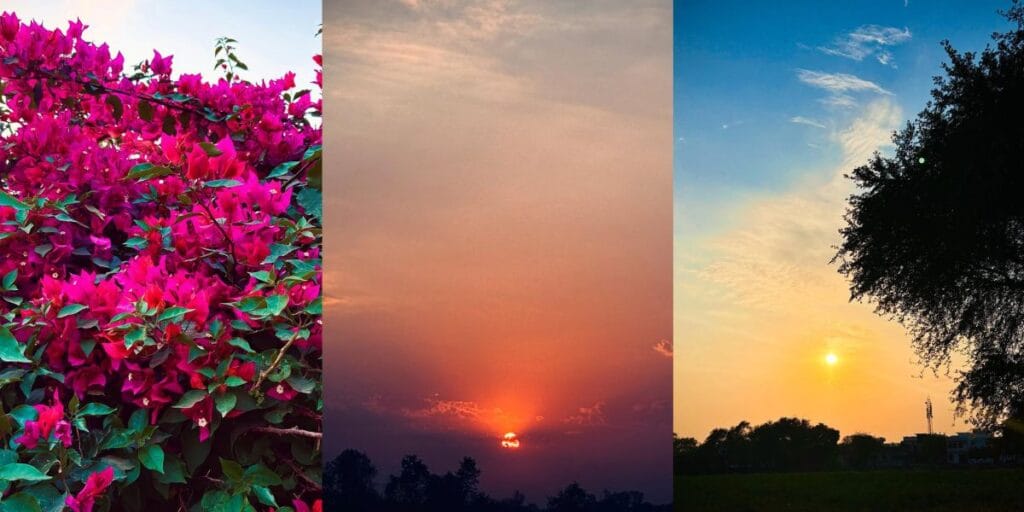
I always do a little bit of down the light before clicking any image. If you are Pro then you can control image lighting manually.
Few Video Settings
I also shot a lot of videos with my Apple iPhone 15. So, here are a few video settings that genuinely improve your shooting experience. I kept 4K at 60 fps (High Efficiency) enabled because it gives me the smoothest footage with sharp detail. I also turned on Enhanced Stabilisation, which slightly crops the frame but makes handheld videos much steadier.
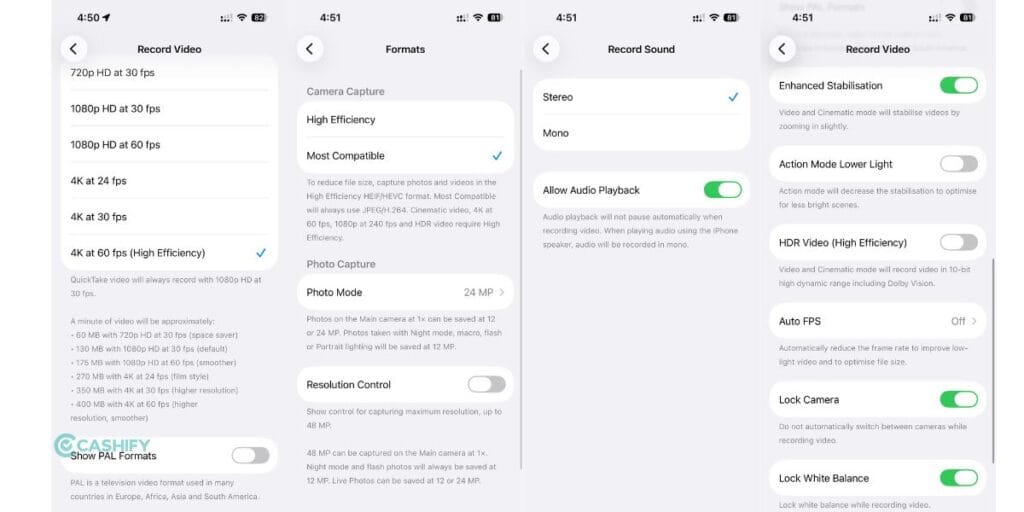
For audio, I prefer a stereo recording to capture a more natural soundstage. I left Allow Audio Playback on, but it’s worth noting that audio played through the speaker is recorded in mono.
Cinematic Mode
In Cinematic mode, I selected 4K at 30 fps for better clarity compared to 1080p. I also enabled Lock Camera and Lock White Balance so the phone doesn’t unexpectedly switch lenses or shift colors while recording. HDR video is currently off in my setup to keep file sizes manageable, and Auto FPS is disabled to maintain consistent frame rates in different lighting conditions.
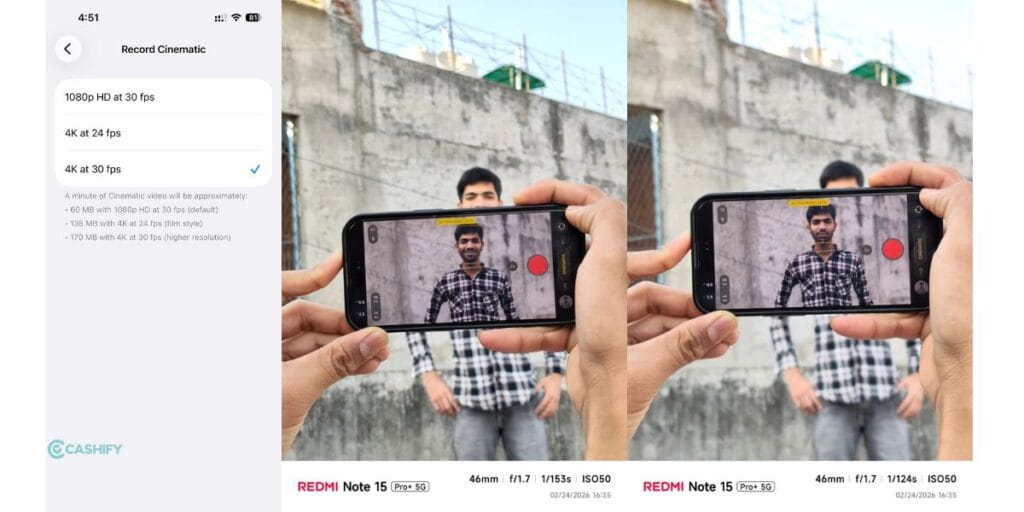
Just keep in mind that while you are shooting, if multiple faces are in the same frame, you have to lock your target face; otherwise, the focus will shift among them, ruining your video quality.
Final Words
The Best Camera Settings For iPhone 15 can significantly improve your photos and videos without needing professional gear. By choosing the right aspect ratio, using 2x zoom effectively, keeping ISO under control, and enabling the right video settings, you can consistently capture sharp, balanced shots.
I have not shared any details about its front camera because there is not much to share. The iPhone 15 already has powerful camera hardware, but fine-tuning these settings helps you unlock its full potential for everyday photography and cinematic videos.
Also Read: Best Mobile Phones Under 25000 In India
FAQs
What are the best camera settings for the iPhone 15 for photos?
Use a 16:9 aspect ratio, enable grid, keep exposure slightly low, and use 2x zoom for sharper subject focus.
Which video setting is best on the iPhone 15?
For the Best Camera Settings For iPhone 15 video, use 4K at 60fps with enhanced stabilisation turned on.
Should I use filters on the iPhone 15 camera?
Yes, Cool or Vivid filters can enhance subject focus, but use them subtly for natural-looking results.
How do I take better portrait shots on iPhone 15?
Enable Portrait mode, tap to focus on the face, keep the subject centred, and use Bright or Studio light.
Does iPhone 15 support manual ISO control?
No native manual control exists, but third-party apps can help fine-tune ISO and exposure if needed.
Are you still browsing through your broken screen? Don’t worry! Book an at-home mobile phone screen repair with Cashify—an affordable and one-stop destination for all your mobile phone needs. In case you break your screen within 1 month of repair, we will replace your screen again—for FREE.