Google’s newest update, Android 16 QPR2 Beta features, is making headlines with its features! QPRs are basically Quarterly Platform Releases. They are updates that improve the stable version of Android 16 by adding small features and bug fixes. It also gives developers new tools and still keeps the system stable.
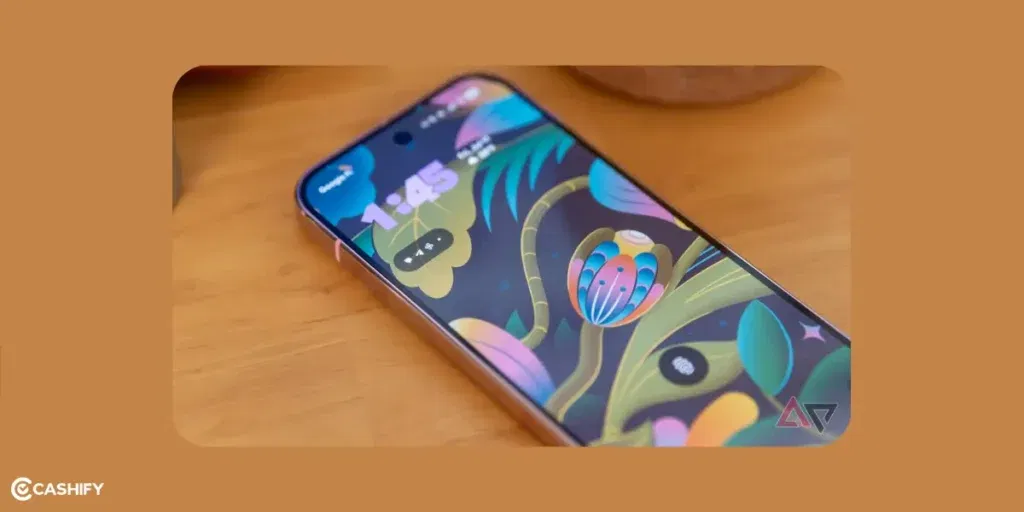
The QPR2 beta started in August with Beta 1. In September, Beta 2 reached platform stability. Google has now finished testing Beta 3.3. It also fixed issues like the Lock screen freezing. With the December 2025 security patch, the stable Android 16 QPR2 features will be out. But the Beta versions are still available for people who want to test things early or give feedback to Google. This update isn’t a whole new operating system like Android 17 (coming in mid-2026). Instead, it’s more like a “Feature Drop”.
In this simple guide, we’ll explain the main new Android 16 QPR2 Beta features and other details. Let’s check out:
Also Read: You Can Now Use AirDrop on Android: Here’s How to Use It!
What Makes Android 16 QPR2 Beta Special?
Android 16 QPR2 Beta focuses on making the device smarter, faster, and easier to use. It adds helpful improvements without changing the whole system.
Here’s a simple guide of the main highlights:
1. Better Personalisation and Theming
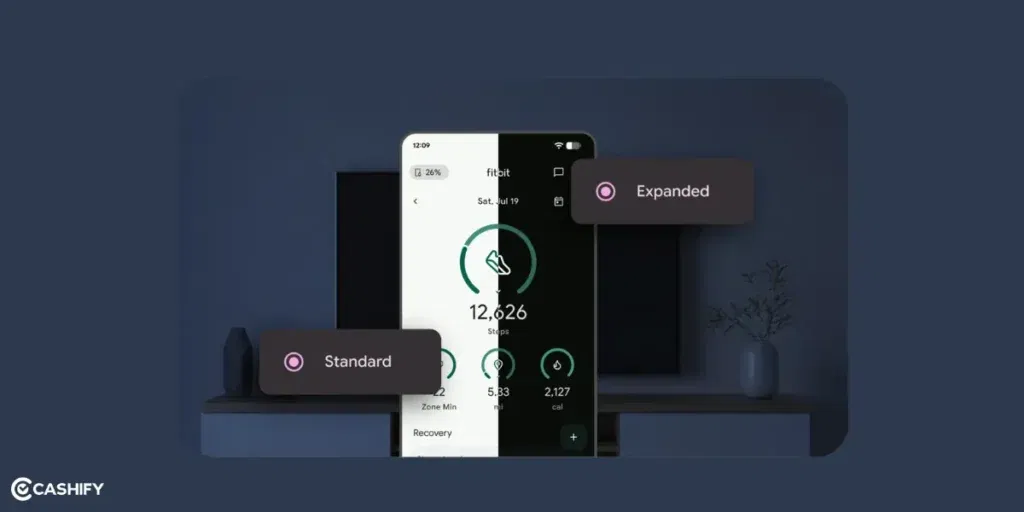
Let’s check out improvements in this category:
Auto Themed App Icons
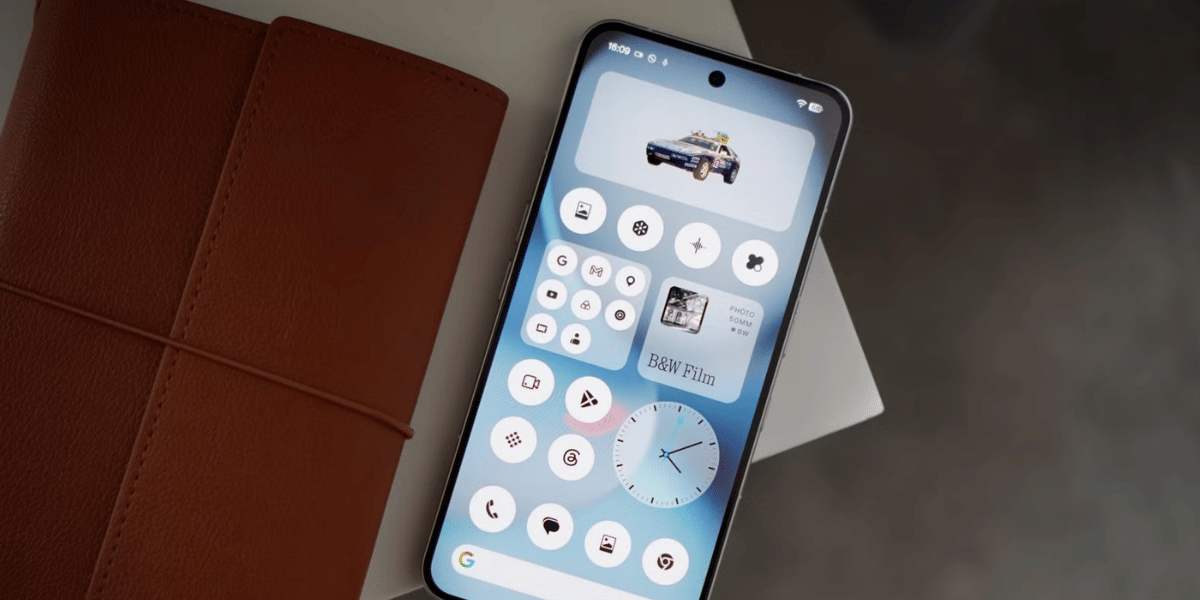
Android 16 can now match its colours to your wallpaper. This works even if an app offer a special monochrome icon. This keeps your home screen looking neat and matching.
Custom Icon Shapes
You can now choose from different icon shapes. You can choose circles, rounded, or squares. The shape applies to all apps and folders. This way, everything looks consistent.
Improved Dark Theme
This can “smartly invert” bright parts of apps that don’t support dark mode. This makes your screen easier on the eyes without you having to change anything.
Notification Summaries
This update will also use AI to summarise the notifications. Suppose someone has sent you a long message. AI will only show you a summary in the notification. You can later read out the whole message whenever you feel like.
2. Lock Screen and Widget Improvements
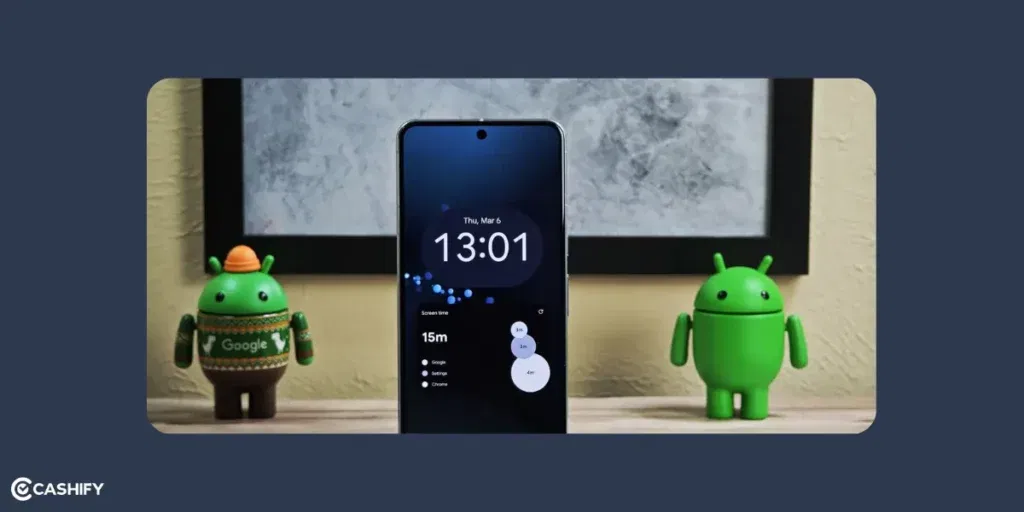
Here’s everything that’s new with lockscreen and widgets:
Custom Lock Screen Widgets:
By long-pressing your lock screen, you get a redesigned widget picker. This comes with “Featured” and “Browse” tabs. You can add, resize, or remove widgets like weather or calendar info. This way, you can see updates without unlocking your phone.
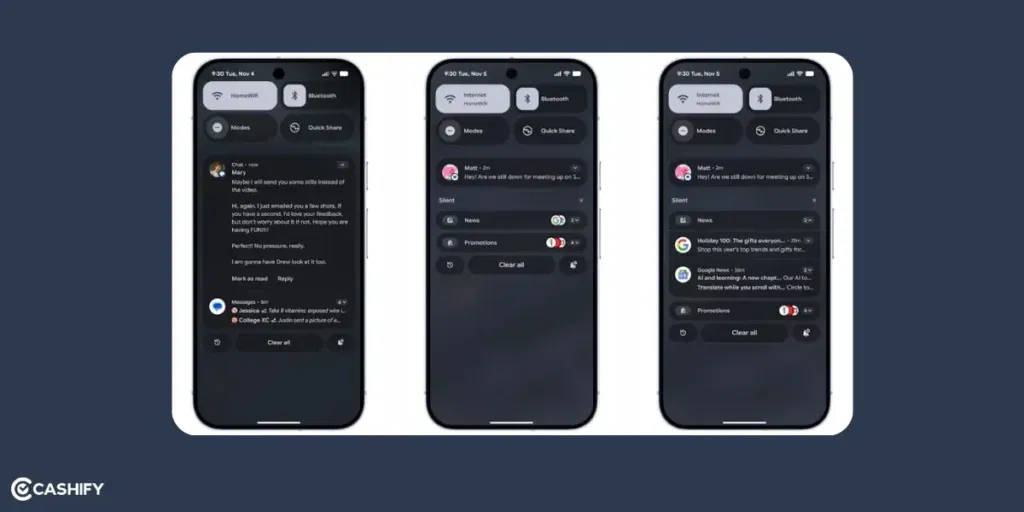
Notification Organiser:
AI groups similar notifications together. It can combine all your social media alerts. This way, your notification shade feels cleaner and easier to manage.
3. Performance and Battery Boosts
Let’s check details about Smarter App Cleanup and Better Audio:
Smarter App Cleanup (Garbage Collector):
Android now cleans up unused data more efficiently. It gives fewer tiny lags, smoother animations, and better battery life. This is especially true if you work with heavy apps.
Better Audio (IAMF Support):
Android now supports a new surround-sound audio format. This gives you clearer and more immersive sound in apps that support it.
4. Health and Accessibility Upgrades
Automatic Step Tracking in Health Connect:
Your phone can now track steps using built-in sensors and send the data directly to Health Connect. For this, no extra fitness app is required.
Developer Verification:
Starting in 2026 (in some regions), sideloaded apps must come from verified developers. The Beta adds tools for testing these rules.
5. Other Fixes and Small Improvements
HDR Screenshots:
You can take HDR screenshots that look extra bright and colorful on Android 16 devices. On other devices, they automatically switch to normal brightness.
Backported Fixes API:
Apps can now check if your device already has certain important bug fixes. This helps developers improve app updates.
Bug Fixes in Beta 3.3:
This includes smoother lock screen performance and better overall stability when you use the Android 16 QPR2 Beta features.
Also Read: OnePlus 15 Vs iPhone 17: Which One Should You Choose?
Supported Devices: Which Pixels Get the Beta?
The Android 16 QPR2 Beta features is only available for Google Pixel devices. This is starting from the Pixel 6 series and newer. Google makes sure these phones work well with the Beta so you can test new features without big problems. I personally use Pixel 6a as my daily gear and so I am getting all the beta updates.
Here’s the full list of Pixel models that support the Beta:
| Series | Models |
|---|---|
| Pixel 6 Series | Pixel 6, Pixel 6 Pro, Pixel 6a |
| Pixel 7 Series | Pixel 7, Pixel 7 Pro, Pixel 7a |
| Pixel 8 Series | Pixel 8, Pixel 8 Pro, Pixel 8a |
| Pixel 9 Series | Pixel 9, Pixel 9 Pro, Pixel 9 Pro XL, Pixel 9 Pro Fold, Pixel 9a |
| Pixel 10 Series | Pixel 10, Pixel 10 Pro, Pixel 10 Pro XL, Pixel 10 Pro Fold |
| Others | Pixel Tablet, Pixel Fold |
If you don’t have a Pixel phone, you can still try the software by using an emulator in Android Studio. You have to make sure that you use a 64-bit system image. This is helpful for app testing.
For other Android phones, Android 16 is already rolling out. However, the QPR2 features will arrive later. You can get this sometime in early 2026.
Also Read: From Notion AI to Gemini: The Best AI Tools for Productivity
How To Install Android 16 QPR2 Beta: Step-by-Step Guide
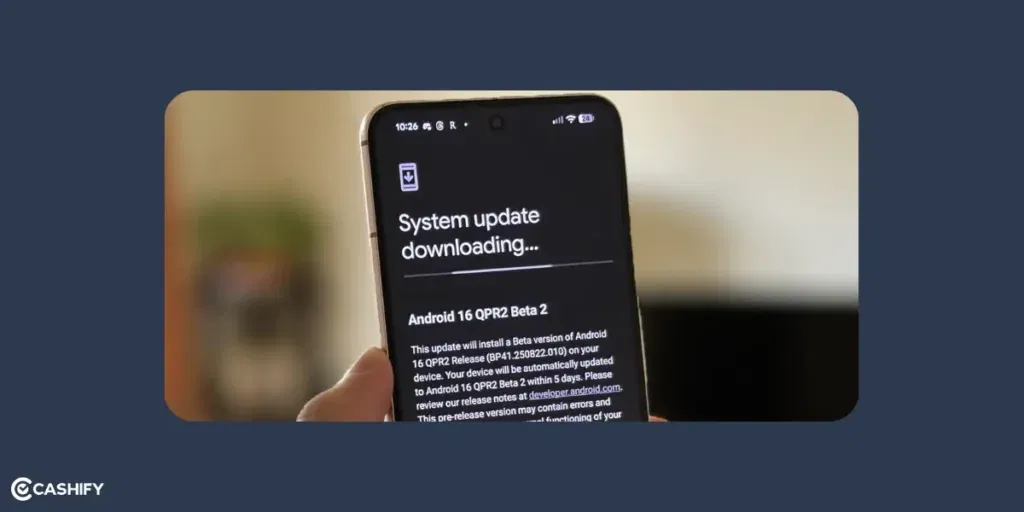
It’s really simple to install the Beta and enjoy Android 16 QPR2 Beta features. There are multiple methods which you can use. The OTA method is the easiest but flashing method will give you more control. Just know that if you leave the beta later, you will have to wipe your phone and all data first. Let’s check out methods:
Method 1: Over-the-Air (OTA) Update
- Go to the Android Beta for Pixel website in a browser. Sign in with the Google account you use on your Pixel. Find your device and tap “Opt in.”
- On your Pixel, open: Settings > System > System update. Tap Check for update. If you joined the Beta, the latest build (e.g. Beta 3.3) should appear.
- Download and install it. Your phone will restart into the Beta version.
Method 2: Manual Flashing
- Turn on OEM unlocking: Settings > About phone > Tap Build number 7 times → Developer options → OEM unlocking.
- Boot into fastboot mode (Power + Volume Down). On your computer, run: fastboot flashing unlock. (Warning: This erases everything, so back up first.)
- Download the factory image or OTA package from the Pixel downloads page. You can use the Android Flash Tool at flash.android.com.
- Connect your Pixel to your computer. Pick the image you downloaded and flash it. If using OTA files, you can sideload with: adb sideload filename.zip
- For extra security, run: fastboot flashing lock Skip this if you plan to root your device later. After this, you can enjoy the Android 16 QPR2 Beta features.
Also Read: How AI Is Replacing Traditional To-Do Apps? Know The Truth!
Final Thoughts
In the end, the Android 16 QPR2 Beta features are really innovative! You get customised icon, notification summaries, privacy, better parental control, and more. If you don’t want to deal with small bugs or glitches, it’s better to wait for the stable update. It will roll out starting December 2, 2025.
Also Read: iQOO 15 Vs OnePlus 15: Price, Specs, All Details!
Let me know how excited you are about this in the comments section below. I would love to hear you out!
If you’ve just bought a new phone and don’t know what to do with your old phone, then here’s your answer. Sell old mobile to Cashify and get the best price for it. If you are planning to buy a new phone, check out Cashify’s refurbished mobile phones. You can get your favourite phone at almost half price with six-month warranty, 15 days refund and free delivery.