Ever wondered why you’re not able to get the perfect monochromatic portraits or social media-worthy photos even after having those 200MPs, 108MPs, and triple quadruple camera setups? You come back home after a trip and need to add 4-5 filters, then effects, and then also don’t get that ‘desired shade’ in your photos. Well, it is because you haven’t really figured out how to take better photos from your phone. Also, there are some additional gears that help you enhance your shots and reels, but which are the best ones? This article will explain it all. We take you through the guide of settings, hidden camera modes, and the top gear that help you nail your photography and videography. So, let us begin.
Also Read: Best DSLR Camera Settings For Outdoor Photography: Easy Guide
Discover How To Take Better Photos From Your Phone: The Best Camera Settings
To learn how to take better photos from your smartphone, here are some tips and tricks that you must use.
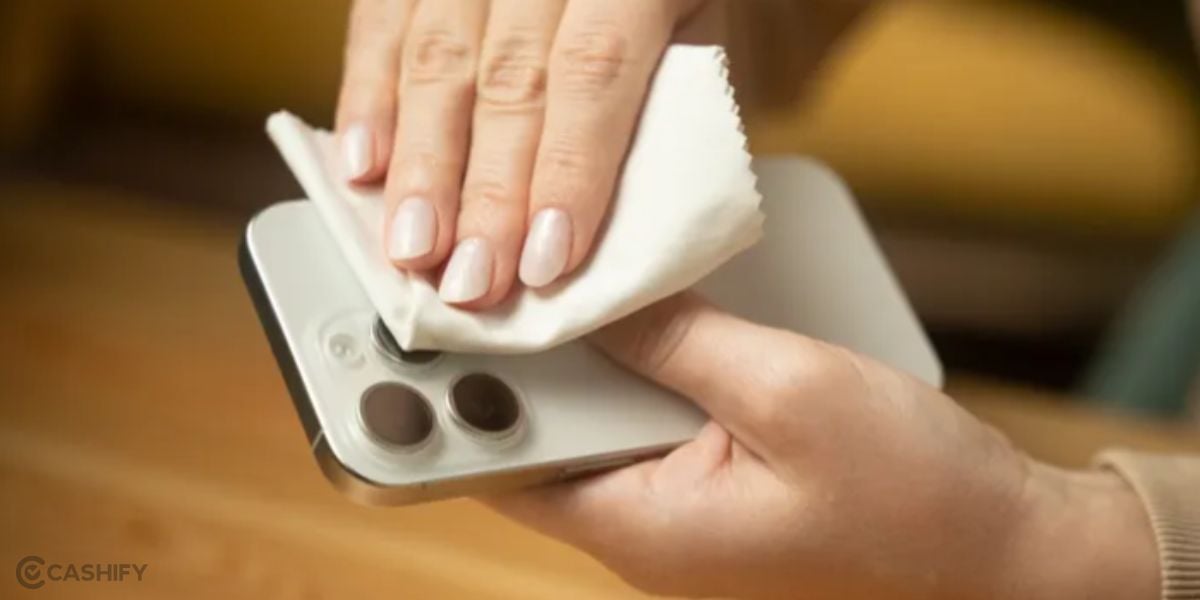
1. Always Clean Up Your Camera And Use Camera Lens
This sounds silly, but it matters a lot. Before taking a photo, wipe the camera lens with a soft cloth or your T-shirt. Fingerprints and dust can make photos look blurry, dull and less sharp.
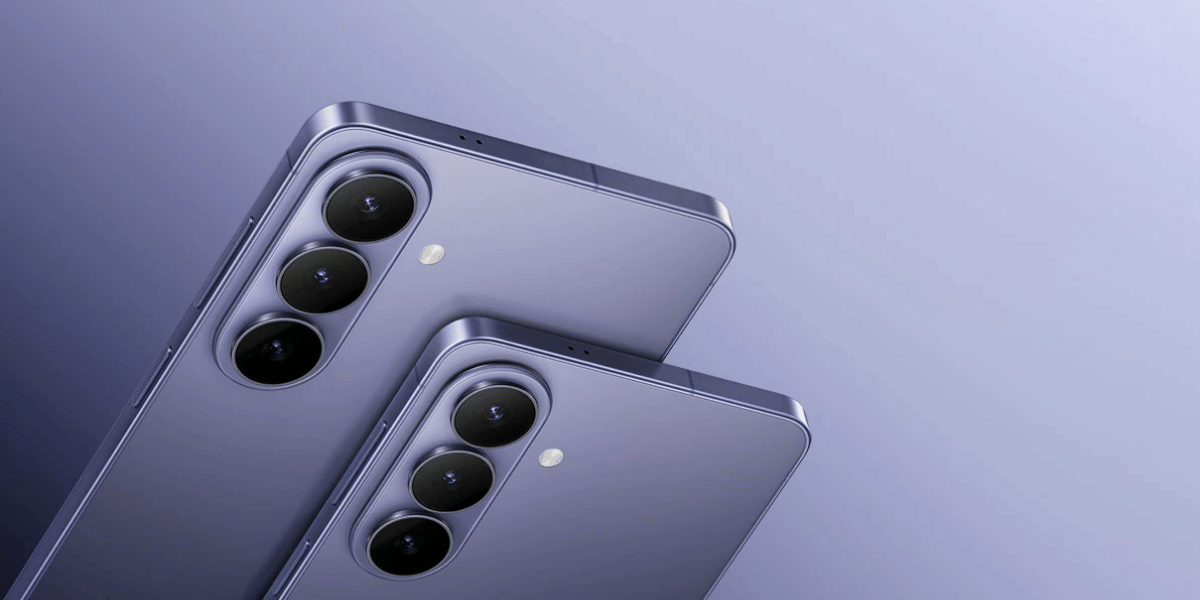
Use the camera lens cover if required. Phones like the Vivo X300 or Samsung S25 series phones have an additional camera bump, which is vulnerable to dirt and scratches, so use lenses that time.
2. Set Up Focus Manually
Before pressing the shutter, tap the person or object you want to keep sharp. Then check the brightness. If the sky or a bright light looks completely white, lower the brightness slightly.
- Simple rule: Tap > Check brightness > Shoot.
3. Keep ISO Settings Between 80 and 100
ISO is one of the most underrated camera settings, and hence we have brought it right at the centre of this guide on how to take better photos from your phone. If you're using Pro mode in bright daylight, try ISO 80–100 for cleaner photos. But don't force ISO 100 everywhere. In darker places, allow ISO to increase rather than making the shutter speed extremely slow and getting a blurry photo.
4. Portrait Settings: 1x And 2x Or 50MM For Human Shots, Zoom In For Object Shoots
Portrait mode is great for people, pets and some simple objects, especially when you want the background blurred. But don't use it blindly. For landscapes, buildings, food, and complicated objects, normal photo mode is often better.
For the best results from the portrait mode, you should usually use 1x and 2x zoom. For natural portraits on the Galaxy S24, 2x is the sweet spot for most people, offering flattering proportions and good subject separation.
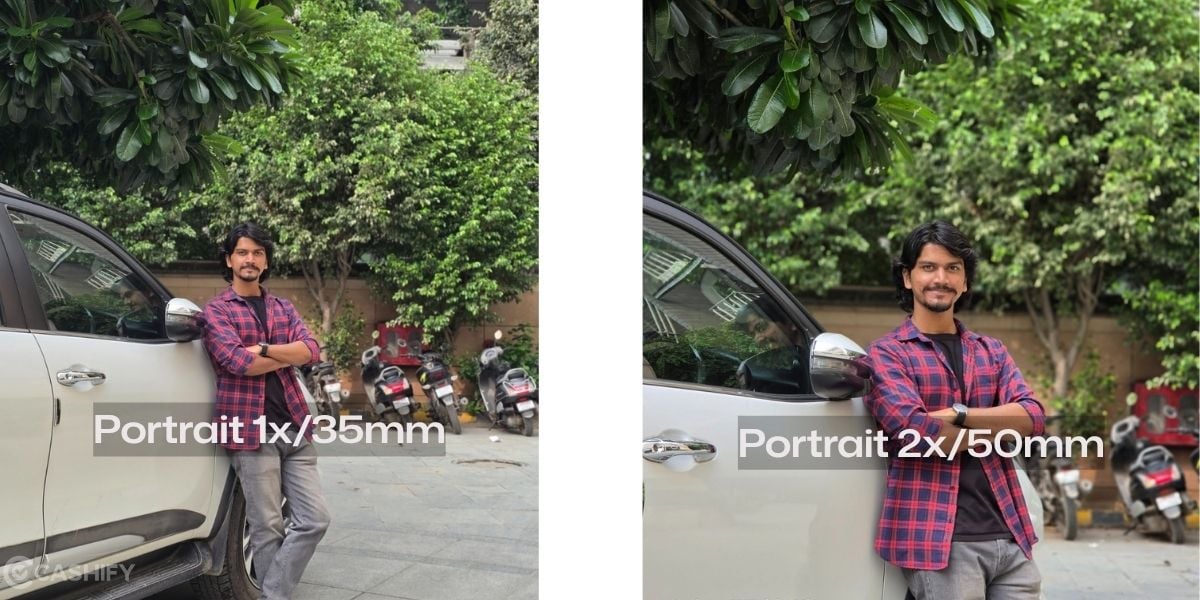
For objects, larger objects should be captured in 1x for full-body or environmental shots. On the other hand, the 3x mode works best for tighter headshots and stronger compression. Remember to always keep the subject away from the background, use soft light, avoid excessive blur, and maintain enough distance.
In some phones, the portrait mode comes with settings like 50mm, 85mm, etc. It is harder to understand than the 3x 2x mode, but the work is the same. Use 50mm for basic shots, human shots, and for zooming modes, go for different angles where you have to take a portrait shot of an oblect from a closer angle.
Also Read: Best Mobile Processors In 2026
5. Pro Modes: Use Settings Like Hyperlapse, Food Mode, Etc
Every phone camera today has Pro modes. These pro modes deliver you the best camera results. Modes like time-lapse are meant for those '8 hours later' videos where you show every minute passing by through a time-lapse video of 8 hours merged into a single video shot.
Similarly, modes like Portrait video and Food mode are for specifically shooting certain special videos and photos that have a key object of focus in them. So, let us bring you the detailed guide on all Pro Modes. I have taken the Samsung S24 for account here. You can have other phone but the pro-modes are somewhat similar in most phones.
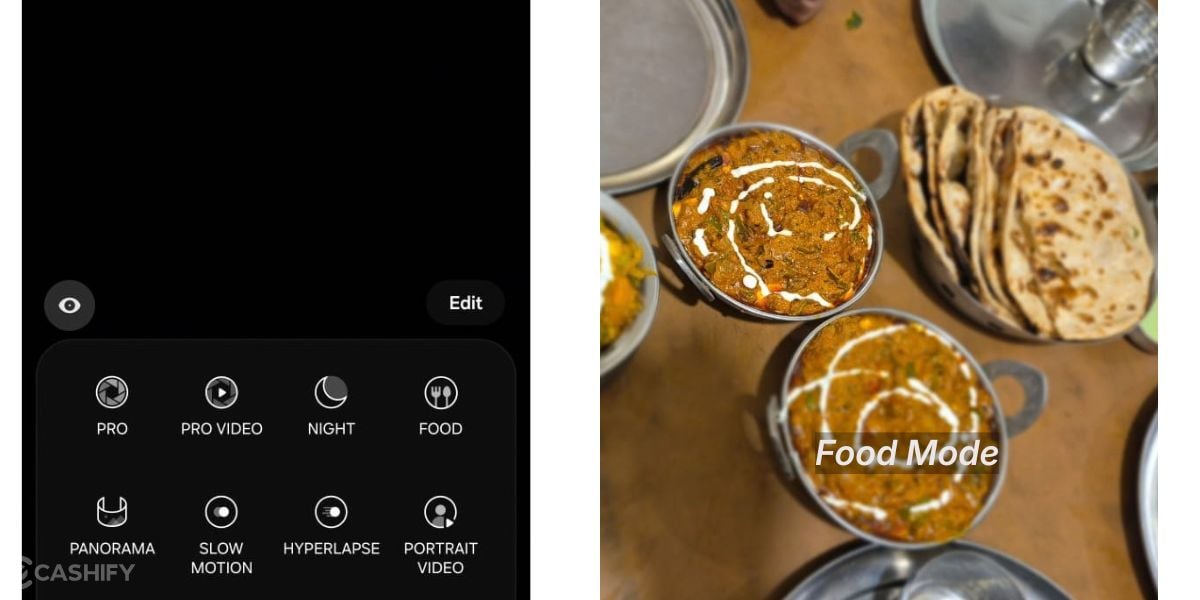
I tried the Food Mode, and it captures the colours in a more saturated manner than the normal shots. This helps you to put out the flavour of your food in a more vibrant manner.
Mode | Best used for | How to use it well |
Pro | Manual photography | Set ISO, shutter speed, WB and focus manually. Keep ISO low in bright light and adjust shutter speed for motion. |
Pro Video | Cinematic video | Set shutter speed, ISO and WB manually. Lock exposure/focus and use a tripod or stabiliser for smoother footage. |
Night | Low-light scenes | Hold the phone steady, use a tripod when possible, and let the camera complete its exposure. |
Food | Food photography | Centre the dish, adjust the highlighted area around it and fine-tune colour for a natural but vibrant look. |
Panorama | Landscapes and wide scenes | Hold the phone steadily and pan slowly in one direction, keeping the subject aligned with the guide. |
Slow Motion | Sports and action | Use bright lighting, keep the subject in frame and record the movement before selecting the best section. |
Hyperlapse | Moving scenes/time-lapse | Keep the phone stable, choose Auto speed, and record traffic, walking routes or changing skies. |
Portrait Video | Cinematic people videos | Keep the subject well-lit and relatively still; choose a subtle blur effect for natural-looking separation. |
6. Lock Brightness While Recording Videos
This is especially useful while travelling. Before recording, set the brightness and, when your phone allows it, lock focus and exposure. This stops the video from suddenly becoming very bright or dark when you move through different areas.
For longer videos, lock white balance too if your phone provides the option.
7. Super Steady Mode Should Be Used Along With Video Stablisation
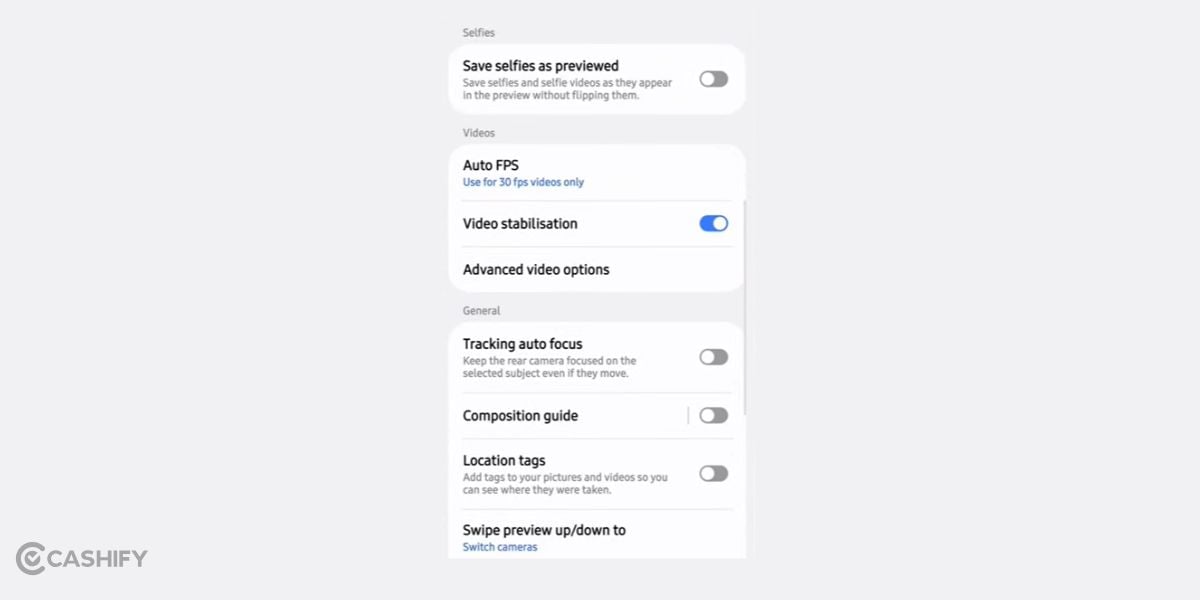
For videography, you should always use steady mode. The stablisation should also be turned on by going to camera settings. What these modes do basically is that when you are holding your phone while walking on streets or moving while taking video, the video doesn't get shattered; it stays in the same zone. Hence, for smoother handheld footage, keep video stabilisation enabled.
However, it applies a crop and can reduce low-light quality, so it is best reserved for well-lit, high-motion situations rather than every video.
8. Use Exterior Lighting
Now, the next part of this guide on how to take better photos is exterior lighting. If you want to get those perfect professional monochromatic shots or reels, use lighting from exterior sources. Use ring lights, mobile-attached torches, etc. Good lighting can make an average phone camera look surprisingly good. For people, try morning, evening or soft shade. Avoid putting someone's face directly under harsh midday sunlight. Remember: better light > more megapixels.
Try to stay around 1× or use the phone's optical/telephoto zoom when available. Avoid extreme digital zoom whenever possible. Instead of zooming from far away, move closer if you safely can.
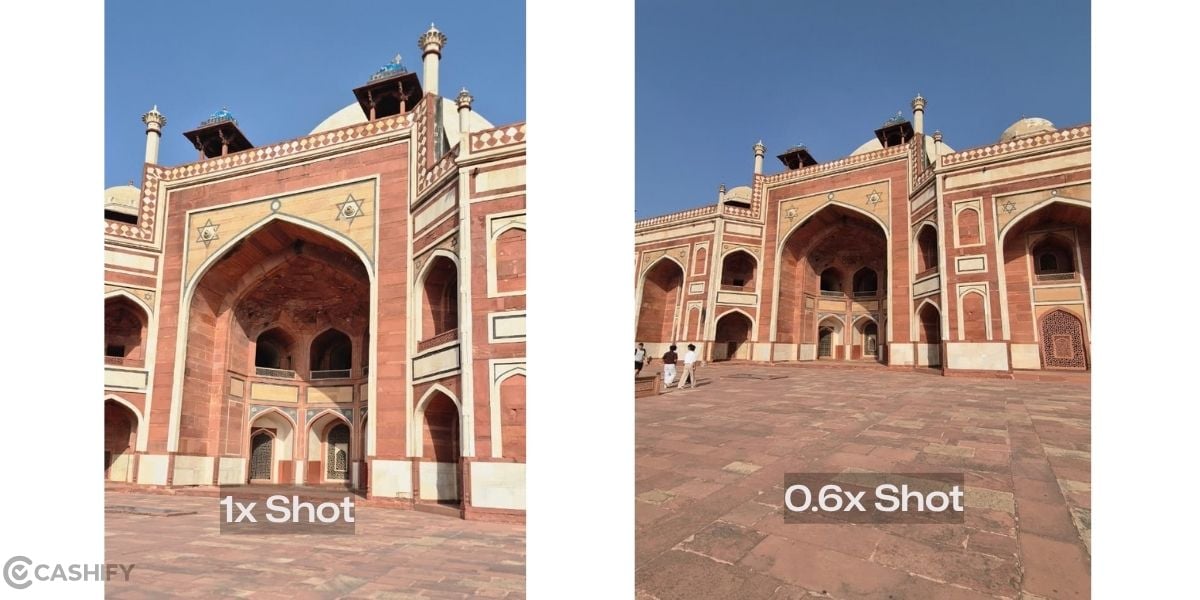
9. Ultrawide Settings: Set Up 0.6 Mode When Frame Moves Out
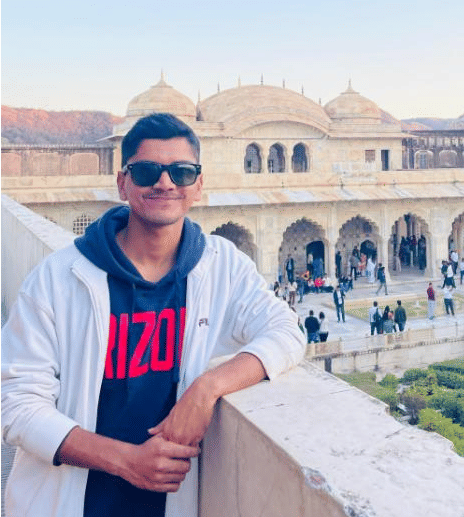
Sometimes, when you are in front of a monument or a wider canvas which doesn't fit in your frame, then it is better to switch to the ultrawide mode or the 0.6x zoom-out settings. Like in this image here, I was going through the Humayun Tomb in Delhi, and as you can see, the 0.6x captured better shot.
So when you are in any such similar scenario, it is better to go for the 0.6x mode.
10. Composition Fixture Using Grid
Turn on the grid lines and keep the horizon straight. Before pressing the button, quickly ask yourself:
- What am I actually photographing?
- Is there anything ugly or distracting behind it?
- Is the subject positioned nicely?
Sometimes simply moving one step left or right can improve a photo more than changing camera settings.
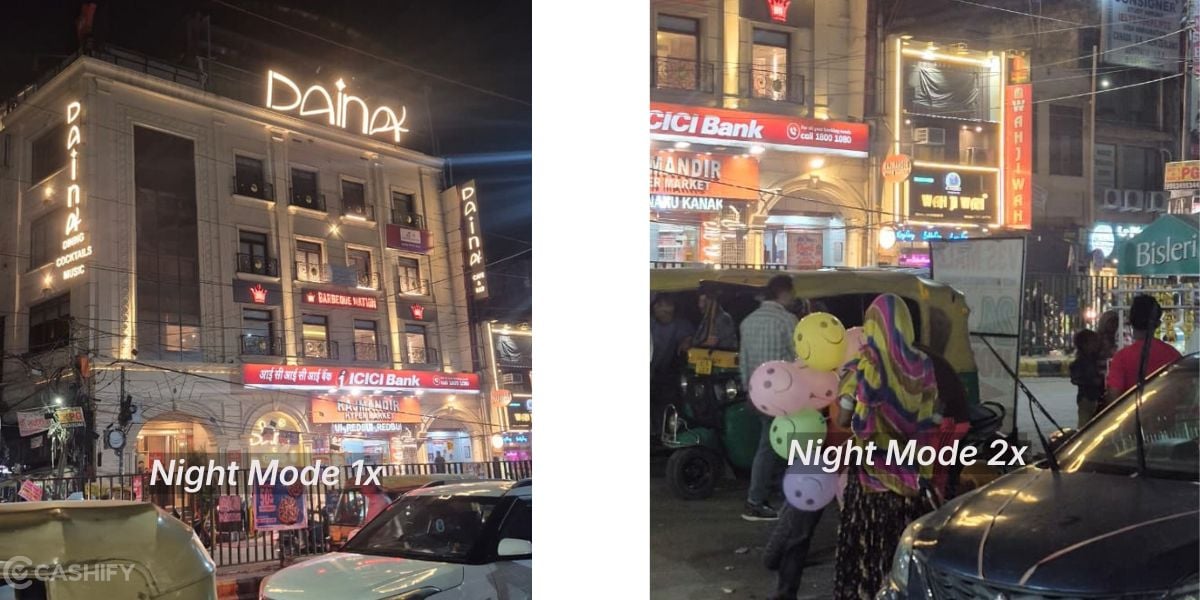
11. Use Night Mode With Bright Lighting For The Best Night Photography
Night mode needs time to collect more light. Hold the phone with both hands and stay still while taking the photo. The best way is to just turn on the night mode from your phone camera and adjust the brightness to a little bit more.
For a static scene, you can even lean against a wall or place the phone on something solid.
Also Read: Best Camera Settings For iPhone 18 Pro
Gear Guide on How To Take Better Photos: The Best Add-ons That Your Phone Needs
Now, it’s time to come to the additional support that your phone needs in the face of gear. Yes, the equipment, the gadgets – they are not here to make you a less trustworthy photographer or videographer; that’s a myth. Instead, these gears help you to get the best out of your phone’s camera. Tripods, ring lights, and other such gear enhance your photos and give you the results you could never imagine. So, we have prepared a list of the top gear that you can purchase to make your phone photography a proper party!
Gear | Key Benefit | Product Suggestions |
Wireless Lavalier Microphone | Captures clear, focused dialogue while reducing wind and background noise. | BOYA BY-V20, DIGIMORE D-460 Lite. |
Adjustable Tripod / Selfie Stick | Provides stable static shots and extra reach for walking vlogs and selfies. | Digitek DTR-425 LW, Digitek DTR-480 LW. |
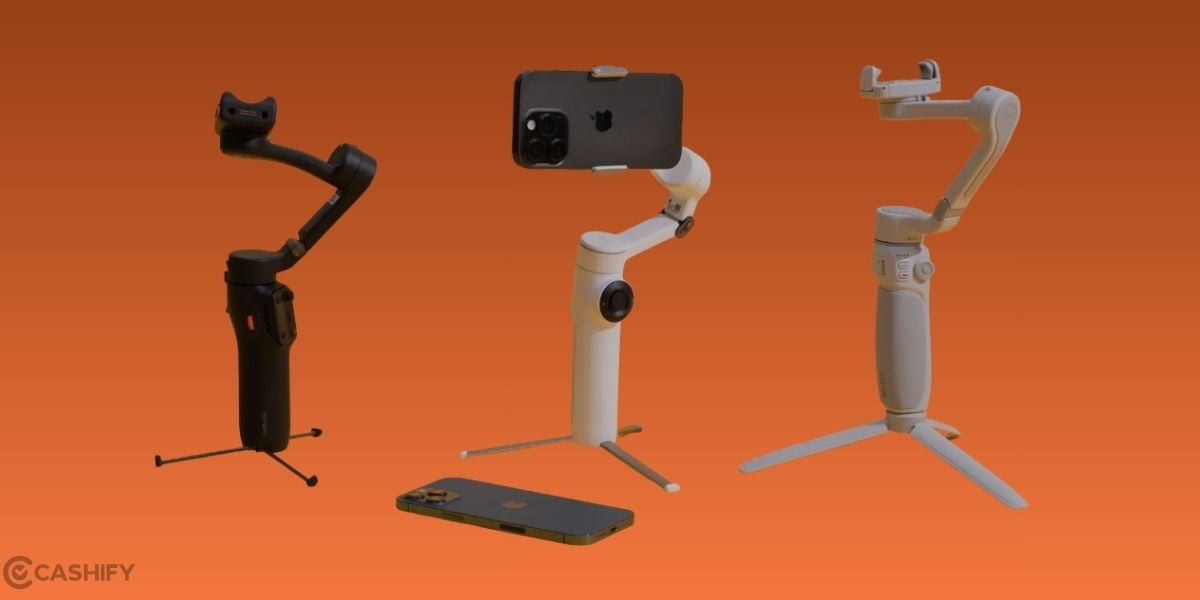
3-Axis Smartphone Gimbal | Reduces hand shake and delivers smooth, steady footage while walking or panning. | DJI Osmo Mobile 7. |
Bi-Color Ring Light / Mini LED | Provides even lighting, reduces harsh shadows, and improves faces in low-light settings. | Ulanzi VL49, Godox LED M. |
Clip-On Wide-Angle Lens | Expands the field of view, helping capture more of the scene in tight spaces. | Apexel 0.45X, APEXEL 0.6X. |
Fast-Charging Power Bank | Keeps your phone powered during long outdoor shoots and intensive 4K recording. | Portronics Power Shutter 20K, Mi Power Bank 3i. |
MagSafe / Cold Shoe Phone Mount | Holds your phone securely while allowing you to attach accessories such as microphones and lights. | Ulanzi MA07, SmallRig 4382. |
Variable ND Filter | Controls excessive outdoor light, helping maintain natural-looking motion blur for cinematic video. | K&F Concept ND2-32, Freewell VND. |
End Note
That’s it from this guide on how to take better photos from your mobile. These gears and camera settings are independent of which phone you have: an iPhone, a Redmi phone or a Samsung phone. These are neutral settings which work for every brand, every budget category, and every camera type. So, utilise these camera settings and get the best out of your phone’s camera right away!
Also Read: Google FitBit Air India Launch: All You Need To Know
Are you still browsing through your broken screen? Don’t worry! Book at-home mobile phone screen repair with Cashify—an affordable and one-stop destination for all your mobile phone needs. In case you break your screen within 1 month of repair, we will replace your screen again—for FREE.