Are you having trouble switching off your iPhone, or do you not know how to switch off your iPhone? Well, I know this is a very basic thing, but the unknown often seems bigger than reality. There are a few ways to turn off your iPhone. Let’s read below:
Also Read: From Taj Mahal Sunrises To Delhi Night Food: I Tested the Google Pixel 9 Pro XL Camera Everywhere
Method 1: For Face ID models
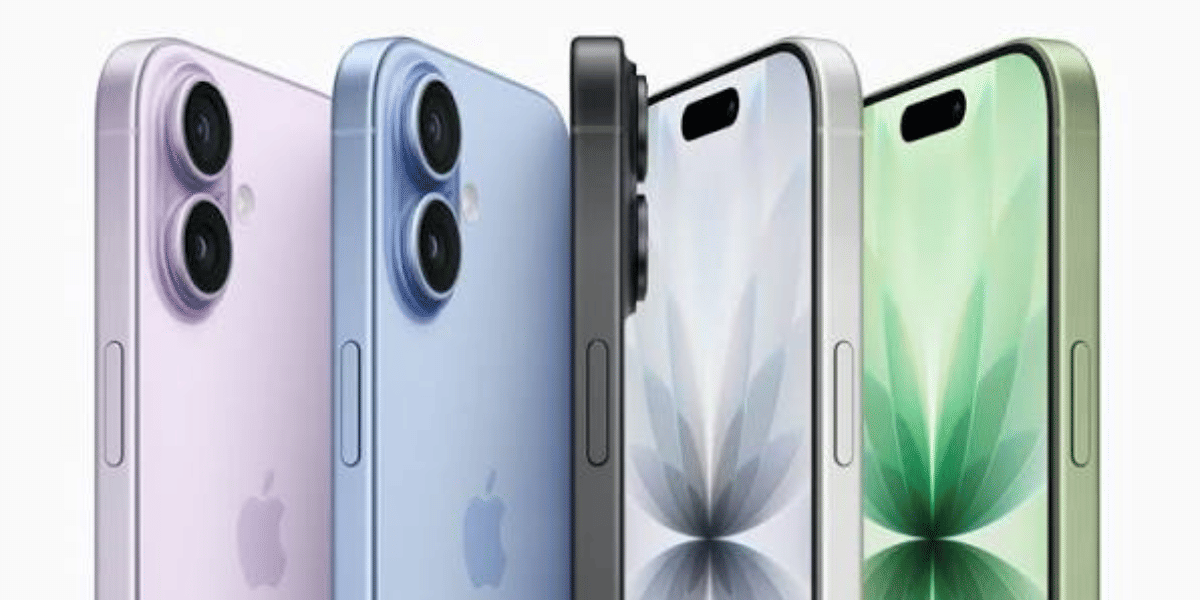
As we all know, Apple introduced Face ID on the Apple iPhone X and has continued it with the latest model in the Apple iPhone 17 series. Just for your information, I’m using an Apple iPhone 15 and had an Apple iPhone 6 as well, but it’s not turning on while writing this article. So, with the Face ID phones, you just have to follow this method.
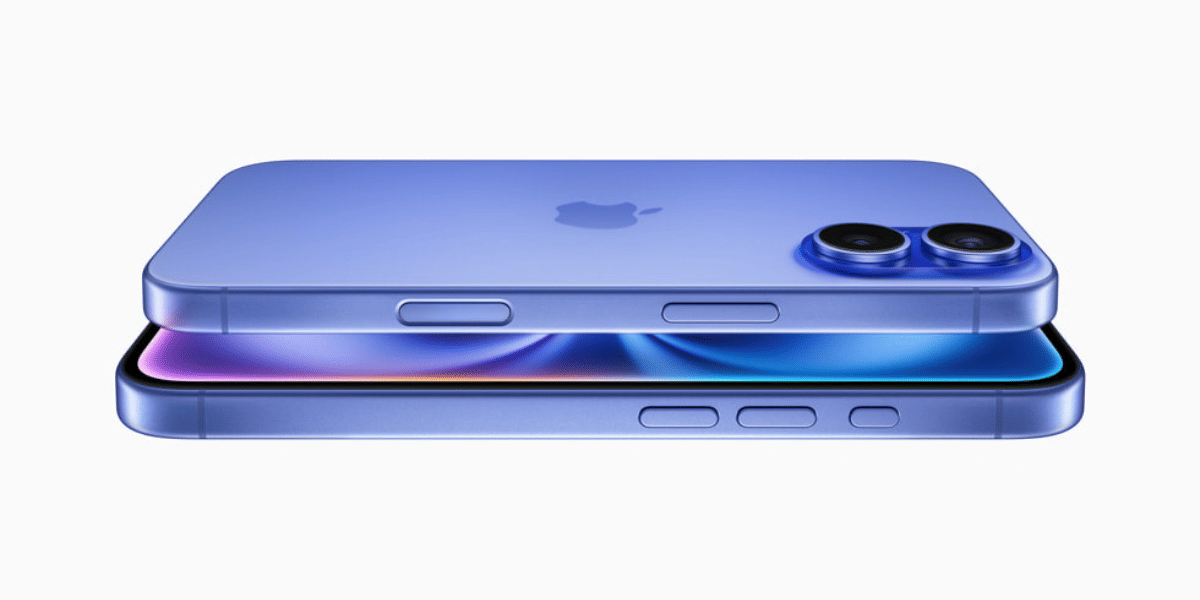
- Press and Hold power button and any volume button simultaneously
- Then hold them for a few seconds, once the power off slider appears
- Now drag the slider to the right to switch off your iPhone
Also Read: Vivo X300 Pro Review: The Phone That Changed Camera Standards
Method 2: For Home Button Models
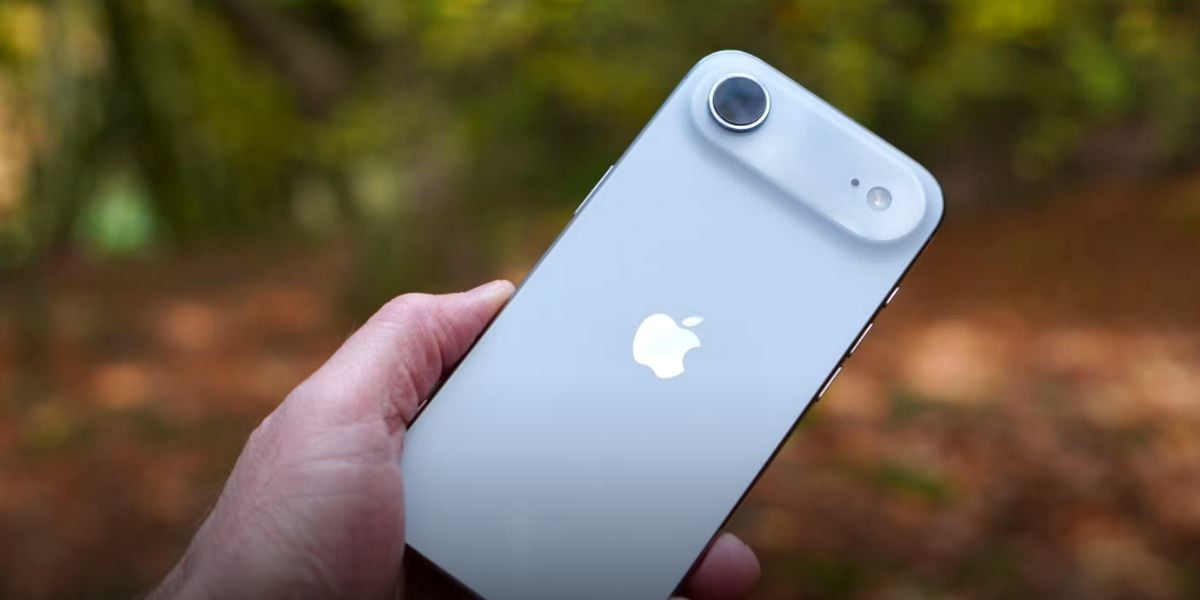
For those phones with a home button, switching off is quite easy. Just follow these steps to know how to switch off an iPhone with the home button:
- First, press and hold the side button
- Keep it for a few seconds to appear the slider to power off
- Then drag the slider to switch off your iPhone.
Method 3: Settings
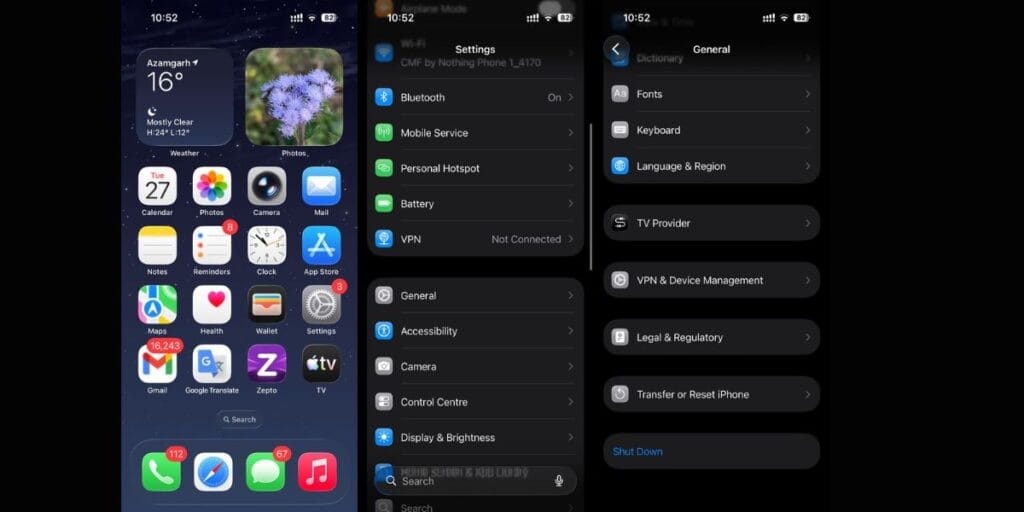
This method is common on every iPhone. You just have to open setting and go to the General section. Now scroll down to the bottom to find “Shut Down” and tap on it. You will be redirected to drag the slider to switch off your iPhone.
Method 4: Use Siri Assistance
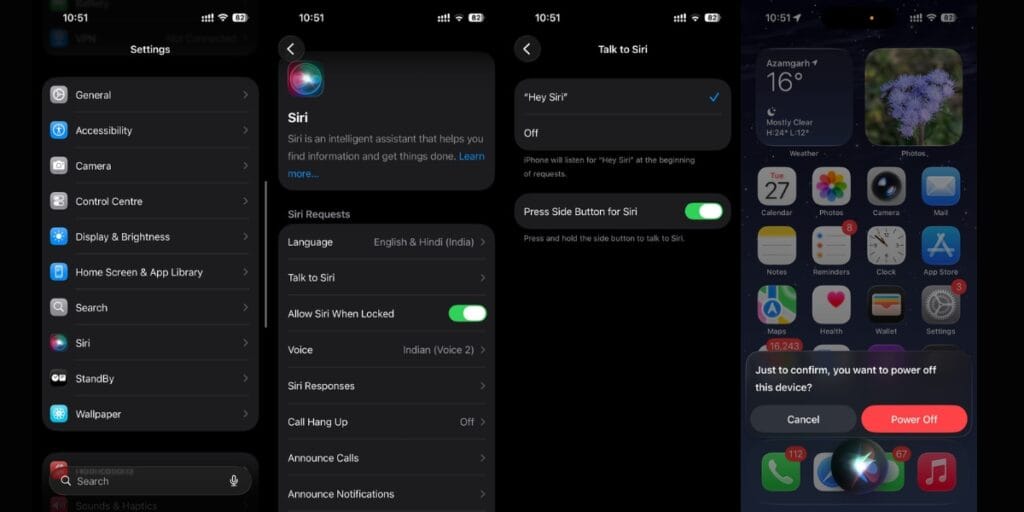
To turn off your iPhone using Siri, start by enabling the “Hey Siri” feature in your settings. Once that’s activated, say, “Hey Siri, turn off my phone.” A pop-up will appear asking you to confirm that you want to power off your iPhone. Click on “Power Off” to confirm your request.
Also Read: Samsung Galaxy Z Flip7 Long Term Review: The True King Of Flip Phones
Final Word
I hope you learned how to switch off an iPhone easily. Whether you use Face ID, a Home Button, or Settings, powering off your device takes just a few seconds and can help save battery or fix minor issues. If you still have them, I would love to assess your questions.
If you’ve just bought a new phone and don’t know what to do with your old phone, then here’s your answer. Sell old mobile to Cashify and get the best price for it. If you are planning to buy a new phone, check out Cashify’s refurbished mobile phones. You can get your favourite phone at almost half price with a six-month warranty, 15-day refund, and free delivery.