If you have picked up the OnePlus 15R, you already know it’s a powerful smartphone with a camera system that can deliver stunning results. But to truly unlock its potential, you need the right camera settings. Out of the box, the camera works great, but with a few smart tweaks, you can capture photos and videos that look professional, sharp, and ready for social media or Google Discover. In this blog, you’ll learn OnePlus 15R camera settings in a simple, easy-to-follow way.
Whether you love photography, record videos, or just want better everyday shots, this blog will help you get the best results every time.
Also Read: OnePlus 15R Release Date, Expected Price & Specs- Full Roundup
A Look At OnePlus 15R Specs

Before we talk about the OnePlus 15R camera settings, it’s important to know what the phone offers. The hardware plays a significant role in how far you can push the camera. Here, have a look at the OnePlus 15R specs:
| Feature | Details |
| Display | 6.83-inch |
| Resolution | 2800 × 1272 Pixels (FHD+), 450 ppi |
| Battery | 7400mAh |
| Charging | 55W SUPERVOOC (Up to 80W with OnePlus SUPERVOOC) |
| Rear Camera | 50MP Sony IMX906 (Main) + 8MP Ultra-Wide |
| Front Camera | 32MP |
| Processor | Snapdragon 8 Gen 5 Mobile Platform |
| OS | OxygenOS 16.0 based on Android 16 |
Here, have a look at the OnePlus 15R camera specs in detail:
| Feature | Rear Camera | Front Camera |
| Megapixels | 50MP Sony IMX906 (Main) + 8MP Ultra-Wide | 32MP |
| 4K Video Recording | 120fps, 60fps, 30fps | 30fps |
| 1080p Video Recording | 120fps, 60fps, 30fps | 30fps |
| 720p Video Recording | 30fps | 30fps |
| EIS/OIS Support | Available across all resolutions | Supported |
| Slow Motion | 4K: 120fps1080p: 240fps, 120fps720p: 480fps, 240fps | Not Supported |
| Time-Lapse | 4K: 30fps; 1080p: 30fps | 4K: 30fps; 1080p: 30fps |
| Cinematic Video | Supported | Not Supported |
| Multi-View Video | Supported | Supported |
| Zoom Video Shooting | Supported | Not Supported |
| Camera Modes | Photo, Video, Portrait, Night, Panorama, Cinematic, Slow Motion, Long Exposure, Dual-view video, Time-lapse, Hi-Res, Google Lens, Pro Mode, Hypertext, Document Scanner | Photo, Video, Portrait, Night, Panorama, Dual-view video, Time-lapse |
Also Read: 5 Best Motorola Edge 70 Alternatives With Better Camera And Battery
How To Enhance The OnePlus 15R Camera Settings?
To get the best results from your phone, you don’t need third-party apps or complicated edits. With the right OnePlus 15R camera settings, you can significantly improve photo and video quality directly from the default camera app.
Use Hi-Res Mode for Maximum Detail
The OnePlus 15R’s 50MP main camera is capable of capturing incredible detail. By default, the camera may downscale images to save storage, but switching to Hi-Res mode allows you to take full advantage of the sensor.
- When to use: Landscapes, architecture, detailed objects
- Tip: Avoid Hi-Res mode in low light as noise can become more noticeable.
This mode ensures that every detail in your scene, from textures to patterns, is captured with clarity, making it ideal for prints or sharing high-quality photos online.
Optimize Night Mode for Low Light Photography
The OnePlus 15R performs impressively in low light, but Night Mode can take your shots to the next level. It combines multiple exposures to brighten the scene while reducing noise.
- Best practices: Keep your hands steady or use a tripod for sharp images.
- Pro Tip: In Pro Mode, lower the ISO to reduce grain and slightly increase shutter speed for more natural lighting.
Night Mode is excellent for cityscapes, indoor photography, and capturing stars or dimly lit subjects.
Master Portrait Mode for Stunning Depth
Portrait mode on the OnePlus 15R uses AI-powered depth detection to create a smooth background blur. This mode is perfect for highlighting your subject.
Tips for better portraits:
- Ensure good lighting on the subject
- Keep the subject at least 1-2 feet from the background for natural blur
- Adjust the blur intensity manually for a professional look
Portrait shots are ideal for selfies, people photography, and close-up shots of objects.
Also Read: 5 Best High-End Smartphone Alternatives To Vivo X300 Pro In 2025
Adjust Video Settings for Cinematic Quality
The OnePlus 15R supports 4K and 1080p recording with EIS/OIS, slow motion, and time-lapse. To enhance video quality:
- 4K 60fps: Best for high-quality, smooth footage
- 1080p 60fps: Perfect for everyday video recording
- Enable EIS/OIS: Ensures stable videos while moving
- Cinematic mode: Adds a depth-of-field effect for professional storytelling
Using these settings ensures your videos look smooth, detailed, and cinematic- perfect for vlogs or social media content.
Utilize Pro Mode for Advanced Photography
For users who want full control over their shots, Pro Mode is invaluable. It allows you to manually adjust ISO, shutter speed, white balance, and focus.
Recommended settings:
- ISO 100–200 in daylight, 200-400 at night
- Adjust shutter speed based on the motion in the scene
- Manual focus for close-ups or creative shots
Pro Mode is perfect when you want DSLR-like control over every aspect of your photo.
Take Advantage of AI and Smart Features
OxygenOS 16 on the OnePlus 15R includes AI Scene Enhancement and other smart tools that improve your shots automatically.
- AI Scene Enhancement: Detects the scene and adjusts color, contrast, and brightness
- Google Lens: Helps identify objects or translate text instantly
- Document Scanner: Turns documents into crisp, readable scans
These AI features make it easier to get professional-looking photos without spending hours tweaking settings manually.
Also Read: Struggling With Your IG Feed? Reset The Instagram Algorithm In 2025

General Tips For Consistently Better Shots
Combining these tips with the correct OnePlus 15R camera settings ensures stunning photos and videos every time. Here, have a look:
- Keep Your Lens Clean: Even a small smudge can blur images and reduce clarity. Wipe the lens gently with a microfiber cloth and avoid touching it with your fingers to ensure sharp, vibrant shots.
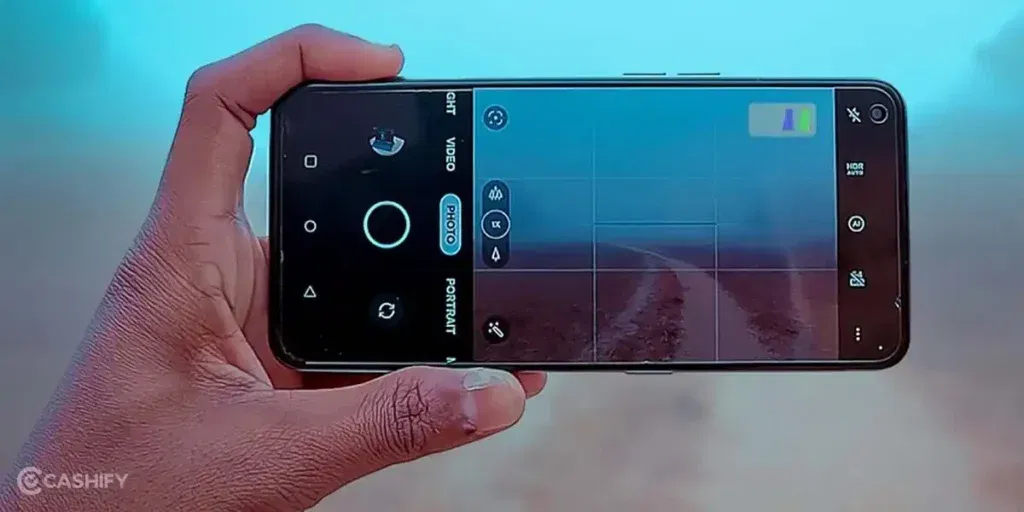
- Use Gridlines for Better Composition: Enable gridlines to follow the rule of thirds. Align subjects along the lines or intersections for balanced, professional-looking photos. Straight horizons and symmetrical framing make a big difference, especially in landscapes or architecture.
- Avoid Digital Zoom: Digital zoom reduces image quality by cropping the frame. Move closer to your subject or use the Ultra-Wide lens for wider shots. In Pro Mode, adjust focal length manually for precise framing.
- Tap to Focus: Always tap on your subject to ensure it is sharp. Proper focus is essential for Portrait mode, low-light shots, or moving subjects to maintain clarity and depth.
- Shoot During Golden Hour: The soft, warm light shortly after sunrise or before sunset enhances colors and textures naturally. For low-light scenes, combine with Night Mode or long exposure for better results.
Final Thoughts
The OnePlus 15R camera settings provide you with complete control over your photography and videography. By adjusting modes, utilizing Pro Mode, and enabling AI features, you can transform your smartphone into a professional camera.
Start with Hi-Res, Night, and Portrait modes, then explore Pro Mode and cinematic video options for advanced creativity. With these tips and settings, you’re ready to capture perfect shots, anytime, anywhere.
Also Read: How to Delete Your Snapchat Account in Minutes (2025 Guide)
Frequently Asked Questions
1. How can I get the sharpest photos on OnePlus 15R?
Use Hi-Res mode for maximum detail, keep the lens clean, tap to focus, and avoid digital zoom. Combining these with good lighting ensures your photos are crisp, vibrant, and professional-looking.
2. What’s the best setting for low-light photography?
Enable Night Mode for brighter, clearer shots. For advanced control, use Pro Mode with lower ISO and slightly longer shutter speed. A steady hand or tripod helps reduce blur in low-light conditions.
3. How do I shoot cinematic videos on OnePlus 15R?
Use 4K 30fps or 60fps with Cinematic mode enabled. Turn on EIS/OIS for stability and use proper framing. Golden-hour lighting or well-lit environments enhances video quality, giving smooth, professional-looking footage.
4. Is it better to use digital zoom or move closer?
Always move closer to your subject or use the Ultra-Wide lens. Digital zoom crops the image, reducing clarity and detail. Physical proximity ensures sharper photos and maintains high image quality.
5. How can I improve my selfies on OnePlus 15R?
Use the 32MP front camera with Portrait mode for background blur. Enable Night Mode in low light, minimize beauty filters for natural results, and shoot during golden hour for warm, flattering lighting.
If you’ve just bought a new phone and don’t know what to do with your old phone, then here’s your answer. Sell old mobile to Cashify and get the best price for it. If you are planning to buy a new phone, check out Cashify’s refurbished mobile phones. You can get your favourite phone at almost half price with Six-month warranty, 15 days refund and free delivery.