Time to transform your reels with the best-ever AI tool that has emerged as a new year surprise by none other than our own Google Baba! Yes, it’s time for a quick guide on how to create vertical videos using Google Veo 3.1. Just a few days ago, Google launched the new version of Google Veo 3.1, where you can make vertical videos, get more AI tools for video creation and editing, and do a lot more with your content creation! So, if you’re a budding influencer, then this blog is for you, where we bring all the steps to answer how to create vertical videos using Google Veo 3.1 updates. So, without further time-waste, let us bring your A-game forward by bringing a detailed and super-quick guide.
Also Read: Google Gemini Veo 3.1 Brings New Updates To AI Video Generation: Full News Here
Google Brings A New Boon For Content Creation: Veo Now Gets A Next-Gen AI Video And Content Creation
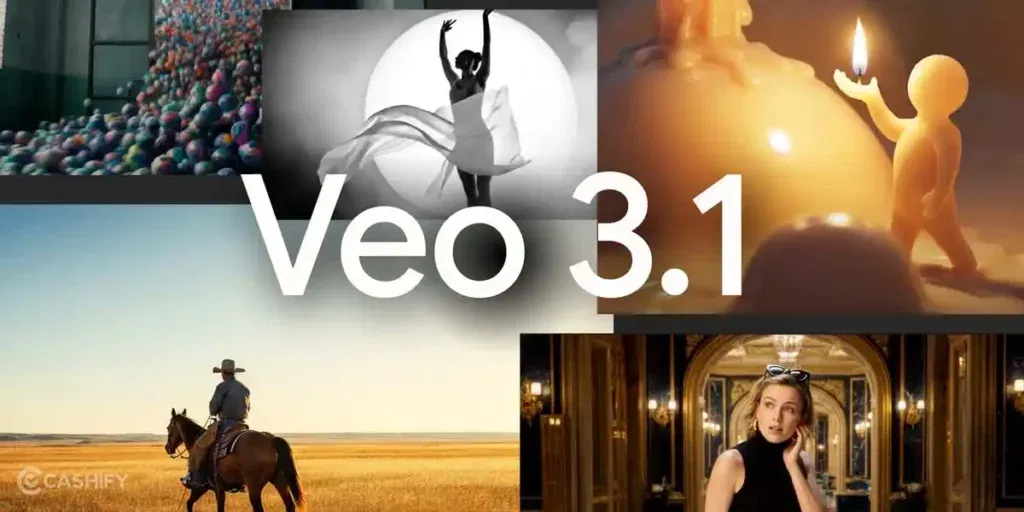
Google launched the Veo 3.1 upgrade on 12 January 2026. With this upgrade, Google has initiated a new era of content creation. In the times when Insta reels and YouTube shorts are all over the internet, and short-form video making has taken over the modern content creation art form, Google has brought some new AI innovations to support this. We are in the times when content creation is no longer a side gig, and is a full-fledged profession that requires to collaborate with the latest technology. And hence, Google has brought its A-Game forward, and has revamped the Gemini Veo 3.1 with some solid upgrades.
Significantly boosting its creative power for content creators, Veo 3.1’s latest upgrades focus on the “Ingredients to Video” feature, turning reference images into lively, dynamic videos with richer storytelling, smoother motion, and engaging visuals even from simple prompts.
Moreover, the most highlighted feature that is being talked about in this new launch is that Veo 3.1 now supports native vertical (9:16) video output, ideal for TikTok, Instagram Reels, and YouTube Shorts without cropping. It also offers high-resolution upscaling to 1080p and 4K, making clips sharper and ready for professional use.
And hence, this feature is the one all the influencers are focusing on. So, to help you make the best of this feature, and amaze your friends and social media followers with some amazing reels, we bring a quick guide on how to create vertical videos using Google Veo 3.1.
Also Read: Apple Creator Studio Launched Globally: Meet The New Boon For Influencers
So, let us bring the guide right here.
How To Create Vertical Videos Using Google Veo 3.1?
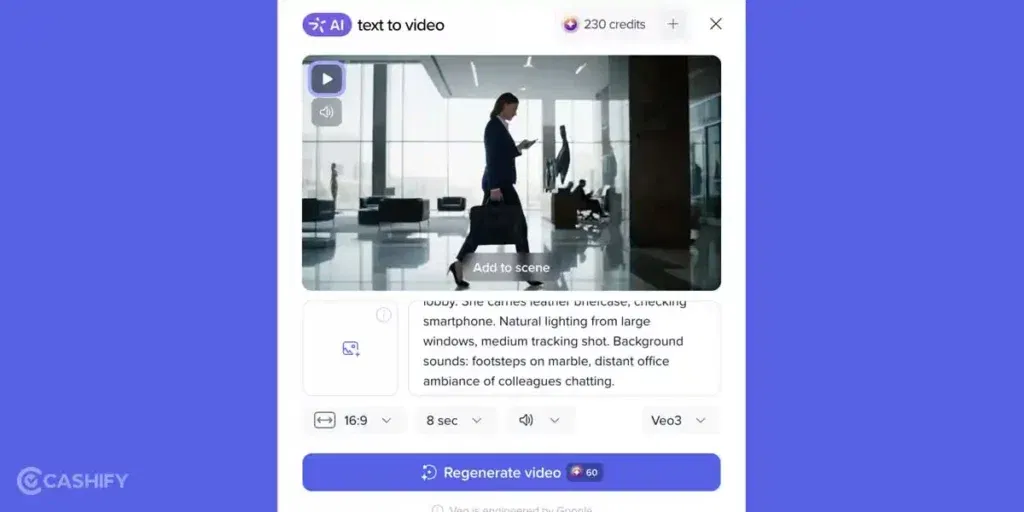
Here are all the steps on how to create vertical videos using Google Veo 3.1:
- Open Gemini App
- Tap the “+” icon or the “More” button at the bottom of the screen.
- Select “Video” from the list of tools.
- Give it a video prompt of whatever you want to create. Eg: “I want a video of a brown man walking on hills.”
- Before hitting send, look for the Settings icon.
- Select 9:16 Ratio.
- Tap on Generate.
Alternative Method- By Putting ‘Ingredients To Video’
- Open the Gemini App.
- Tap the + icon or the image icon.
- Upload ingredients, like uploading up to 3 reference images.
- Select video format – 9:16 ratio.
- Enter your prompt. Eg: “Create a cinematic video of the characters in the given images in a daylight setting.”
- Click on Generate.
Hey wait! That’s not all, you can also create vertical videos on YouTube directly! Yes, the new Veo 3.1 tool is integrated inside the YouTube app directly, and if you are a YouTube creator, then there is no need to go to Gemini separately, and just create your AI video there, only inside your YouTube. Want to know how? Well, here’s the method.
How To Create Vertical Videos Using Google Veo 3.1 In YouTube
- Open the YouTube App
- Go to the Create button in the YouTube app.
- Select “Create Video” with AI
- Look for the Veo-powered tools in the media gallery.
- Enter your idea.
- Since it’s inside Shorts, it will automatically generate in the 9:16 vertical format, ready to post!
That’s it! That’s just 3 simple ways, with the quickest steps on how to create vertical videos using Google Veo 3.1, and you are ready with your superb reels on the go! So, do not waste any more seconds, and if you are thinking that reel-making is hard, then stop pushing your brain and start using this amazing Google tool right away! Also, here are some other enhancements that Veo has brought that you need to have a look at.
Also Read: 5 Hidden AI Features in Your Phone You Didn’t Know Existed
Other Enhancements And New Upgrades Of Google Veo 3.1!

| Feature | Description | Benefit for Creators |
| Reference Enhancements | Allows for up to 3 reference images to guide the video. | Ensures character & style consistency across different scenes. |
| 4K Resolution | Added state-of-the-art 4K upscaling (previously capped at 1080p). | High-fidelity output suitable for large screens and professional editing. |
| Native Audio Integration | Generates synchronized dialogue, sound effects, and music. | Videos feel like “mini-movies” with realistic soundscapes built in. |
| Enhanced Realism | Improved physics engine for lighting, shadows, and textures. | Better prompt adherence; videos look more lifelike and less “AI-generated.” |
| Safety with SynthID | Every video includes an invisible digital watermark. | Promotes transparency by allowing users to verify AI-generated content. |
End Note: Create Your Reels Efficiently
That’s it from our side in this guide on how to create vertical videos using Google Veo 3.1. Google has brought us the future of content creation, which is fast, smart, and AI-powered. The Google Veo 3.1 puts the power of quick content creation right at your fingertips. Whether you’re crafting your first reel or scaling your influencer journey, this tool helps you create stunning vertical videos in minutes, not hours. So stop overthinking, start experimenting, and let AI handle the heavy lifting!
Also Read: Ok Google Set Up My Device: Get Started On Your New Phone Easily!
If you’ve just bought a new phone and don’t know what to do with your old phone, then here’s your answer. Sell old mobile to Cashify and get the best price for it. If you are planning to buy a new phone, check out Cashify’s refurbished mobile phones. You can get your favourite phone at almost half price with Six-month warranty, 15 days refund and free delivery.